How to Migrate Your Meetings from Grain to Fireflies for Free
Last updated: October 16, 2026
If you're moving from Grain to Fireflies, you can easily migrate your meetings, recordings, transcripts, and related meeting data. This guide walks you through the migration process and what to do once your data has been imported.
Let's get started. 🚀
🔍 What Gets Migrated?
When you migrate from Grain, Fireflies imports the following data:
All your Grain recordings and meeting transcripts
Complete transcripts with speaker information
Recording metadata and timestamps
Audio and video files
Call notes and summary data
📌 Prerequisites
Before starting the migration, make sure you have:
A Grain API token - You'll need both a Personal Access Token (PAT) and a Workspace Access Token (WAT) to authorize Fireflies to access your Grain data.
An active Fireflies account – This is where your meetings will be imported.
Need access to the Import Data feature?
The Import Data feature is available on request. If you don't see Settings → Account → Import Data in your Fireflies account, it means the feature hasn't been enabled for your workspace yet.
💬 To request access, click the purple Help widget in the bottom-right corner of your Fireflies dashboard to start a conversation with our support team.
🔑 Get Your Grain API Tokens
Before starting the migration, you'll need to generate two API tokens from your Grain account.
Field in Fireflies | Grain Token | Purpose | Notes |
|---|---|---|---|
Access Token | Personal Access Token (PAT) | Lists your recordings and downloads transcripts. | Has the same access permissions as the user who generated it. |
Workspace Token | Workspace Access Token (WAT) | Downloads recording media (audio/video). | Workspace-wide token. Must be generated by a user with permission to access workspace recordings. |
Generate Your Grain API Tokens:
Sign in to your Grain account.
Go to Settings → Integrations → API tab.
Generate a Personal Access Token (PAT).
Generate a Workspace Access Token (WAT).
Copy both tokens and save them somewhere safe. You'll use them during the migration.
📖 Reference: See the Grain API documentation.
🔗 Steps to Migrate Your Data from Grain to Fireflies
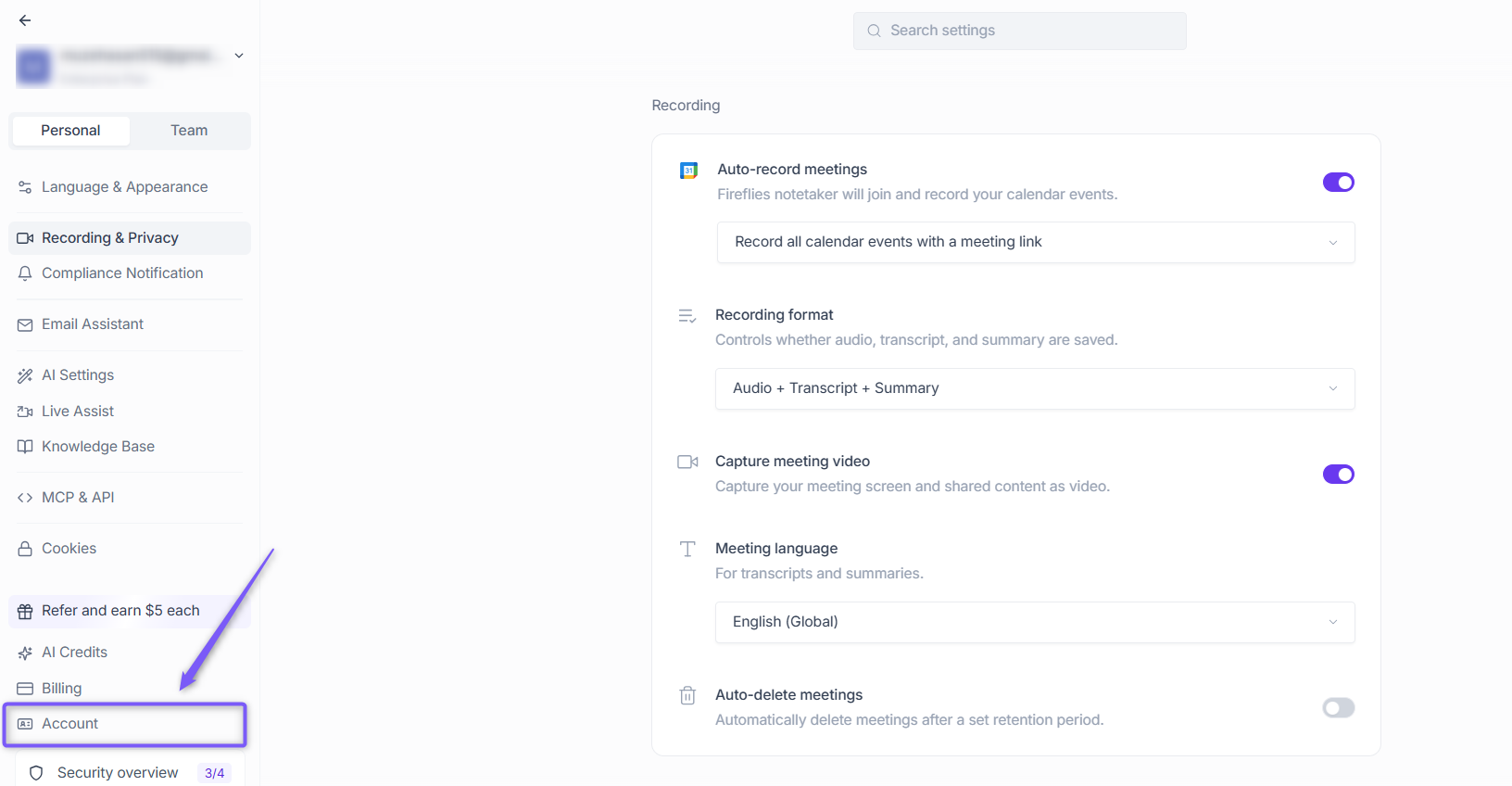
Step 1: Log in to your Fireflies web app and click Settings from the left side menu.

Step 2: Click the Account tab.
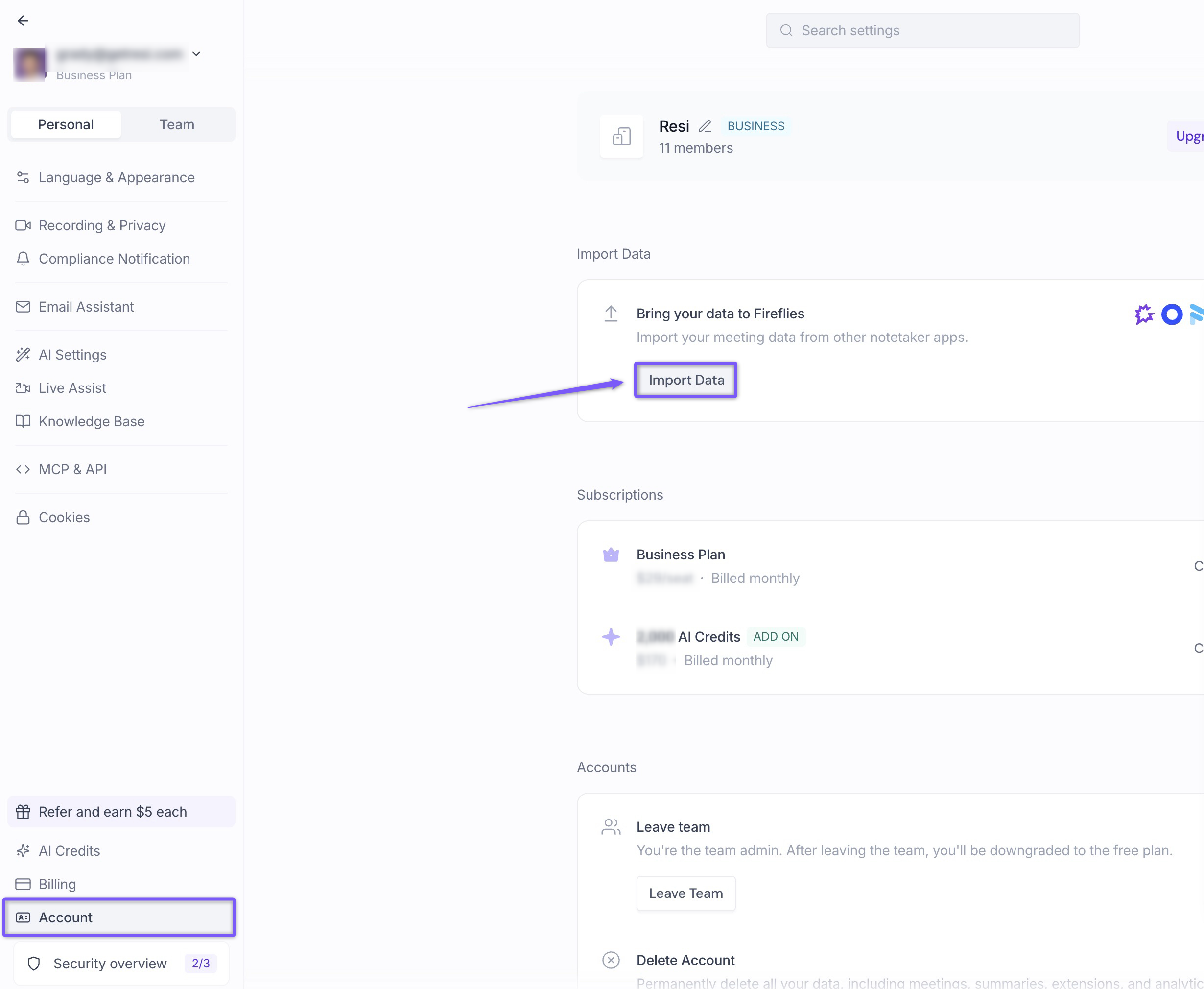
Step 3: Click Import Data to open the list of available migration sources.
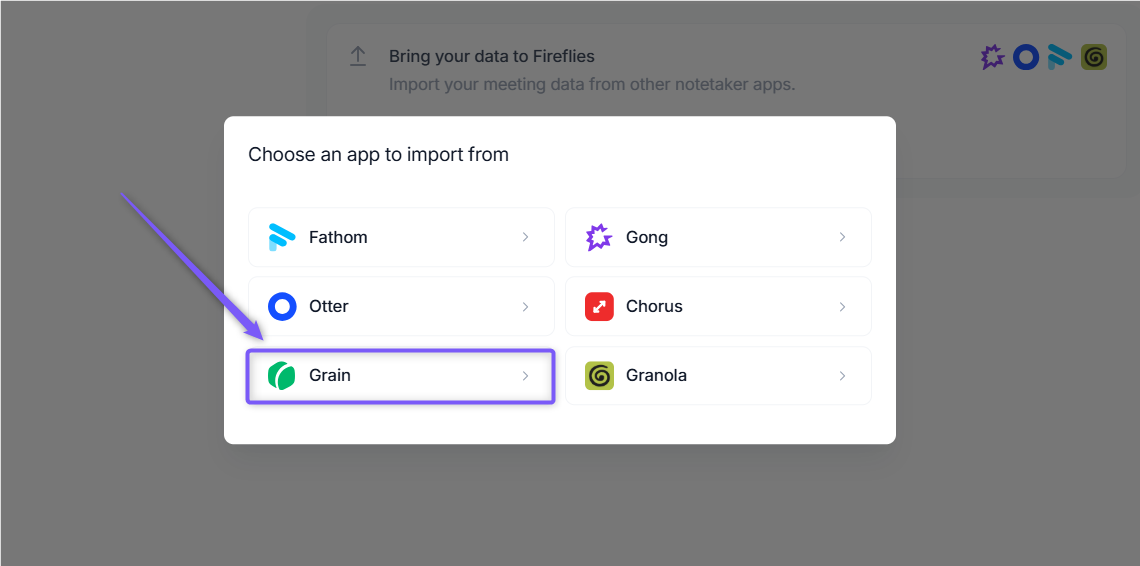
Step 4: Select Grain as your migration source.
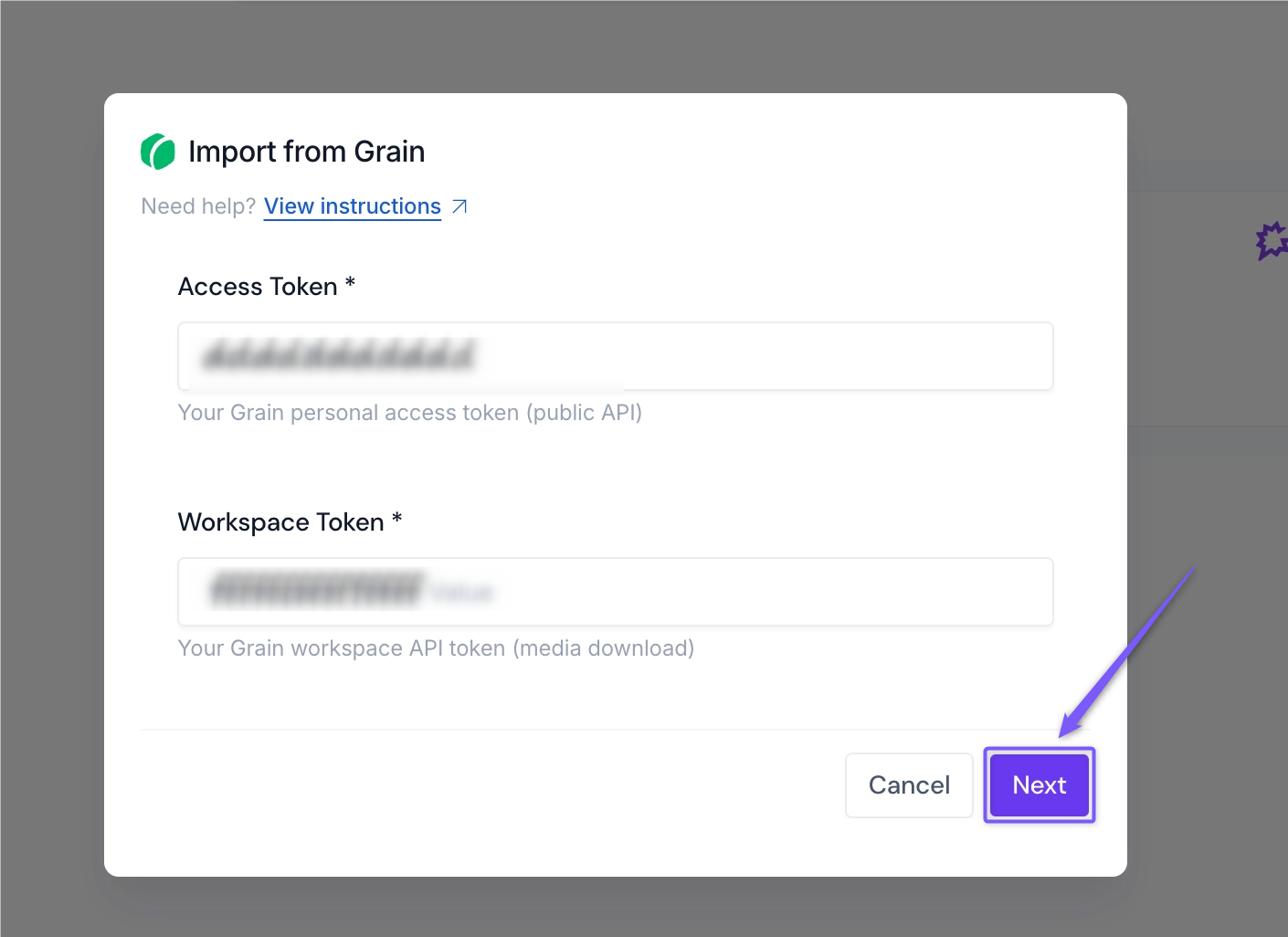
Step 5: Step 5: Enter the following credentials:
Access Token (Personal Access Token)
Workspace Token (Workspace Access Token)
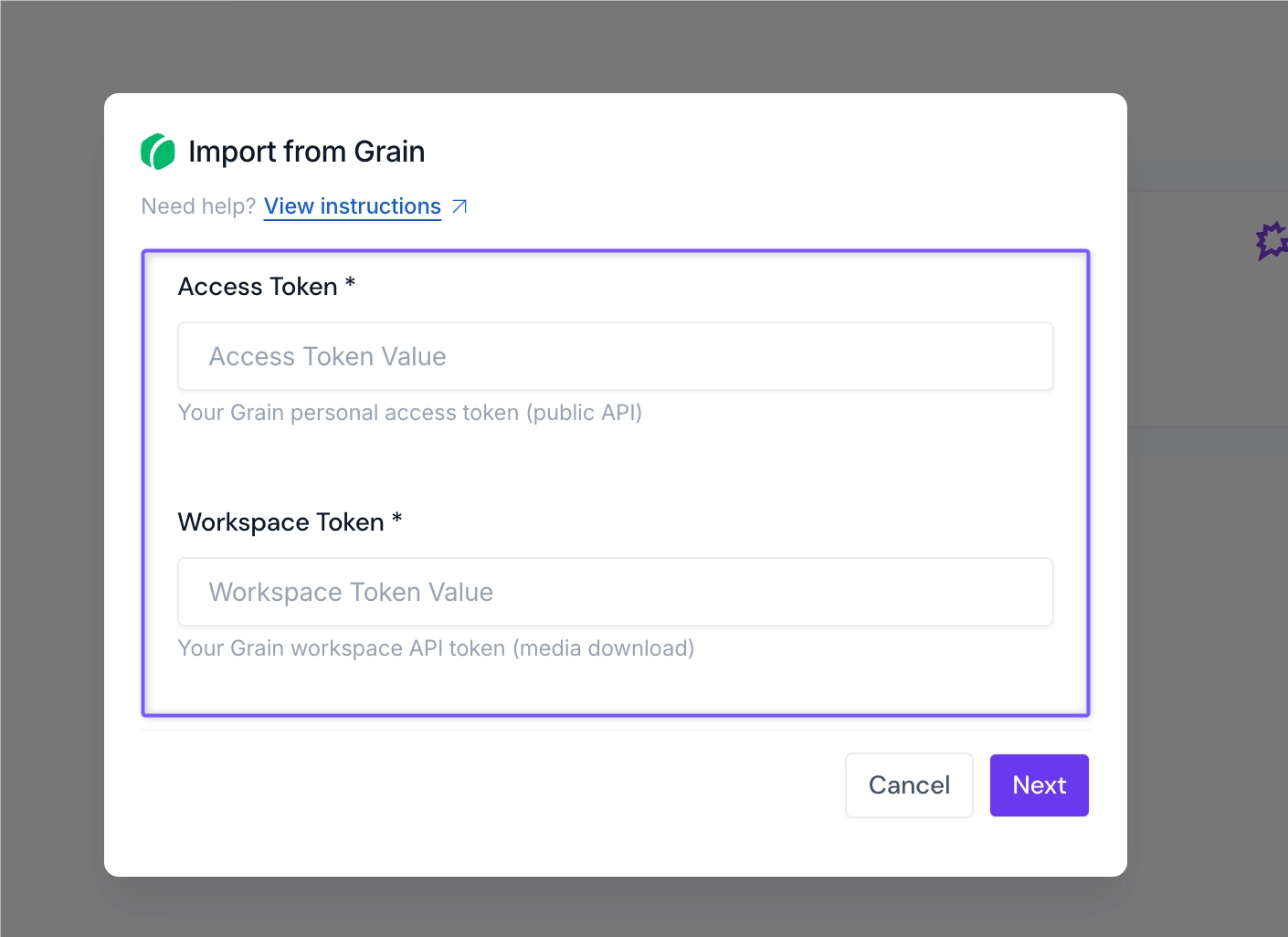
Step 6: Click Next. Fireflies starts fetching data from your Grain account and displays the migration progress in real time.
Once the migration starts, a migration ID is generated. Save this ID so you can track the progress of your import.
Migration is running:
The migration runs automatically in the background. You don't need to stay on this page or remain logged in while the import is in progress. You can close this window or even close your browser, the migration will continue running until it is complete.
📊 Track Your Progress
You can return to the migration page at any time to monitor the status of your import. The migration page shows:
Status | Description |
Current progress | Shows how many meetings have been processed so far (for example, "Processing 45 out of 100 meetings"). |
Current stage | Shows the current step of the migration (for example, Downloading, Converting, or Importing). |
Estimated time remaining | Shows the approximate time left until the migration is complete. |
Import issues | Highlights any meetings that encountered issues during the migration process. |
🛠 Troubleshooting
Issue | What to Check / Do |
Invalid Access Token or Workspace Token | • Verify that both tokens were copied correctly. |
Migration seems stuck | • Check whether the progress percentage is changing. |
❓ Frequently Asked Questions
1. How long will my migration take?
The migration runs automatically in the background. The time required depends on the number and size of the calls you're migrating.
You don't need to stay logged in, the migration continues even if you close your browser.
2. Can I continue using Grain while the migration is running?
Yes. You can continue using Grain normally while the migration is running. The migration only imports your data and does not make any changes to your Grain account.
3. What if the migration stops?
Don't worry. Migrations can be safely restarted. Fireflies resumes the migration and skips meetings that have already been imported.
4. What if a meeting fails to migrate?
It's rare, but you'll see it in the migration report. You can:
Check the meeting in Grain.
Start the migration again.
Contact Fireflies Support if the issue persists.
5. Will my meetings be duplicated if I run the migration twice?
No. Fireflies detects meetings that have already been imported and skips them automatically.
6. What if I generated a new API token?
If your API token changes, simply start a new migration using the updated token. Fireflies skips meetings that have already been imported.
7. Do I need any technical knowledge to complete the migration?
No. All you need is:
A Grain API token (PAT and WAT).
An active Fireflies account.
8. What if I made a mistake?
You can:
Delete imported meetings from Fireflies.
Start a new migration.
Contact Fireflies Support if you need assistance.
🎉 After Your Meetings Arrive
Once your migration is complete, take a few minutes to verify that your data was imported successfully.
Verify the Migration
Log in to your Fireflies account.
Check that your meeting count matches the recordings imported from Grain.
Open a few meetings and verify the transcripts and recordings.
Search for a topic discussed in one of your meetings to confirm your data is searchable.
Explore Fireflies Features
Now that your meetings are available in Fireflies, you can:
🔍 Search – Find topics discussed across all your meetings.
📝 AI Summaries – Review automatically generated meeting summaries.
✅ Action Items – Track follow-ups and tasks mentioned during meetings.
👥 Speaker View – See each participant's contribution.
📤 Export – Download meeting transcripts and recordings in supported formats.
🎯 Sharing – Share meetings with teammates and stakeholders.
🔒 Your Data Is Safe
Your migration is designed to be secure and read-only.
Your Grain account is never modified. Fireflies only reads and imports your data.
Your API tokens are used only to authenticate the migration. They aren't used to make changes to your Grain workspace.
Duplicate protection prevents the same recording from being imported twice, even if you restart the migration.
If you ever need to remove imported meetings, you can delete them from Fireflies without affecting your original recordings in Grain.
Need help with your migration?
If you run into any issues during the migration process, our support team is here to help.
📧 Email: support@fireflies.ai
💬 Chat: Use the in-app chat at Fireflies.