How to Migrate Your Meetings from Gong to Fireflies
Last updated: July 17, 2026
If you're moving from Gong to Fireflies, you can migrate your meetings, transcripts, and related call data in just a few steps. This guide walks you through the migration process, how to track its progress, and how to troubleshoot common issues.
Let's get started 🚀
🔍 What Gets Migrated?
When you migrate from Gong, the following data is imported into Fireflies:
All your Gong calls and recordings
Complete transcripts with speaker information
Call metadata and timestamps
Audio files
Call notes and summary data
📌 Prerequisites
Before starting the migration, make sure you have:
Your Gong API credentials (API Key and API Secret).
Your Gong Workspace ID.
An active Fireflies account - this is where your calls will be imported.
About 10 minutes to gather your credentials and start the migration.
💡 Need help finding your Gong API credentials? See Gong's guide: Receive Access to the API.
Need access to the Import Data feature?
The Import Data feature is available on request. If you don't see Settings → Import Data in your Fireflies account, it means the feature hasn't been enabled for your workspace yet.
💬 To request access, click the purple Help widget in the bottom-right corner of your Fireflies dashboard to start a conversation with our support team.
🔑 Get Your Gong API Credentials
Before you can start the migration, you'll need to collect the required credentials from your Gong account.
Find Your API Key and API Secret:
Log in to your Gong account.
Go to Settings → API & Webhooks.
Copy your API Key.
Copy your API Secret.
Keep these credentials secure. They are used to access your Gong data during the migration process.
Find Your Workspace ID:
In Gong, locate your Workspace ID.
The Workspace ID is usually displayed on the API & Webhooks page.
Copy the Workspace ID for use during the migration.
🔗 Steps to Migrate Your Data from Gong to Fireflies
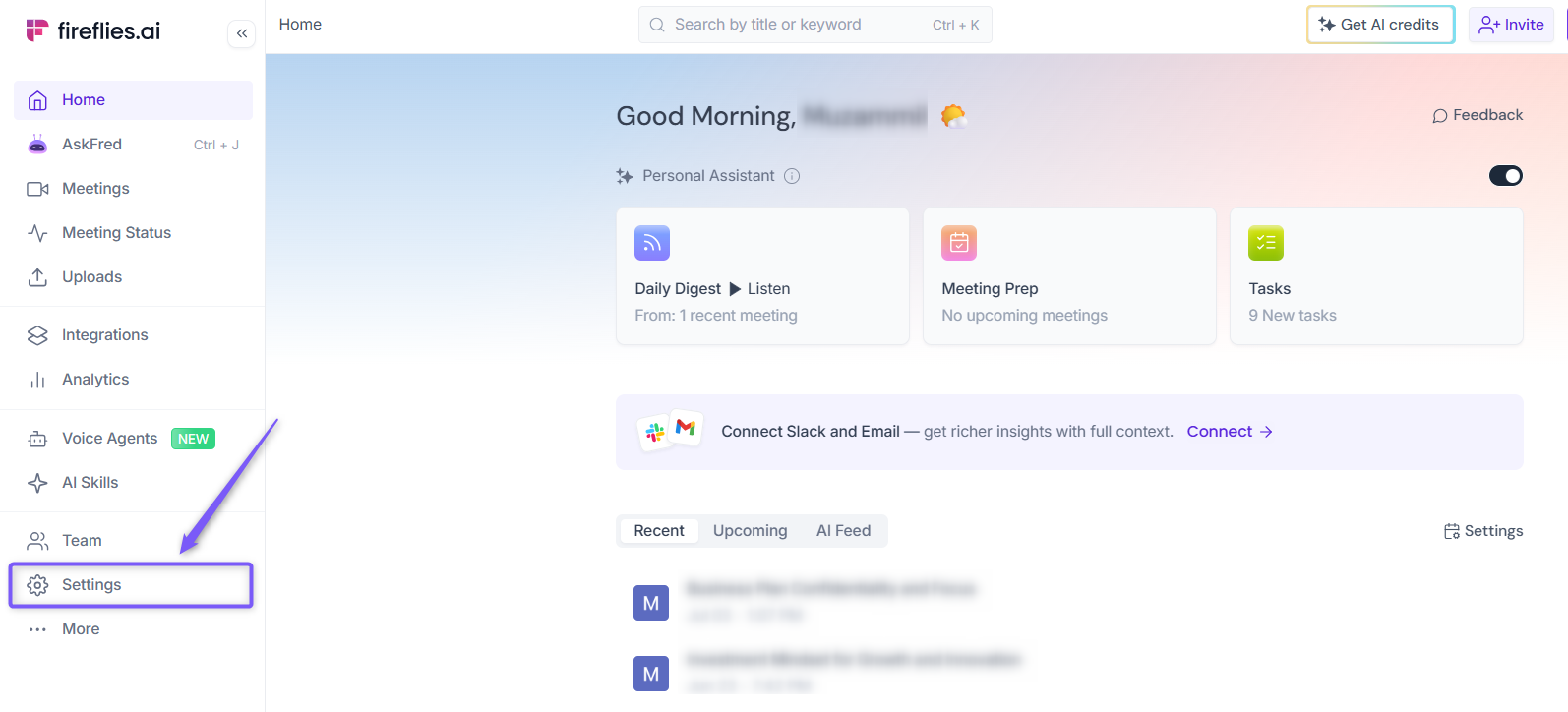
Step 1: Log in to your Fireflies web app and click Settings from the left side menu.
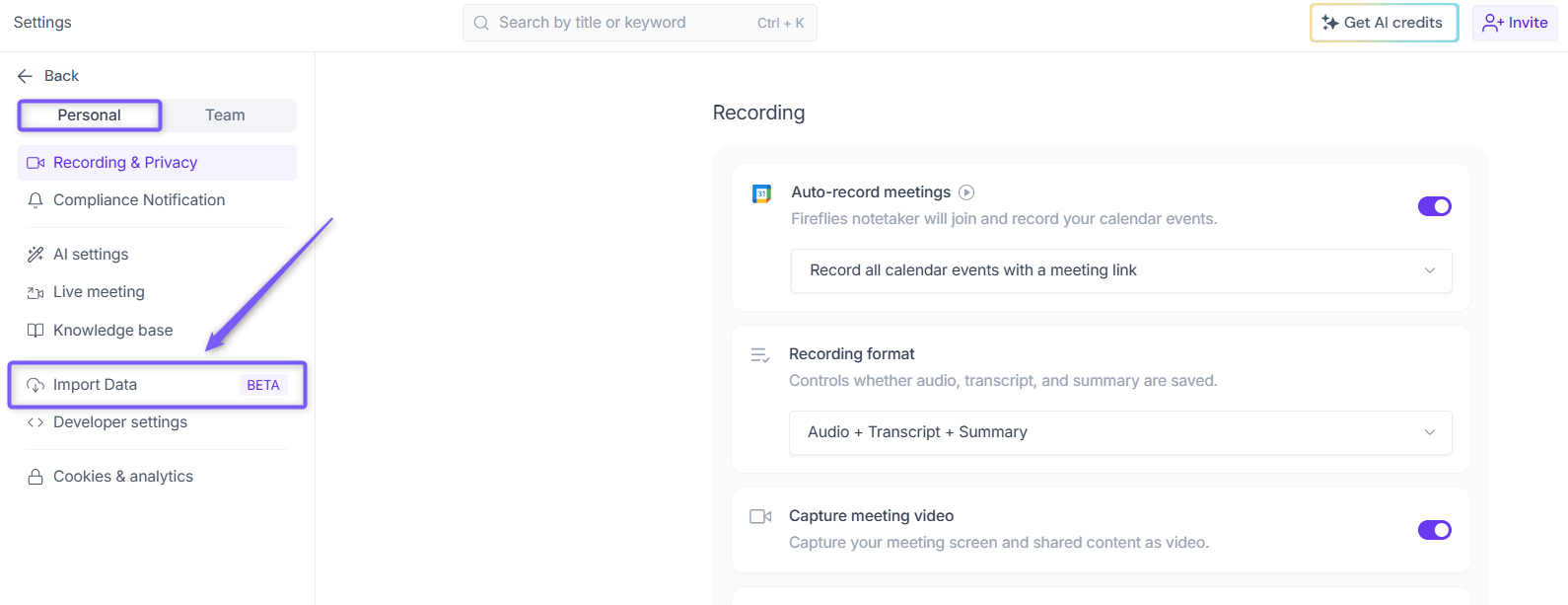
Step 2: Under the Personal tab, click Import Data from the left navigation menu.
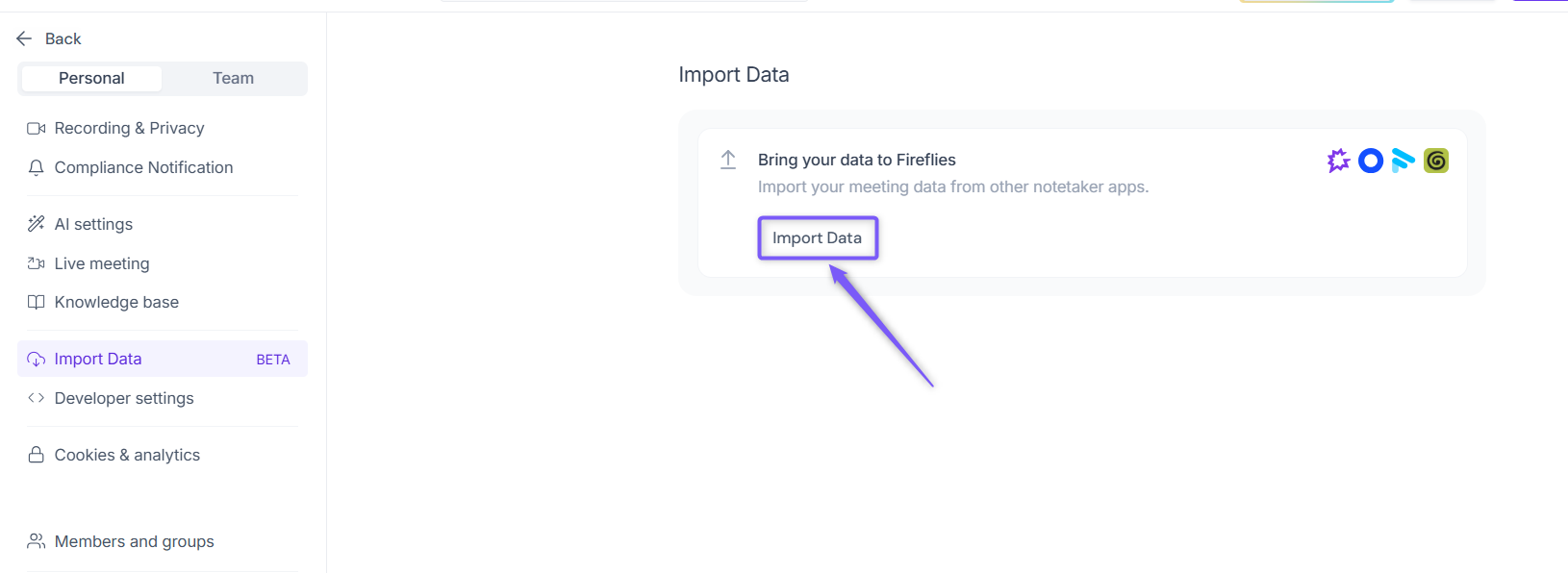
Step 3: Click Import Data to open the list of available migration sources.
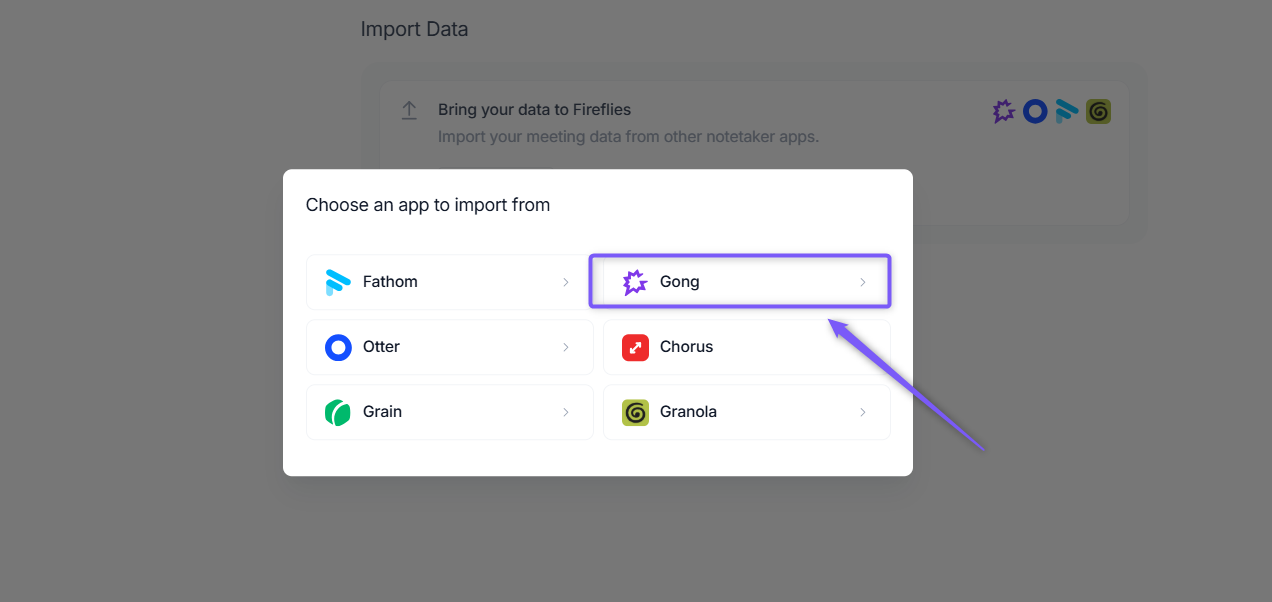
Step 4: Select Gong as your migration source.
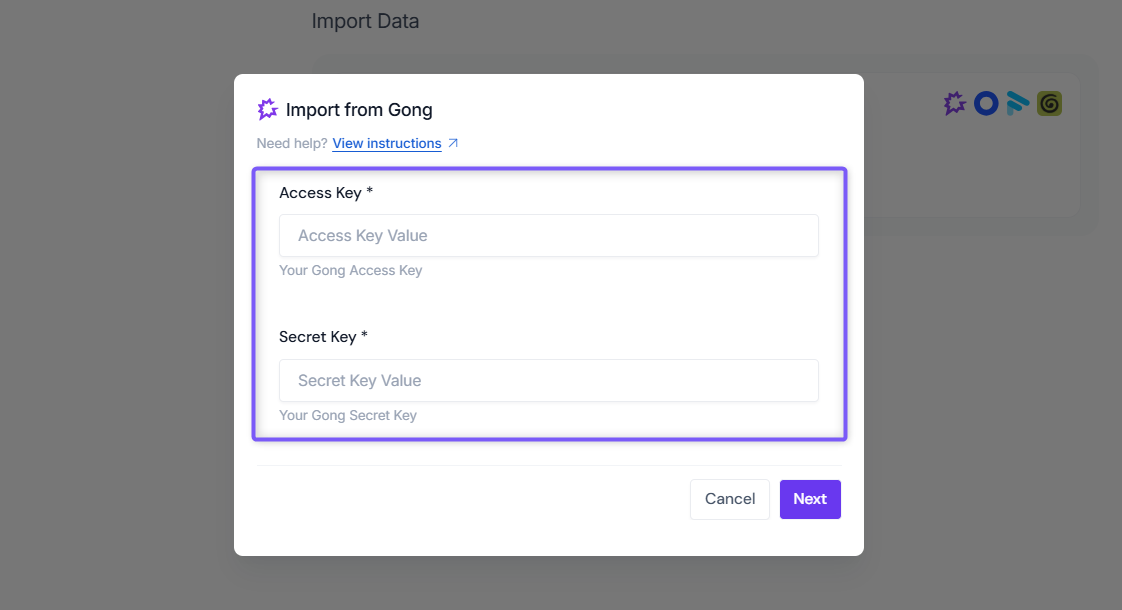
Step 5: Enter your Gong migration credentials:
API Key: your Gong API Key
API Secret: your Gong API Secret
Workspace ID: your Gong Workspace ID
Email Address: the email address associated with your Fireflies account
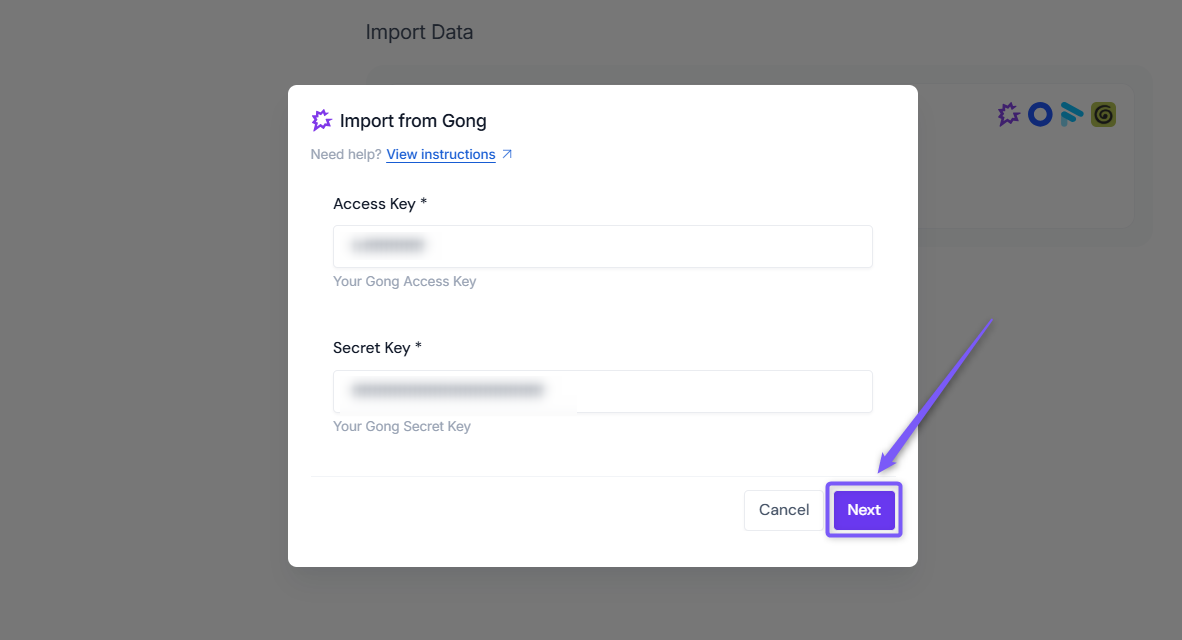
Step 6: Click Next. Fireflies starts fetching data from your Gong account and displays the migration progress in real time.
Once the migration starts, a migration ID is generated. Save this ID so you can track the progress of your import.
Migration is running:
The migration runs automatically in the background. You don't need to stay on this page or remain logged in while the import is in progress. You can close this window or even close your browser, the migration will continue running until it is complete.
📊 Track Your Progress
You can return to the migration page at any time to monitor the status of your import. The migration page shows:
Status | Description |
Current progress | Shows how many calls have been processed so far (for example, "Processing 45 out of 100 calls"). |
Current stage | Shows the current step of the migration (for example, Downloading, Converting, or Importing). |
Estimated time remaining | Shows the approximate time left until the migration is complete. |
Import issues | Highlights any calls that encountered issues during the migration process. |
🛠 Troubleshooting
Issue | What to Check / Do |
Invalid Credentials or Authentication Failed | • Go to Settings → API & Webhooks in Gong. |
Migration seems stuck | • Check whether the progress percentage is changing. |
❓ Frequently Asked Questions
1. How long will my migration take?
It depends on the number of calls you have. Migration time varies based on the size of your call library.
2. Can I use my Gong account while the migration is happening?
Yes. You can continue using Gong normally while the migration is running. The migration only imports your data and does not make any changes to your Gong account.
3. What if the migration stops?
Don't worry. Migrations can be safely stopped and resumed. The migration will continue from where it left off and skip any calls that have already been imported.
4. What if a call fails to migrate?
It's rare, but you'll see it in the report. You can:
Check the call in Gong
Try migrating that call separately
Contact Fireflies support
5. Will my calls be duplicated if I run the migration twice?
No. Fireflies detects calls that have already been imported and skips them automatically.
6. Do I need any technical knowledge to complete the migration?
No. All you need is your Gong API credentials, Workspace ID, and an active Fireflies account.
7. What if I made a mistake?
You can:
Delete imported calls from Fireflies
Start a fresh migration
Contact support if you need help
Need help with your migration?
If you run into any issues during the migration process, our support team is here to help.
📧 Email: support@fireflies.ai
💬 Chat: Use the in-app chat at Fireflies.