Connect Fireflies to Figma
Last updated: July 3, 2026
Design decisions often come from conversations, but switching back to meeting notes can interrupt your workflow. Connect Fireflies to Figma so your meeting transcripts, summaries, and key decisions are always available while you design.
With Figma + Fireflies, you can:
🎨 Turn meeting discussions into wireframes, prototypes, and product flows.
📄 Reference meeting transcripts and summaries without leaving Figma.
🎯 Use real meeting context to create more accurate designs and product experiences.
💬 Ask Figma about past meetings using natural language.
The connection uses Model Context Protocol (MCP), an open standard that enables AI tools like Figma to securely access information from connected services such as Fireflies. No developer experience is required - simply follow the steps below to get connected.
Want to learn more about MCP? You don't need to understand it to complete this setup. If you're curious, check out the Fireflies MCP Server documentation for a deeper overview and advanced capabilities.
🔑 Prerequisites
Before connecting Fireflies to Figma, make sure you have:
A paid Figma plan with a Full seat → Required to use Figma Make and create custom MCP connectors.
An active Fireflies account → You'll use it to authenticate the connection and access your meeting data.
📌 Don't see the Connectors option? Custom MCP connectors are available only on supported Figma plans. For more details, see Figma's documentation on creating custom MCP connectors.
🔗 Connect Fireflies to Figma
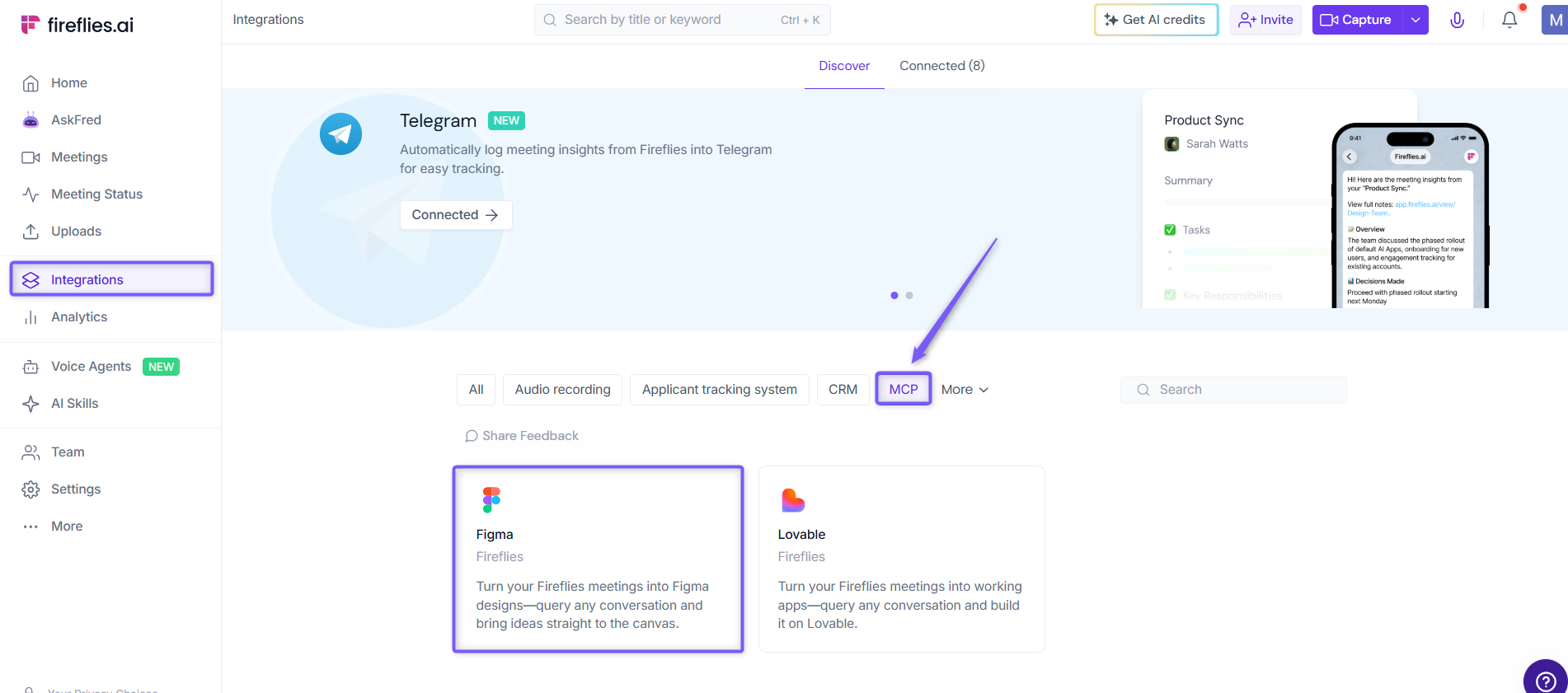
Step 1: Log in to your Fireflies account, navigate to Integrations page, select the MCP category, and click Figma to get started.
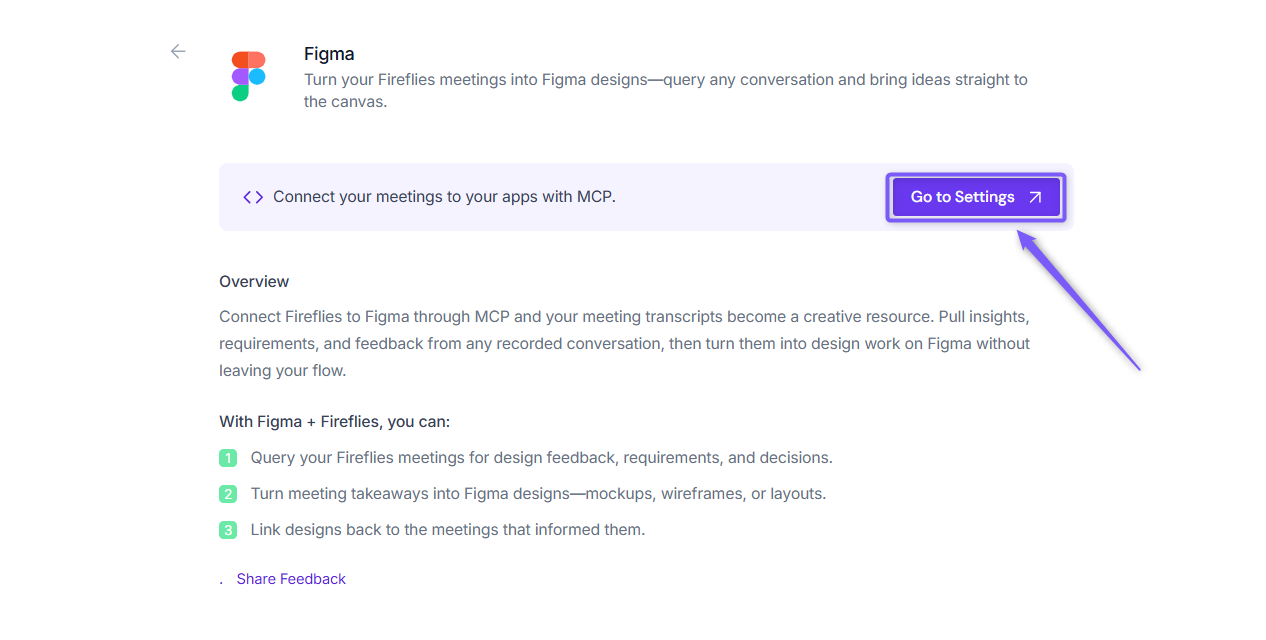
Step 2: Click Go to Settings.
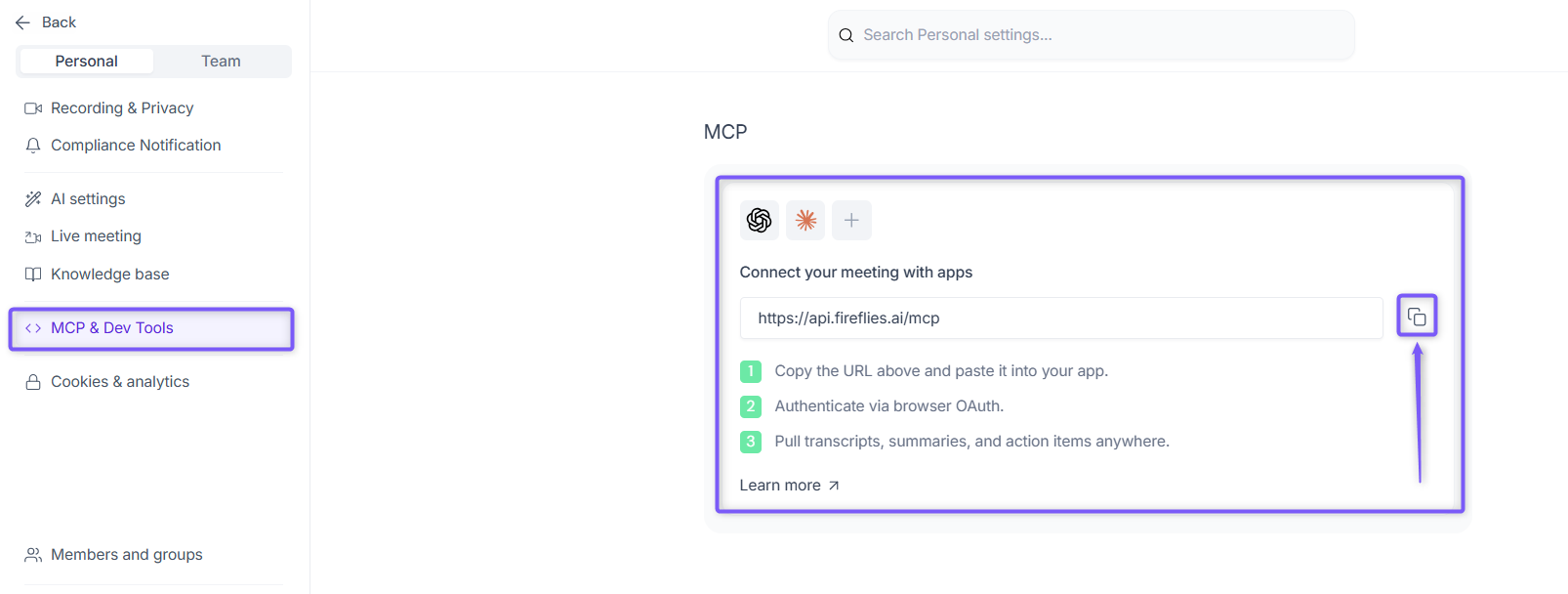
Step 3: Click the Copy icon next to the MCP Server URL to copy it to your clipboard.
📌 You'll need this URL into Figma when creating the Fireflies connector in the next steps.
Step 4: Open a Figma Make file and click Add context in the chat box.
Step 5: Hover over Connectors, then select Manage.
Step 6: Open the Created by you tab and click Create.
Step 7: Enter the connector details:
Name → Enter a name, such as
Fireflies.MCP Server URL → Paste the MCP Server URL you copied in Step 3:
https://api.fireflies.ai/mcpand click Add.
Step 8: Click Create.
Step 9: Click Connect, then follow the prompts to authenticate and authorize the Fireflies connector.
💡The Fireflies MCP connector supports authentication via Google and Microsoft OAuth.
Step 10: Review the available Read and Write tools, then enable the ones you want to use.
✅ You're all set! In Figma Make, type @Fireflies in the chat to use your meeting transcripts, summaries, and other meeting insights as context for your prompts.
📎 Need help with the Figma side? Refer to Figma's official guide on custom MCP connectors for detailed instructions.
Coming soon: Fireflies will soon be available directly in the Figma Connectors directory. Once released, you'll be able to search for Fireflies and connect it in just a few clicks—no manual connector setup or MCP Server URL required.
✨ Use Fireflies Meeting Context in Figma
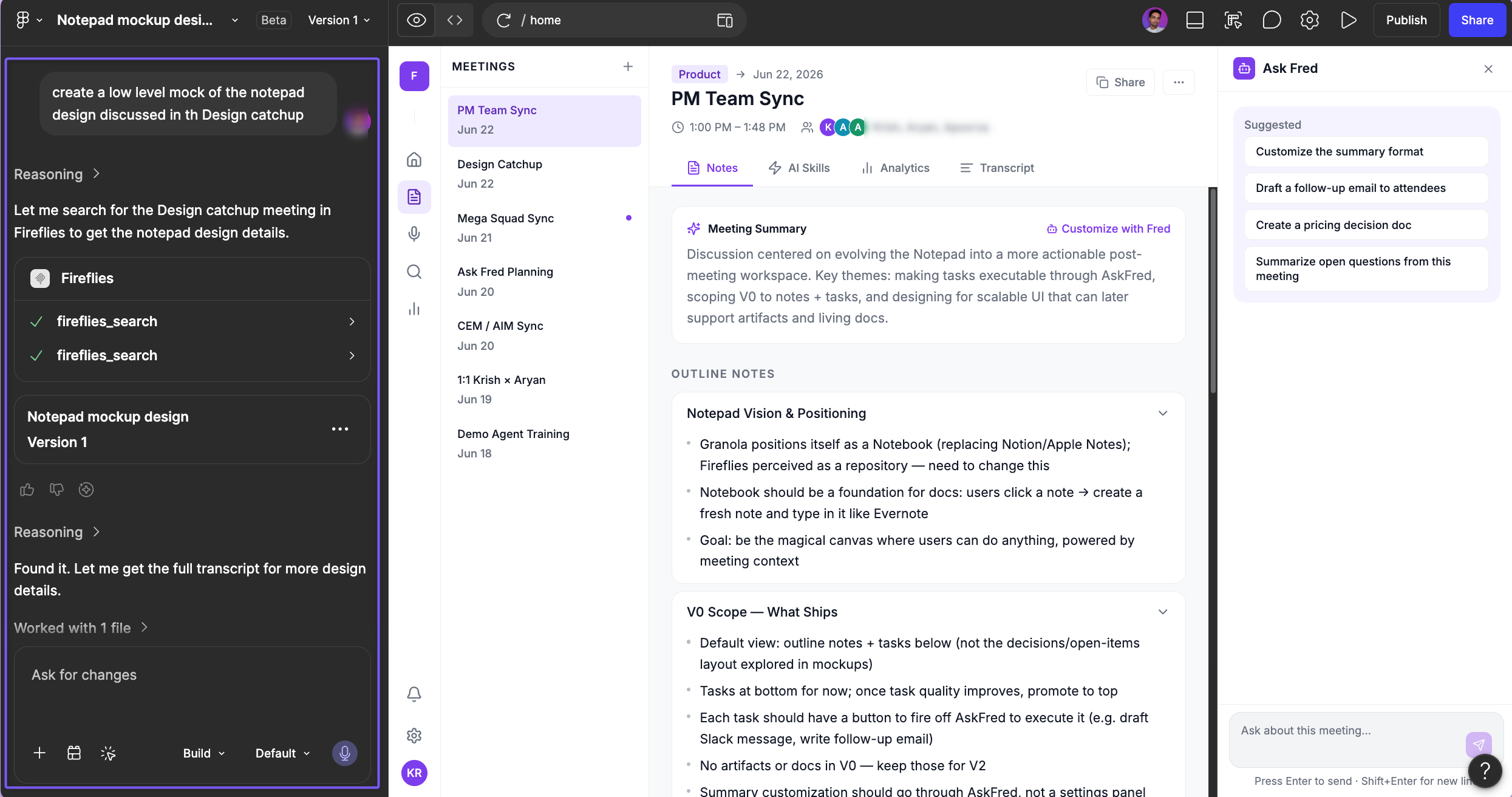
Once connected, you can prompt the Figma agent using your meeting context directly. For example:
"Summarize what we discussed in the PM and Design catch-up"
"Create a low-level mock based on the notepad design discussed in the Design catch-up"
"List all product decisions made in last week's meetings"
Figma searches your Fireflies meetings, pulls the relevant transcript, and uses it as context to generate designs, mockups, and flows - without you switching tabs.
🔐 Data Retention & Compliance
Fireflies maintains a strict Zero-Day Retention (ZDR) policy with all subprocessors used for core features such as summaries, AskFred, and transcription.
However, when you connect Fireflies through third-party MCP connectors, data exchanged through those platforms is processed under their respective terms of service.
Zero-Day Retention does not apply to any data processed, stored, or transmitted by external platforms via MCP.
Fireflies cannot guarantee deletion, storage duration, or non-training of data once it leaves the Fireflies environment.
Figma manages its own data retention and model training policies.
Recommendation: Use connectors only if your organization's data policy allows external processing through third-party AI tools. For stricter compliance, continue using Fireflies' built-in features or API integrations that retain ZDR coverage.
🔐 Security & Permissions
Authenticate using your Fireflies account through OAuth.
The connector can access only the meeting data available to your Fireflies account.
Data is transferred securely using Fireflies' standard security measures.
🛠 Tools available via MCP
Tool | Description |
| Returns your user profile info |
| Retrieve a full transcript using transcriptId |
| Search across past transcripts with filters |
🔧 Troubleshooting
Authentication Error: Double-check that you are using the correct Google or Microsoft account linked to your Fireflies account.
No Transcripts Found: Ensure your Fireflies account has processed meetings with transcripts available.
Connection Issues: Restart Figma Make and verify your internet connection.
MCP Connection Issues: If the Fireflies connector is not responding in Figma Make, try disconnecting and reconnecting the connector from the Connectors panel. If the issue persists, copy the MCP Server URL again from Fireflies Settings → MCP & Dev Tools and recreate the connector.
If you run into issues with setup or usage, reach out to Fireflies support via the widget on app.fireflies.ai.
❓ Frequently Asked Questions
1. Is this a replacement for the Fireflies app?
No. MCP extends your meeting data to external AI tools. The Fireflies app still offers deeper UI-based insights, integrations, and collaboration tools.
2. Does Zero-Day Retention apply to data accessed via MCP?
No. ZDR applies only to processing that happens within the Fireflies platform. When you connect to Figma via MCP, data handling follows Figma's terms of service and retention policies.
3. Can I use this for my whole team?
Each user must connect their own Fireflies account for now. Team-level support is in development.
4. Do I still need an API key?
Not if you're authenticating via OAuth. OAuth-based flows let you connect instantly — no config files or API keys needed.
5. Can I filter by topic, date, or speaker?
Yes. You can ask Figma to search your Fireflies meetings using topics, dates, speakers, or other details in your prompt.