Fireflies MCP Server: Connect Your AI Tools Directly to Your Meeting Data
Last updated: September 21, 2026
AI tools are more useful when they have the right context. Instead of copying meeting notes between apps, use Fireflies MCP Connectors to make your meeting transcripts, summaries, and key decisions available in supported AI tools.
With Fireflies MCP Connectors, you can:
Use your Fireflies meetings as context across supported AI tools.
Ask questions about past meetings using natural language.
Reference meeting transcripts, summaries, and key decisions without switching between apps.
Turn meeting insights into designs, apps, documents, code, and more.
The connection uses Model Context Protocol (MCP), an open standard that securely connects AI tools with Fireflies. No developer experience is required. For a deeper understanding of how MCP works and its advanced capabilities, visit the Fireflies MCP Server documentation
New connectors are added regularly. We'll keep this guide updated as new Fireflies MCP connectors become available.
Prefer to see it in action first? Watch this live AskFred connectors session, then use the steps below to add, enable, and manage your connectors in Fireflies.
🔑 Prerequisites
Before connecting Fireflies to an AI tool using MCP, make sure you have:
An active Fireflies account→ You'll use it to authenticate the connection and access your meeting data.
An account for the AI tool you want to connect → For example, ChatGPT, Claude, Figma, Lovable, or another supported MCP-compatible application.
📌 Some AI tools require a supported plan or additional permissions to use MCP connectors. Check your AI tool's requirements before connecting.
🔗 Common Setup Steps
Follow these common steps to connect Fireflies to most MCP-compatible AI tools.
Step 1: Log in to your Fireflies account, navigate to the Integrations page, select the MCP category, and choose the AI tool you want to connect.
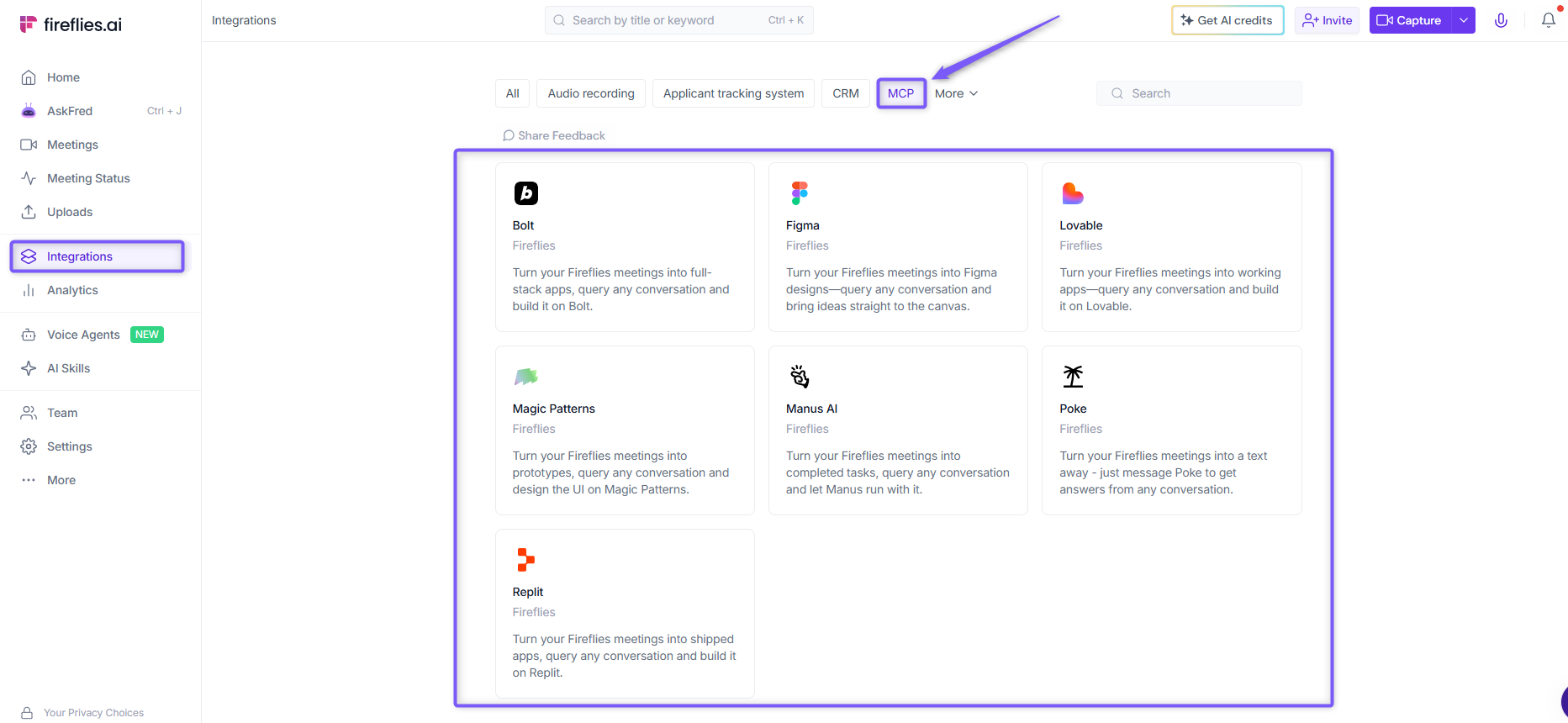
✅ The steps below use Figma as an example, but you can follow the same process to connect Fireflies to other supported AI tools using MCP.
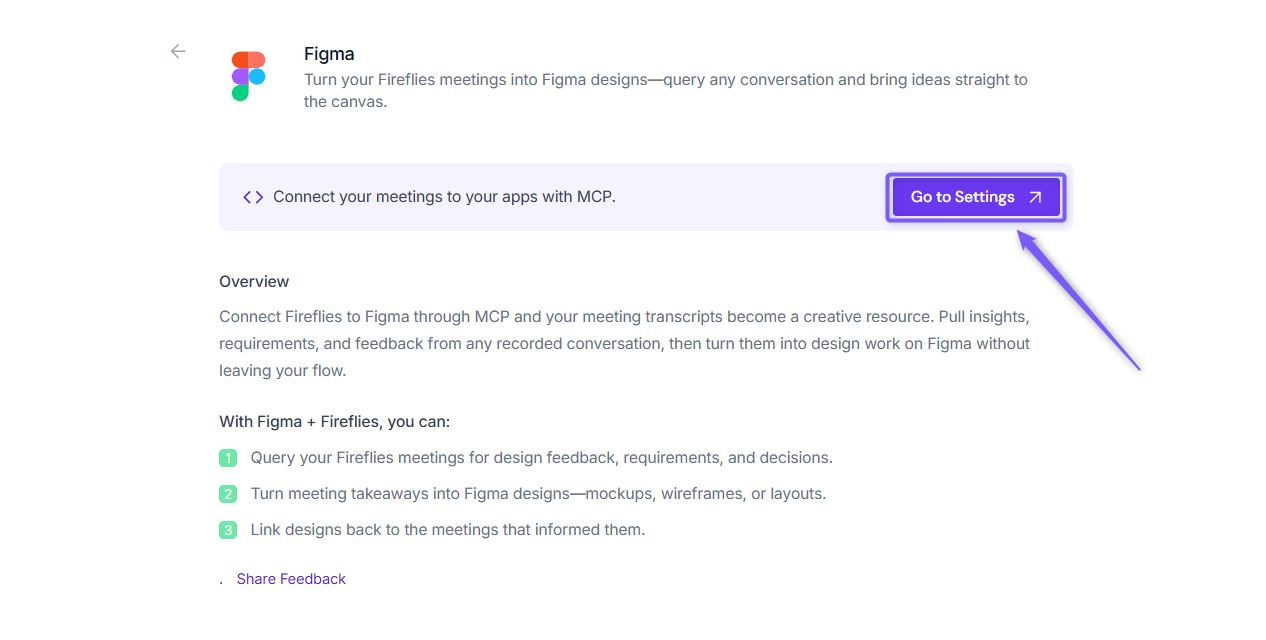
Step 2: Click Go to Settings.
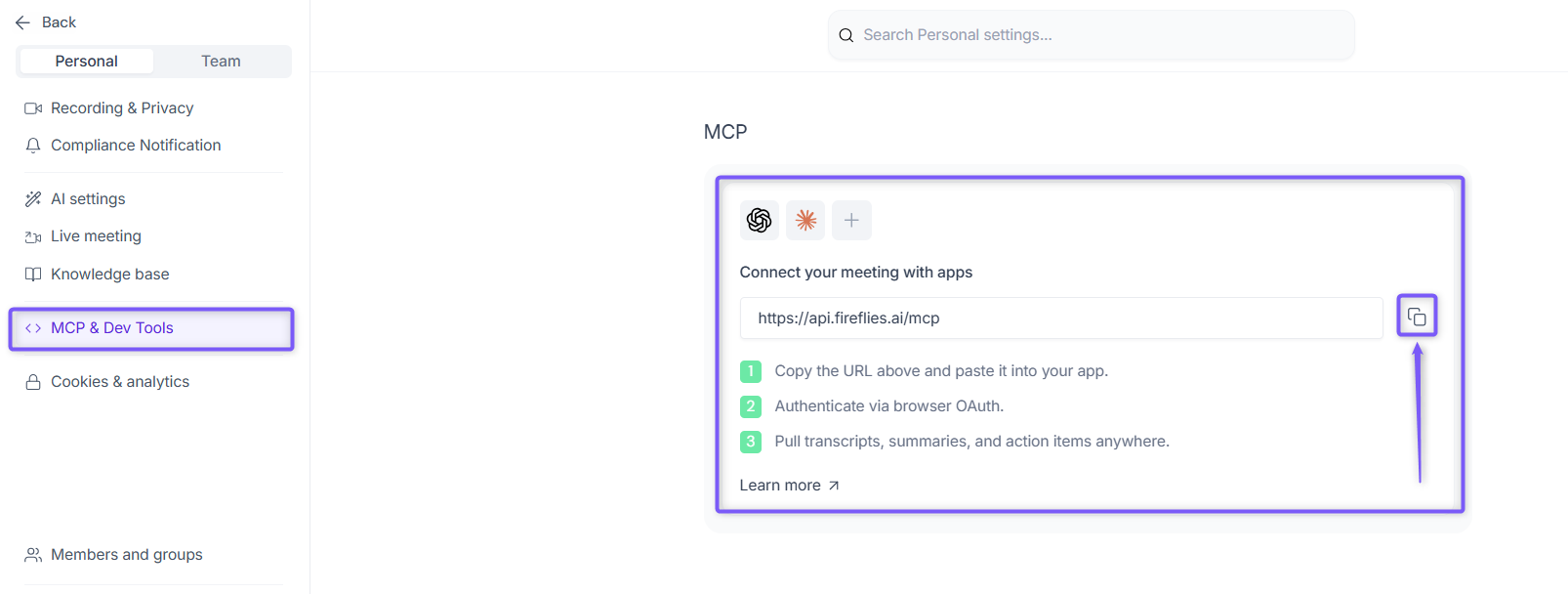
Step 3: Click the Copy icon next to the MCP Server URL to copy it to your clipboard.
📌 You'll use this URL when creating the Fireflies MCP connector in your AI tool.
Step 4: Open your AI tool and navigate to its MCP, Connectors, or Integrations settings.
Step 5: Create a new MCP connector or Custom MCP server.
Step 6: Enter the connector details:
Name → Enter a name, such as
Fireflies.MCP Server URL → Paste the MCP Server URL you copied in Step 3:
https://api.fireflies.ai/mcp.
Step 7: Authenticate the connector using OAuth (or another supported authentication method, if required by the application).
💡The Fireflies MCP connector supports authentication via Google and Microsoft OAuth.
Step 8: Once connected, start using your Fireflies meeting transcripts, summaries, and other meeting insights as context in your AI tool.
📌 The exact setup steps and available features may vary depending on the AI tool you're connecting. Refer to your AI tool's documentation if additional configuration is required.
If you run into issues with setup or usage, reach out to Fireflies Support using the purple chat button in the bottom-right corner of your Fireflies dashboard.
🔌 Supported Fireflies MCP Connectors
Browse the available Fireflies MCP connectors below to learn what each integration can do, explore example prompts, and get started with the AI tools that best fit your workflow.
1. ChatGPT & Claude
Need meeting context while chatting with AI? Connect Fireflies to ChatGPT or Claude to bring your meeting transcripts, summaries, and key decisions into your conversations.
What you can do:
Ask questions about past meetings.
Summarize conversations and key decisions.
Find action items, tasks, and follow-ups.
Example prompts
Summarize the key decisions from yesterday's product planning meeting.
List all action items assigned to me this week.
Find every customer request mentioned in last month's meetings.
📖 Detailed setup guide: Connect Fireflies to ChatGPT & Claude
2. Figma
Bring your Fireflies meeting context into Figma to reference past discussions and turn meeting insights into designs—without switching back to your meeting notes.
What you can do:
Turn meeting discussions into wireframes, prototypes, and product flows.
Reference meeting transcripts, summaries, and key decisions while designing.
Ask Figma about past meetings using natural language.
Example prompts
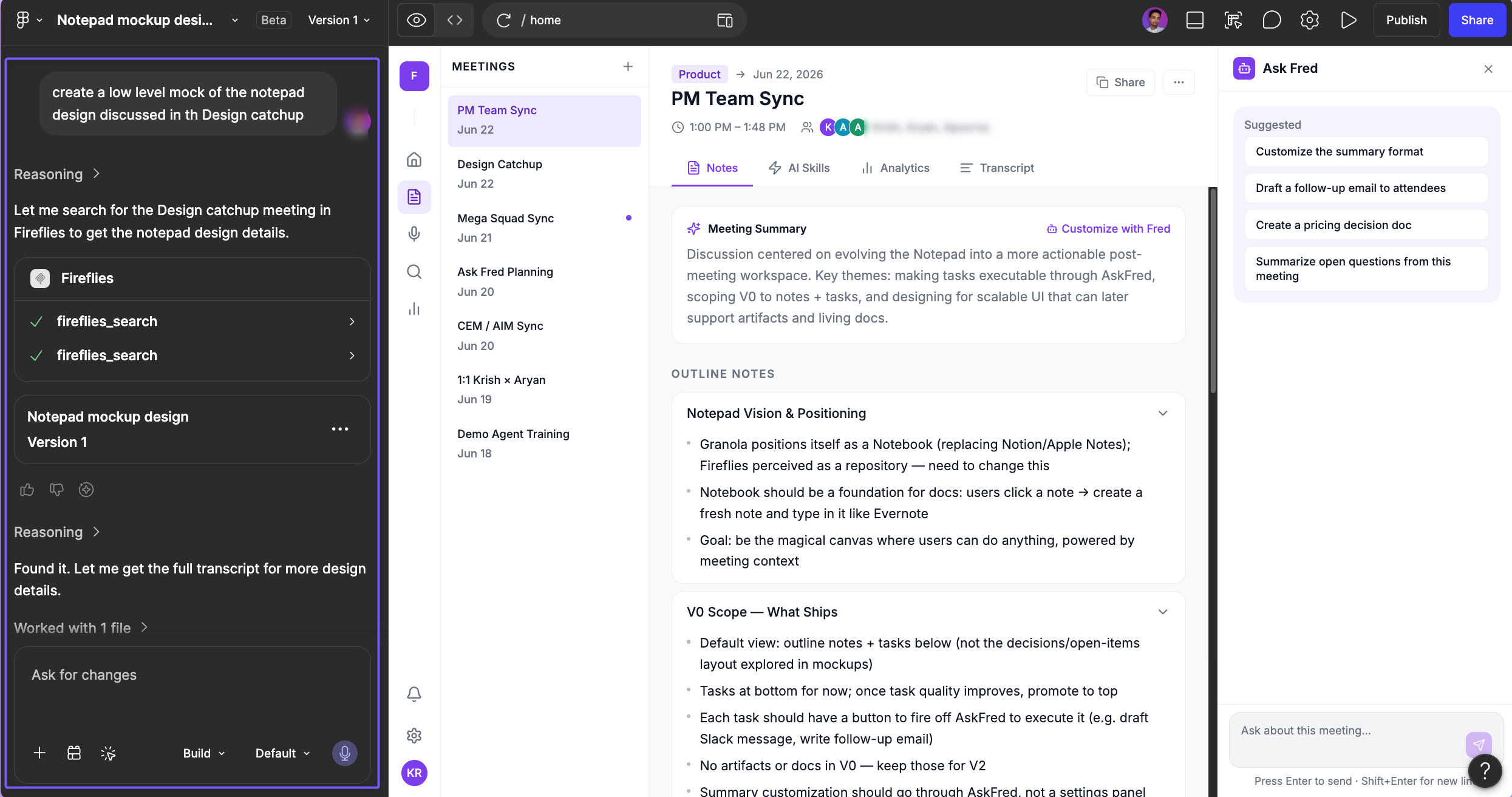
Summarize what we discussed in the PM and Design catch-up.
Create a low-level mock based on the notepad design discussed in the Design catch-up.
List all product decisions made in last week's meetings.
Figma uses your connected Fireflies meetings as context to generate more relevant designs and responses.
📖 Detailed setup guide: Connect Fireflies to Figma
3. Lovable
Bring your Fireflies meeting context into Lovable to turn ideas from customer calls, planning meetings, and product discussions into working applications.
What you can do:
Ask Lovable about past meetings using natural language.
Turn meeting discussions into app requirements, features, and user flows.
Generate apps and prototypes using real meeting context.
Example prompts
Build an app from our product planning meeting.
Generate feature requirements from last week's customer feedback calls.
Create a presentation based on our strategy meeting.
Lovable uses your connected Fireflies meetings as context to generate more relevant applications, prototypes, and responses.
📖 Detailed setup guide: Connect Fireflies to Lovable
3. Bolt
Bring your Fireflies meeting context into Bolt to turn ideas, requirements, and customer feedback into full-stack applications - without switching back to your meeting notes.
What you can do:
Ask Bolt about past meetings using natural language.
Turn meeting discussions into app requirements and feature ideas.
Build full-stack applications using real meeting context.
Example prompts
Build a web app based on yesterday's product planning meeting.
Generate features from customer feedback discussed last week.
Create a project plan from our sprint planning meeting.
Bolt uses your connected Fireflies meetings as context to generate more relevant applications and code.
4. Magic Patterns
Bring your Fireflies meeting context into Magic Patterns to turn ideas from customer calls and design discussions into interactive prototypes.
What you can do:
Ask Magic Patterns about past meetings using natural language.
Turn meeting discussions into interactive UI prototypes.
Generate product ideas, user flows, and interface concepts.
Reference meeting transcripts and summaries while designing.
Example prompts
Create a prototype from yesterday's design review.
Generate a user flow based on customer onboarding feedback.
Design a dashboard from our product planning meeting.
Magic Patterns uses your connected Fireflies meetings as context to generate more relevant prototypes and UI designs.
5. Poke
Bring your Fireflies meeting context into Poke to ask questions about past meetings directly from your messaging apps.
What you can do:
Ask questions about past meetings from your chat.
Reference meeting transcripts and summaries on the go.
Find decisions, action items, and follow-ups using natural language.
Get answers without leaving your messaging app.
Example prompts
What did we decide in yesterday's sales meeting?
Summarize my last customer call.
What action items were assigned to me this week?
Poke uses your connected Fireflies meetings as context to answer questions directly in your conversations.
6. Replit
Bring your Fireflies meeting context into Replit to turn meeting takeaways into applications you can build and deploy from one place.
What you can do:
Ask Replit about past meetings using natural language.
Turn meeting discussions into application requirements.
Build and deploy applications using real meeting context.
Reference meeting transcripts and summaries while coding.
Example prompts
Build an app from our sprint planning meeting.
Generate a project structure from yesterday's product review.
Create a prototype based on customer feedback.
Replit uses your connected Fireflies meetings as context to generate more relevant applications and code.
7. Manus AI
Bring your Fireflies meeting context into Manus AI to turn action items, requirements, and follow-ups into tasks your AI agent can complete.
What you can do:
Ask Manus AI about past meetings using natural language.
Turn meeting action items into executable tasks.
Extract requirements and follow-ups from conversations.
Let Manus AI complete tasks using real meeting context.
Example prompts
Create tasks from yesterday's project planning meeting.
Research the feature requests discussed in last week's customer calls.
Summarize open action items and create a follow-up plan.
Manus AI uses your connected Fireflies meetings as context to complete tasks and automate follow-up work.
🔐 Data Retention & Compliance
Fireflies maintains a strict Zero-Data Retention (ZDR) policy with all sub-processors used for core features such as summaries, AskFred, and transcription.
However, when you connect Fireflies to third-party AI tools using MCP, any data shared with those platforms is processed according to their respective terms of service and privacy policies.
Zero-Day Retention does not apply to data processed, stored, or transmitted by third-party AI tools through MCP.
Fireflies cannot guarantee deletion, storage duration, or whether data is used for model training once it leaves the Fireflies platform.
Each AI tool manages its own data retention, privacy, and AI usage policies.
Recommendation: Use MCP connectors only if your organization's data policies allow external AI processing. For stricter compliance, continue using Fireflies' built-in features or API integrations that retain ZDR coverage.
🛡 Security & Permissions
Authenticate using your Fireflies account through OAuth.
Connected AI tools can access only the meeting data available to your Fireflies account.
Data is transferred securely using Fireflies' standard security measures.
🛠 What Your AI Tool Can Access
Tool | Description |
| Returns your user profile information. |
| Retrieves a full transcript using a transcript ID. |
| Searches meeting transcripts using filters. |
🔧 Troubleshooting
Authentication Error: Make sure you're signing in with the correct Fireflies account or using the correct authentication method supported by your AI tool.
No Transcripts Found: Verify that your Fireflies account contains processed meeting transcripts.
Connection Issues: Refresh the AI tool or disconnect and reconnect the Fireflies MCP connector.
MCP Connection Issues: If the connector isn't responding, reconnect it and, if necessary, copy the latest MCP Server URL from Fireflies → Settings → MCP & Dev Tools before setting it up again.
If you continue to experience issues, contact Fireflies Support using the chat widget in the bottom-right corner of your Fireflies dashboard.
If you continue to experience issues, contact Fireflies Support using the chat widget in the bottom-right corner of your Fireflies dashboard.
❓ Frequently Asked Questions
1. Is this a replacement for the Fireflies app?
No. MCP connectors extend your Fireflies meeting data to supported AI tools. The Fireflies app continues to provide transcription, collaboration, analytics, integrations, and meeting management features.
2. Does Zero-Day Retention apply to data accessed through MCP?
No. ZDR applies only to processing within Fireflies. Once meeting data is shared with a third-party AI tool through MCP, it is handled according to that platform's own privacy and retention policies.
3. Can I use MCP connectors with my whole team?
This depends on the AI tool you're connecting. Some platforms support shared or workspace connectors, while others require each user to connect their own Fireflies account.
4. Do I need an API key?
No, most Fireflies MCP connectors support OAuth, so you only need to copy the MCP Server URL from Fireflies → Settings → MCP & Dev Tools and complete the authorization flow in your AI tool.
5. Can I search meetings by topic, date, or speaker?
Yes. Include topics, dates, speakers, or other meeting details in your prompt, and supported AI tools can use your Fireflies meeting data as context for their responses.