How to Migrate Your Meetings from Fellow to Fireflies
Last updated: November 11, 2026
If you're moving from Fellow to Fireflies, you can migrate your recorded meetings, transcripts, and related meeting data in a few clicks. This guide walks you through getting your Fellow credentials, running the import, and what to do once your meetings have arrived.
Let's get started 🚀
🔍 What Gets Migrated?
When you migrate from Fellow, the following data is imported into Fireflies:
All recorded meetings in your Fellow library
Complete transcripts, with speaker names and timestamps
Meeting title, date, duration and attendees
Meeting recordings (audio and video) – optional, see Web session cookie below
A Fireflies AI summary, generated from the imported transcript shortly after each meeting arrives
Fellow's own AI notes, comments and action items are not imported.
📌 Prerequisites
Before starting the migration, make sure you have:
A Fellow API key – This authorizes Fireflies to read your Fellow meetings and transcripts.
Your Fellow workspace subdomain – The first part of your Fellow URL, e.g. acme in https://acme.fellow.app.
(Optional) Your Fellow web session cookie – Only needed if you also want the audio/video recordings. Transcripts import without it.
An active Fireflies account – This is where your meetings will be imported.
Need access to the Import Data feature?
The Import Data feature is available on request. If you don't see Settings → Account → Import Data in your Fireflies account, it means the feature hasn't been enabled for your workspace yet.
💬 To request access, click the purple Help widget in the bottom-right corner of your Fireflies dashboard to start a conversation with our support team.
🔑 Get Your Fellow API Key
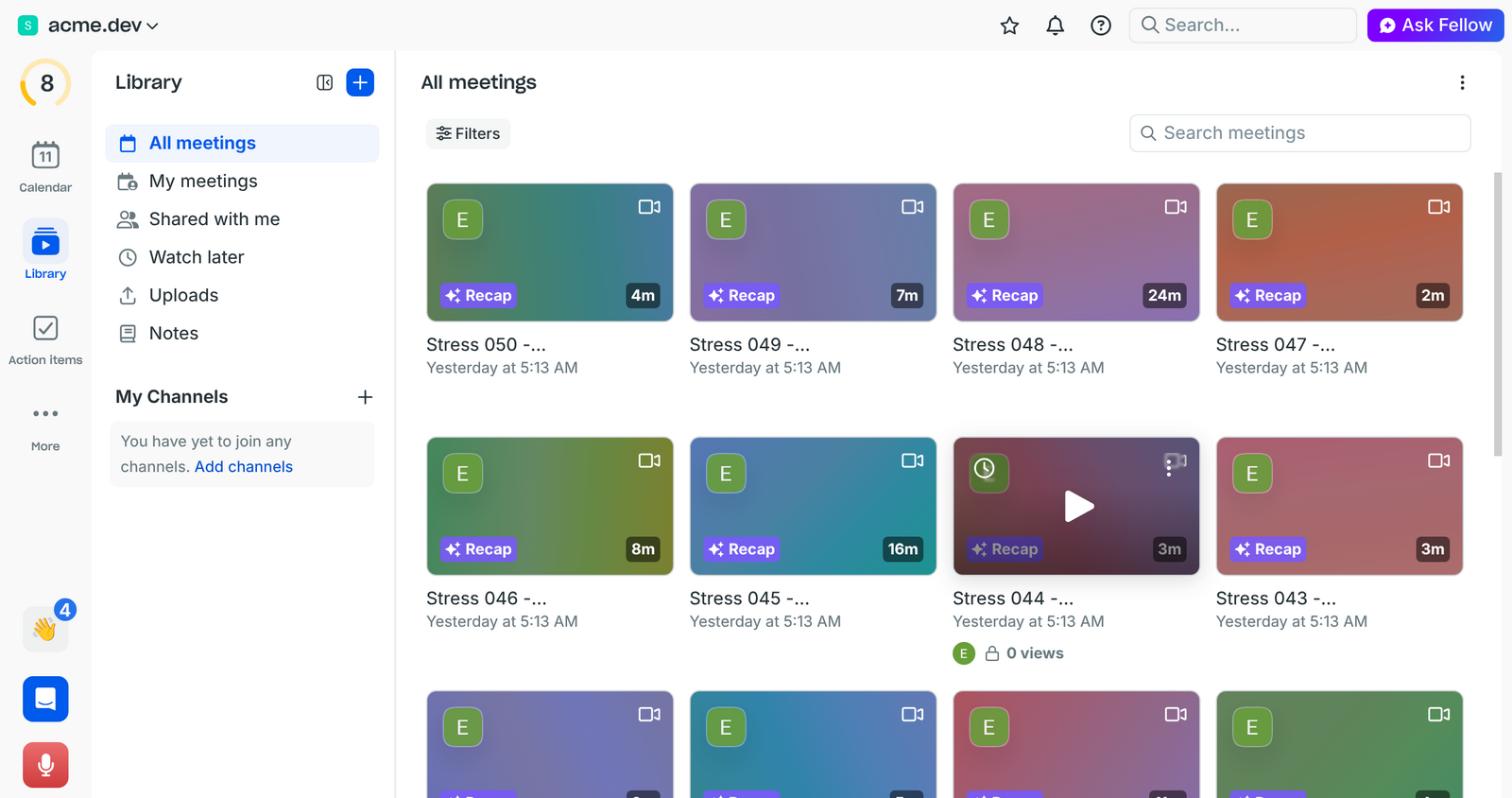
Your meetings live in Fellow's Recordings library. Fireflies reads them through Fellow's official API, so you first need an API key from your Fellow workspace.
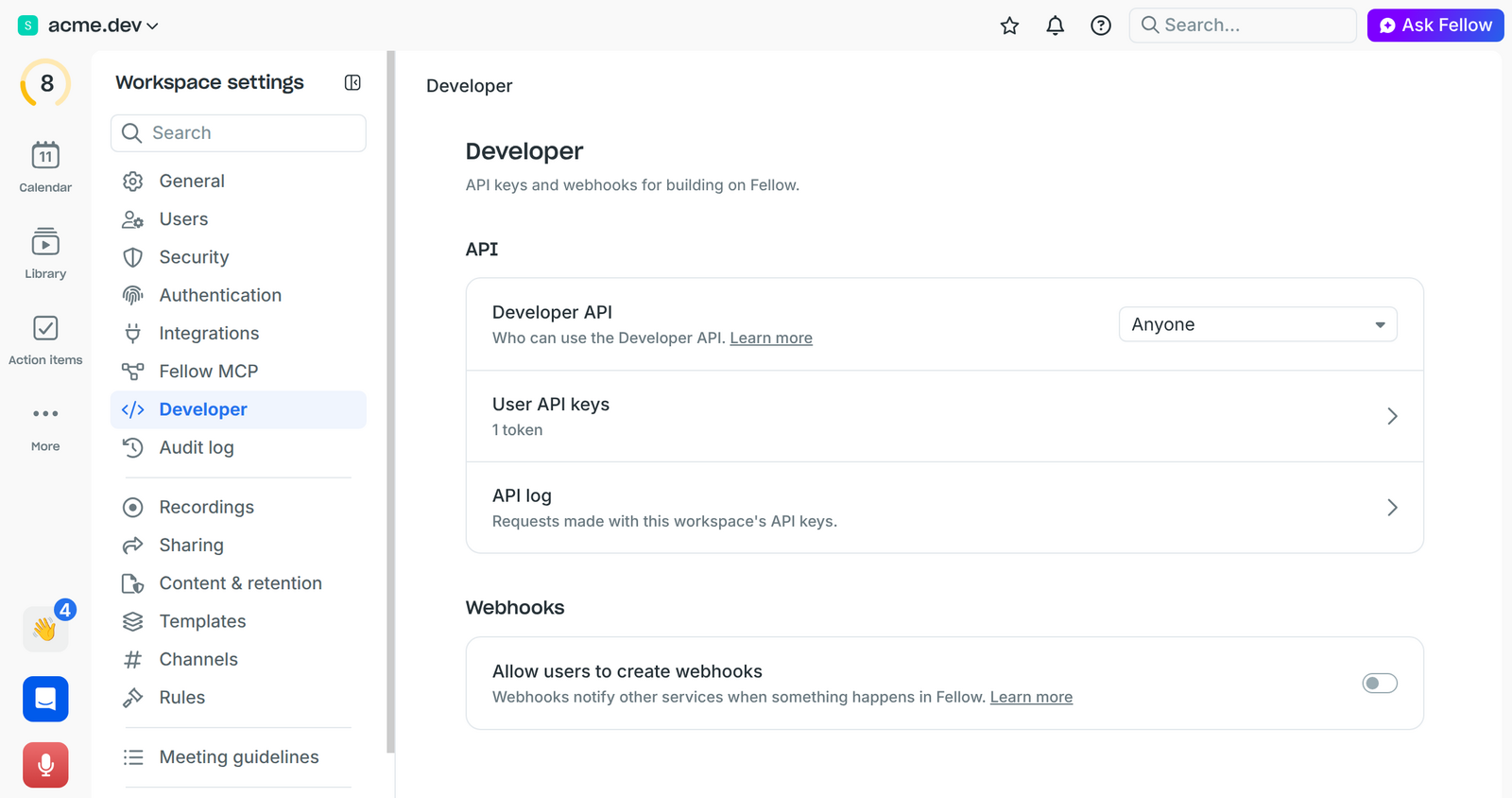
Step 1: In Fellow, open your workspace Settings and go to Developer → API, MCP & Webhooks.
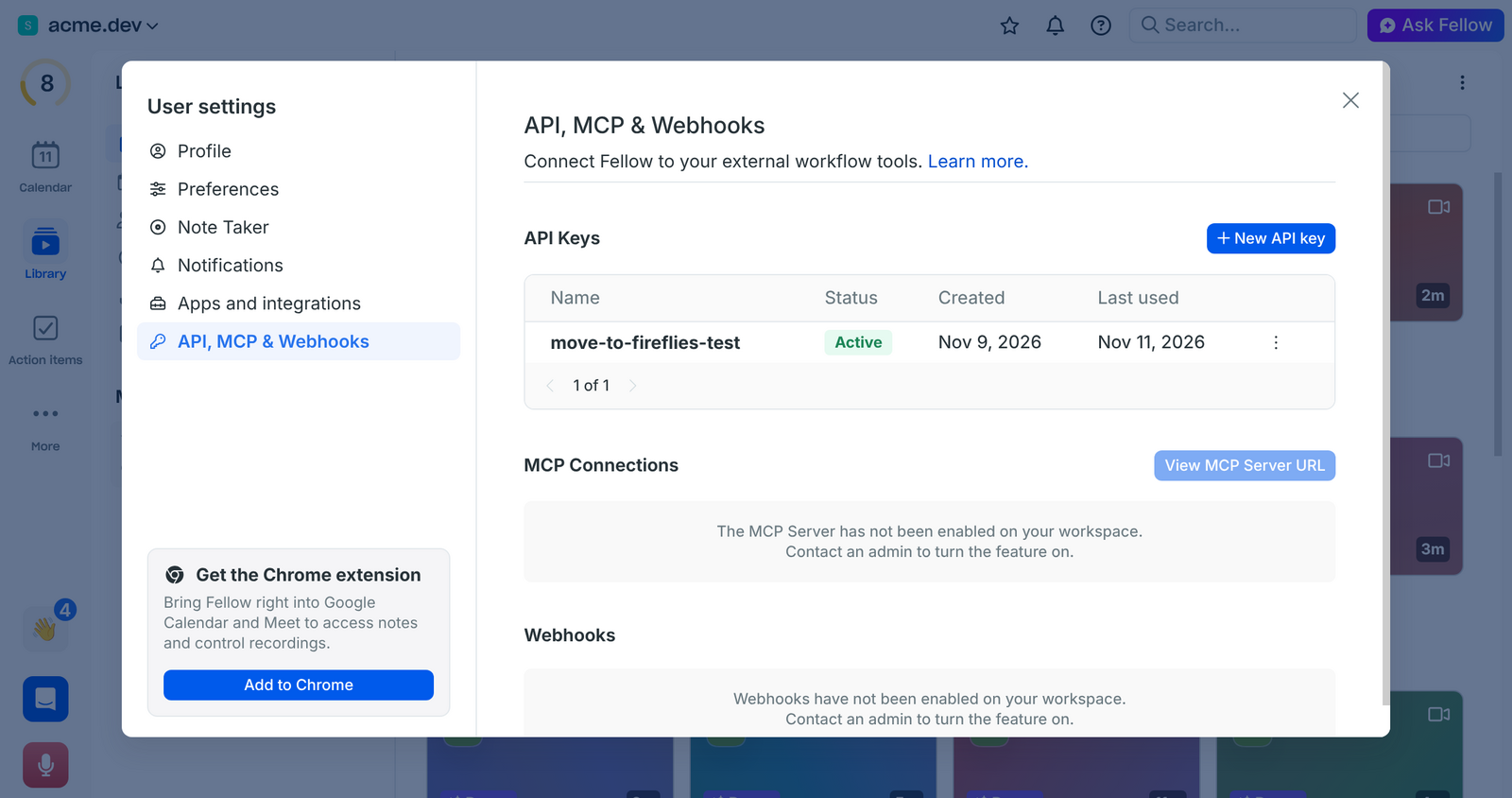
Step 2: Under API keys, click New API key.
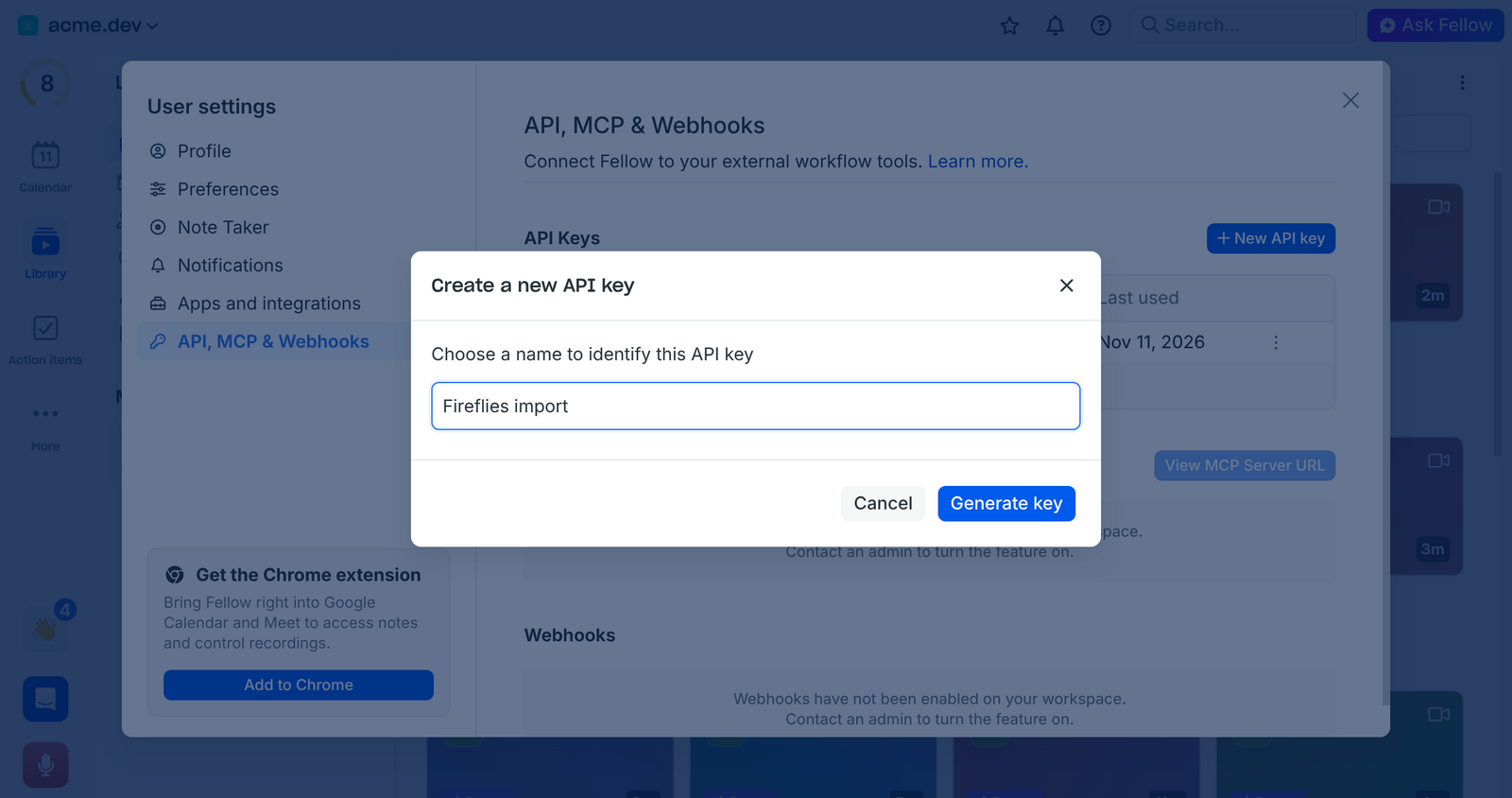
Step 3: Give the key a name (for example Fireflies import) and create it. Copy the key and keep it somewhere safe – you'll paste it into Fireflies in a moment.
Tip: Fellow shows the key only once. If you lose it, delete it in Fellow and create a new one. Each key is tied to the Fellow user who created it and sees the meetings that user can see.
:headphone: (Optional) Get Your Fellow Web Session Cookie
Fellow's API only shares recording files with privileged (Enterprise Super Admin) API keys. If your key is a regular one, Fireflies can still import the recordings by using your Fellow browser session. Skip this section if transcripts are all you need.
Step 1: Open Fellow in Chrome, make sure you're signed in, and press F12 (or right-click → Inspect) to open DevTools.
Step 2: Go to the Application tab → Cookies → your Fellow URL, and find the cookie named sessionid.
Step 3: Copy its Value. That is what you'll paste into the Web session cookie field in Fireflies.
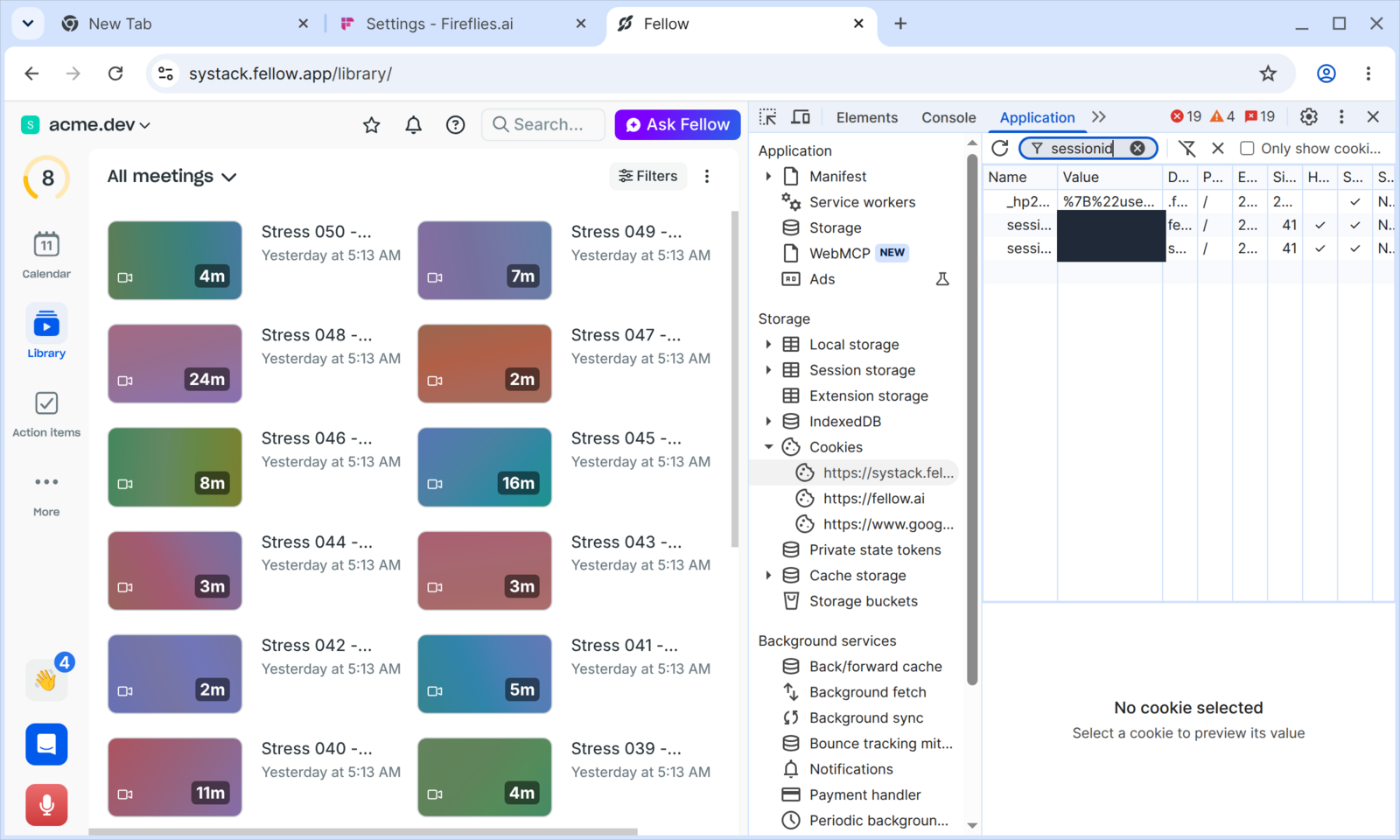
Treat this cookie like a password. It signs you in to Fellow, so only paste it into the Fireflies import form. Fireflies stores it encrypted, uses it only to fetch your recordings during the import, and never shows it again.
Don't sign out of Fellow in that browser until the import finishes – signing out invalidates the cookie. Fellow sessions also expire on their own after about two weeks.
🔗 Steps to Migrate Your Data from Fellow to Fireflies
Step 1: Log in to app.fireflies.ai and open Settings.
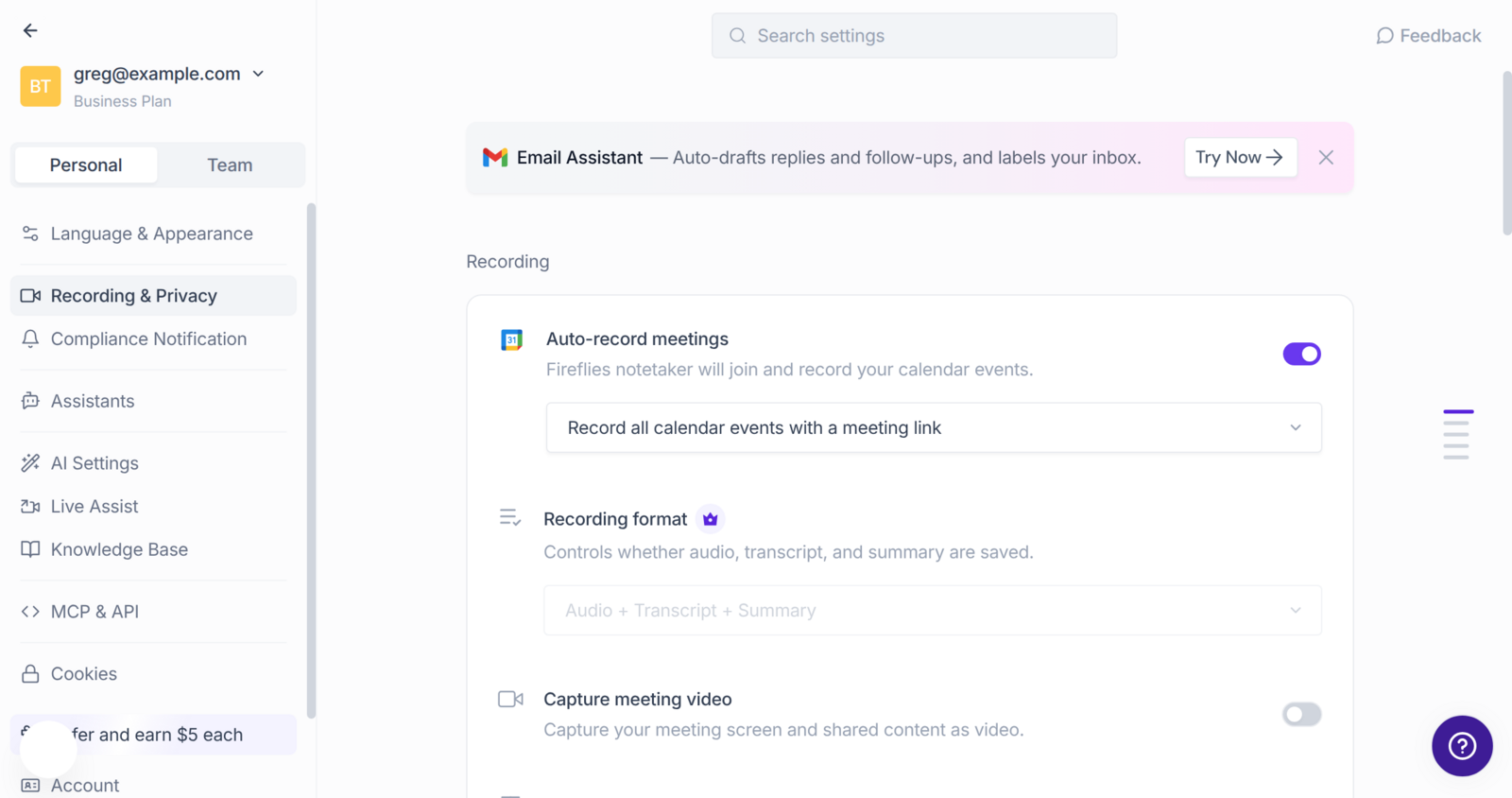
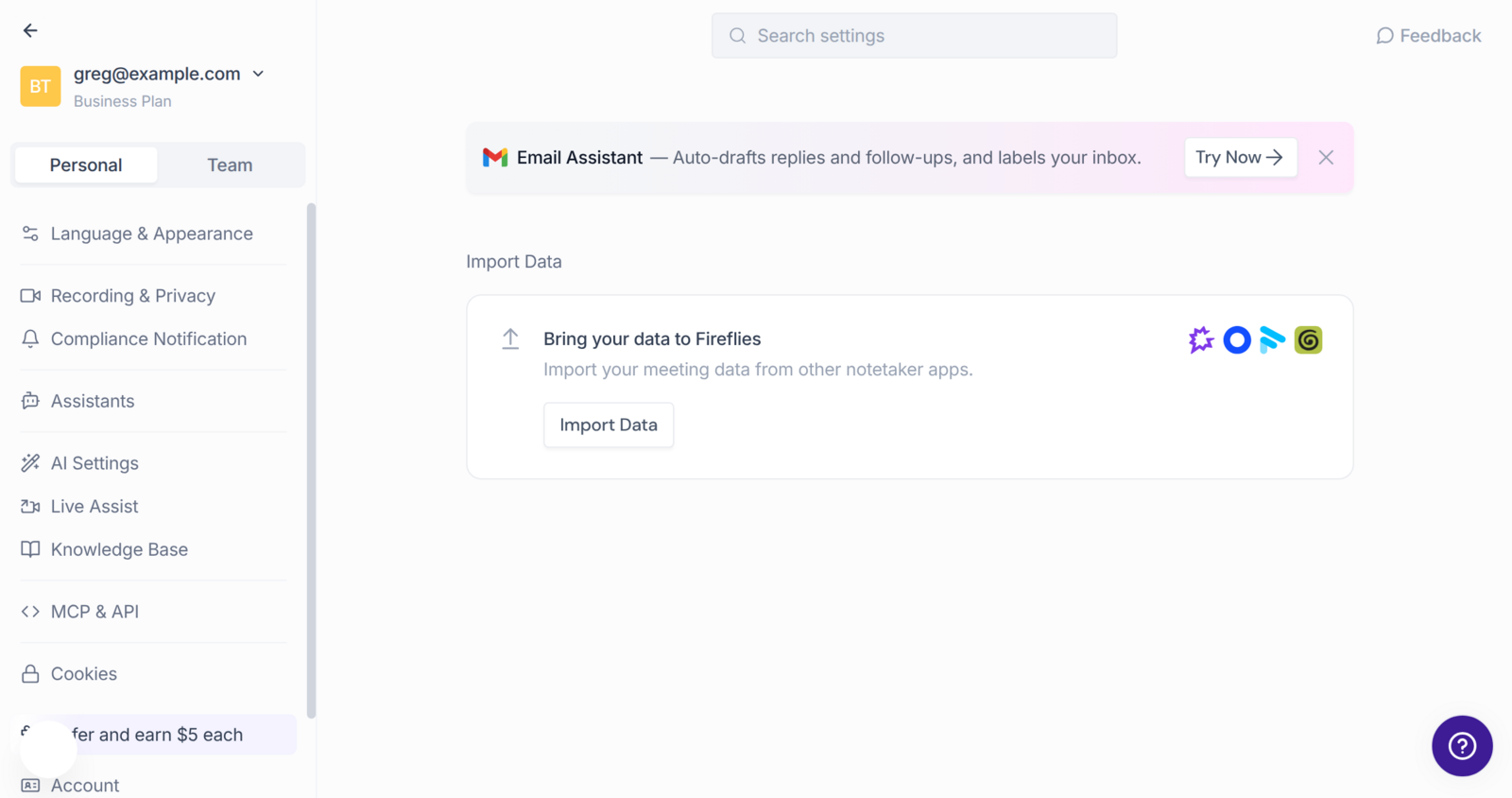
Step 2: Scroll to Import Data and click the Import Data button.
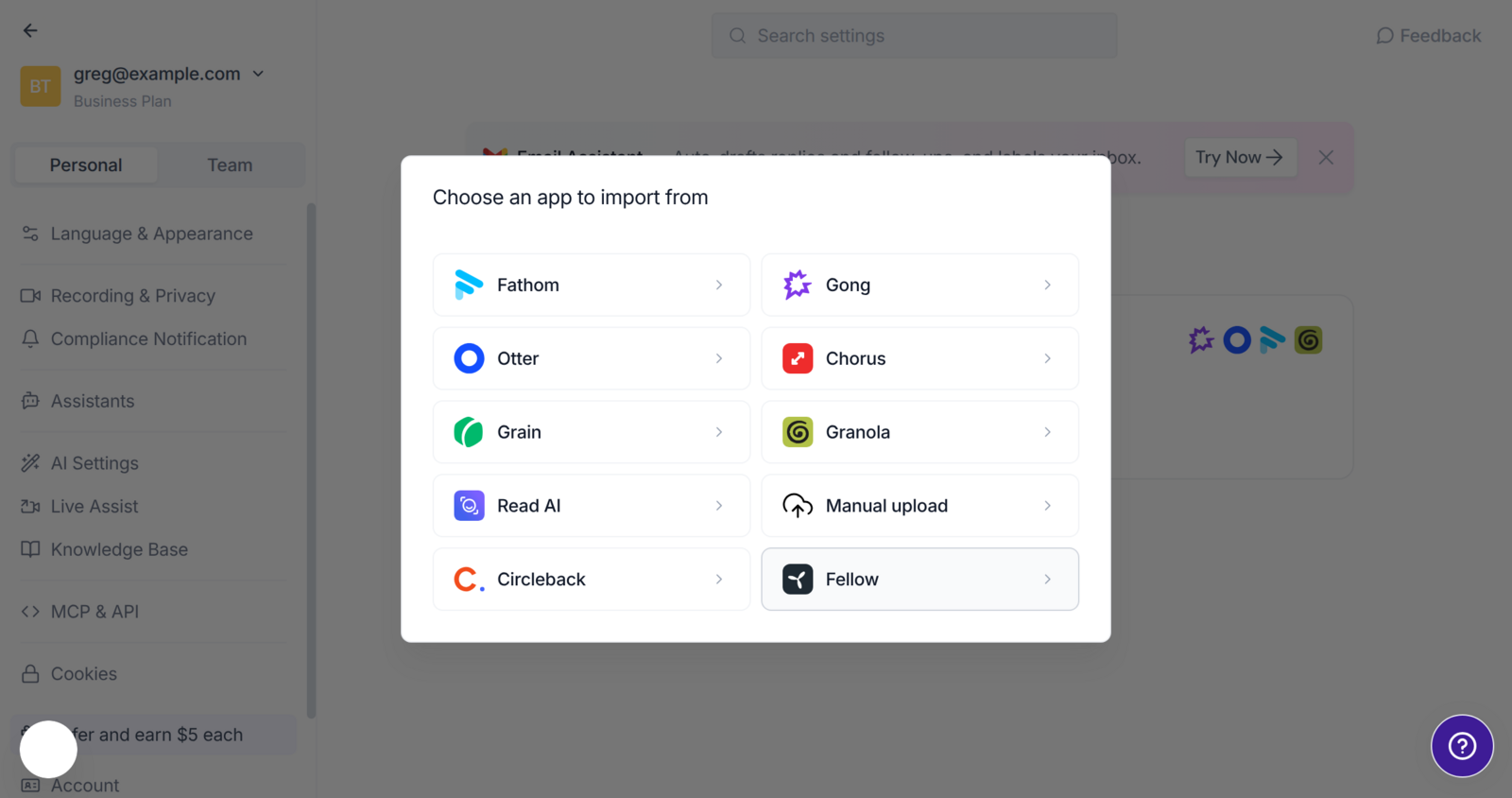
Step 3: Choose Fellow from the list of apps.
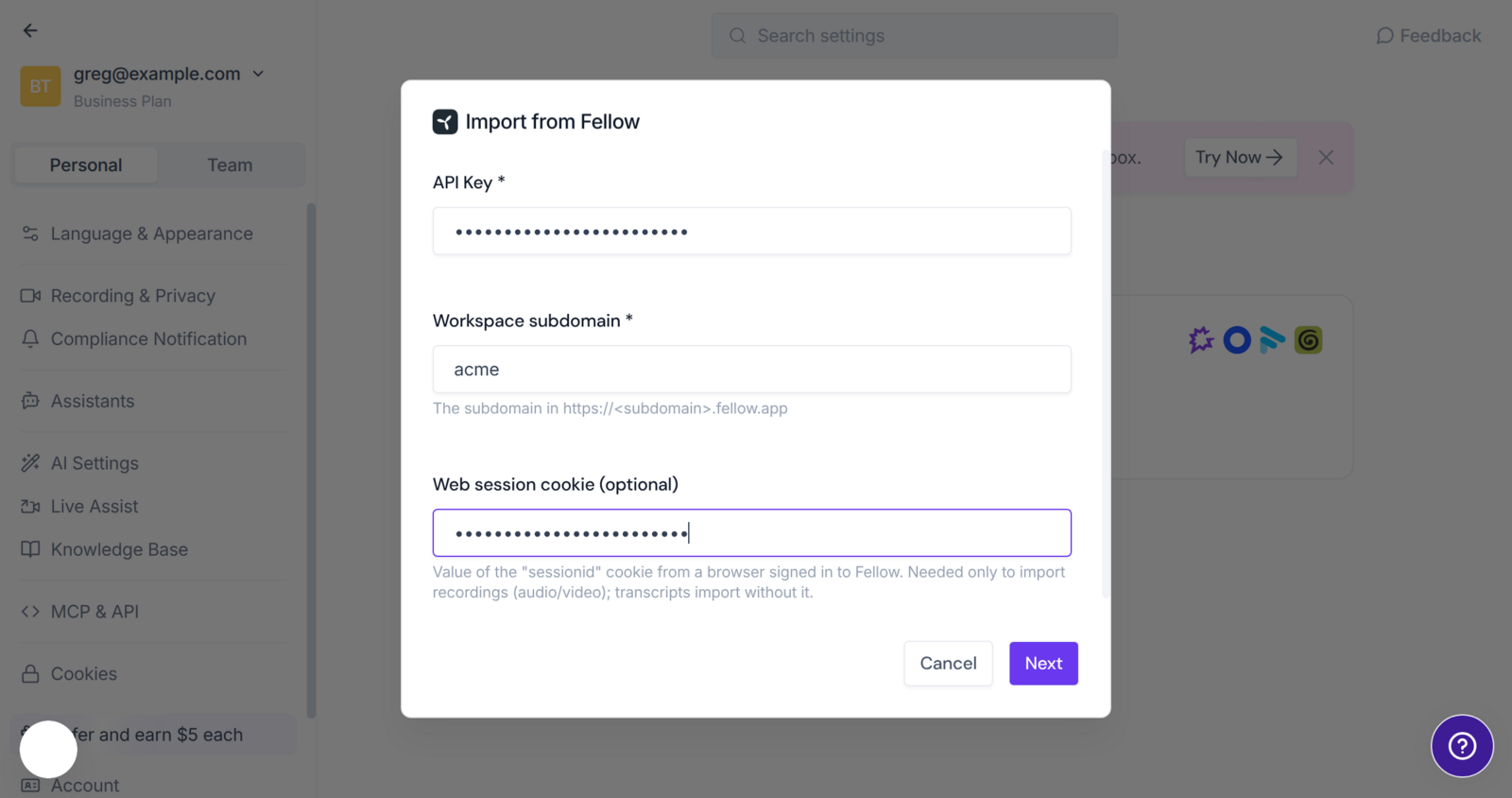
Step 4: Fill in the form:
API Key – the key you created in Fellow
Workspace subdomain – e.g. acme for https://acme.fellow.app
Web session cookie (optional) – the sessionid value, if you want audio/video imported
Then click Next. Fireflies checks the credentials with Fellow before anything is imported, so a typo shows up right away.
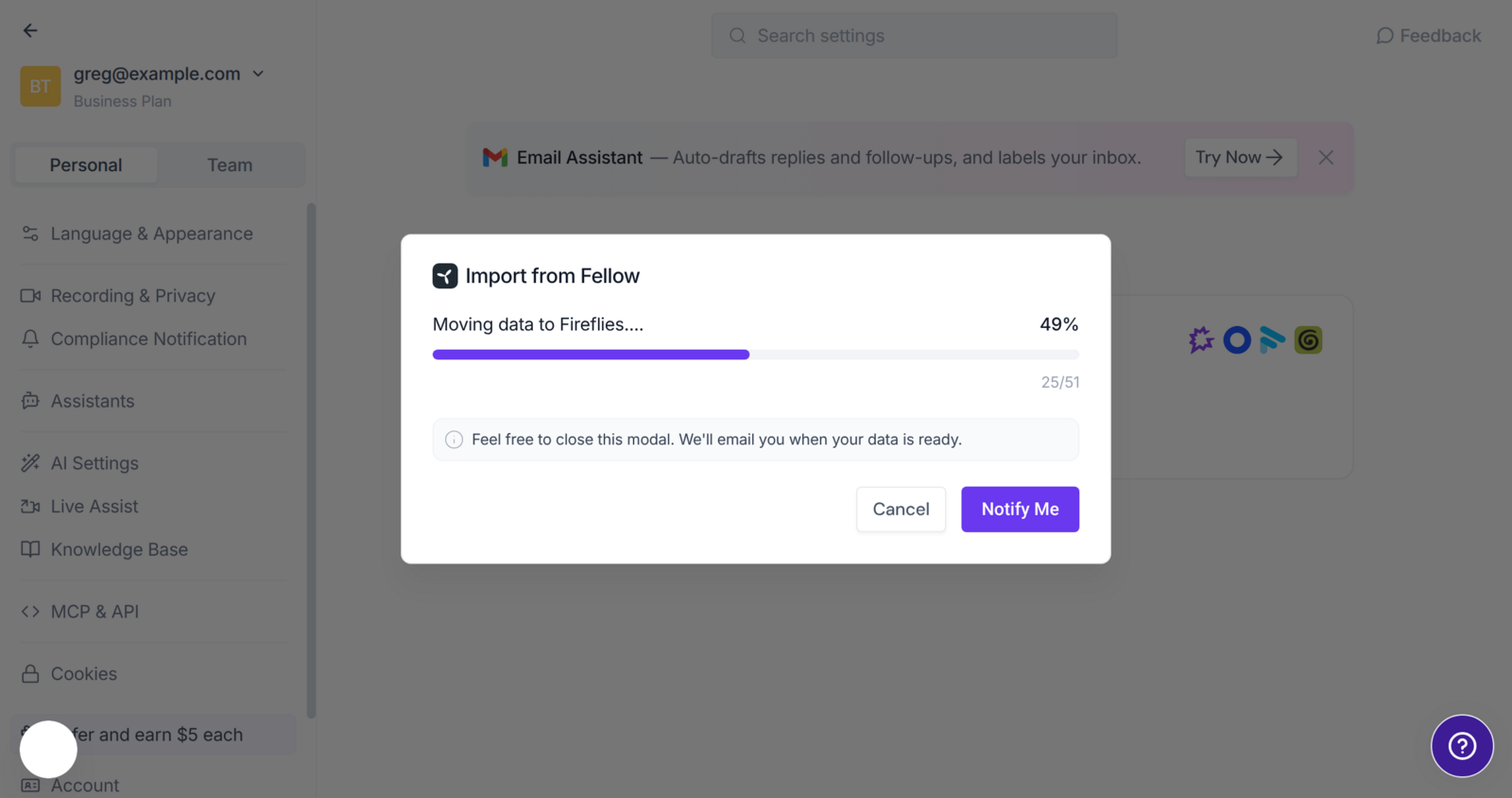
Step 5: The import starts. You'll see how many meetings were found in Fellow and a live progress bar as they are moved over. Feel free to close the window – we'll email you when it's done.
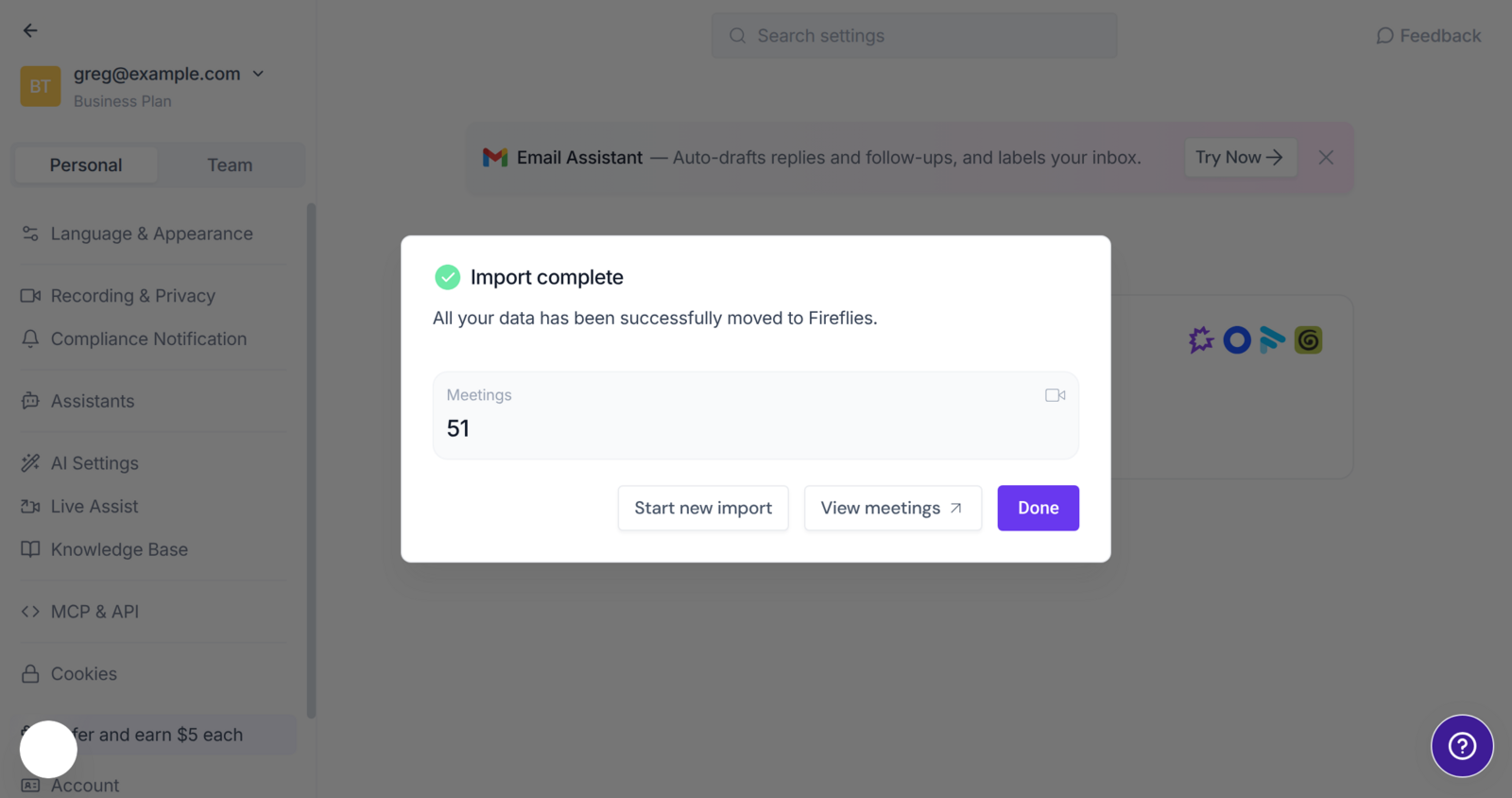
Step 6: When it finishes you'll see Import complete with the number of meetings moved. Click View meetings to open them.
📊 Track Your Progress
The progress bar shows the number of meetings imported so far out of the total found in Fellow. Imports run in the background, so you can keep using Fireflies or close the tab; reopening Settings → Import Data brings the progress window back.
How long it takes depends on your library: Fellow's API lets us read about one meeting per second, and recordings are streamed over as well when a web session cookie is provided. A few hundred meetings typically finish within an hour.
🎉 After Your Meetings Arrive
Your Fellow meetings appear in your Fireflies notebook with their original title, date and duration, owned by the person who organized them in Fellow (or by you, if that person isn't in your Fireflies workspace).
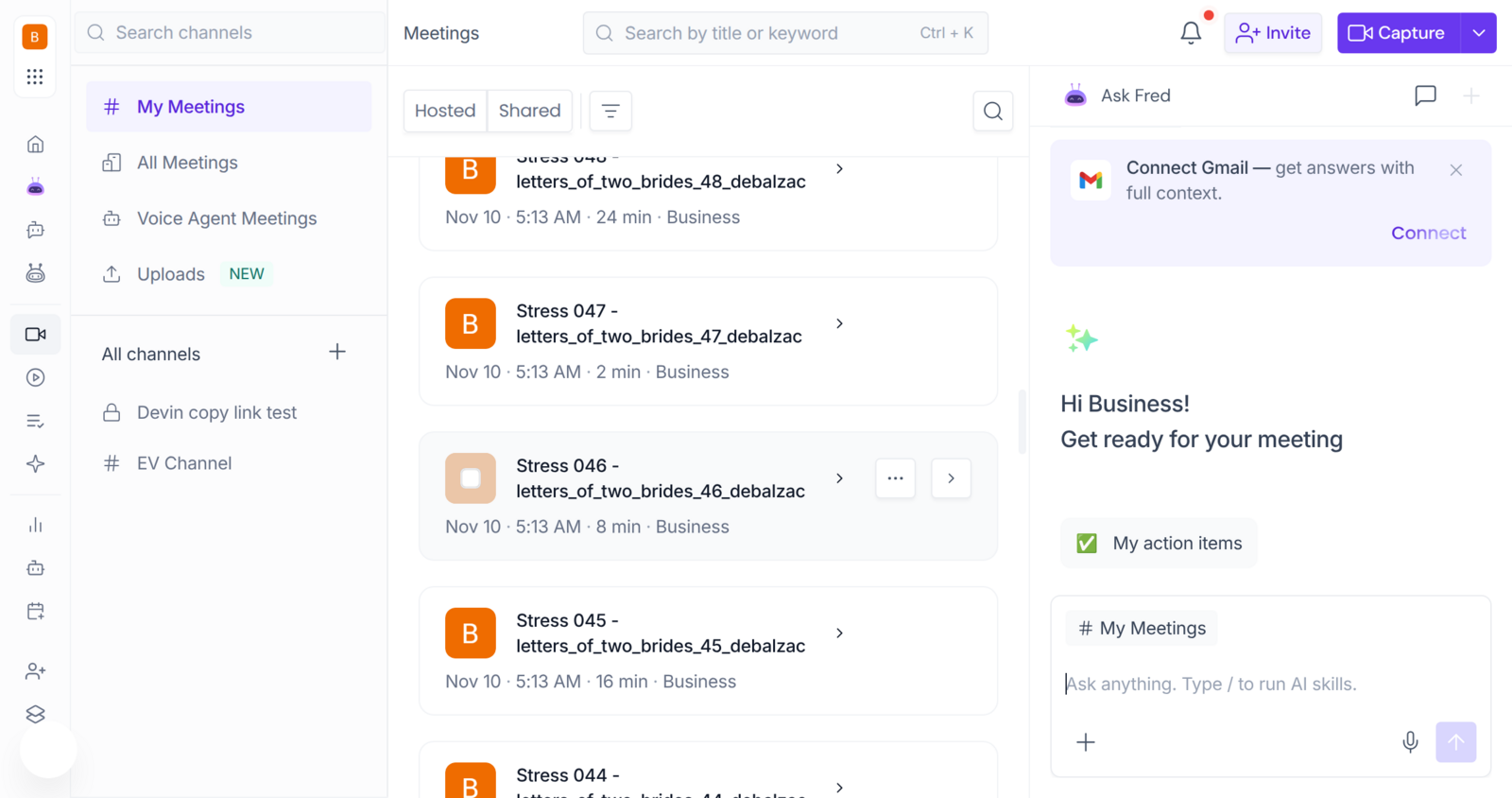
Open any meeting to find the full transcript with speakers and timestamps, the recording player (when the recording was imported), and – a few minutes after import – an AI summary generated by Fireflies from the transcript.
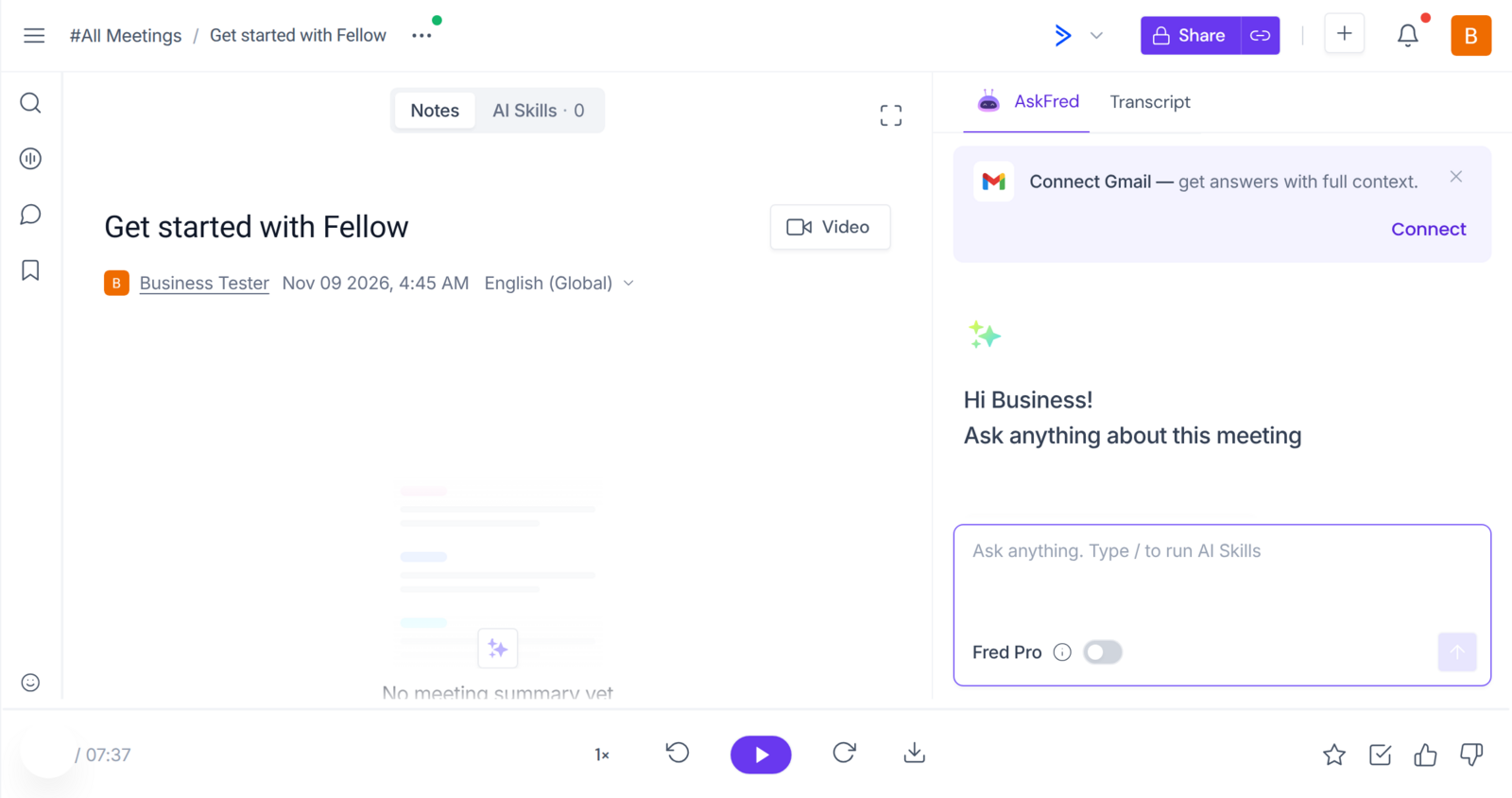
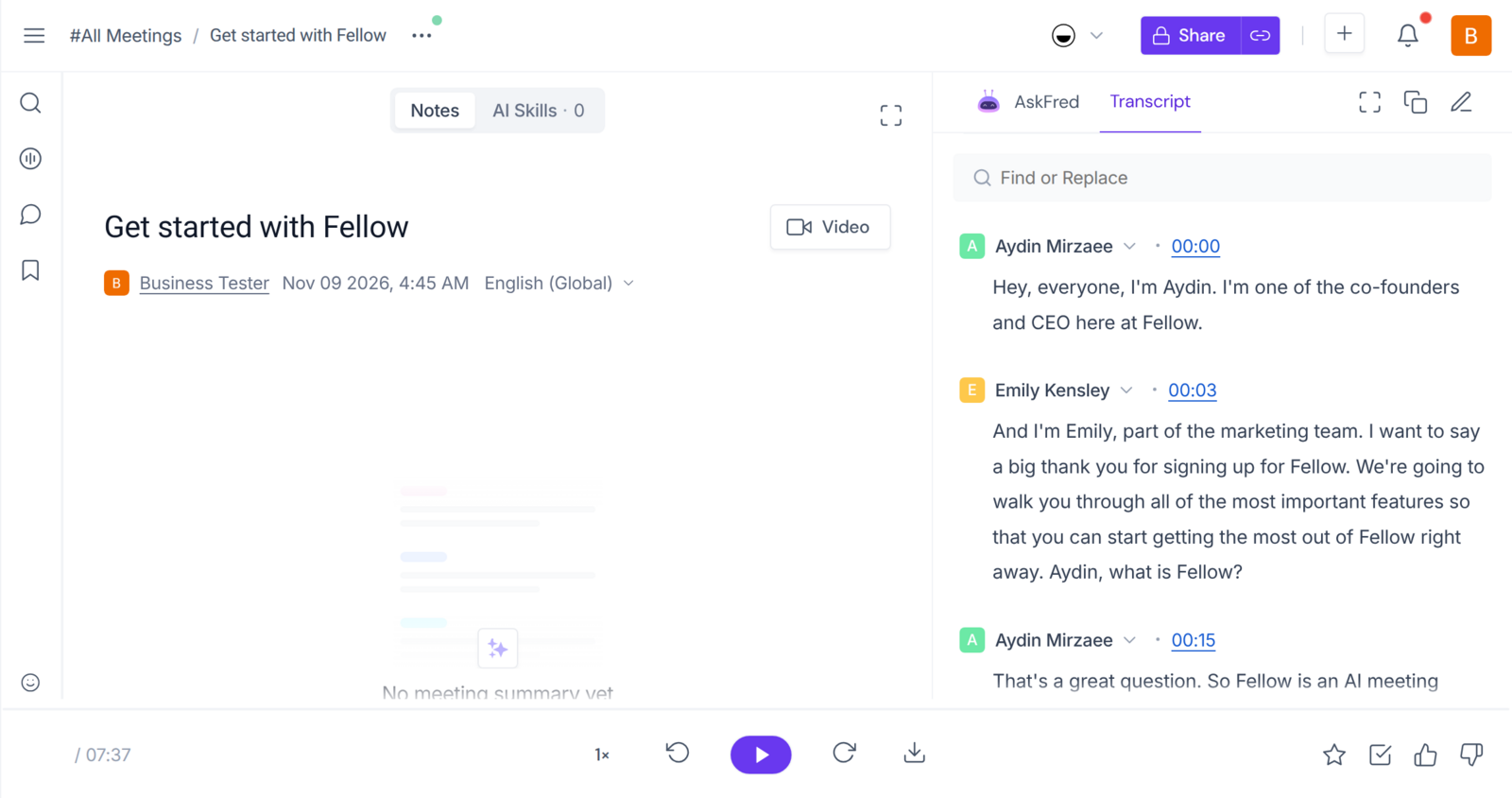
From here, everything Fireflies offers works on your imported meetings: search across transcripts, AskFred, AI Skills, clips, channels and integrations.
🛠 Troubleshooting
"Invalid credentials" when clicking Next
Check the API key was copied completely and hasn't been deleted in Fellow.
Check the subdomain: it's only the first part of your Fellow URL (acme, not acme.fellow.app).
If you filled in the web session cookie, make sure you copied the Value of sessionid and are still signed in to Fellow in that browser. Remove it from the form to import transcripts only.
Meetings imported, but without audio or video
No web session cookie was provided, or it expired during the import. Run the import again with a fresh cookie – meetings already imported are updated in place, not duplicated.
The signed-in Fellow user can't see that recording in Fellow. Only recordings visible to that user can be fetched.
Fellow didn't keep a recording for that meeting (for example, it was transcribed from a call without a saved recording).
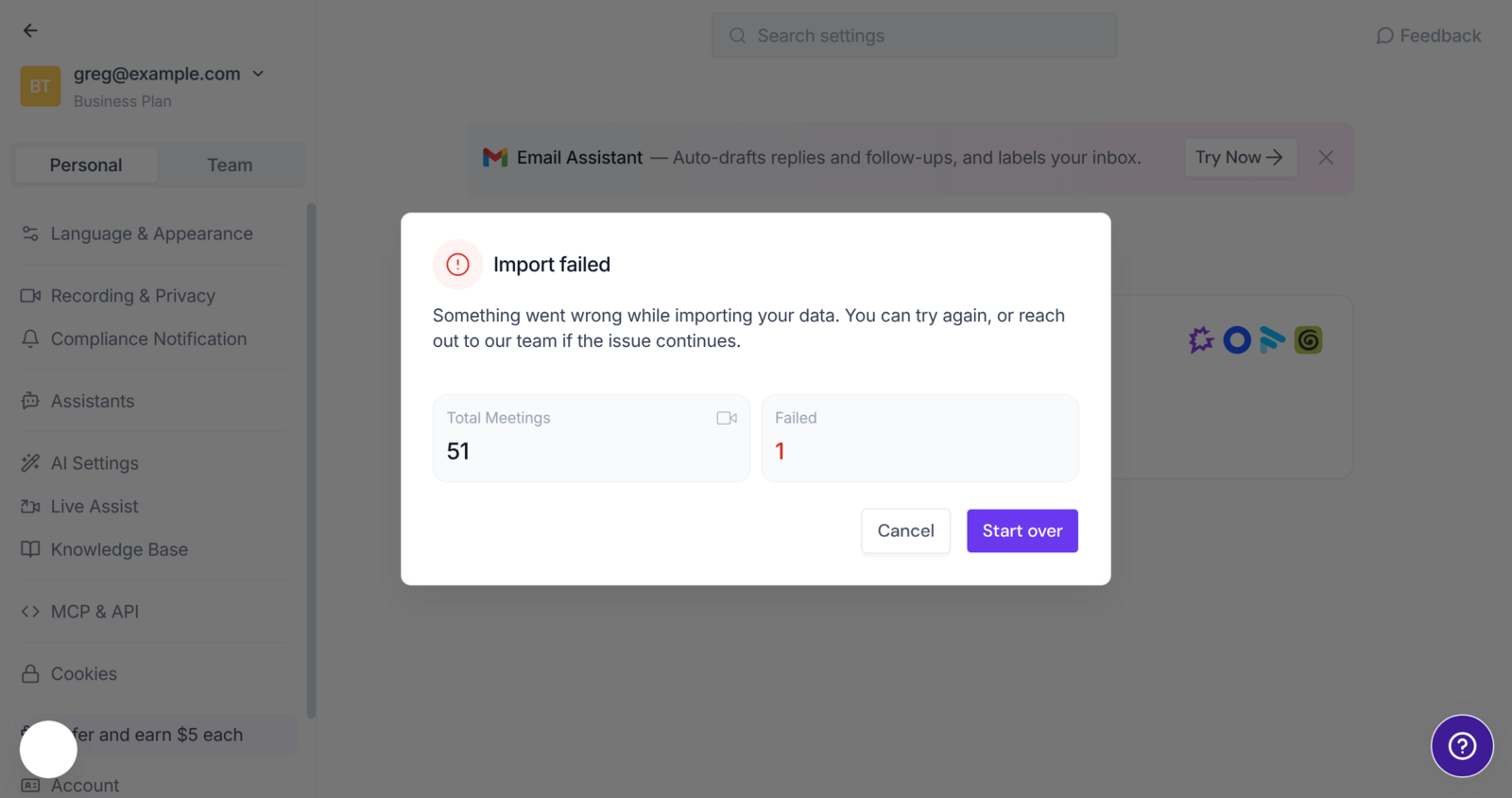
"Import failed"
If some meetings couldn't be imported, the window shows how many failed. Click Start over to run the import again – it picks up where it left off and only redoes the meetings that failed.
The import seems slow
Fellow limits how fast its API can be read, so large libraries take a while. Run one import per Fellow API key at a time; starting a second one with the same key only slows both down.
No summary on an imported meeting
Summaries are generated after the meeting arrives and can take a few minutes. Meetings without any transcript (recording only) don't get a summary.
Still stuck? Click the Help widget in Fireflies or email support@fireflies.ai.
❓ Frequently Asked Questions
Do I need the web session cookie?
No. With just the API key and subdomain you get every meeting with its full transcript and metadata. The cookie only adds the audio/video recordings.
Can I run the import more than once?
Yes. Meetings that were already imported are recognized and reused, so re-running the import never creates duplicates. It's the easiest way to pick up new Fellow meetings or add recordings later.
Who owns the imported meetings?
The person who organized the meeting in Fellow, if they're a member of your Fireflies workspace; otherwise the person who ran the import.
Will my Fellow data be changed or deleted?
No. The import only reads from Fellow. Your Fellow workspace stays exactly as it was.
Can I migrate my whole team?
Each Fellow API key sees the meetings of the user who created it. For a team-wide migration, each member runs the import with their own key, or contact our support team to plan it with you.
🔒 Your Data Is Safe
Your Fellow API key and web session cookie are encrypted at rest, used only for the import, and never written to logs. Recordings are streamed directly from Fellow into Fireflies' secure storage – nothing is kept on intermediate servers. Everything imported is protected by the same security and privacy controls as any other Fireflies meeting.