How to integrate Quo (Formerly OpenPhone) with Fireflies
Last updated: April 22, 2026
If your team uses Quo (formerly OpenPhone) for calls, integrating it with Fireflies helps keep every conversation organized without manual note-taking. Fireflies automatically captures recorded calls from Quo and converts them into transcripts, summaries, and actionable insights, helping your team review conversations and keep important call details organized.
Let's get started 🚀
🔍 What Does the Quo Integration Do?
Once connected, Fireflies automatically captures and analyzes calls made through Quo.
Here’s what you can expect:
Automatic call transcription for inbound and outbound calls from selected Quo phone numbers
AI-generated summaries, action items, and key insights after each call
A searchable transcript and call notes available in the Fireflies Notepad
Organized call records so teams can quickly review conversations and follow up
🔑 Prerequisites
Before you start, make sure you have:
Fireflies account with integration access
A Quo account (formerly OpenPhone) with admin permissions
Your Quo API credentials or login access ready
Don’t worry — we’ll guide you through how to generate your Quo API key and connect it with Fireflies.
🔐 Get the Quo (formerly OpenPhone) API Key
Generate your Quo API Key:
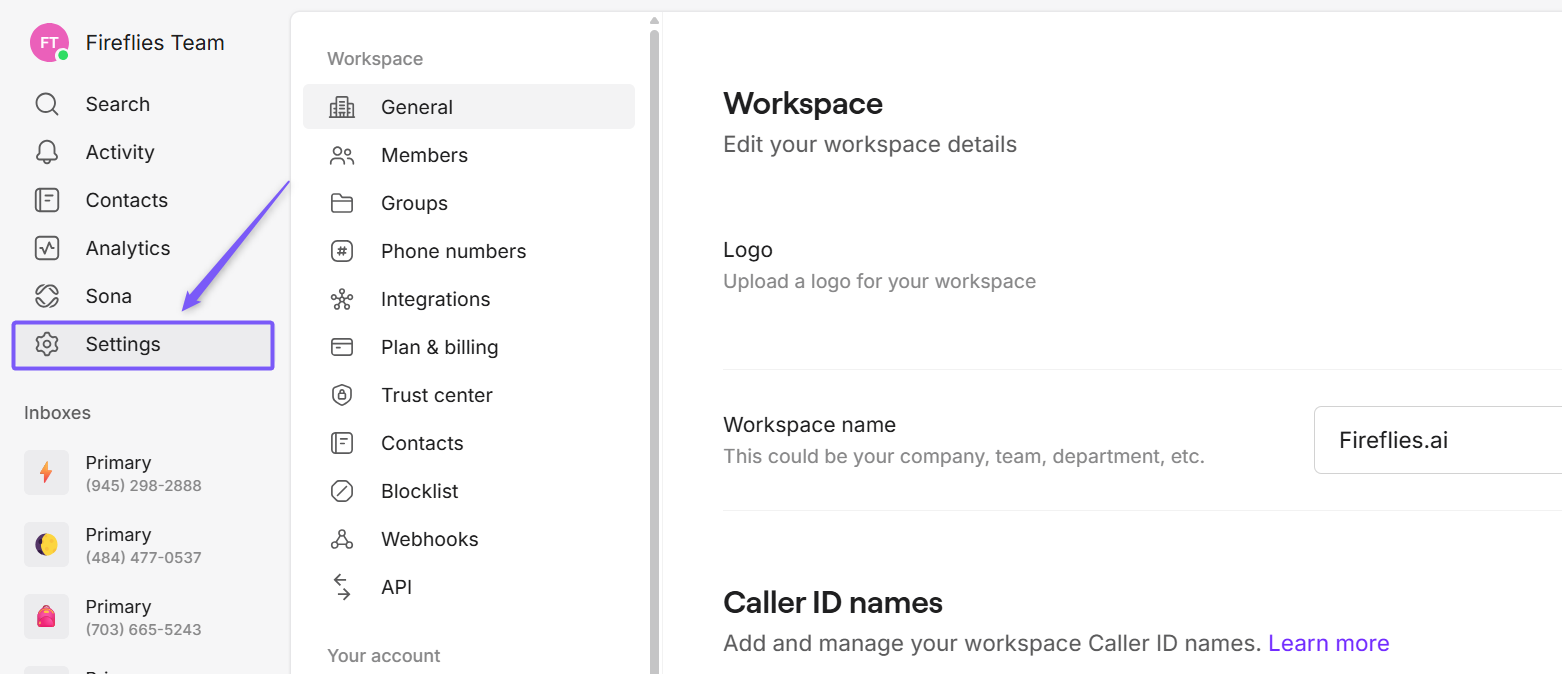
Step 1: Log in to your Quo (formerly OpenPhone) account, Navigate to Settings from the left sidebar.
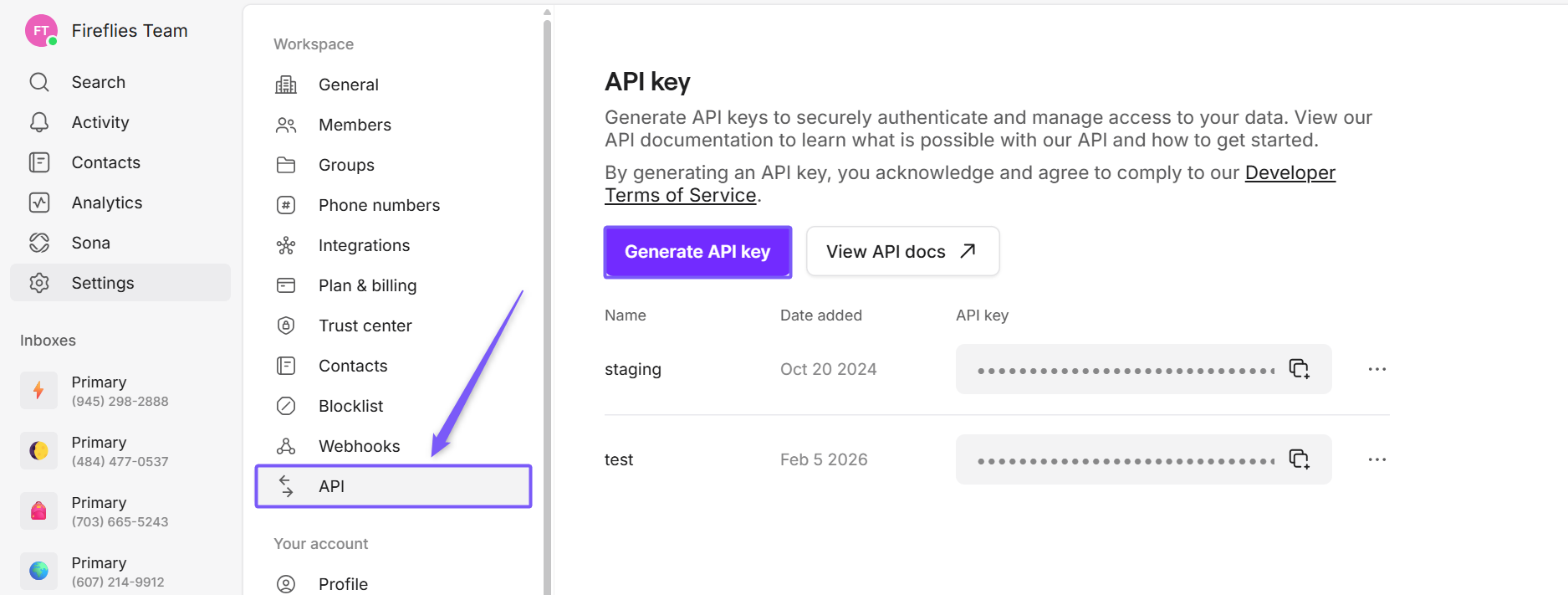
Step 2: Under the Workspace section, click on the API tab.
Step 3: Click Generate API Key, enter a name for the API key ((e.g., "test-integration"), and then click Create.
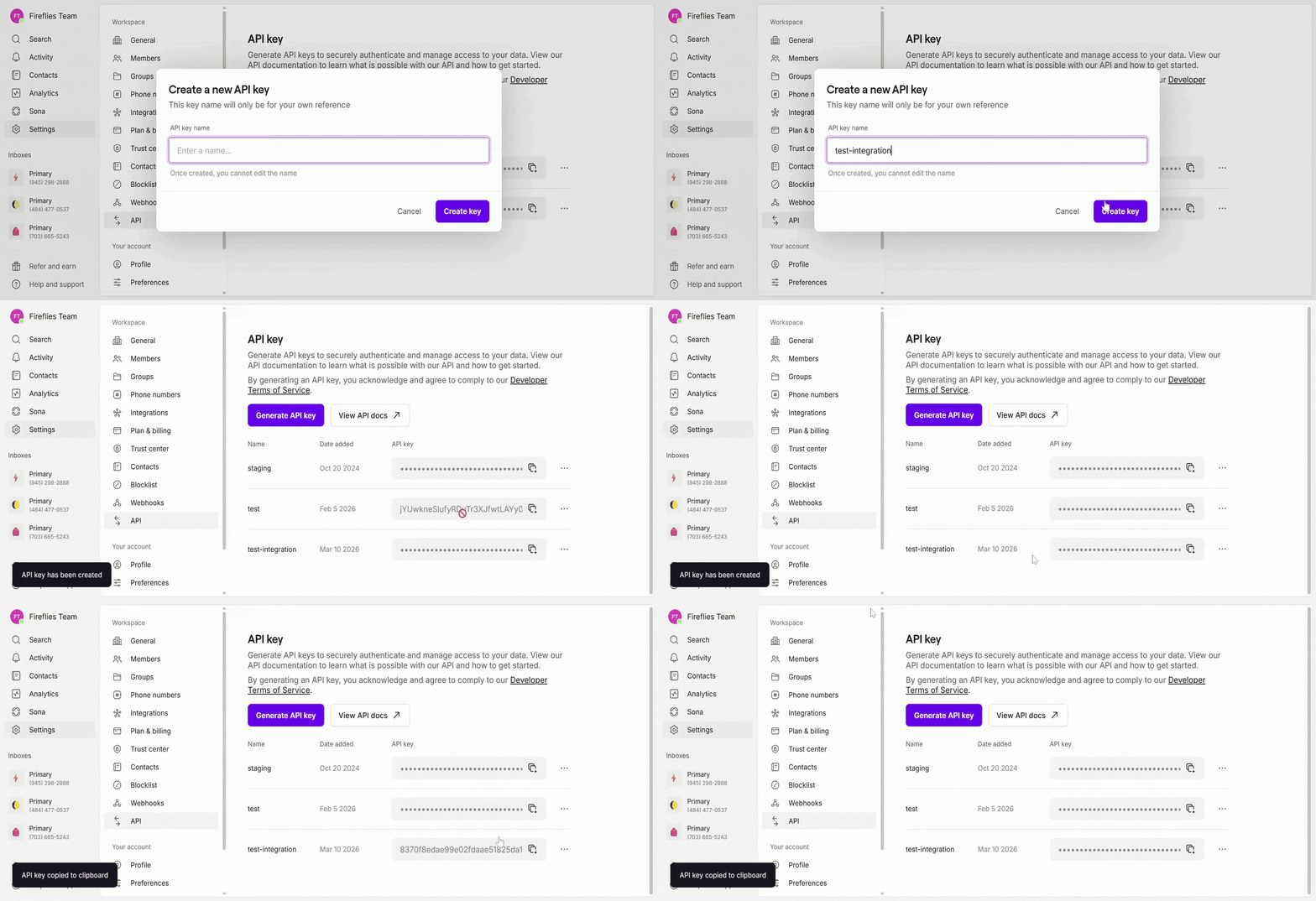
Once the API key is created, copy the API key and keep it safe. You’ll need to paste this key in Fireflies to complete the Quo integration.
🔗 Connect Fireflies to Quo
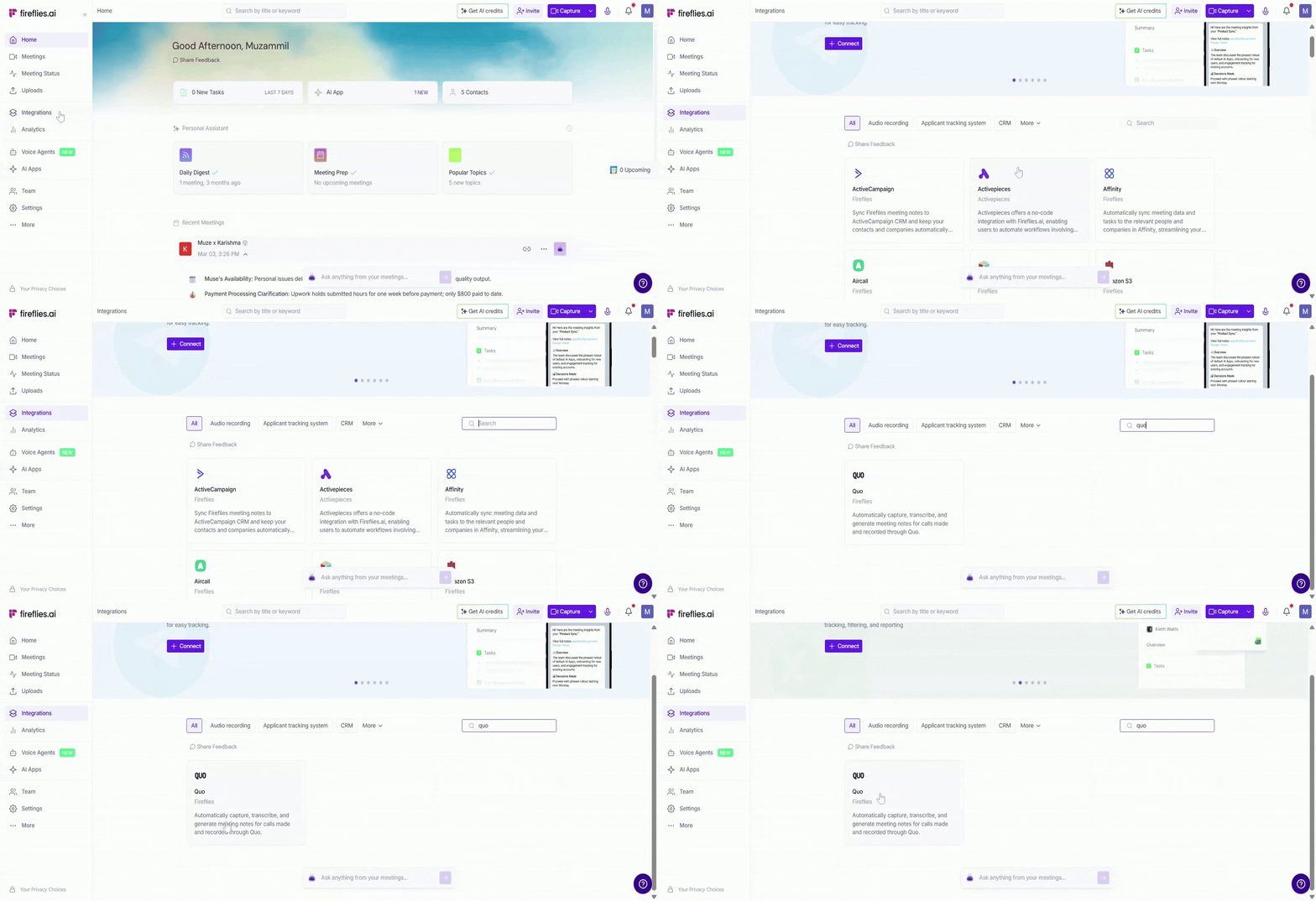
Step 1: Log in to your Fireflies account, Navigate the Integrations page, and search for Quo. Click on it to get started.
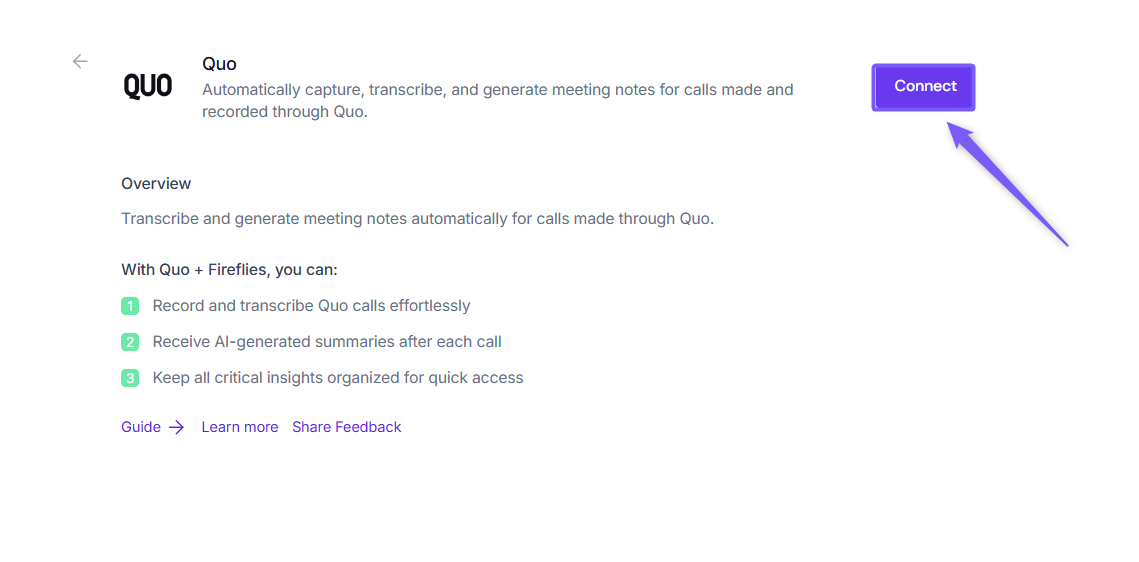
Step 2: Click Connect to connect the integration.
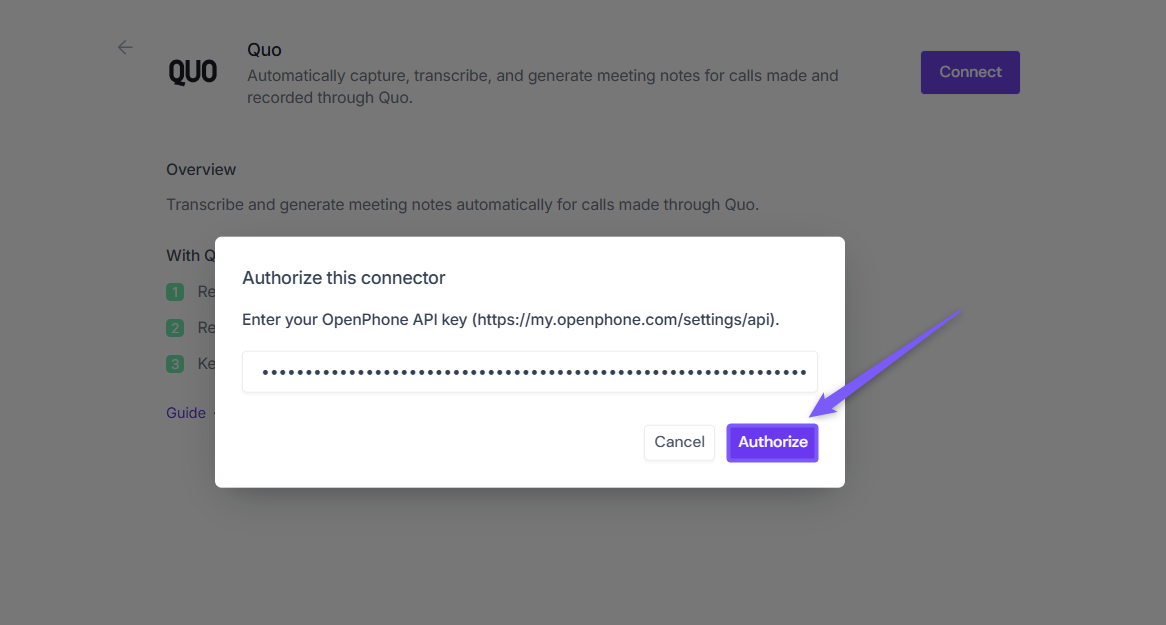
Step 3: Paste the Quo API Key you generated earlier, then click Authorize to complete the connection.
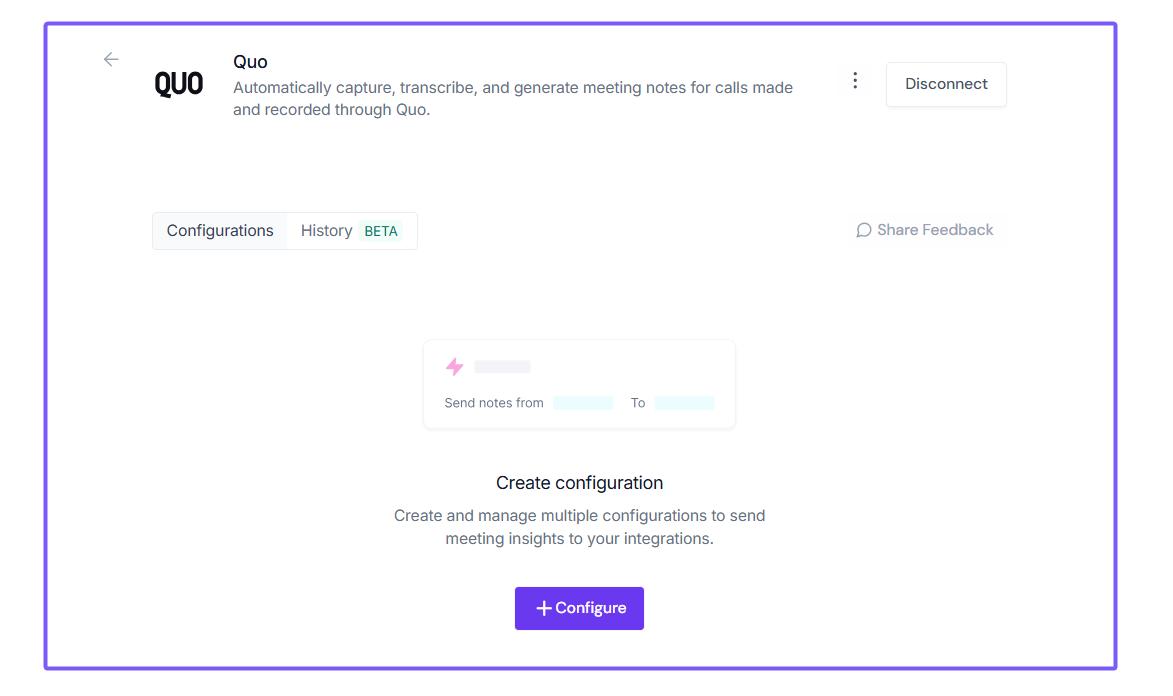
Step 4: Once authorized, you’ll be redirected back to Fireflies to configure your integration setup.
⚙ Setting Up Your Configuration
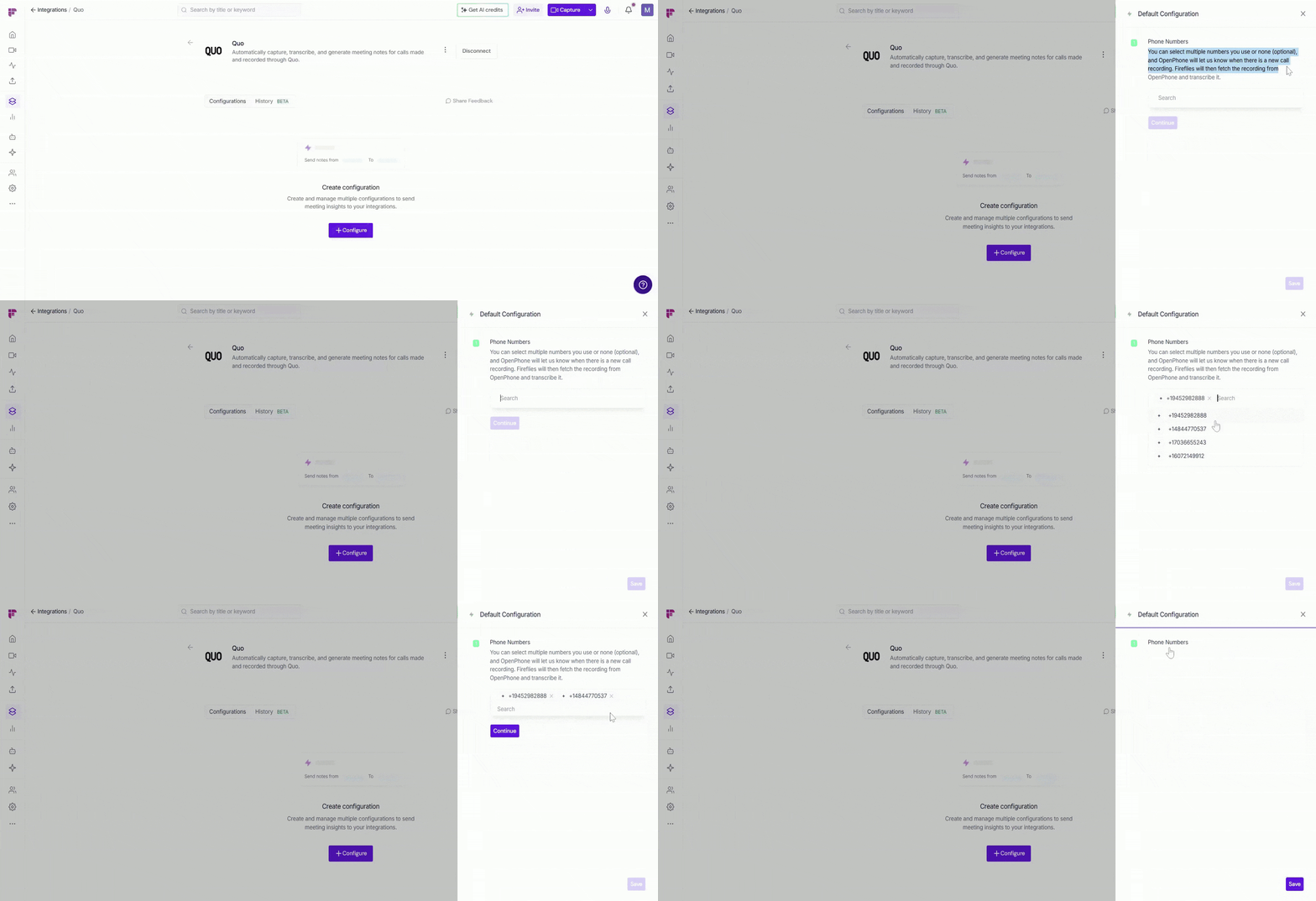
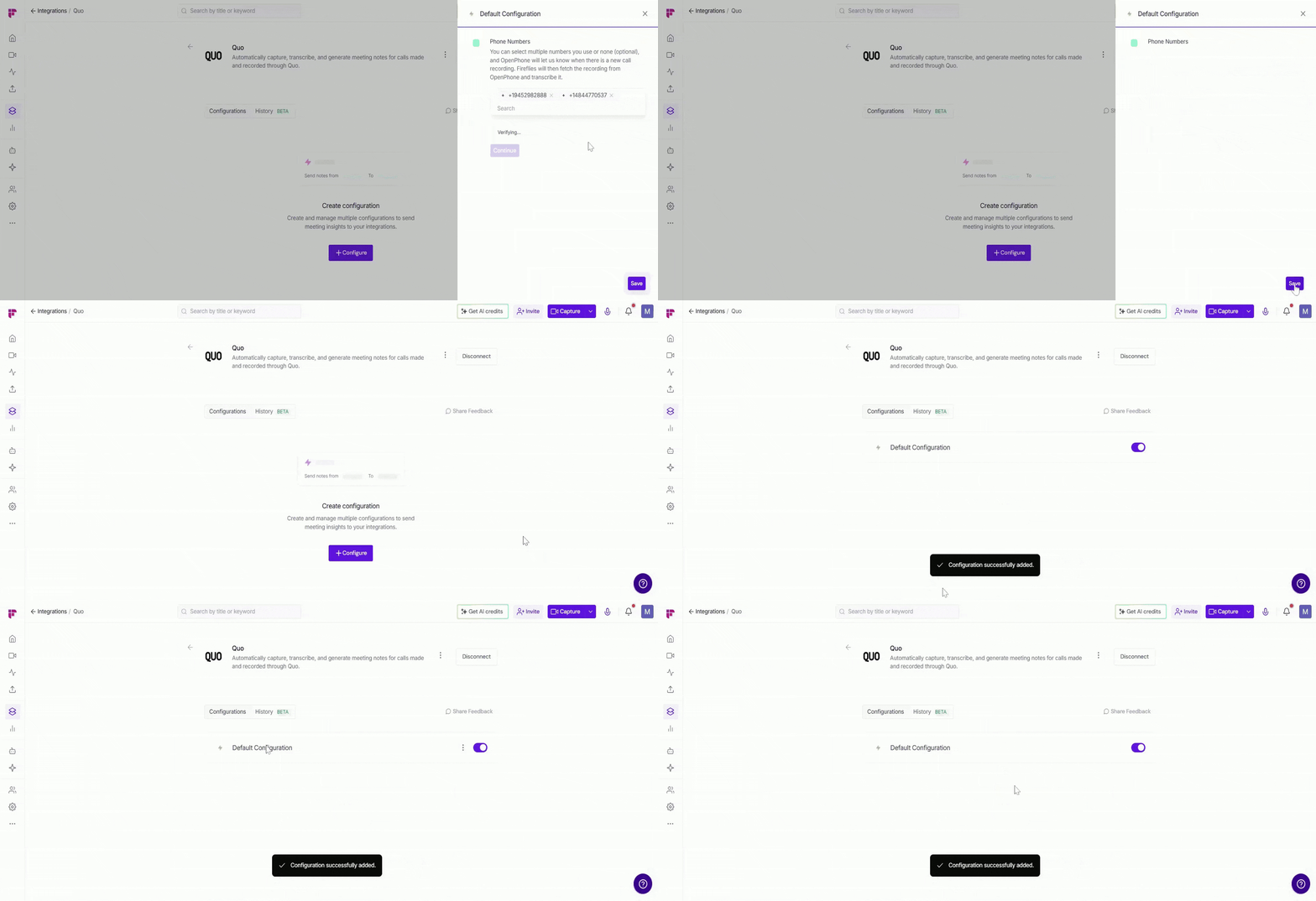
Step 1: Select Phone Numbers
Choose the Quo phone numbers you want Fireflies to monitor for call recordings.
You can select one or multiple phone numbers from the list. When a call is recorded on the selected numbers, Quo will notify Fireflies, and Fireflies will automatically fetch the recording, transcribe it, and generate meeting notes.
If you prefer, you can also leave this optional and continue without selecting a number.
After selecting the phone numbers, click Continue.
Step 2: Save Your Settings
Click Save to activate the integration — a flash message will confirm that your “Configuration successfully added”.
🛠 Manage Configuration
As your workflow changes, you may want to update your Quo integration — for example, selecting different phone numbers or removing configurations you no longer need. Fireflies makes it easy to manage everything from one place.
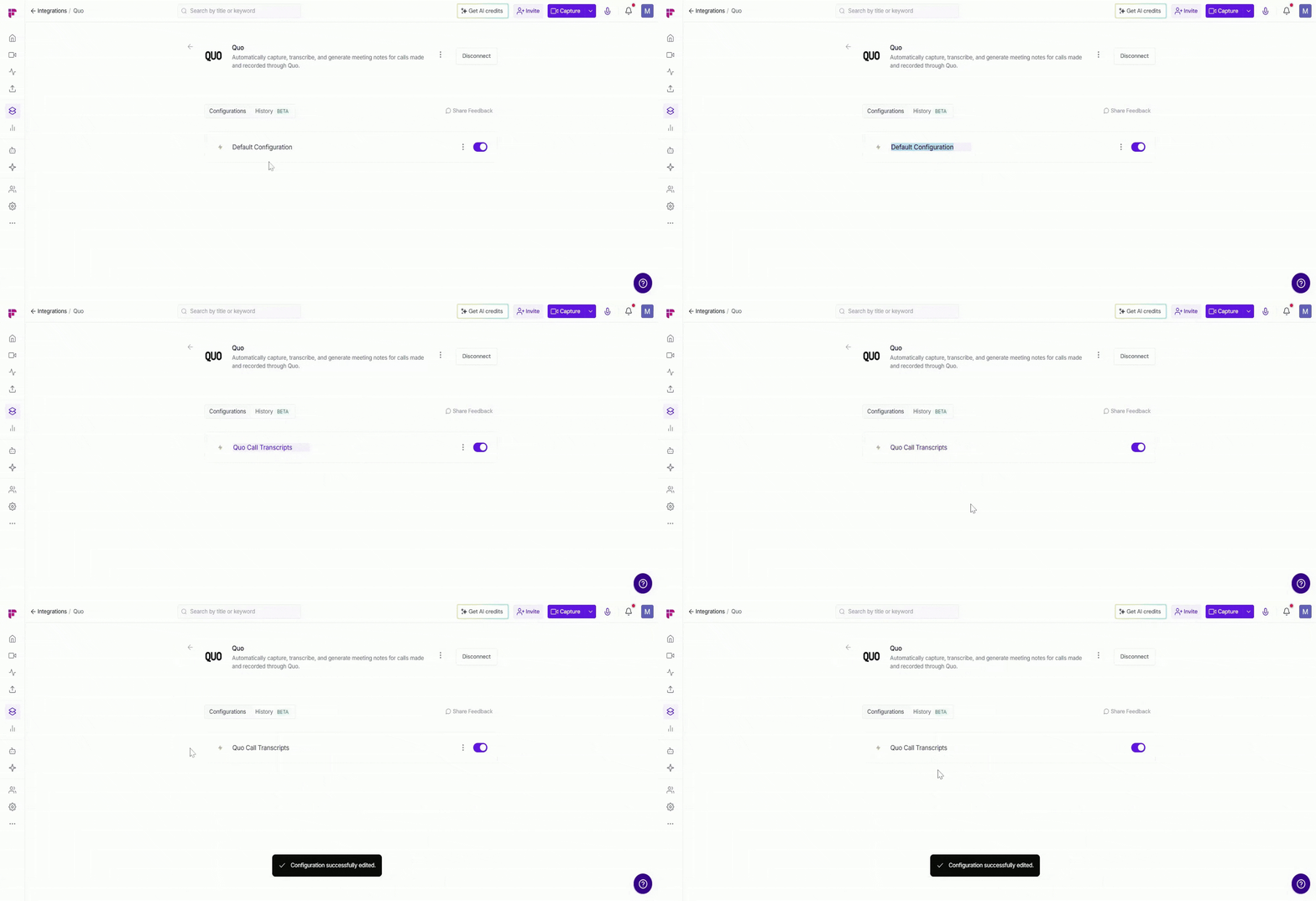
✏ Edit Configuration Name → Give each Quo configuration a clear, descriptive name so it’s easy to recognize. Click the configuration name (for example, Default Configuration), type the new name (like Quo Call Transcripts), and click outside the field to save.
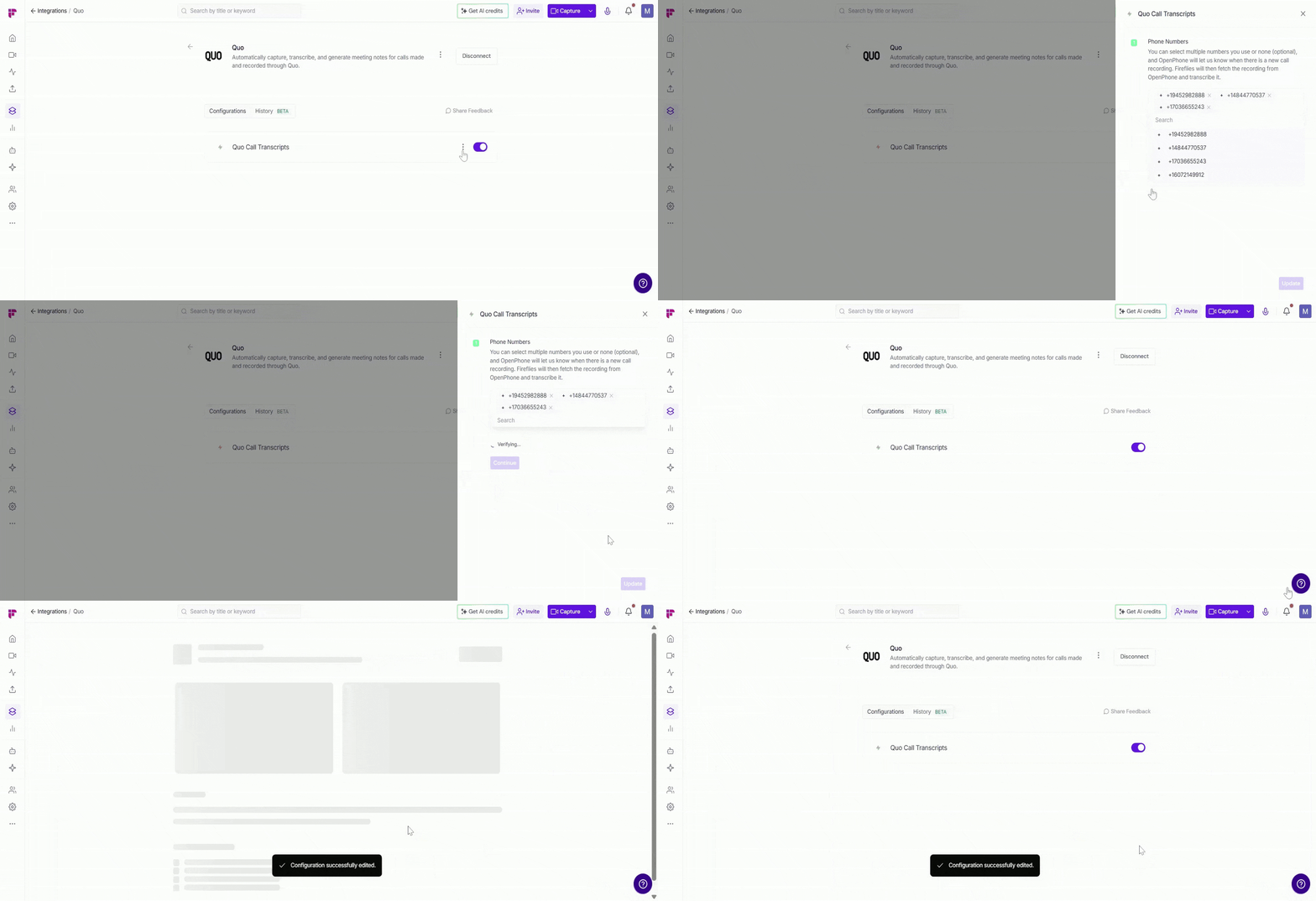
⚙ Edit Configuration Settings → Need to update your Quo integration settings? Click the vertical ellipsis (⋮) next to a configuration, select Edit, update the phone numbers you want Fireflies to monitor, and click Update to save your changes.
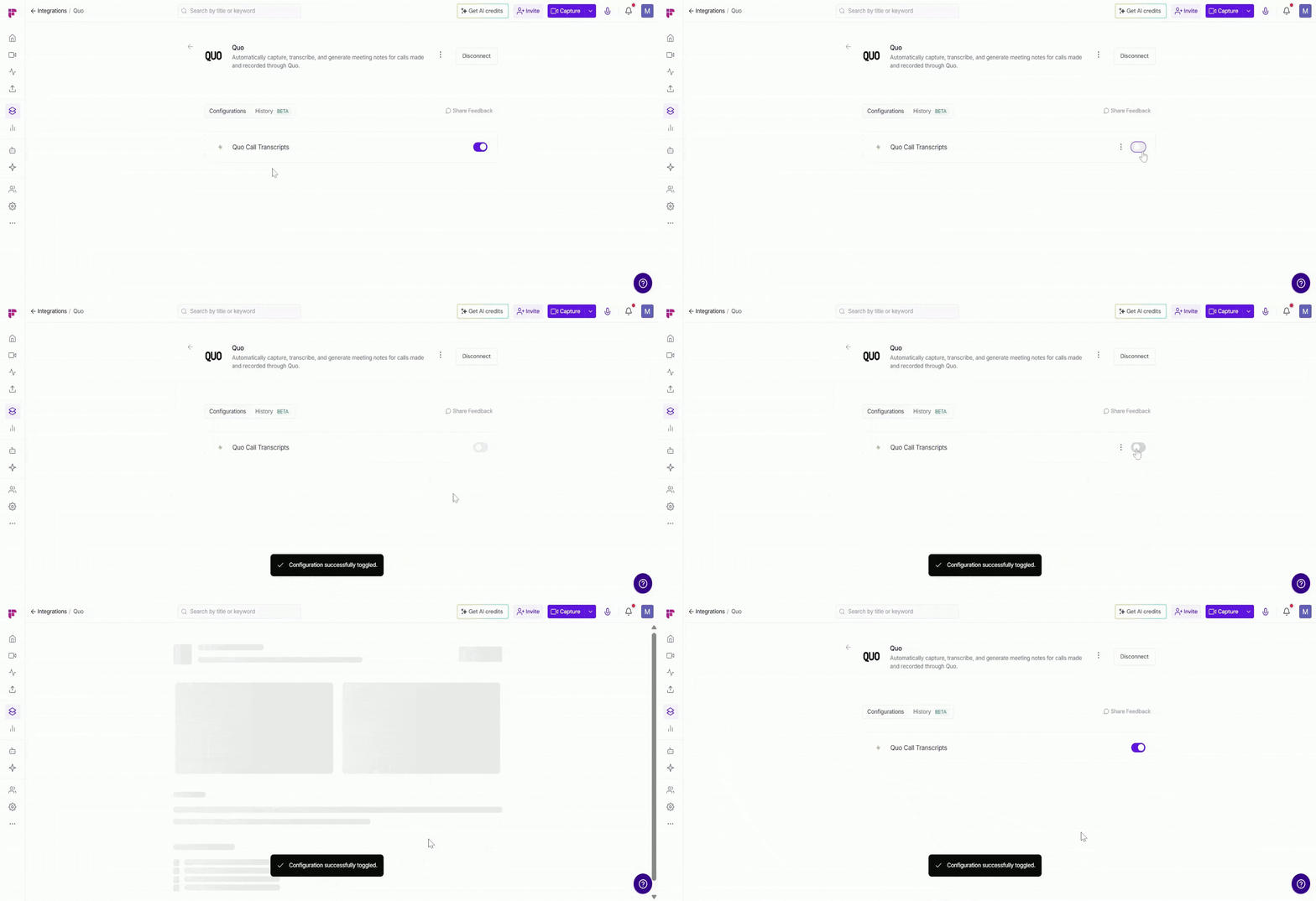
🔘 Enable or Disable a Configuration → Use the toggle next to any Quo configuration to turn it on or off instantly. Toggle ON to allow Fireflies to capture and transcribe calls from the selected Quo phone numbers. Toggle OFF to pause the integration without deleting the configuration.
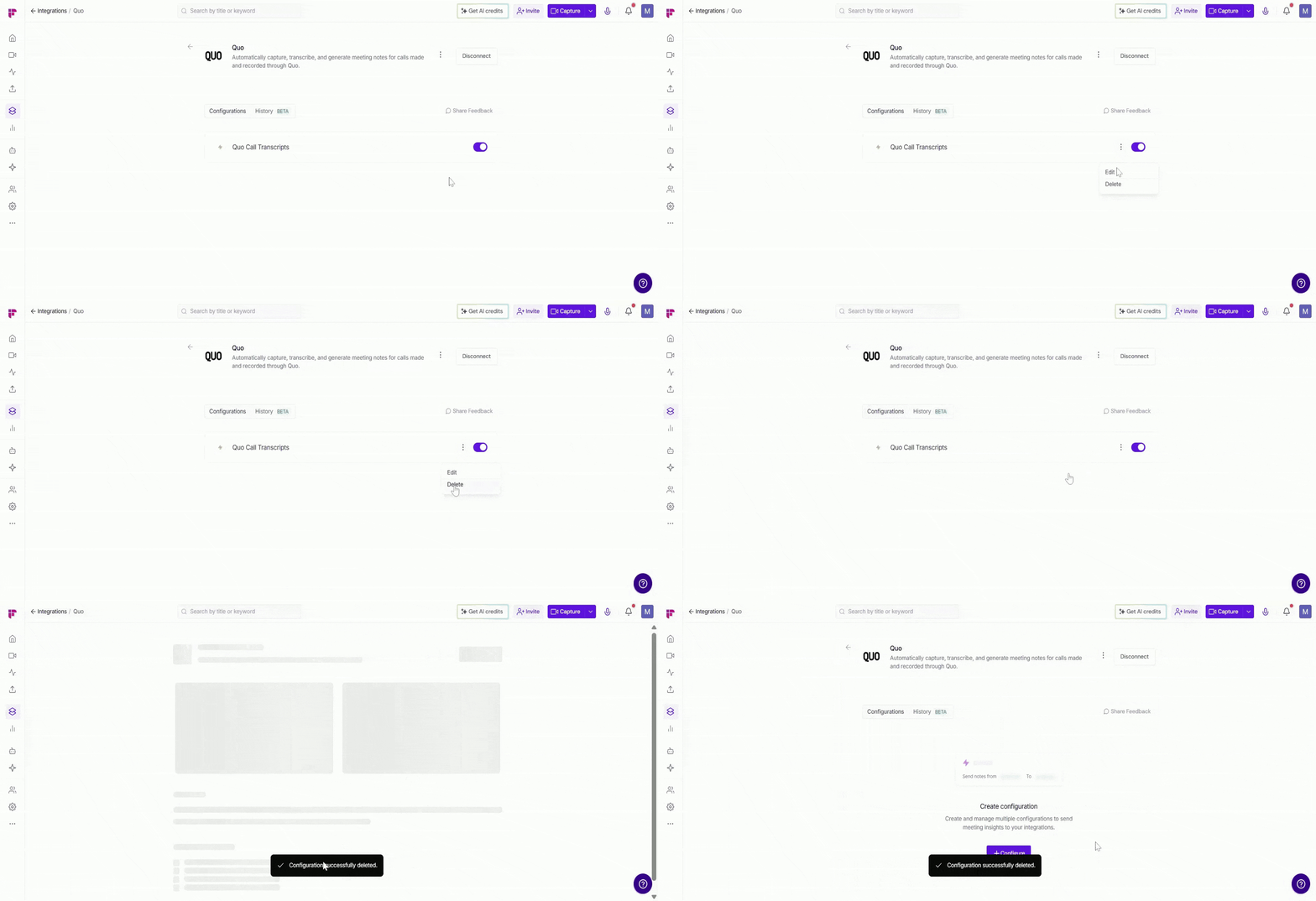
🗑 Delete Configuration → If a configuration is no longer needed (for example, you no longer want Fireflies to monitor certain Quo phone numbers), you can delete it. Click the vertical ellipsis (⋮) next to the configuration, select Delete, and confirm.
✅ How to Use the Fireflies–Quo Integration
For Fireflies to transcribe a call, the call must be recorded in Quo. Once call recording is enabled and the integration is active, Fireflies will automatically fetch, transcribe, and analyze inbound and outbound calls made using your selected Quo phone numbers.
Here’s how it works:
Quo sends the recorded call to Fireflies, allowing Fireflies to capture the conversation and generate a transcript with AI summaries and action items.
Transcribed calls appear in the Fireflies Notepad, where you can review detailed notes, summaries, keywords, and action items from the call.
❌ Disconnect Integration
If you no longer want Fireflies connected to Quo (formerly OpenPhone), you can disconnect the integration at any time.
Click the Disconnect button to remove the Quo integration. This will immediately end the connection, and Fireflies will stop fetching and transcribing calls from your Quo phone numbers.
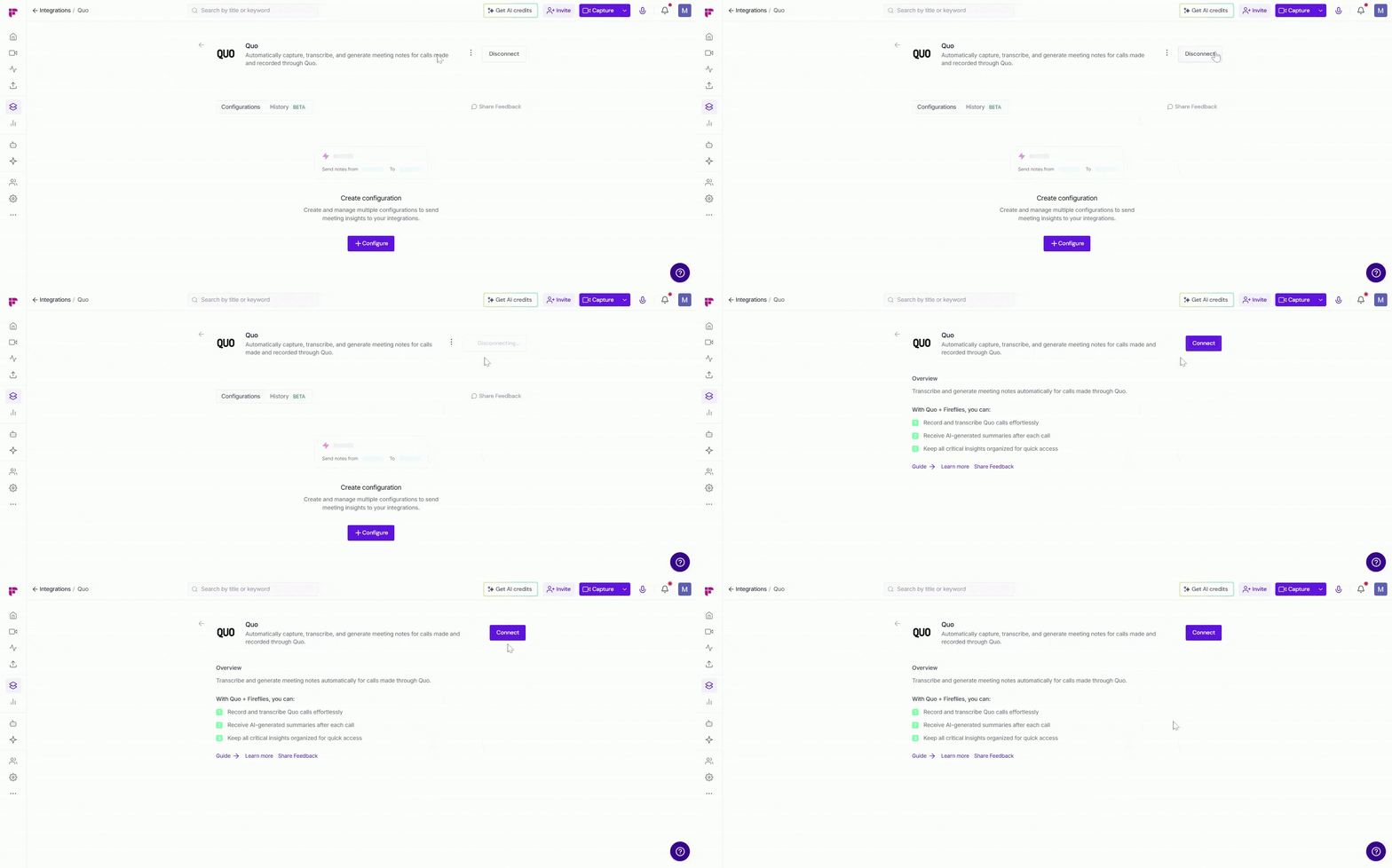
You can reconnect the integration anytime if needed.
🔧 Troubleshooting
Issue | What to Check / Do |
Calls not appearing in Fireflies | • Make sure the Quo integration is active in the Integrations page. |
Calls not getting transcribed | • Verify that call recording is enabled in Quo. |
Integration disconnected unexpectedly | • Reconnect the Quo integration from the Integrations page in Fireflies. |
Some calls are missing | • Check that the correct phone numbers are selected in the configuration. |
Permission or connection errors | • Make sure the API key is valid and active in your Quo account. |
Still stuck? Contact support via this link for more help.
❓ Frequently Asked Questions
Q1. How do I reconnect the Quo integration?
Go to the Integrations page in Fireflies, open Quo, and click Connect to authorize the integration again.
Q2. Why are my calls not appearing in Fireflies?
Make sure call recording is enabled in Quo and that the integration is connected with a valid API key.
Q3. Where can I view the call transcripts?
All transcribed calls appear in the Fireflies Notepad, where you can review transcripts, summaries, keywords, and action items.
Q4. Which calls will Fireflies transcribe?
Fireflies will transcribe inbound and outbound calls made using the Quo phone numbers selected in your configuration.
Q5. What’s the difference between disabling and deleting a configuration?
Toggle OFF (Disable): Temporarily pauses the configuration. Fireflies will stop capturing calls, but the setup remains saved and can be turned back on anytime.
Delete: Permanently removes the configuration. You’ll need to create a new one if you want to use the integration again.
🔄 Recap
Integrating Quo (formerly OpenPhone) with Fireflies helps your team automatically capture and transcribe call conversations.
Here’s what you get:
Automatic call transcription — Fireflies records and transcribes calls made through your selected Quo phone numbers.
AI-generated insights — Get summaries, action items, and key highlights from each call.
Centralized call notes — All transcripts and insights are available in the Fireflies Notepad for easy review and sharing.
This integration helps teams save time, avoid manual note-taking, and keep important call conversations organized.
📌 Related Guides
Want to explore more? These guides will help you get the most out of Fireflies:
Dialer Integrations → Explore all dialer integrations(Zoom Phone, Aircall, RingCentral etc.) supported by Fireflies.
AI Meeting Summaries Guide → Understand how Fireflies captures, summarizes, and organizes meeting takeaways.
Fireflies Notepad → Learn how to edit and refine your meeting notes before sending them to other tools.