How to Deactivate, Reactivate, and Remove Teammates in Fireflies
Last updated: September 9, 2026
Team changes happen - people join, leave, or change roles. Fireflies lets admins manage teammate access by deactivating, reactivating, or removing users, depending on the teammate and your workspace settings. This guide explains when to use each option and how to manage teammate access.
📌 Before You Begin
Admin Access Required: Only Admins and Super Admins can manage teammate access.
Available Actions: The actions you see depend on the teammate. Internal teammates can be deactivated or reactivated, while external users may have a Remove option instead.
🚀 Navigation
Log in to your Fireflies account. You can access your Team settings in either of the following ways:
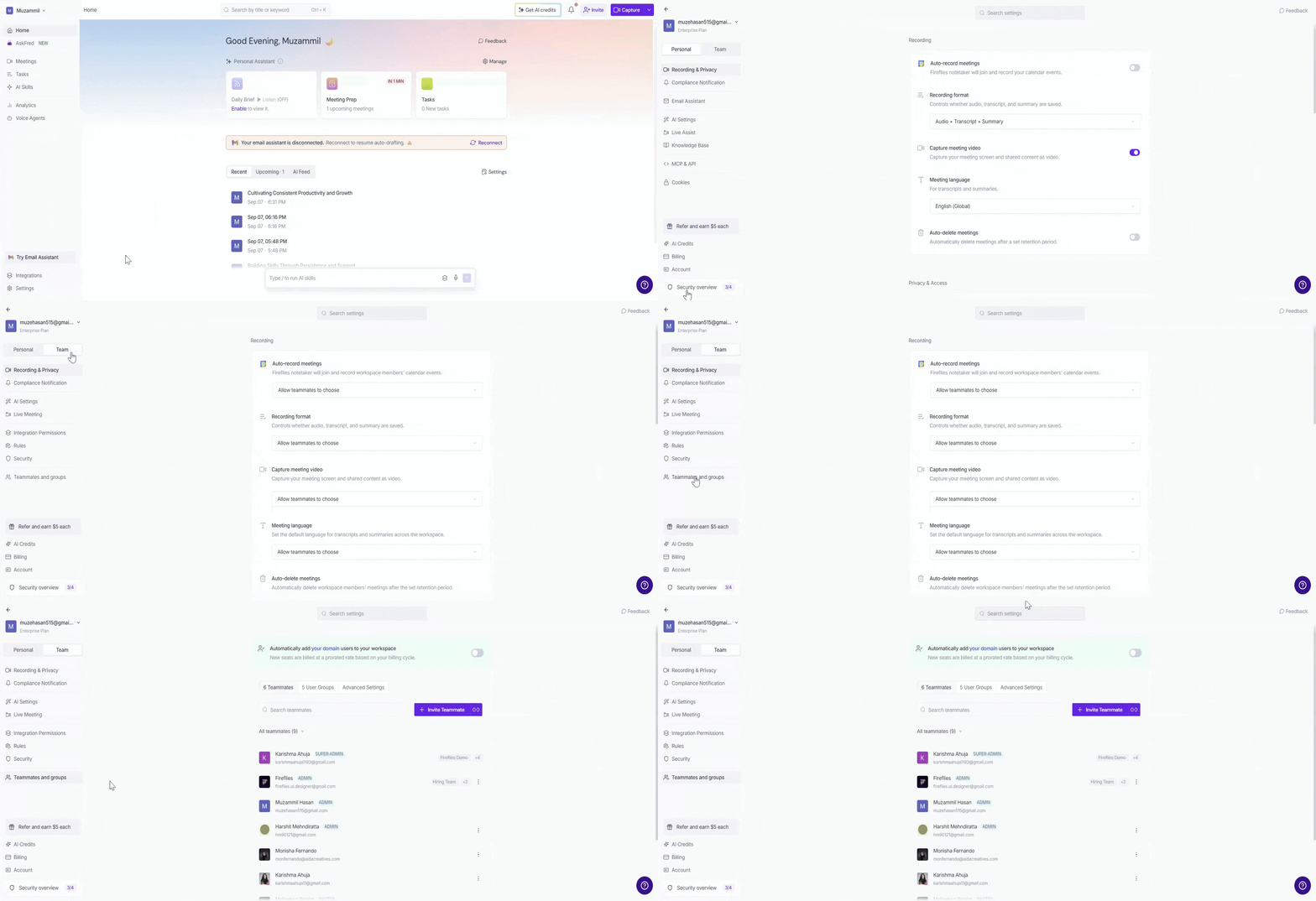
From Settings: Click Settings from the left navigation, select the Team tab, and click Teammates and groups.
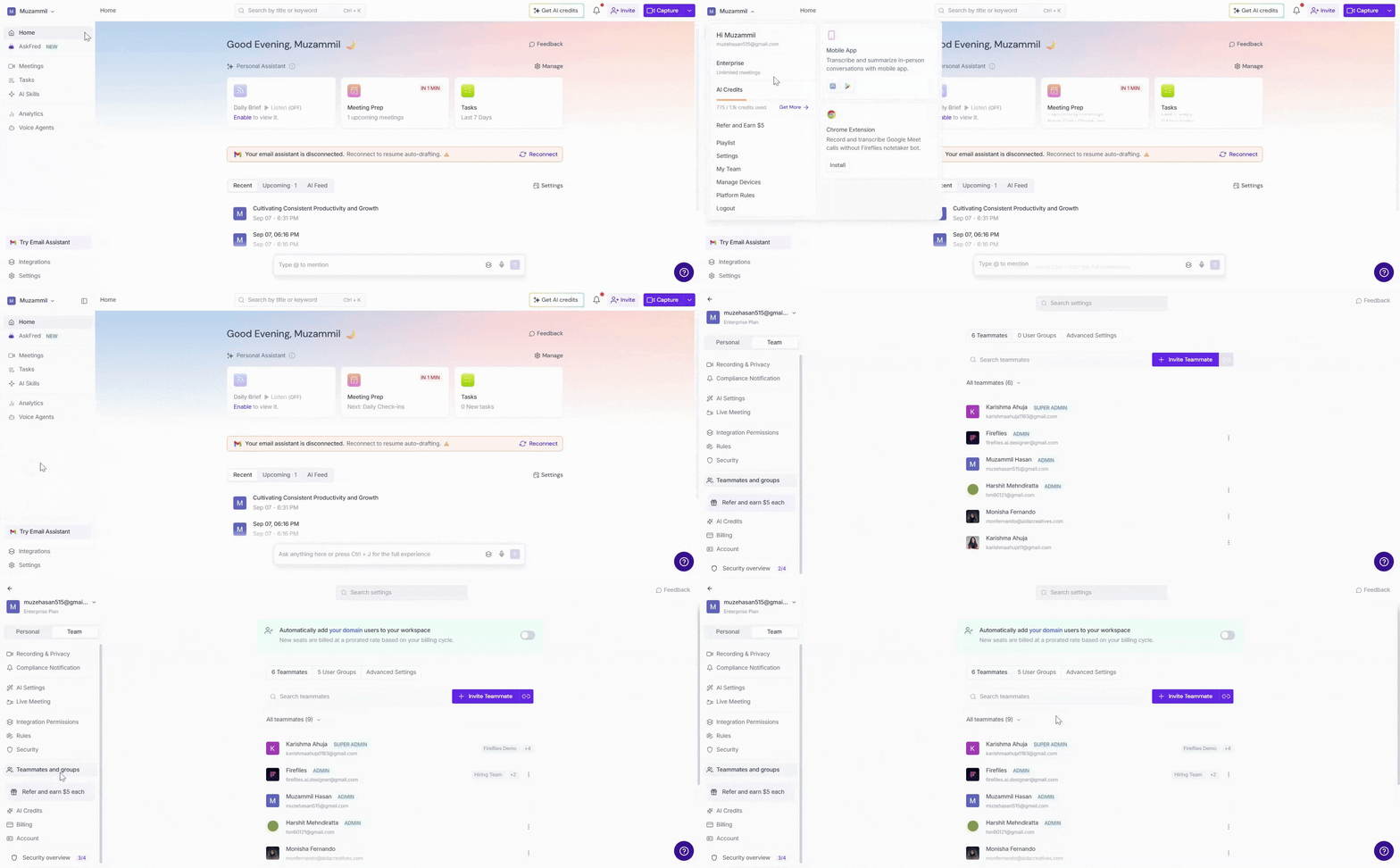
From your profile menu: Click your profile menu in the top-left corner and select My Team.
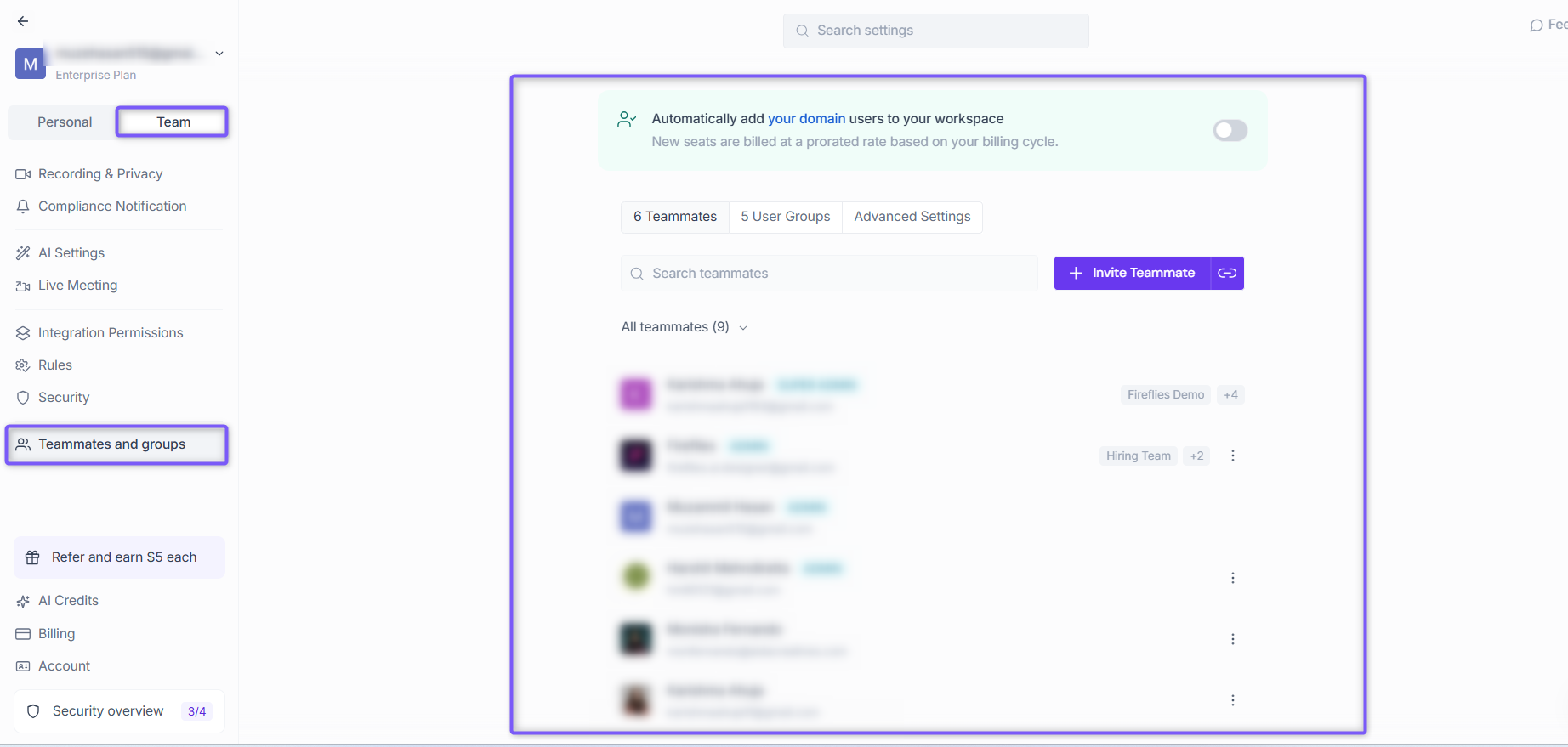
Both options take you to the Members and Groups settings, with the Teammates tab selected by default.
🚫 How to deactivate a teammate
Deactivate a teammate to temporarily suspend their access to Fireflies.
1. Make sure you’re on the Members tab.
2. Scroll through the list or use the search bar to find the teammate you want to deactivate.
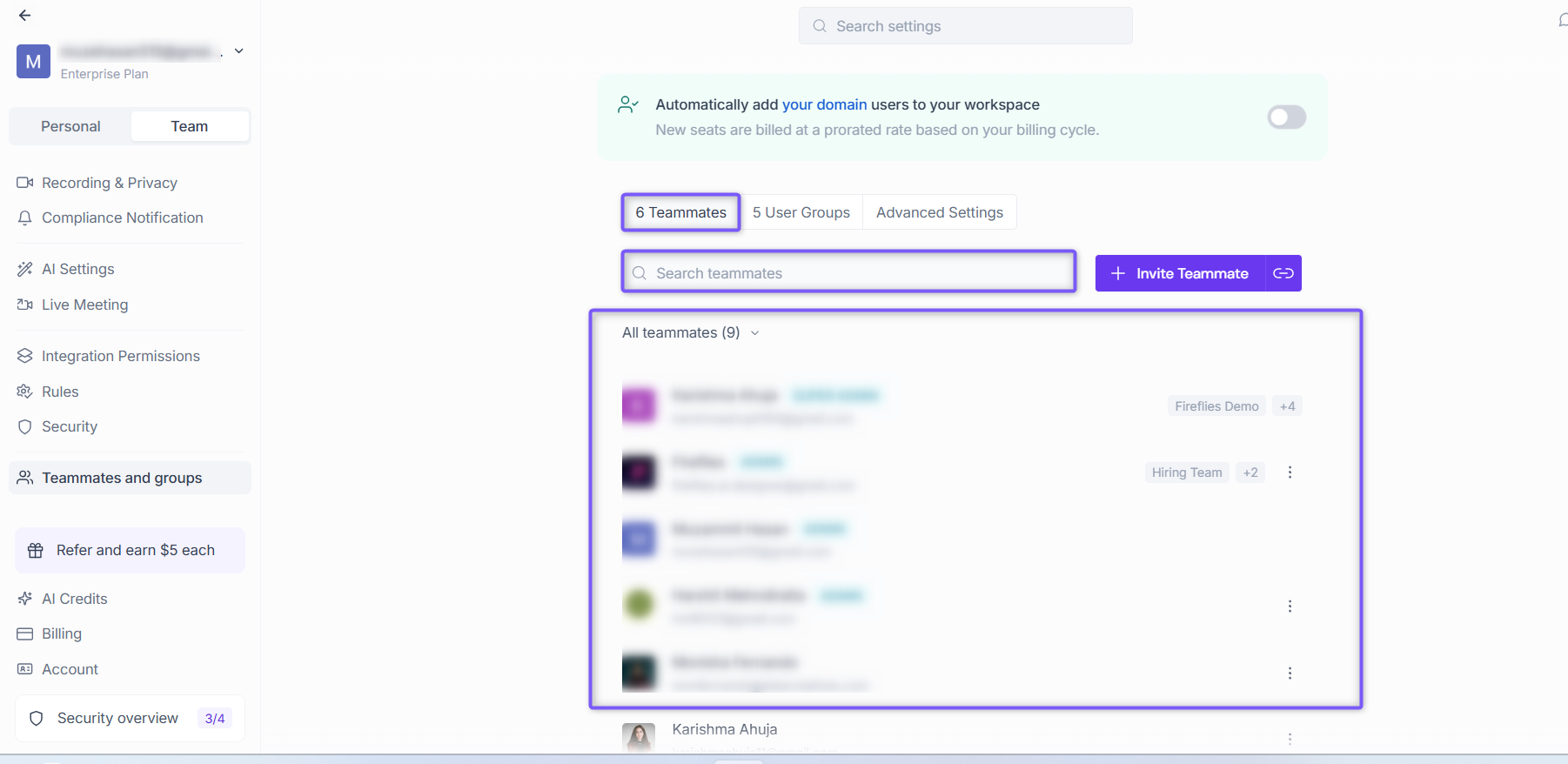
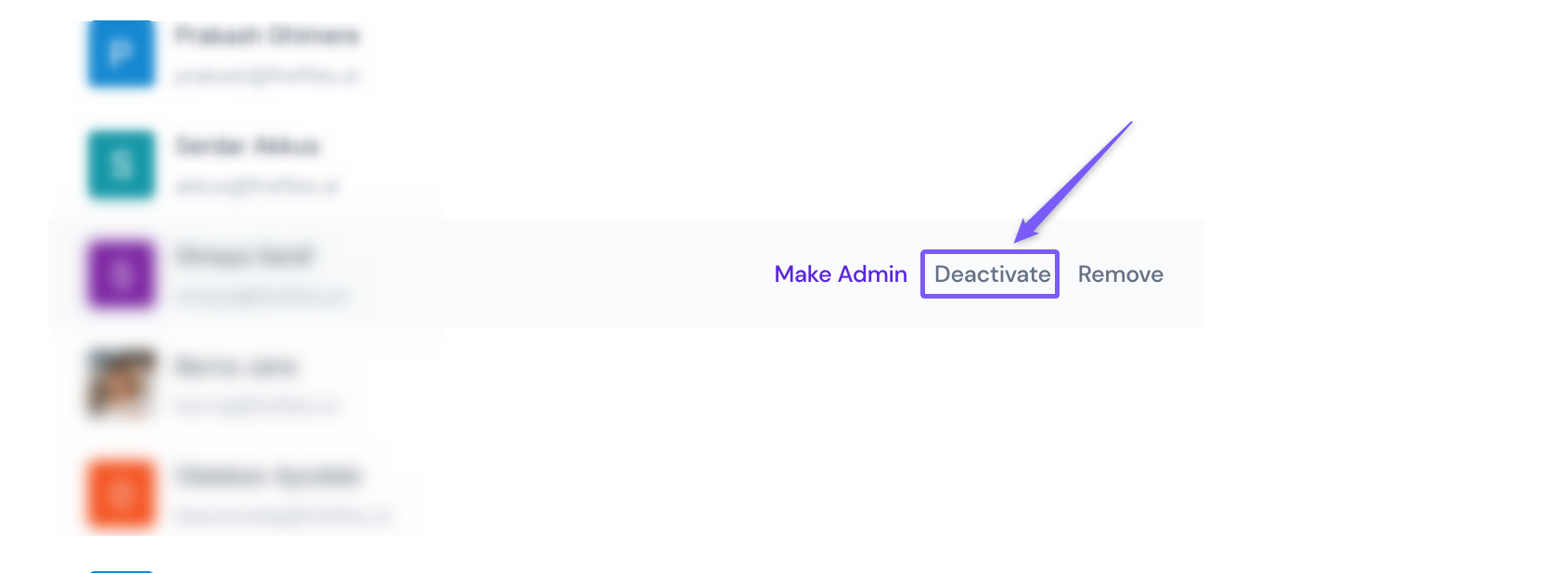
3. Click the three-dot menu next to their name and select Deactivate.
You'll now see two choices:
Deactivate and keep data
Deactivate and delete data
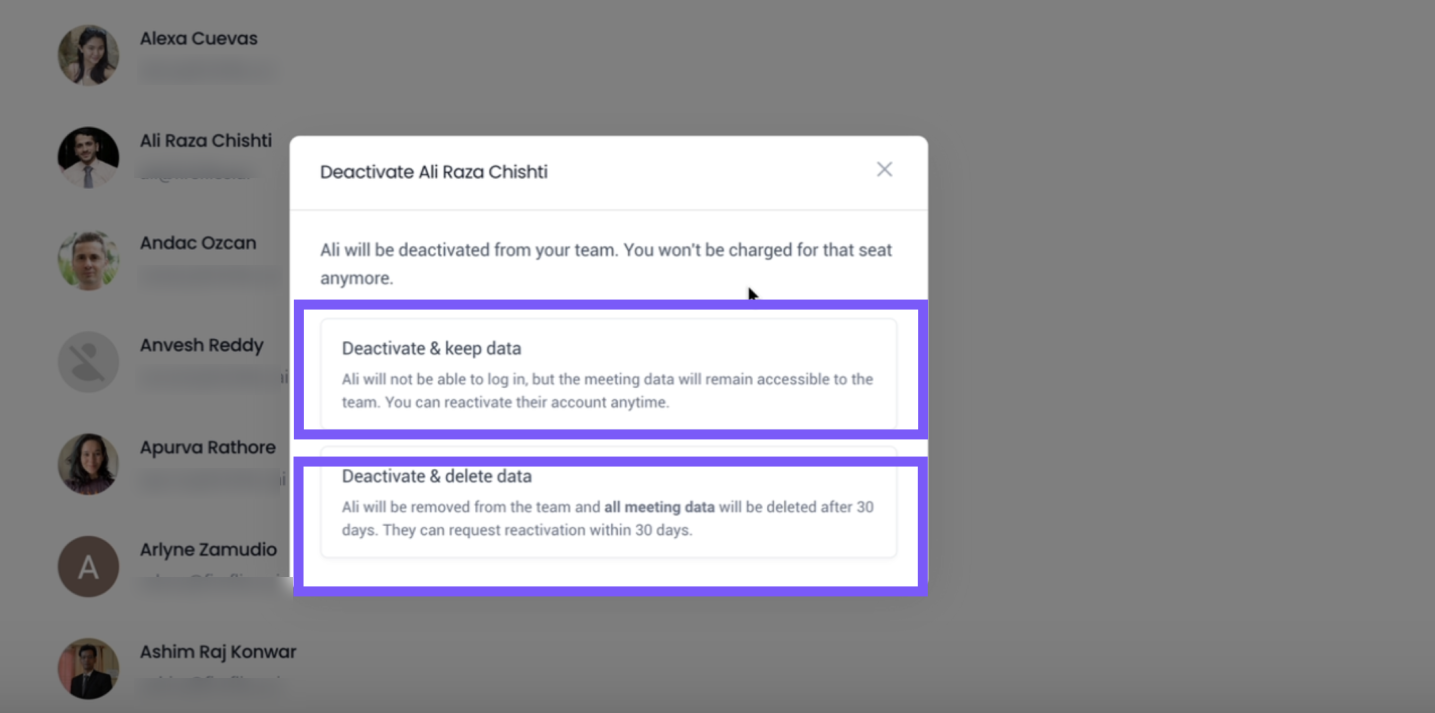
Option A: Deactivate and keep data:
Use this when you want to suspend someone's access but keep their past meetings in the workspace. Once Selected, the following happens:
The user becomes inactive, but all their meetings and notes remain searchable
You'll see the user marked as "Deactivated" in your Team tab
If they try to log in, they’ll see a suspension message
You can restore access anytime by clicking Activate next to their name

This is perfect for teammates going on leave, offboarding, or role changes where historical data is still valuable.
Option B: Deactivate and Delete data:
Use this when you want to completely remove a teammate and erase their content.
Click Deactivate and delete data
Their Fireflies access is revoked
Their meeting data will be permanently deleted after 30 days
You'll see a confirmation message once removed
If the teammate logs in again, they'll see an option to Reactivate my account. Doing so places them on a Free plan in a separate workspace.

Choose this when you’re handling data compliance, privacy requests, or removing test/demo accounts.
🔄 How to reactivate a teammate
Reactivate a teammate to restore their access to Fireflies.
1. Go to the Members tab.
2. Use the search bar or filter by Deactivated Members to find the user.
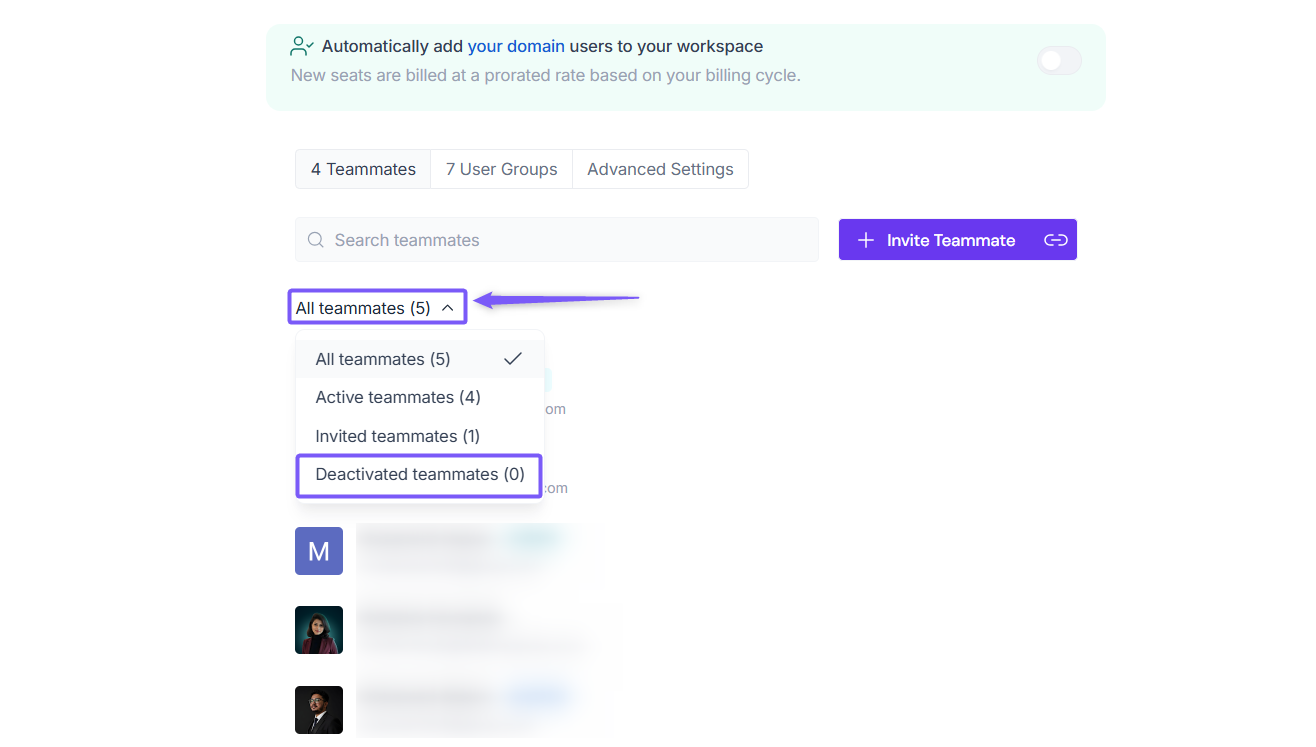
3. Click the three-dot menu next to their name and select Activate.

That’s it! They are now again an active member of your team.
🗑 How to Remove a Teammate
Remove a teammate who no longer needs access to your Fireflies workspace. This option is available for users outside your domain.
Under the Teammates tab, find the teammate you want to remove.
Click the three-dot menu next to their name and select Remove.
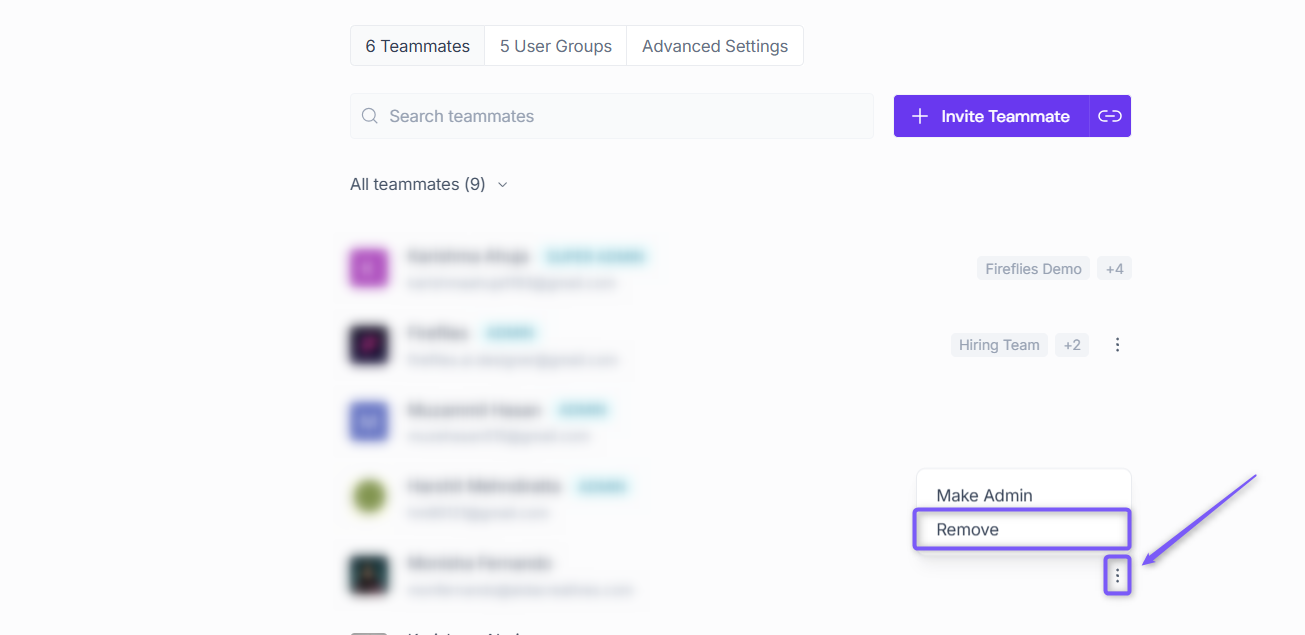
Once removed:
The teammate will no longer have access to your workspace.
They are removed from your member list.
If they need access again in the future, you'll need to invite them back to the workspace.
Removing a teammate also frees up their paid seat. Once the teammate is removed, you'll no longer be charged for that assigned seat in future billing cycles.