How do I invite Fireflies to Zoom meetings that have Passwords
Last updated: April 23, 2026
Zoom meetings may have passwords and waiting rooms enabled by default for added security. If a password is required or participants need to be admitted manually, Fireflies may not be able to join automatically unless the correct details are included. Follow the steps below to help Fireflies join and capture your meeting successfully.
1. When Inviting Fireflies via Calendar Invites
If you’re inviting Fireflies through a calendar event, make sure the Zoom meeting password is included in the invite details so Fireflies can join automatically.
1. Open your calendar app, such as Google Calendar or Microsoft Outlook Calendar, and create or open the meeting event.
2. Copy the Zoom meeting details from Zoom and paste them into the invite description. Make sure the meeting link includes the password/passcode.
Example: A Zoom meet link with a password usually looks like this: https://us05web.zoom.us/j/8186485458?pwd=kQkpPDnCvIZ2zoyA93KiUY9U1mFk.1
If your link does not include this pwd=...please check before sending the invite.
Step 3: Save or update the invite so Fireflies can access the meeting details and join automatically.
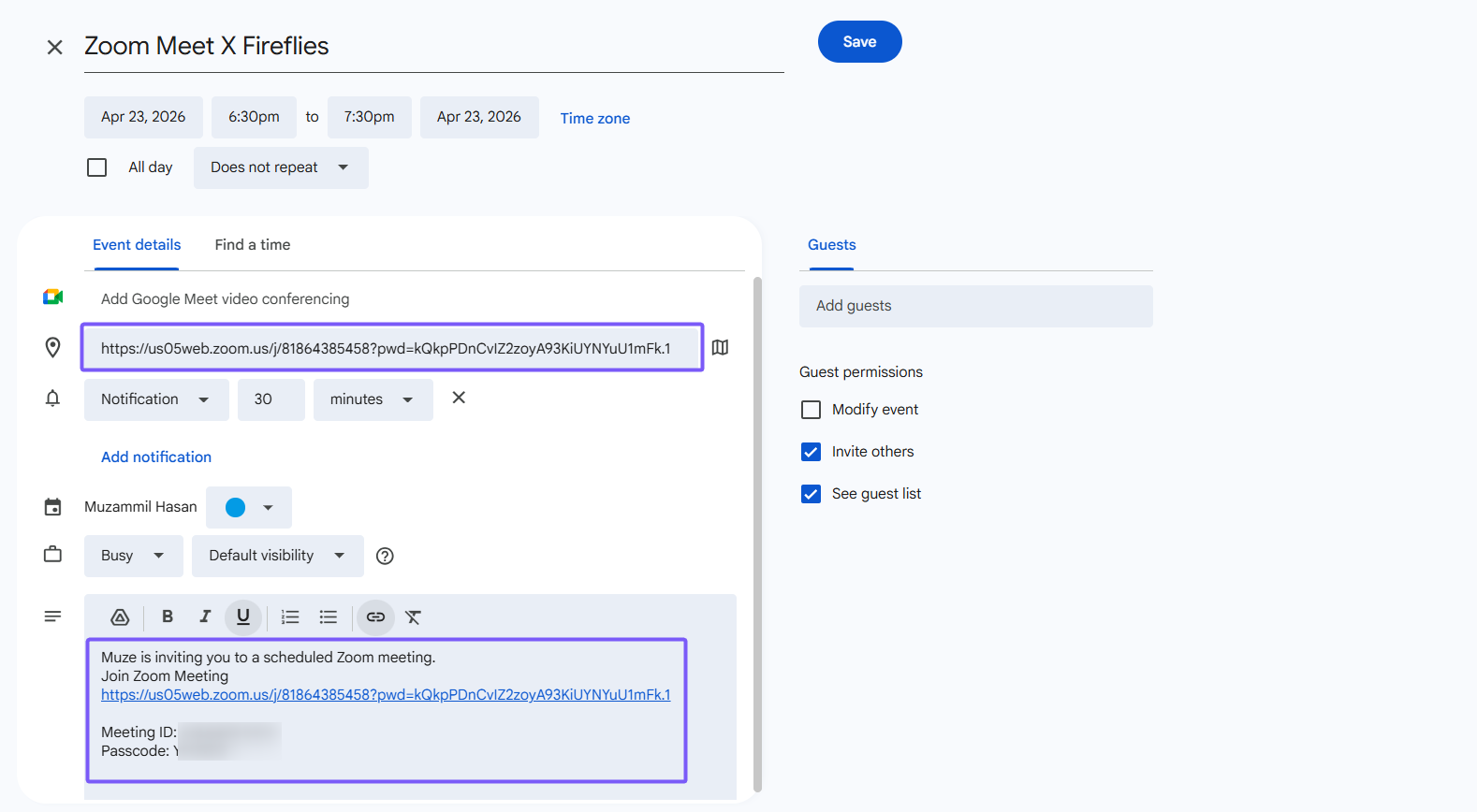
Once everything is set up, Fireflies will automatically join your Zoom meeting when it starts.
2. When Inviting Fireflies from the Add to Live Meeting Module
If you want to invite Fireflies manually to an ongoing or during the meeting, you can use the Add to Live Meeting option in Fireflies.
1. Log in to your Fireflies account and click Add to Live Meeting.
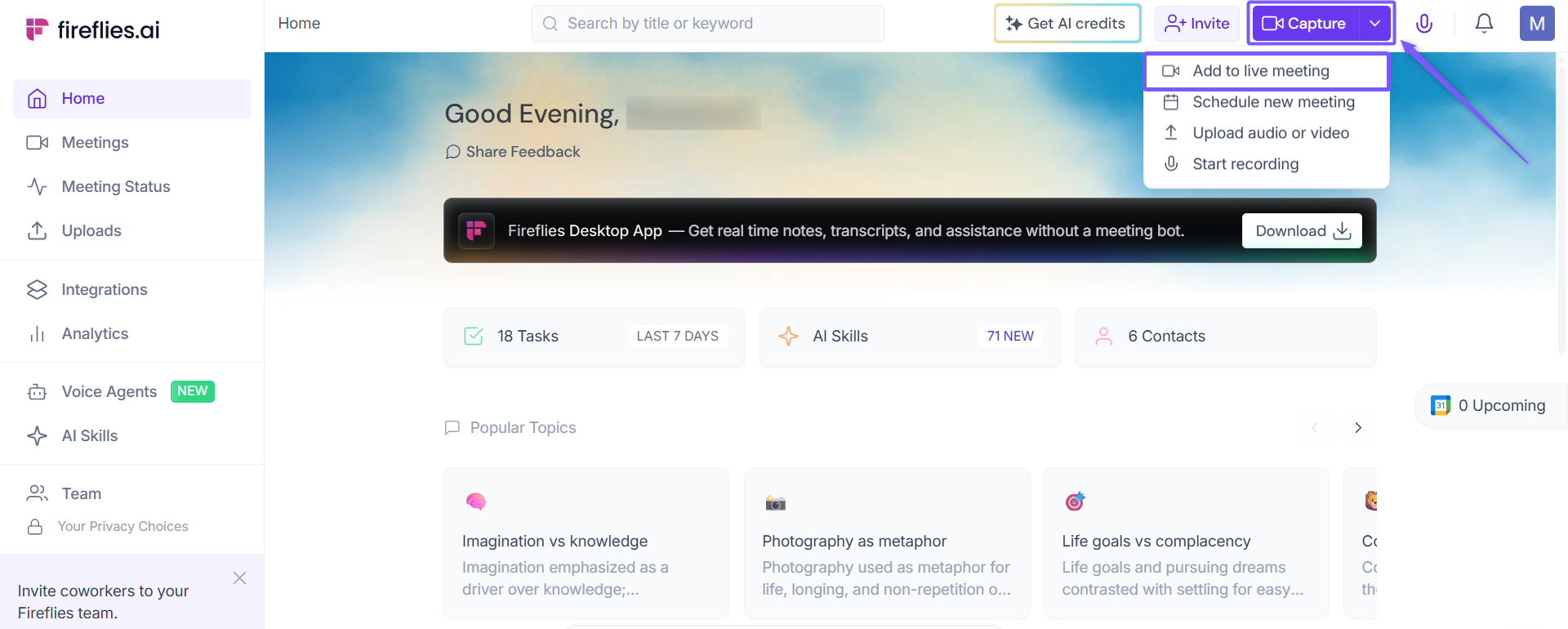
Step 2: Copy the full Zoom meeting link from Zoom. Make sure the link includes the password/passcode. A password-protected Zoom link usually looks like this:https://us05web.zoom.us/j/8186485458?pwd=kQkpPDnCvIZ2zoyA93KiUY9U1mFk.1
Step 3: Paste the link into the meeting URL field in Fireflies.
Step 4: Click Start Capturing.
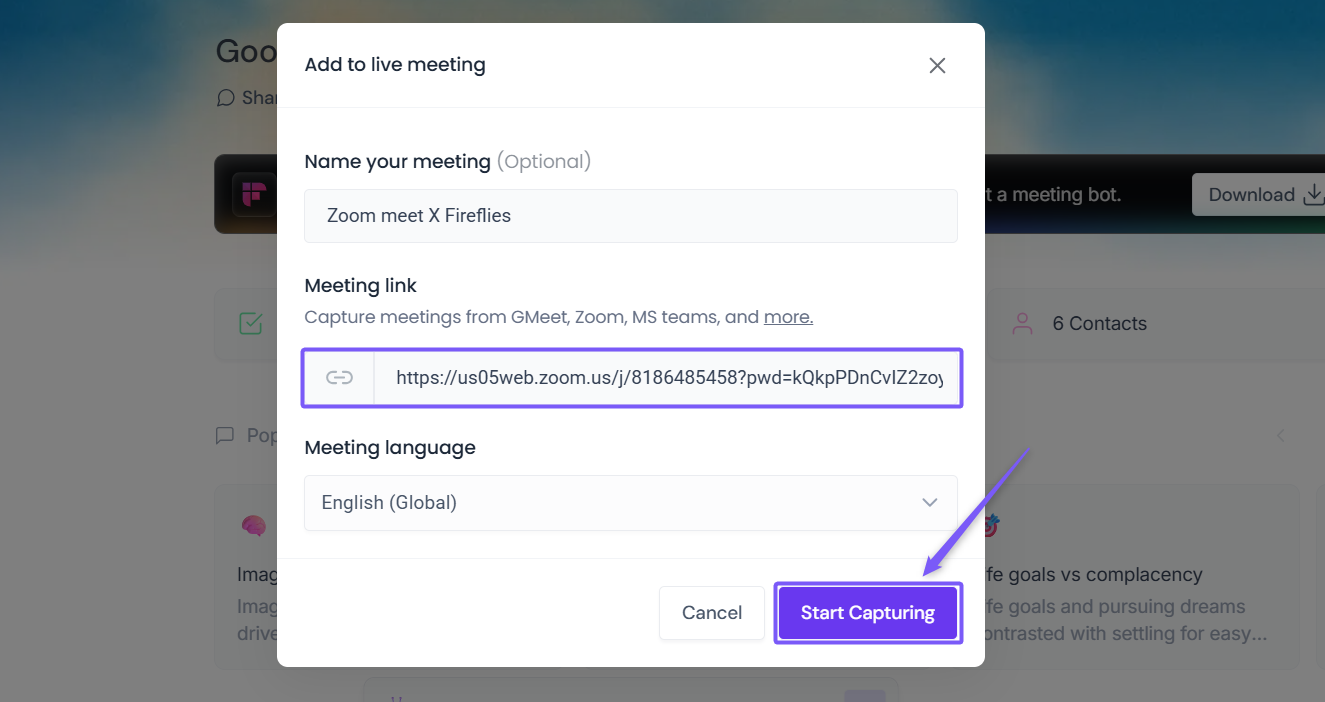
Fireflies will join the meeting within a few seconds and begin capturing the conversation.
💡Alternative Approaches
If Fireflies is still unable to join your Zoom meeting, you can update your Zoom settings for a smoother experience.
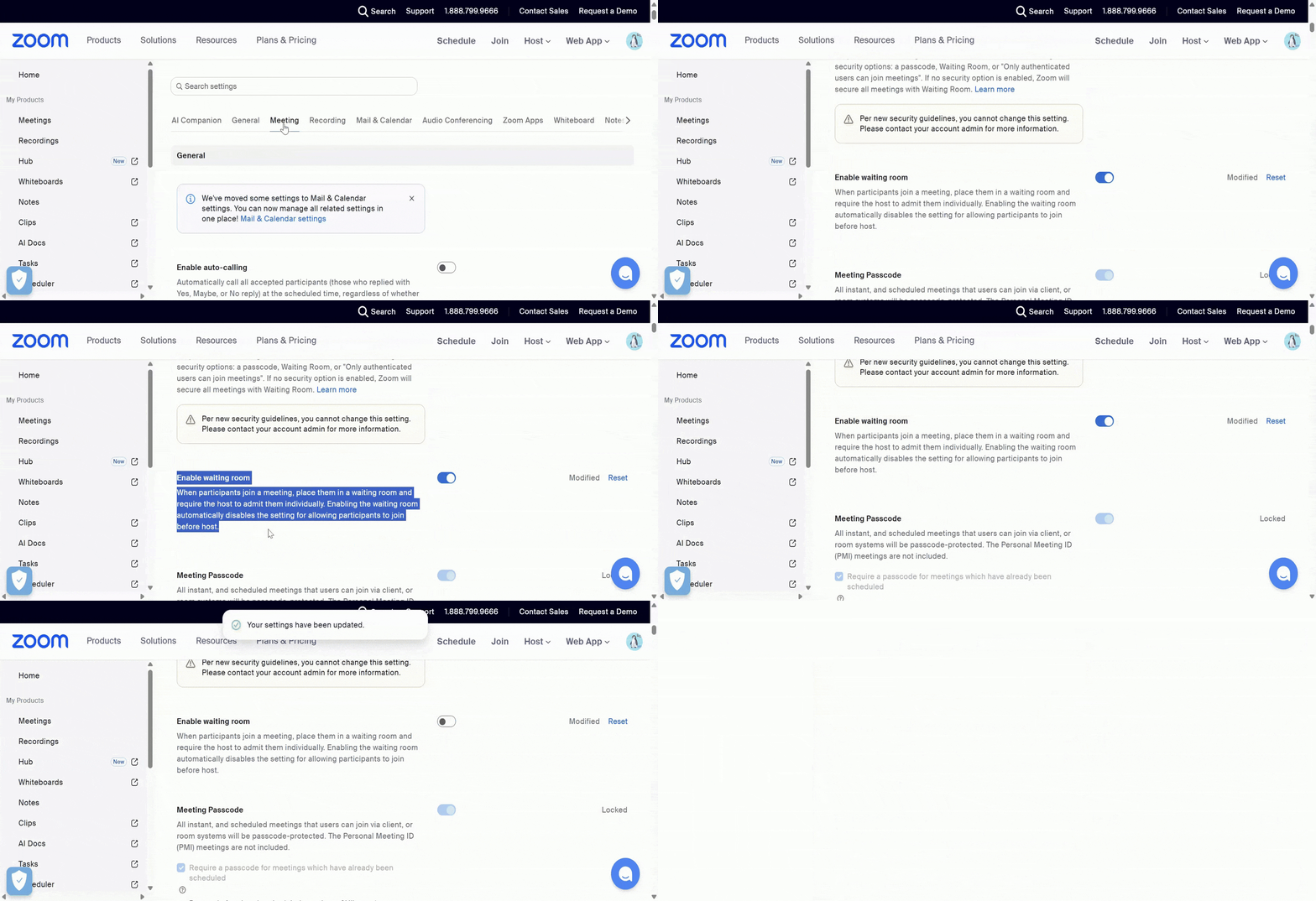
1. Locate the Security Options
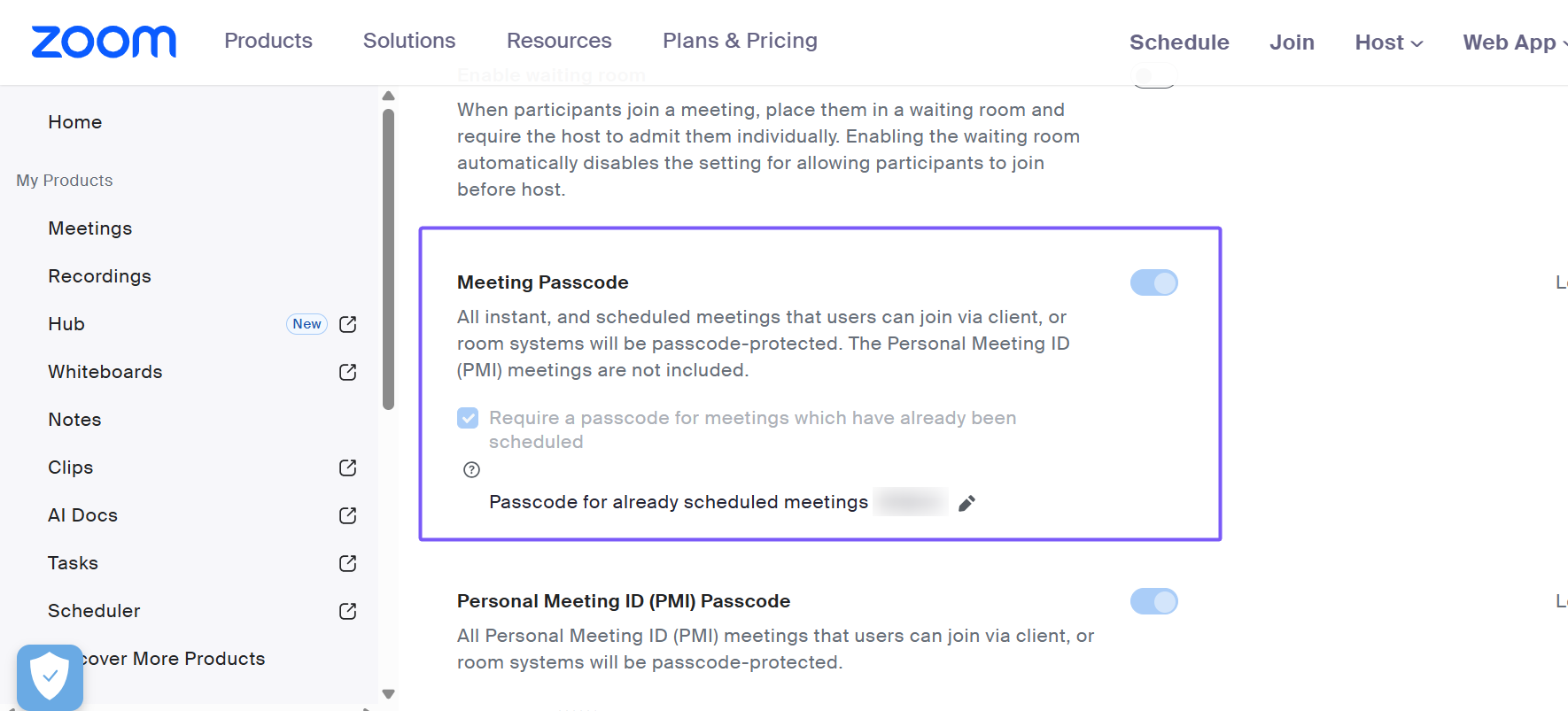
Go to Zoom’s settings page > Meeting tab > Security options.

2. Turn off the Meeting Password/Passcode
In your Zoom settings (admin only), if your workspace allows it. This lets Fireflies join without needing a passcode.
3. Turn off the Waiting Room
This allows Fireflies to join the meeting immediately without needing you or the host to manually approve it.
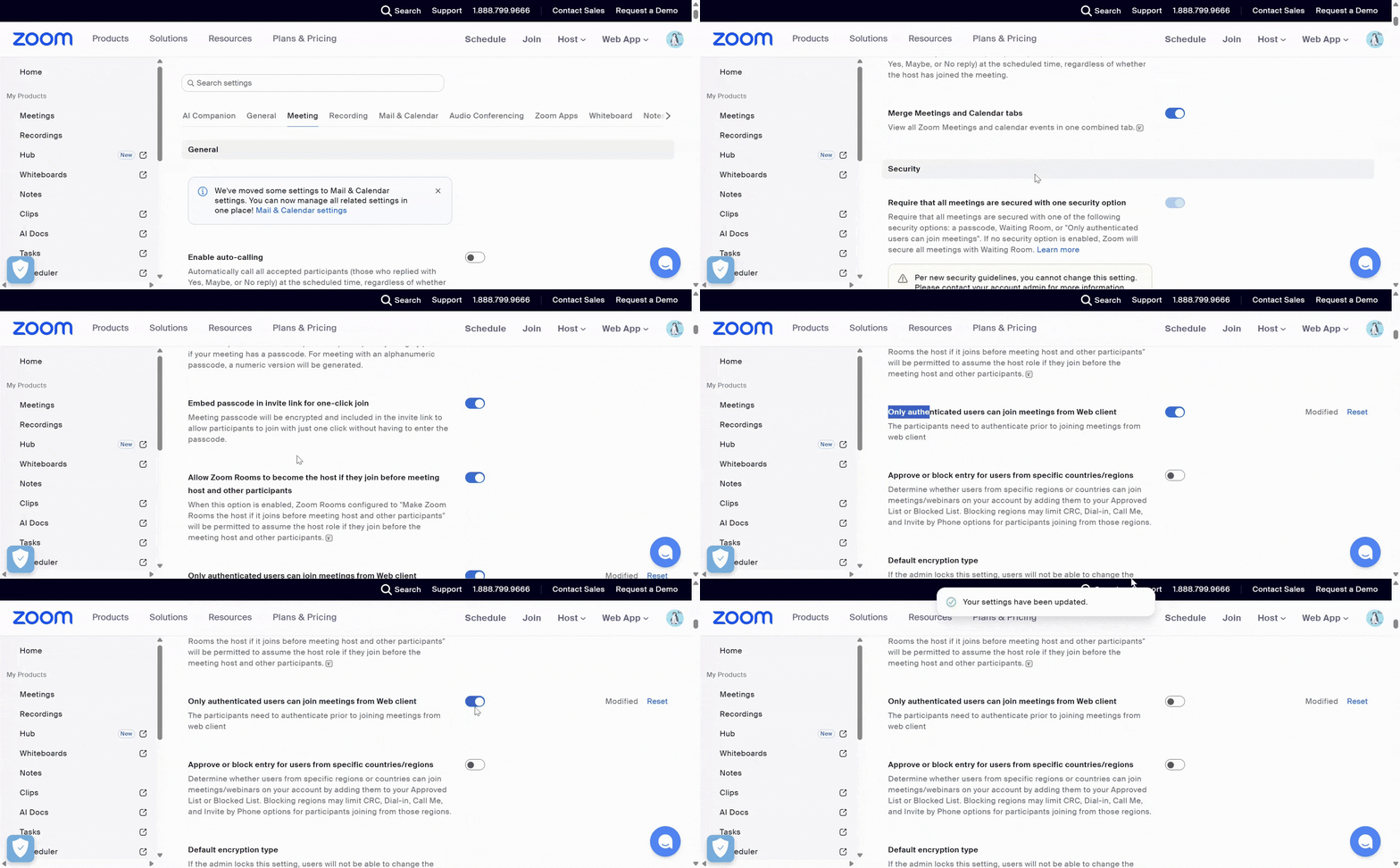
4. Allow Guest Users
Turn off Only authenticated users can join from Web client. This allows Fireflies to join your meeting as a guest (an unauthenticated user).
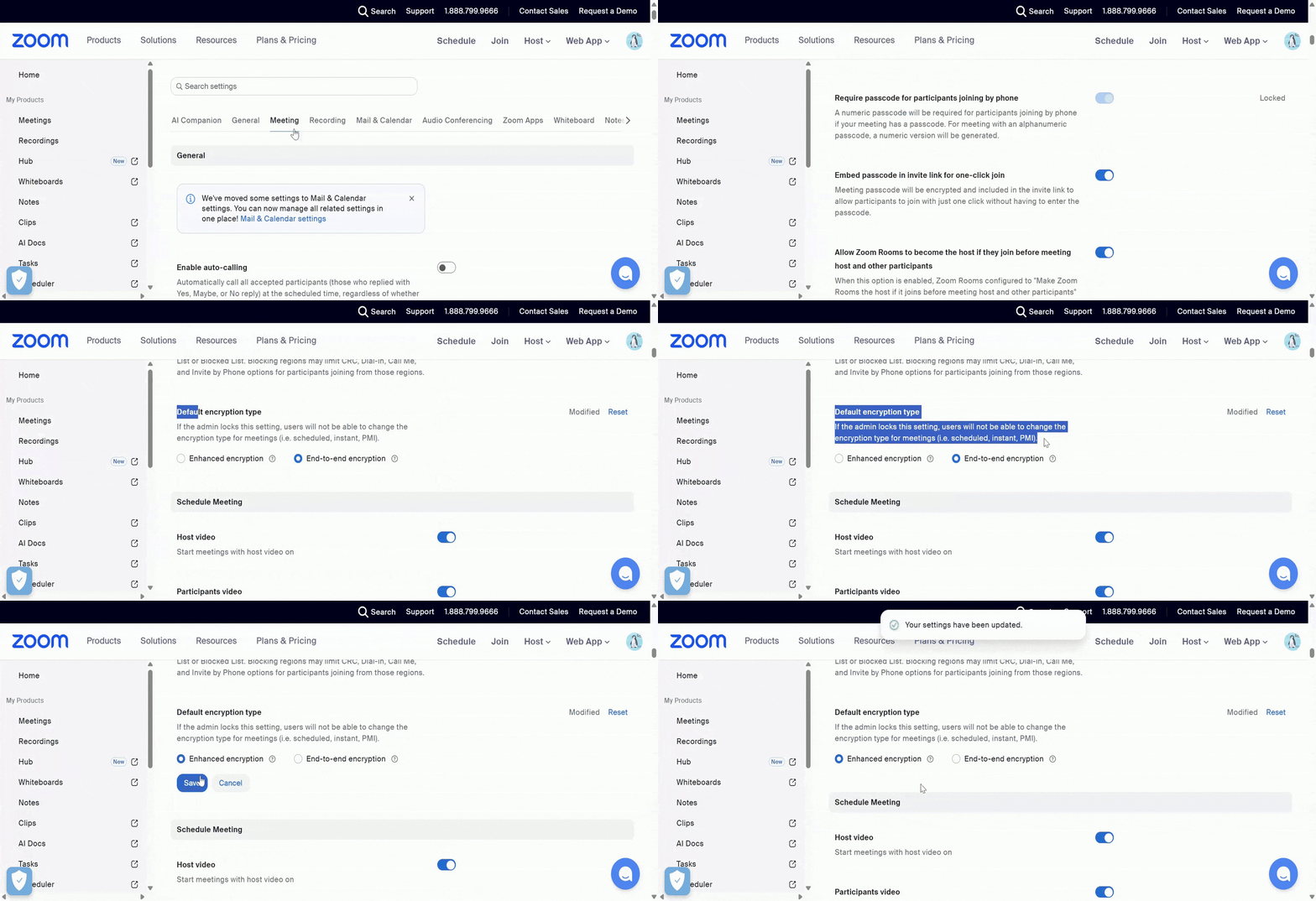
5. Confirm Encryption
In Default encryption type, select Enhanced encryption. End-to-end encryption prevents any third-party service, including Fireflies, from accessing the meeting audio to record and transcribe.
✅ That’s it! Fireflies will now be able to join your Zoom meetings more smoothly, even when passwords or waiting rooms are enabled.
👉 Related: Want a more seamless Zoom experience? Learn how to integrate Zoom with Fireflies.