Set up SAML SSO for Jumpcloud
Last updated: March 17, 2026
Configure single sign-on to let your team access Fireflies securely through Jumpcloud. This guide walks you through connecting Jumpcloud as your identity provider for streamlined team authentication.
Why use Jumpcloud SSO?
Centralize your team's authentication and eliminate password management. Jumpcloud SSO provides secure, one-click access to Fireflies while maintaining admin control over user access and permissions.
Streamlined team access
Your team logs into Fireflies using their existing Jumpcloud credentials - no separate passwords to manage or remember.
Enhanced security control
Admins can control Fireflies access directly from Jumpcloud, including user provisioning, deprovisioning, and access policies.
Simplified onboarding
New team members get automatic Fireflies access when added to the appropriate Jumpcloud user groups.
Before you begin
Setting up SSO involves configuring both your identity provider and Fireflies. Here's what you need to know before starting:
What you'll need
Admin access to both your identity provider (Azure AD/Okta/JumpCloud/OneLogin) and your Fireflies account
About 10-15 minutes to complete the full setup process
Two browser tabs - one for your identity provider, one for Fireflies
Important setup requirement
⚠ Critical step: Before you start the SSO configuration process, you must either:
Log out of your current Fireflies session, OR
Open the SSO setup link in an incognito/private browser window
This prevents session conflicts that can cause setup issues
How the process works
Configure your identity provider - Set up the basic SAML application and get the necessary URLs and certificates
Configure Fireflies - Use the information from step 1 to set up SSO at app.fireflies.ai/auth/sso
Complete the connection - Return to your identity provider with the final details from Fireflies
Ready to start?
Once you have admin access and have logged out of Fireflies (or opened an incognito window), you can begin the configuration process below.
Configure Jumpcloud application
Create the SAML application
Open the admin panel within Jumpcloud
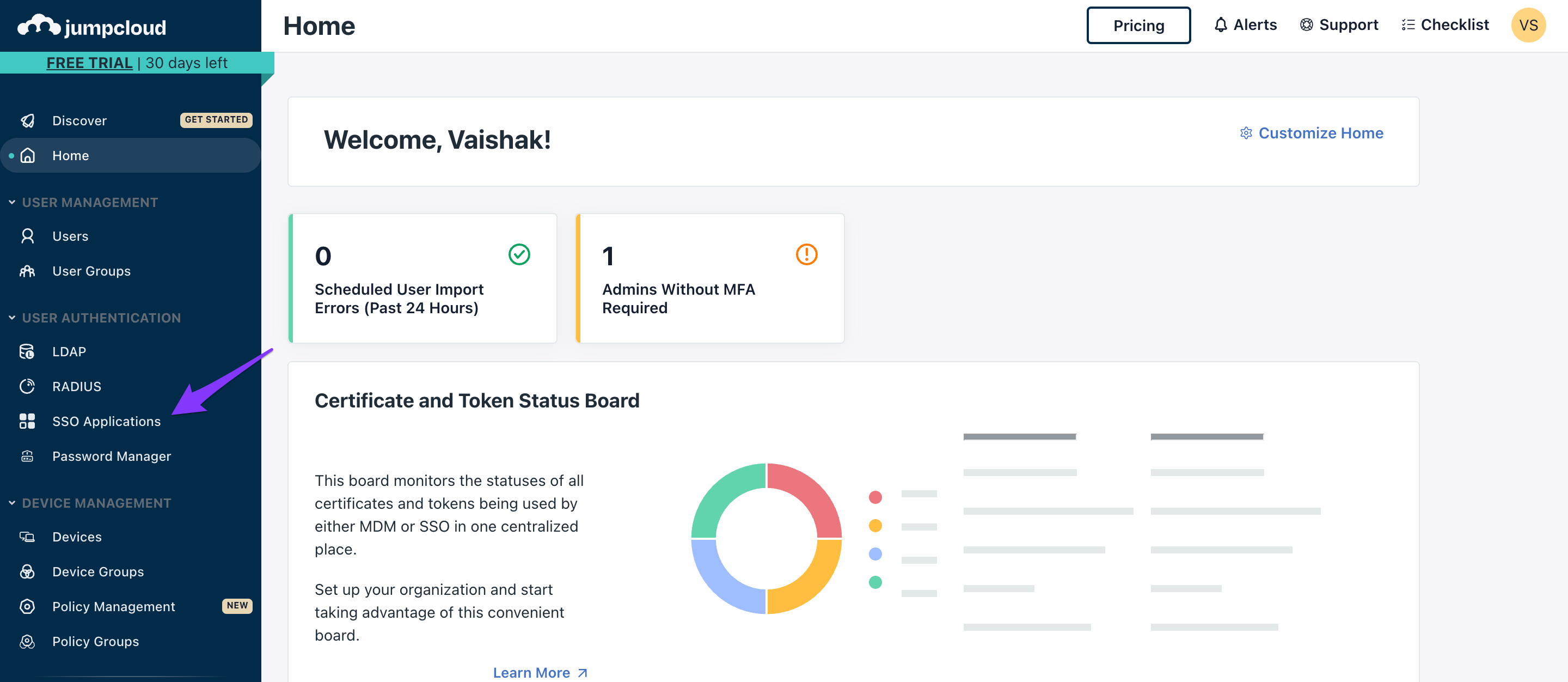
Click SSO applications on the left navigation panel
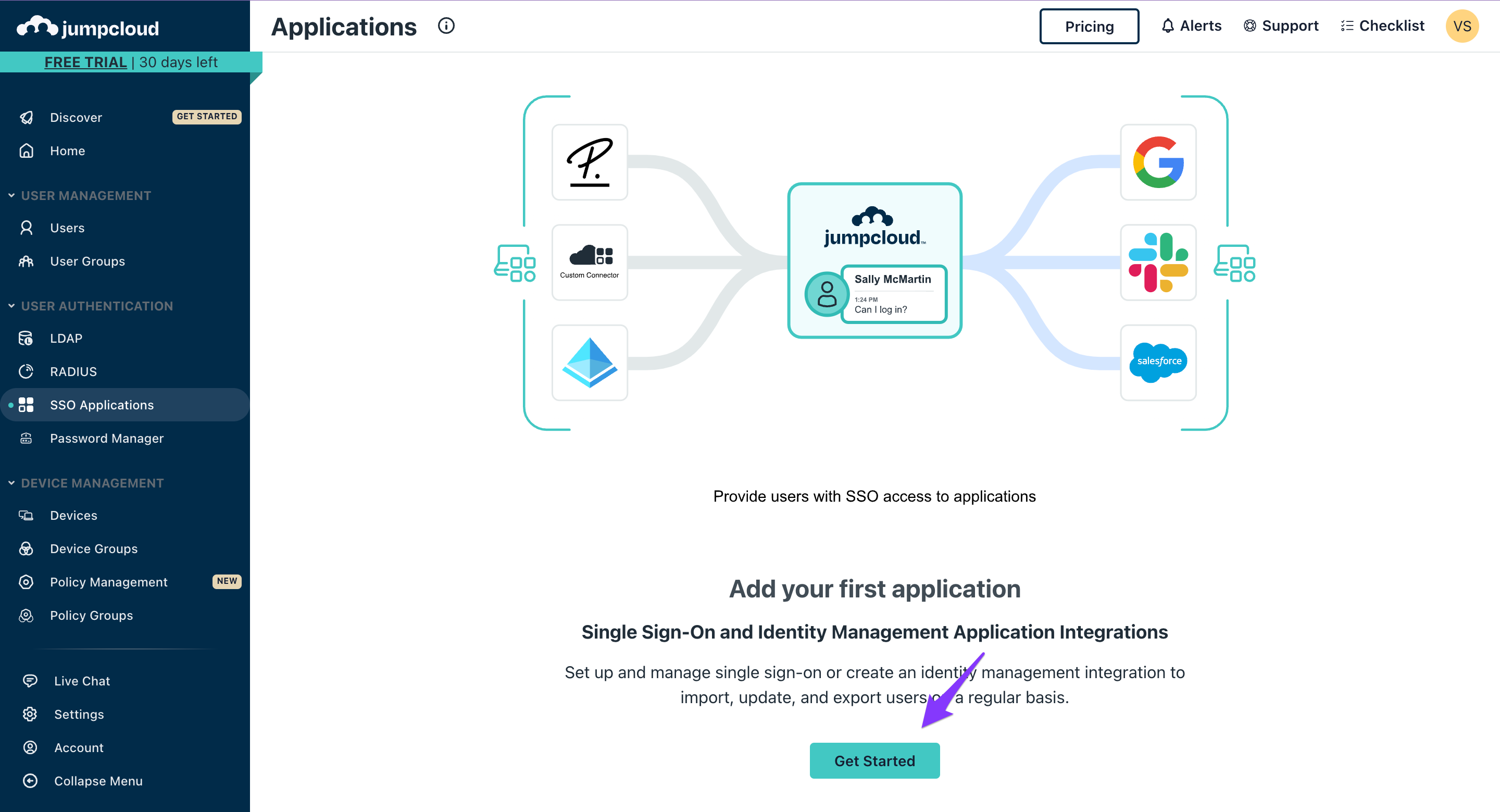
Click Get Started
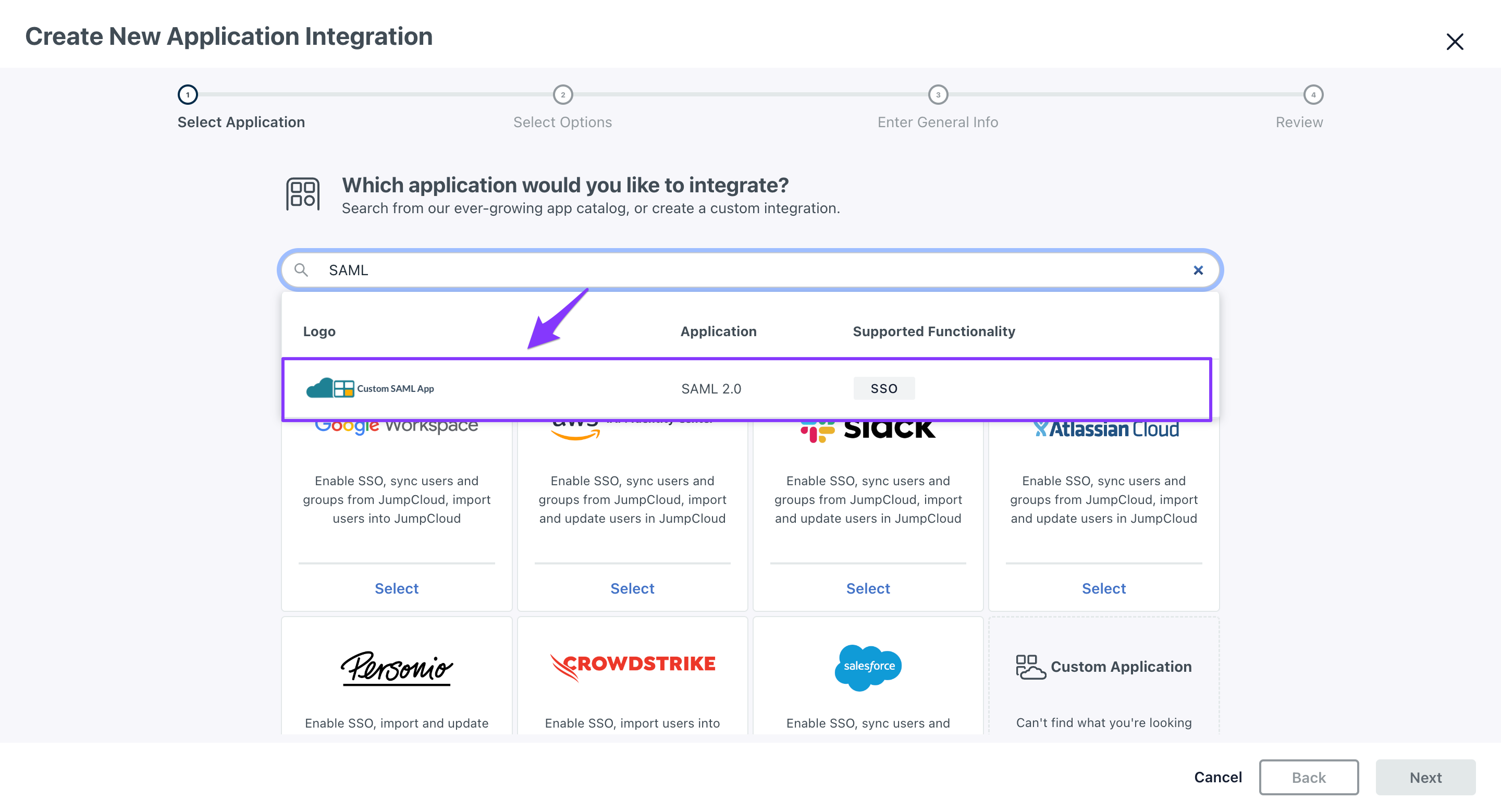
Search for SAML in the search bar and select Custom SAML App
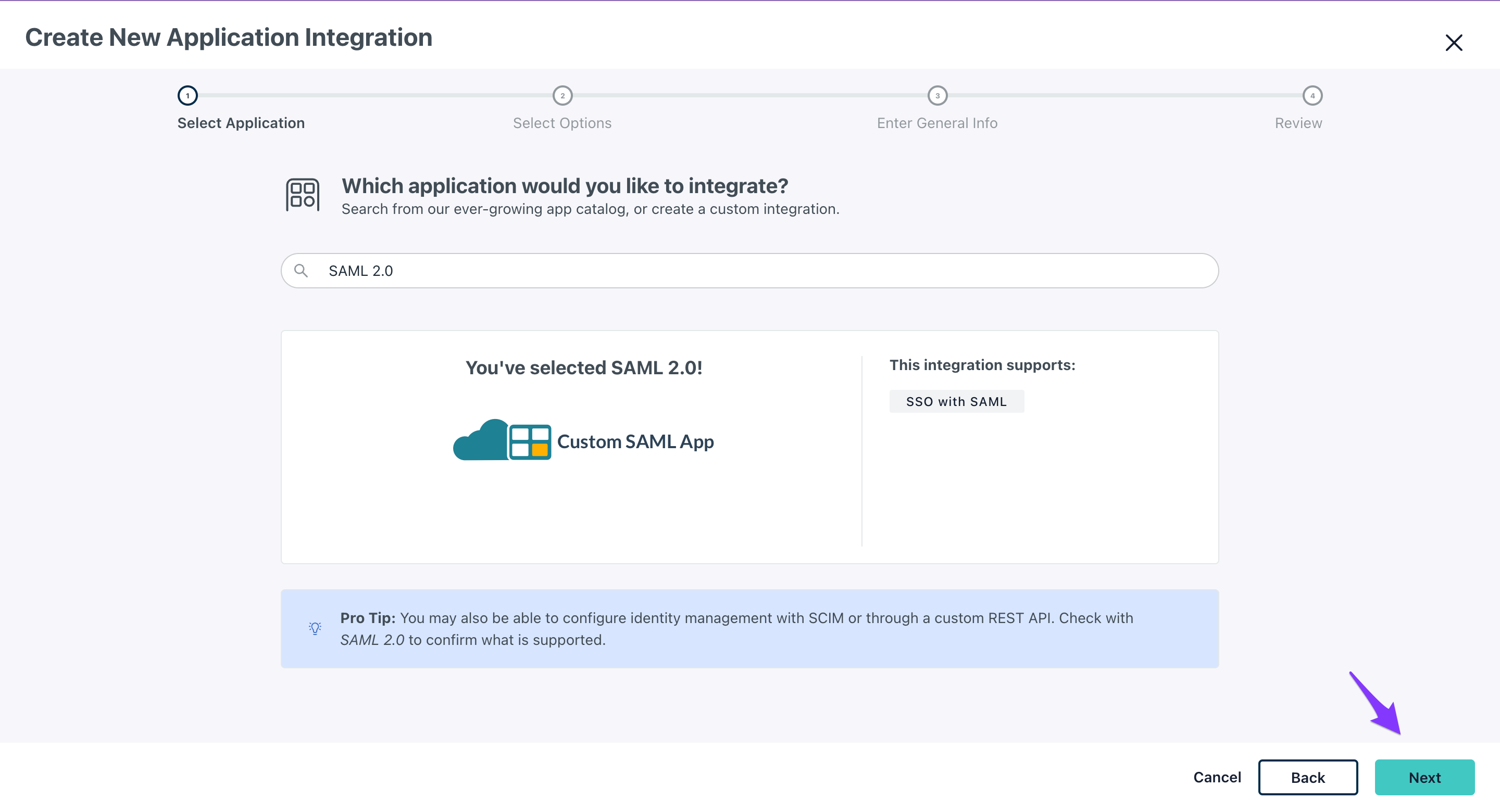
Click Next
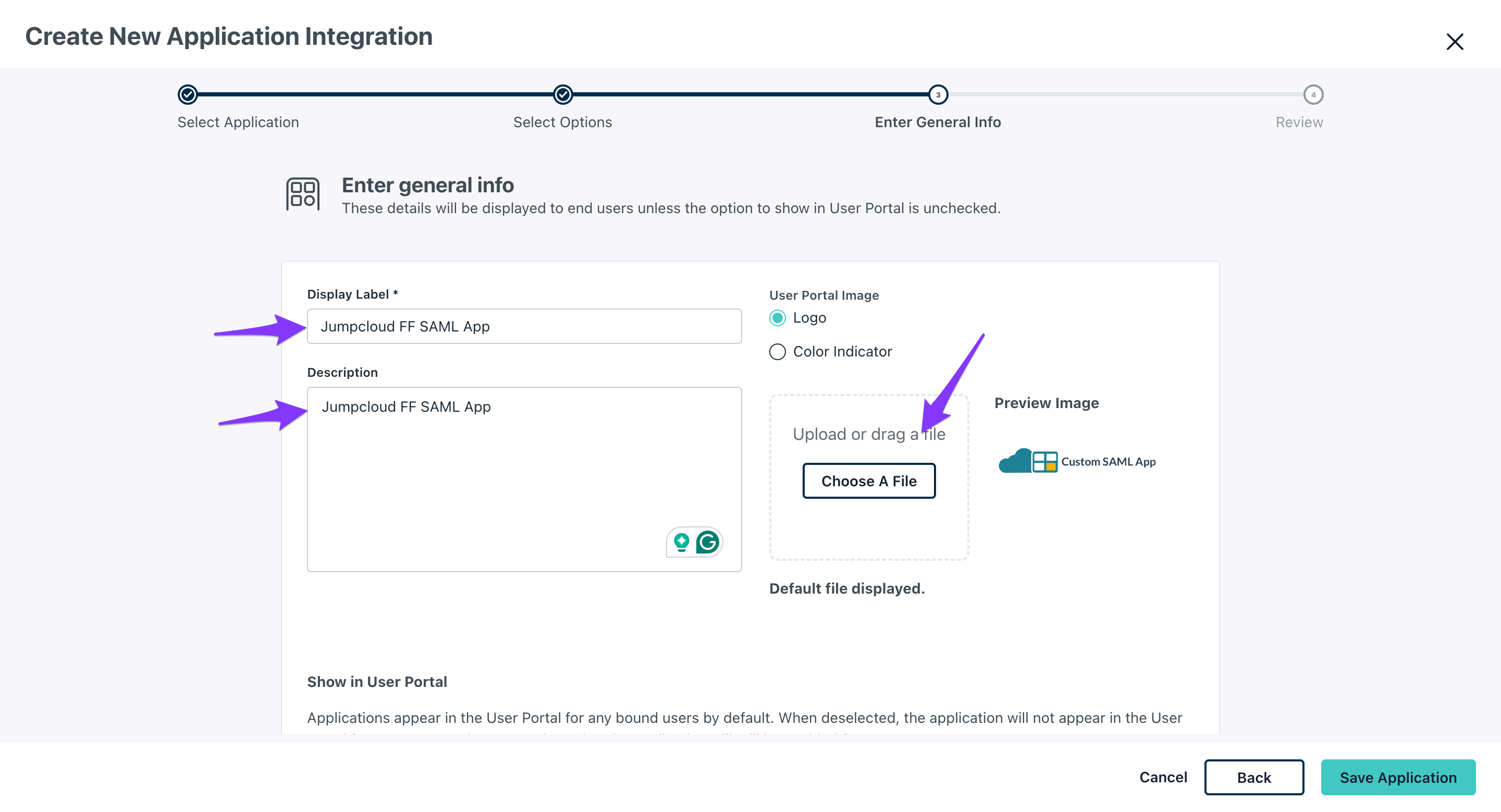
Configure application details
Enter application information:
Application name
Description
Application logo (optional)
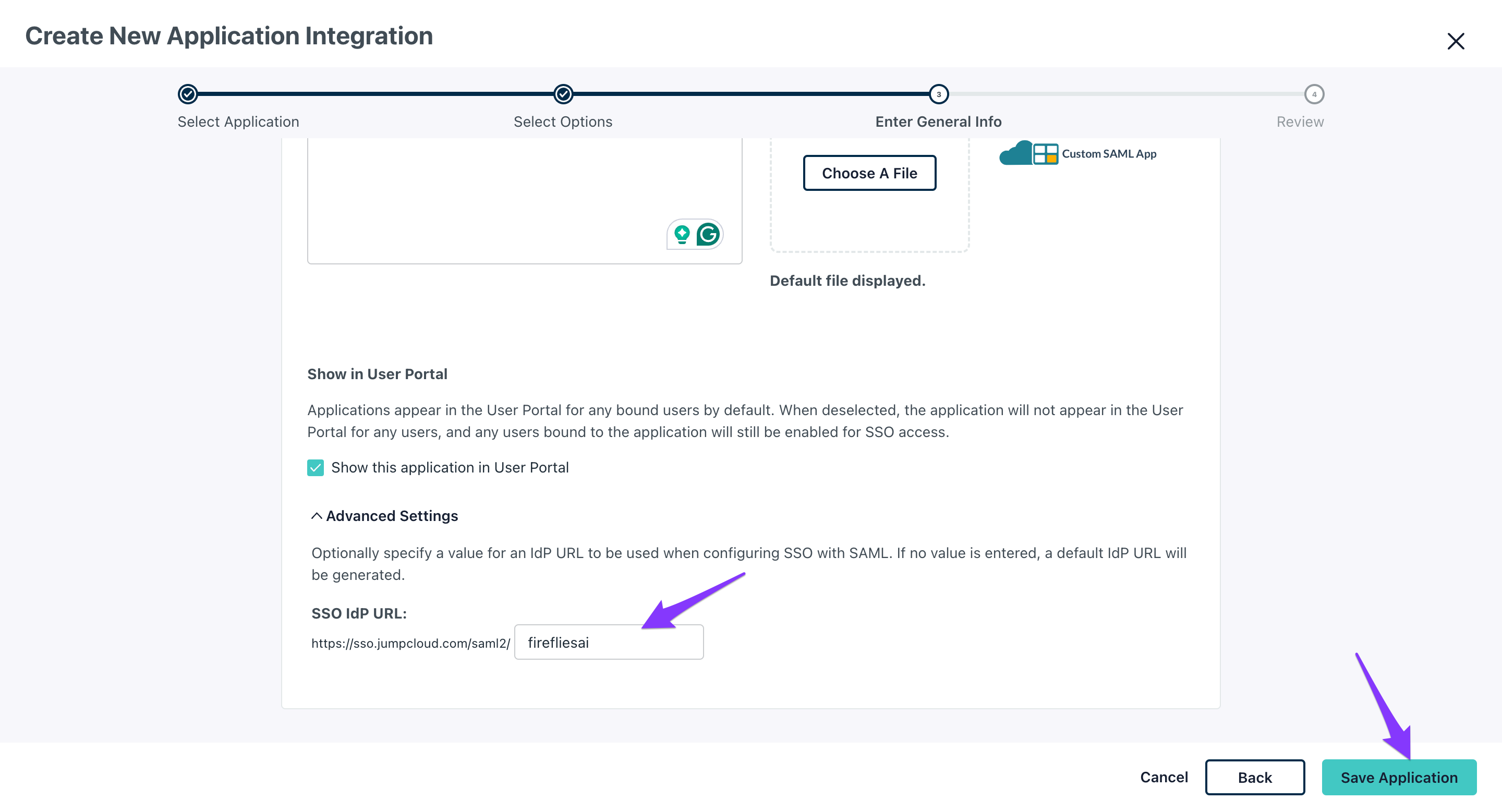
Scroll to Advanced Settings and input firefliesai at the end of the IDP URL
Click Save Application
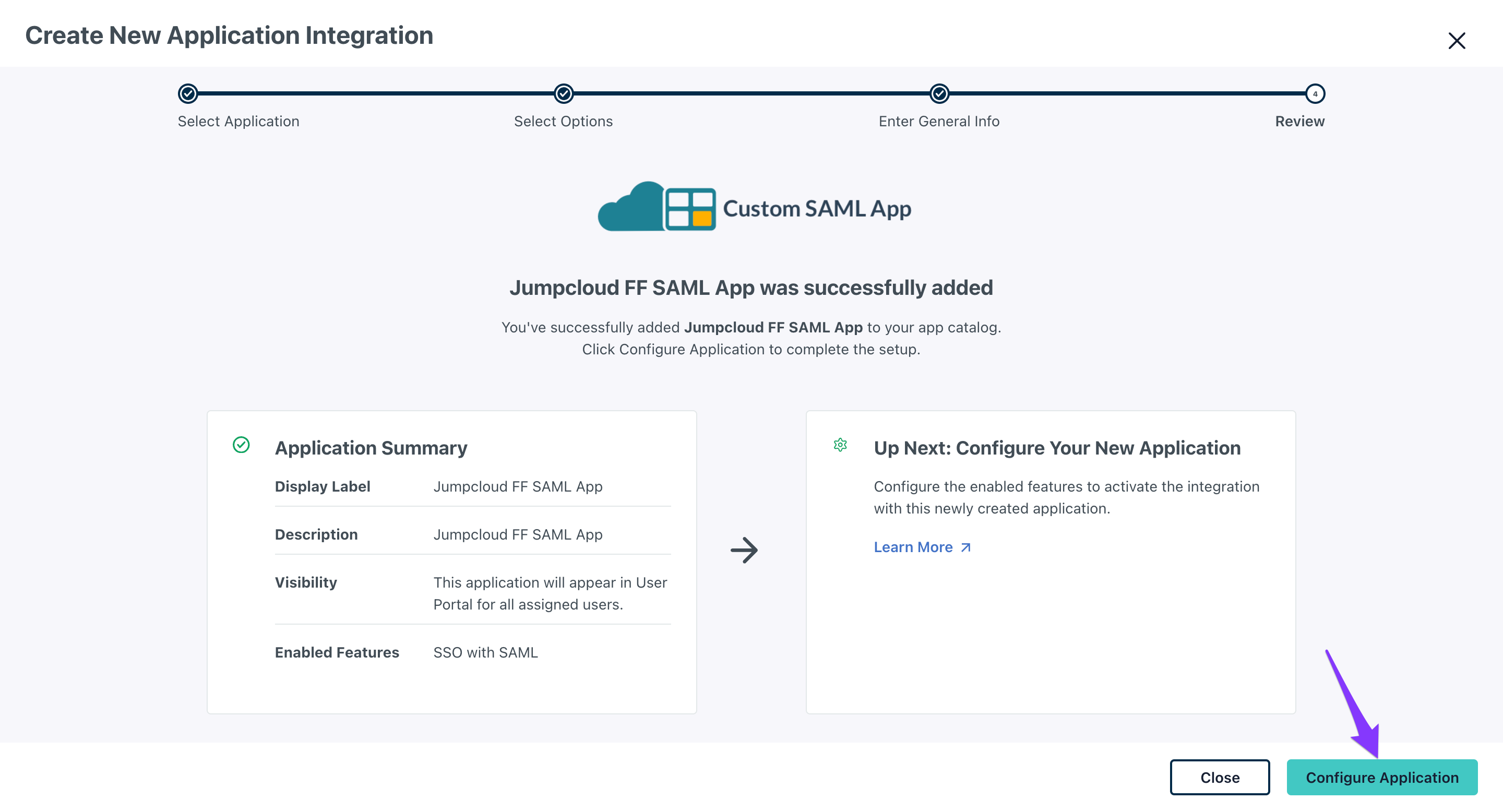
Set up SAML configuration
Click Configure Application
Configure entity IDs in the configuration page:
IdP entity ID: Enter firefliesai
SP entity ID: Enter firefliesai
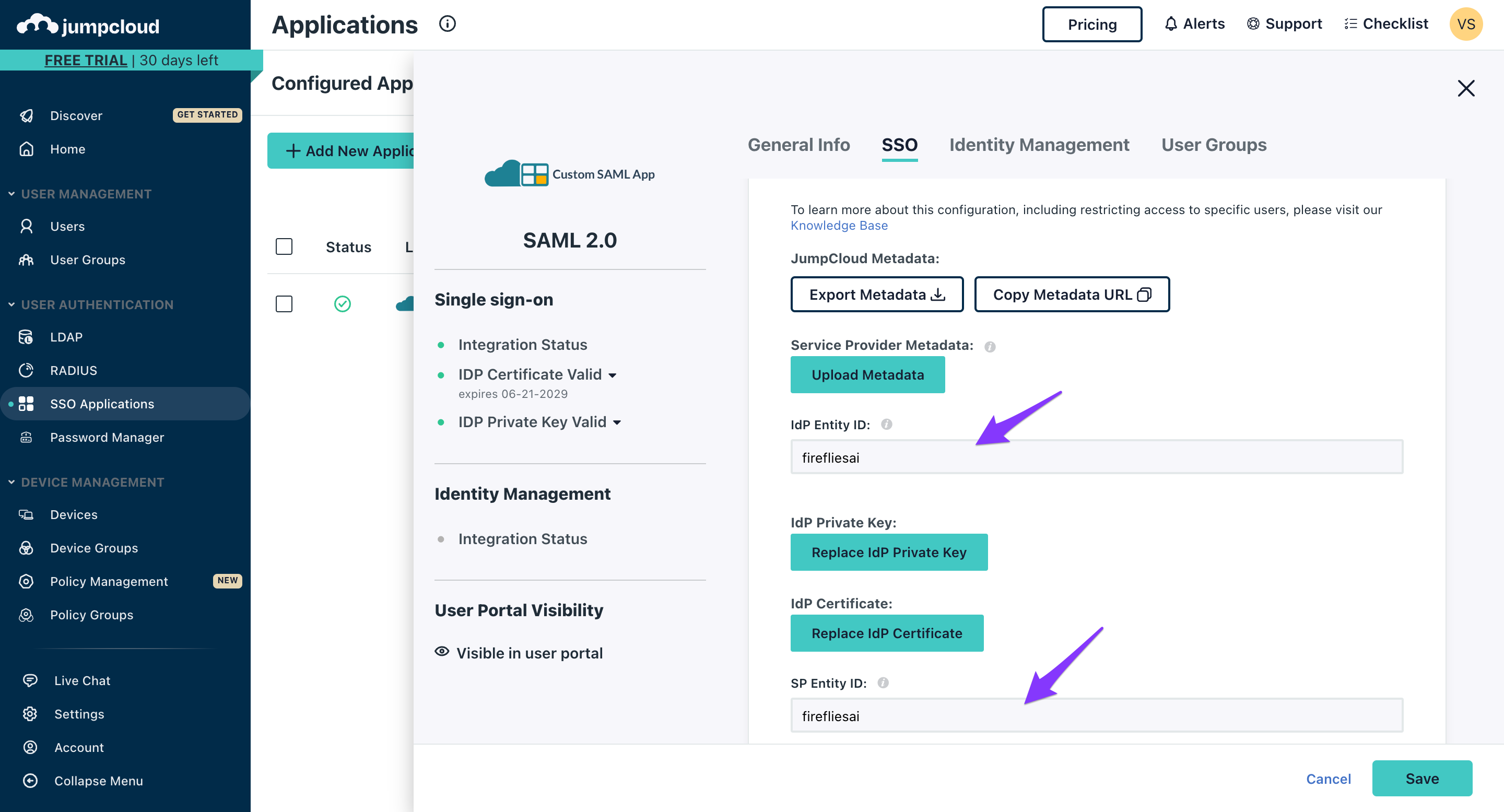
Important: These fields are case-sensitive - use all lowercase letters
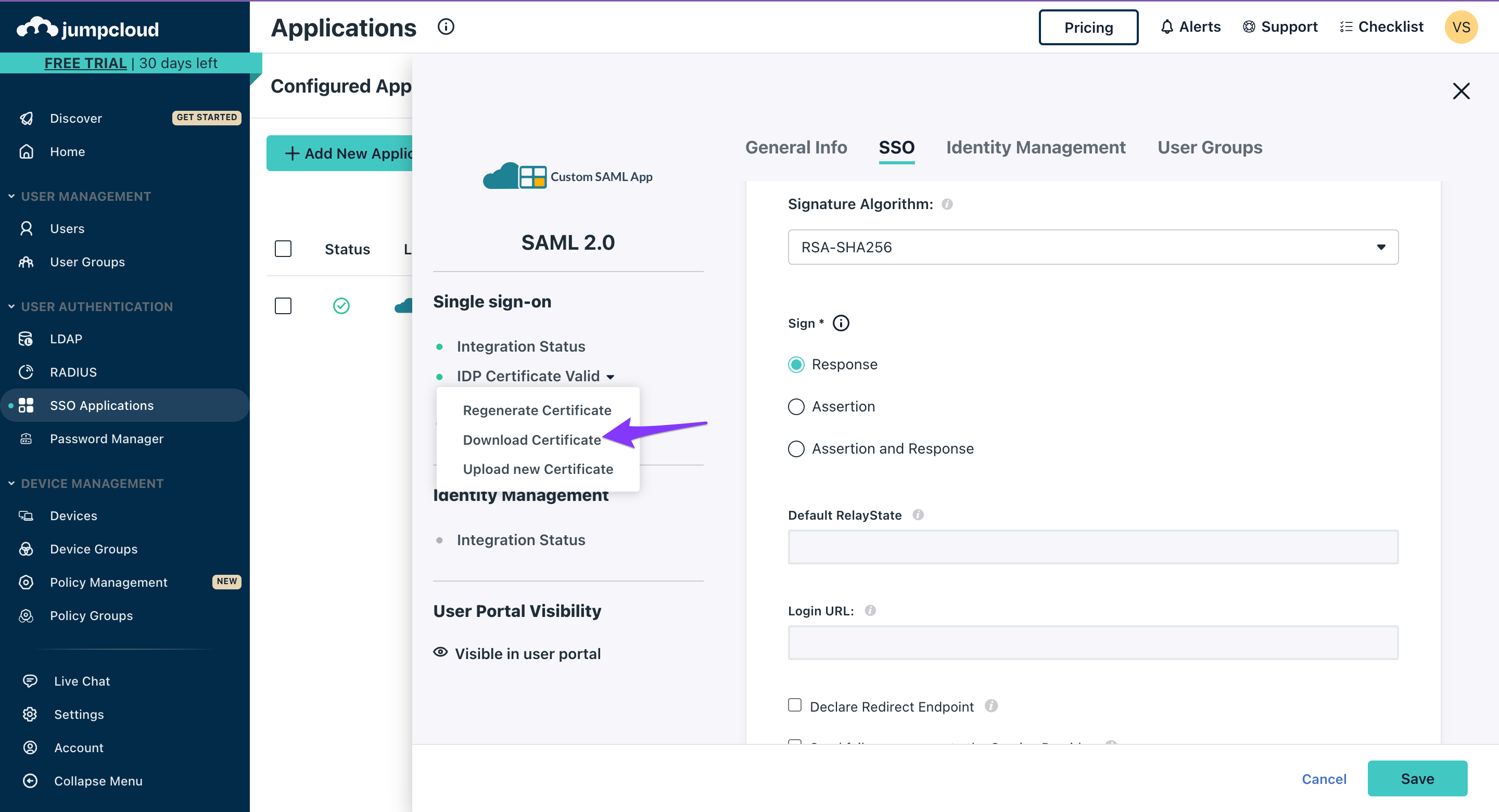
Download the IDP certificate:
Click the IDP Certificate Valid dropdown
Select Download certificate
Configure Fireflies SSO
Input Jumpcloud credentials
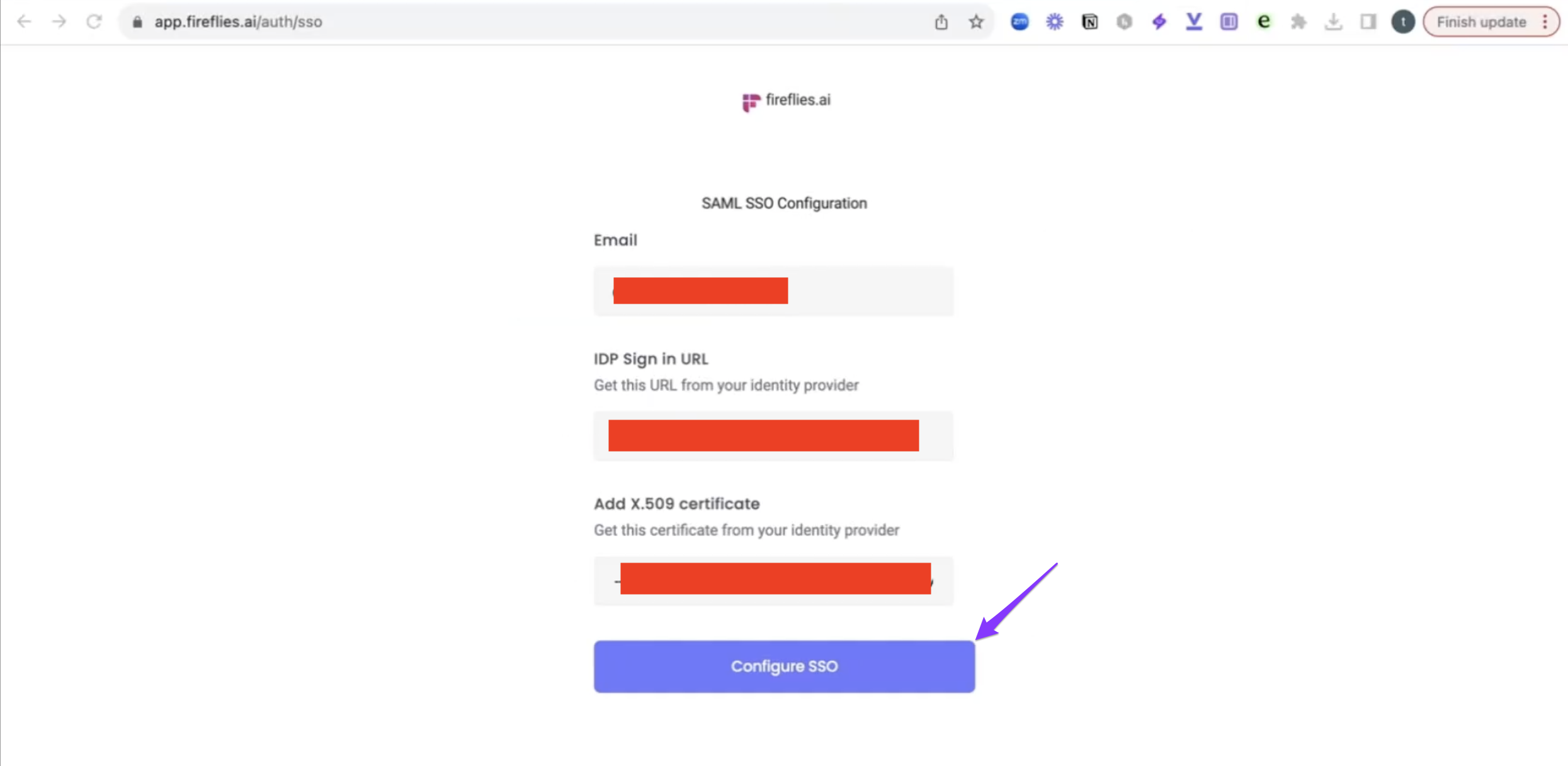
Go to Fireflies SSO setup: https://app.fireflies.ai/auth/sso
Configure SSO settings:
Input the IDP URL from Jumpcloud
Upload the IDP certificate you downloaded
Click Configure SSO
Complete the connection
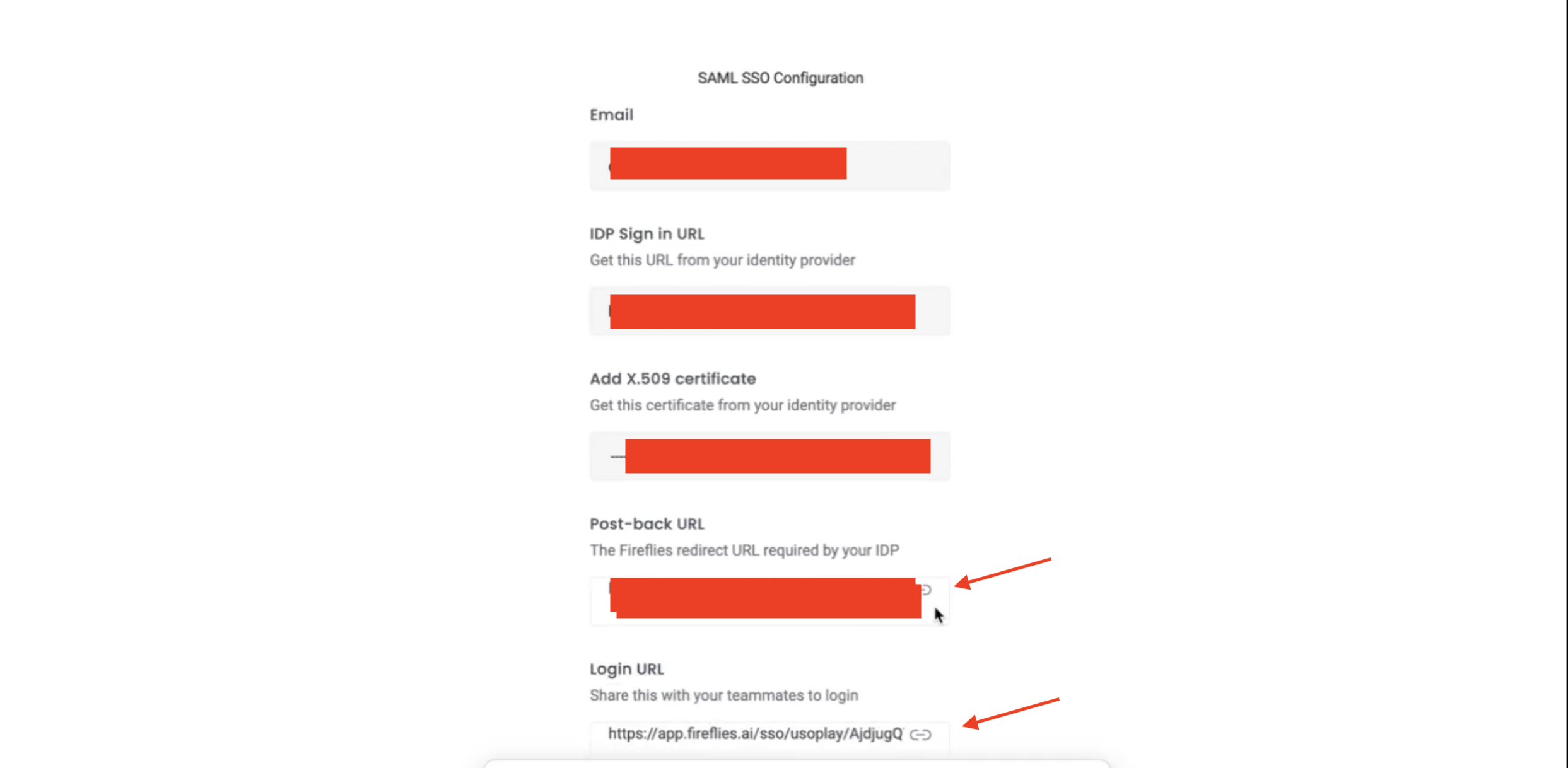
Copy the Postback URL from Fireflies (also known as ACS - consumer URL)
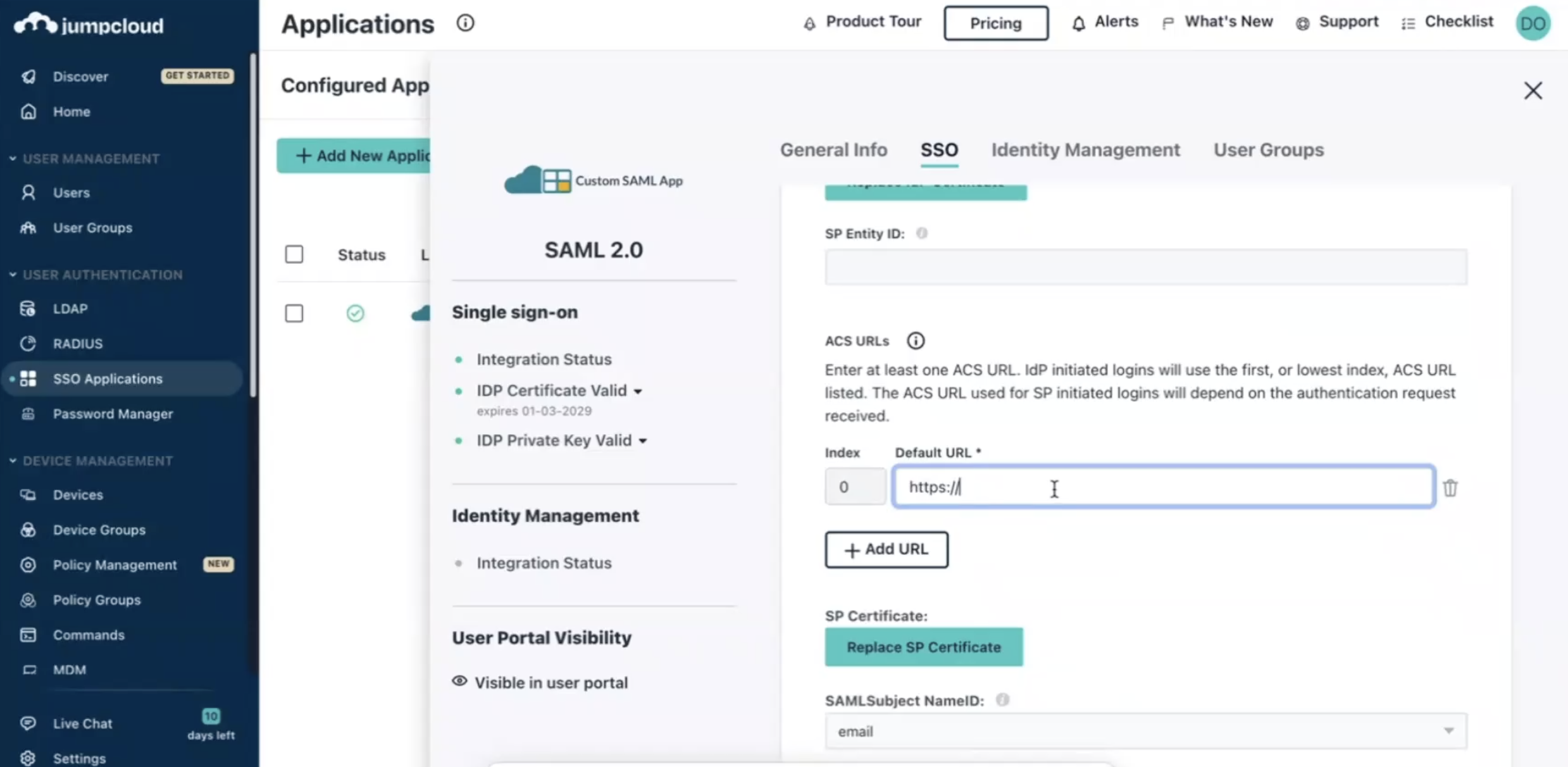
Return to Jumpcloud and input the Postback URL into the relevant field in the app configuration
Assign users and finalize
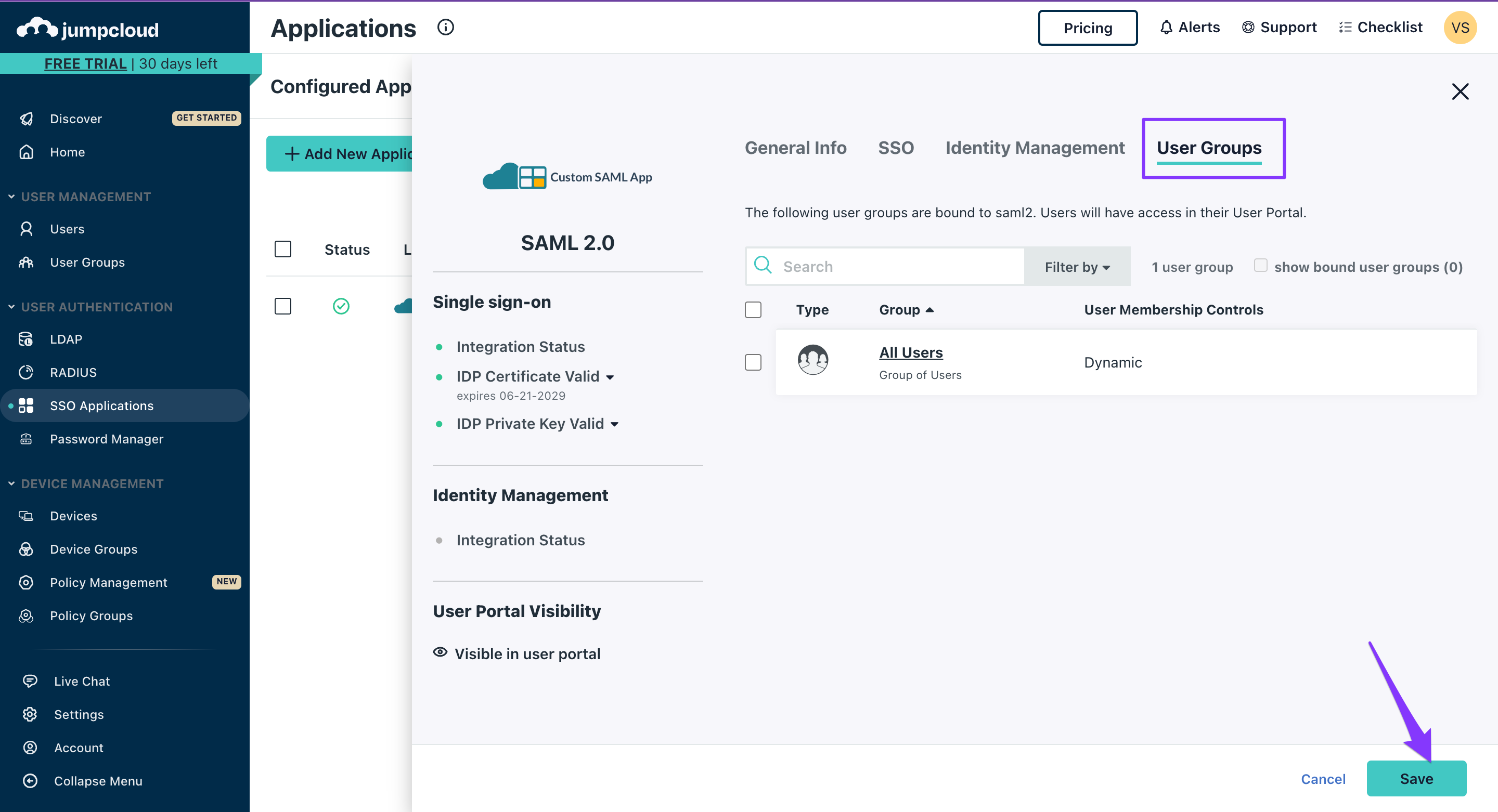
Configure user access
Go to User groups in Jumpcloud
Assign the app to all relevant users who need Fireflies access
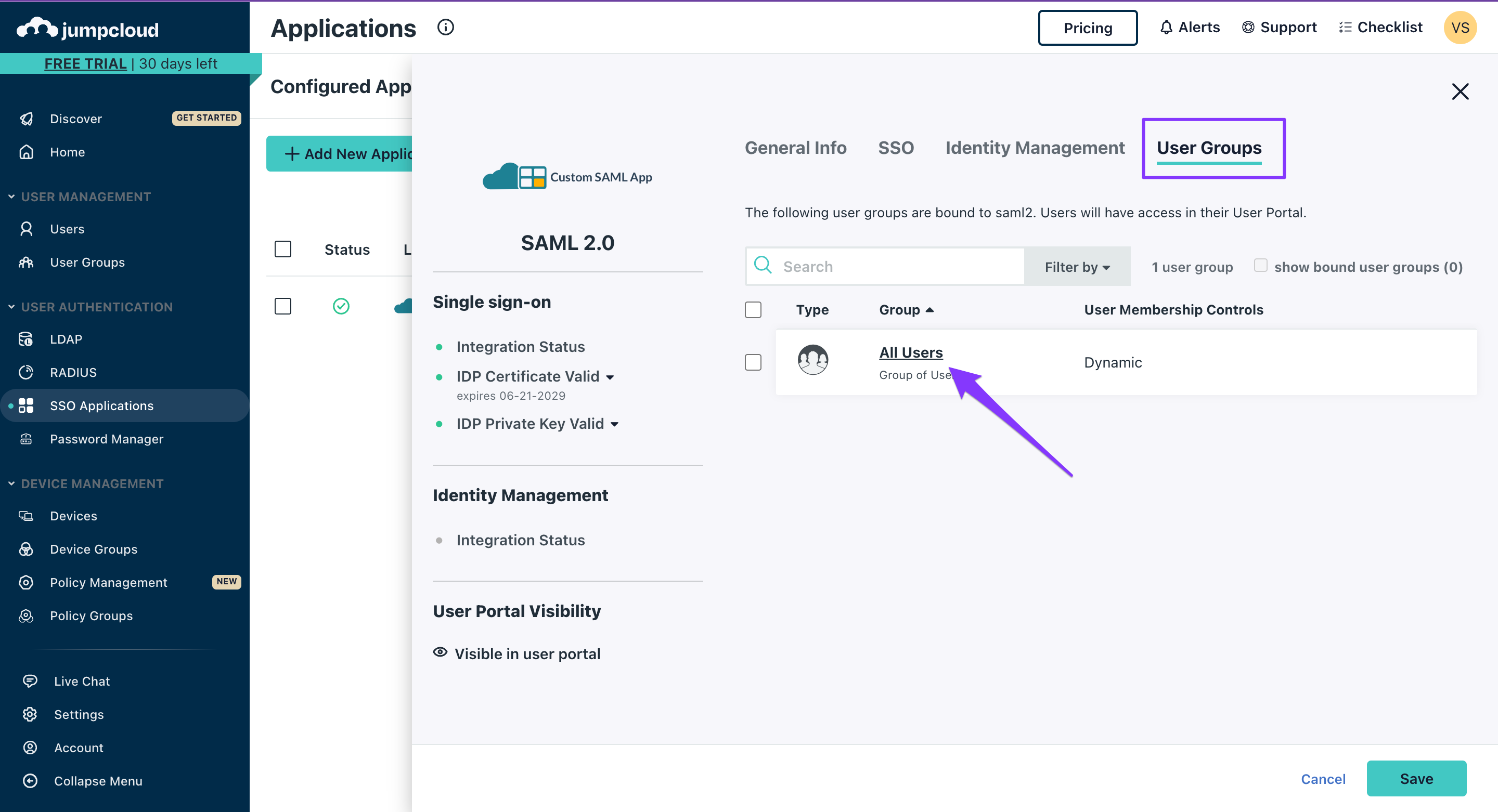
Click Save to complete the setup
📌Enforced SSO Redirect Behavior
When SSO is enforced on your domain:
Users will be automatically redirected to your organization's SSO login link when they attempt to log in via Google or Microsoft OAuth.
This happens after the OAuth authentication succeeds—at which point Fireflies checks if your domain has an enforced SSO configuration and triggers the redirect.
Avoid this behavior
If your users don't want automatic redirects, have them use your unique SSO login link instead of the generic Google or Microsoft login options.
Making sense of it all
Entity IDs must be exactly "firefliesai" in lowercase for proper authentication
IDP URL and certificate from Jumpcloud are required for the Fireflies configuration
The Postback URL from Fireflies must be added back to Jumpcloud to complete the loop
User group assignment in Jumpcloud controls who can access Fireflies via SSO
Setup requires admin access in both Jumpcloud and Fireflies for configuration
Once configured, users access Fireflies through their standard Jumpcloud login