How to Set Up Close.io and Fireflies Integration
Last updated: February 9, 2026
The Close.io + Fireflies integration keeps your CRM updated automatically by logging meeting transcripts and notes directly into Close.io. No more manual updates — Fireflies connects every call and insight to the right lead or deal.
It’s ideal for sales teams, account executives, and customer success managers who want to save time and stay organized.
Let’s get started 🚀
🔍 What does the Close.io Integration do?
The integration syncs Fireflies meeting data with Close.io, keeping your sales pipeline accurate and effortless.
It helps you:
Auto-transcribe calls — Fireflies records and transcribes your Close.io meetings.
Link notes automatically — Insights attach to the correct lead or deal.
Keep CRM current — Updates happen in real time, no manual work needed.
🔑 Prerequisites
Before you connect Close.io and Fireflies, make sure you have the following set up to ensure a smooth integration:
Close.io account → You need to have a Close.io account with admin access to generate an API key.
Fireflies account → Make sure you're logged into your Fireflies account to proceed.
API Key from Close.io → You’ll need to generate an API key from Close.io to connect it to Fireflies. Don’t worry, we’ll guide you through the process!
CRM Setup in Close.io → Ensure you have contacts, leads, and deals set up in Close.io where your meeting data will be logged.
Once these prerequisites are ready, you’re good to go!
🔐 Get the Close.io API Key
Generate Close.io API Key:
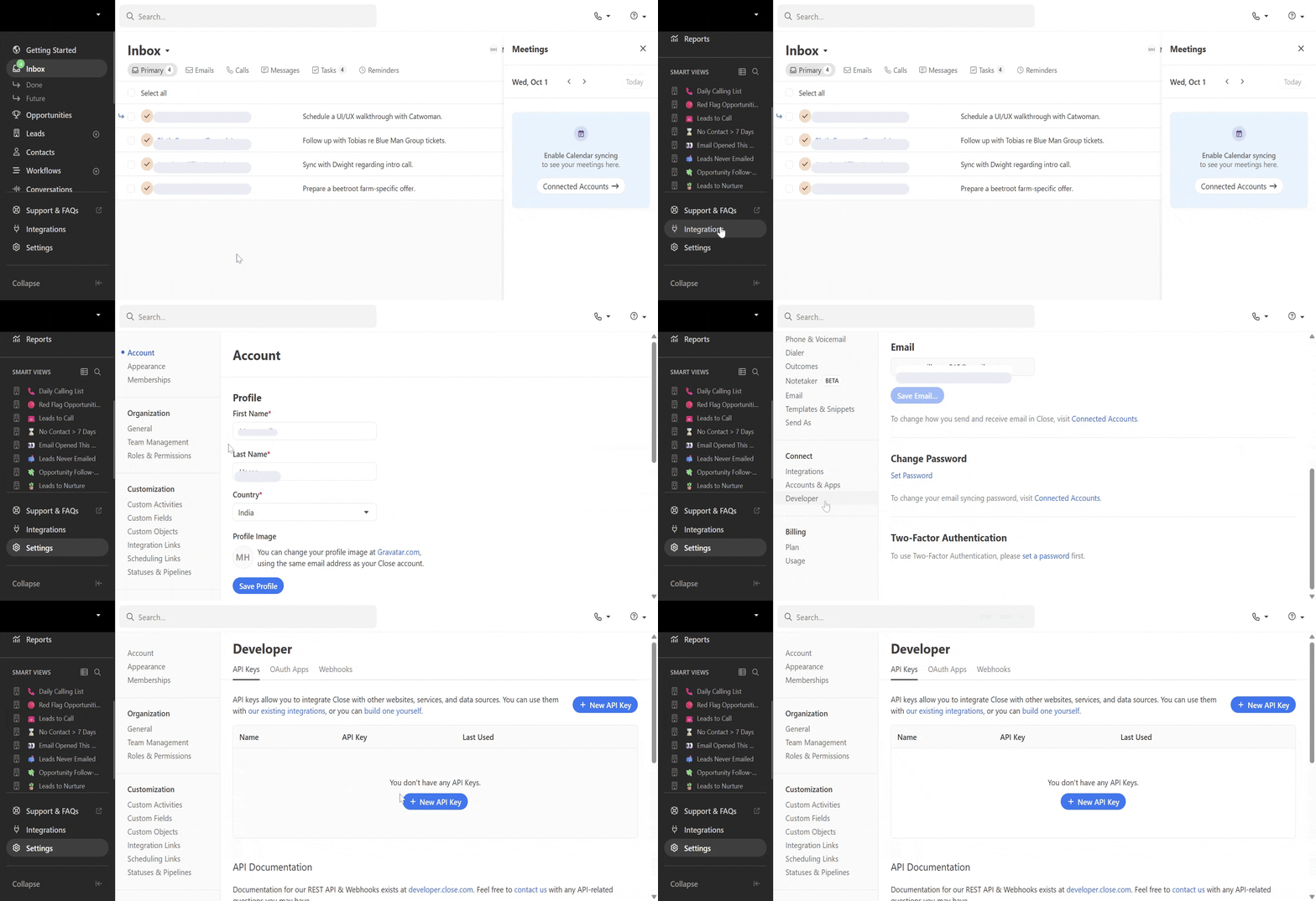
Step 1: Log in to your Close.io account, go to Settings from the left sidebar, then navigate to Connect and click on Developer.
Step 2: Click on New API Key, name it (e.g., "Fireflies Integration"), and then click Create API Key. Copy the generated key—this will be needed to complete the integration.
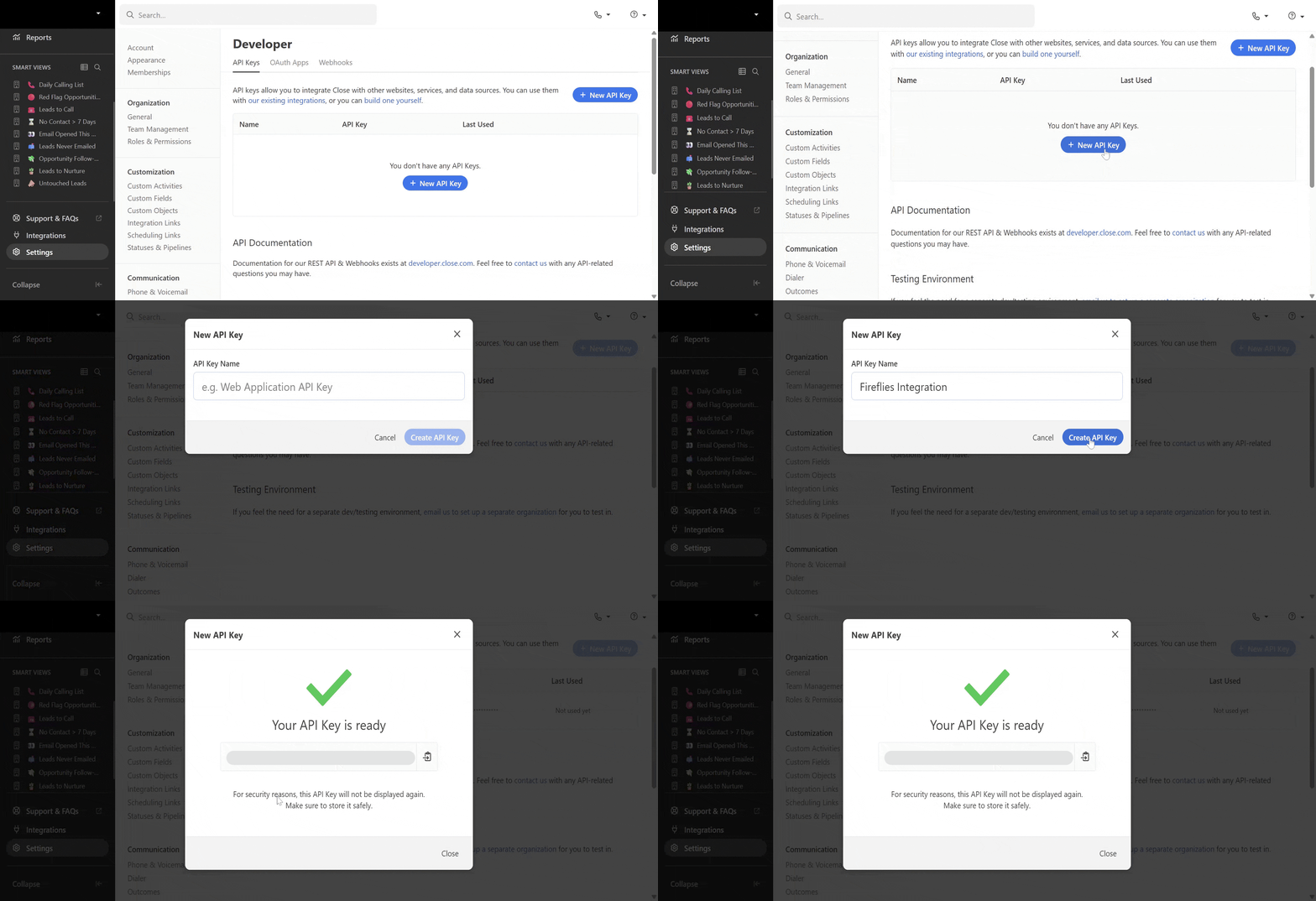
For security reasons, the Close.io API key won’t be shown again. Be sure to store it securely!
🔗 Connect Close.io to Fireflies
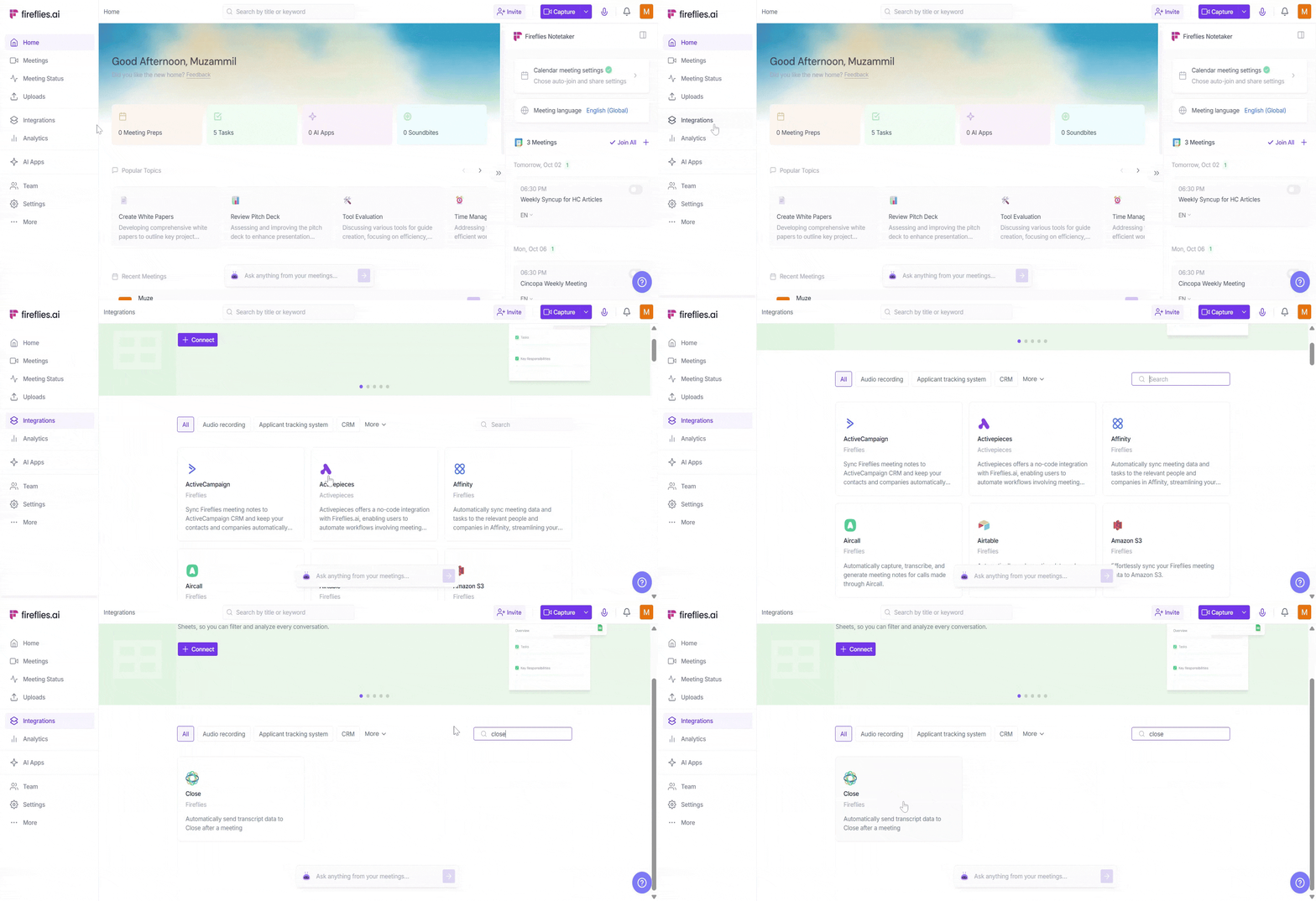
Step 1: Log in to your Fireflies account, go to the Integrations page, and search for Close.io. Click on it to get started.
Step 2: Click Connect. A modal will open asking you to enter your Close.io API Key (the one you generated earlier). Once you’ve entered it, click Authorize to finalize the connection.
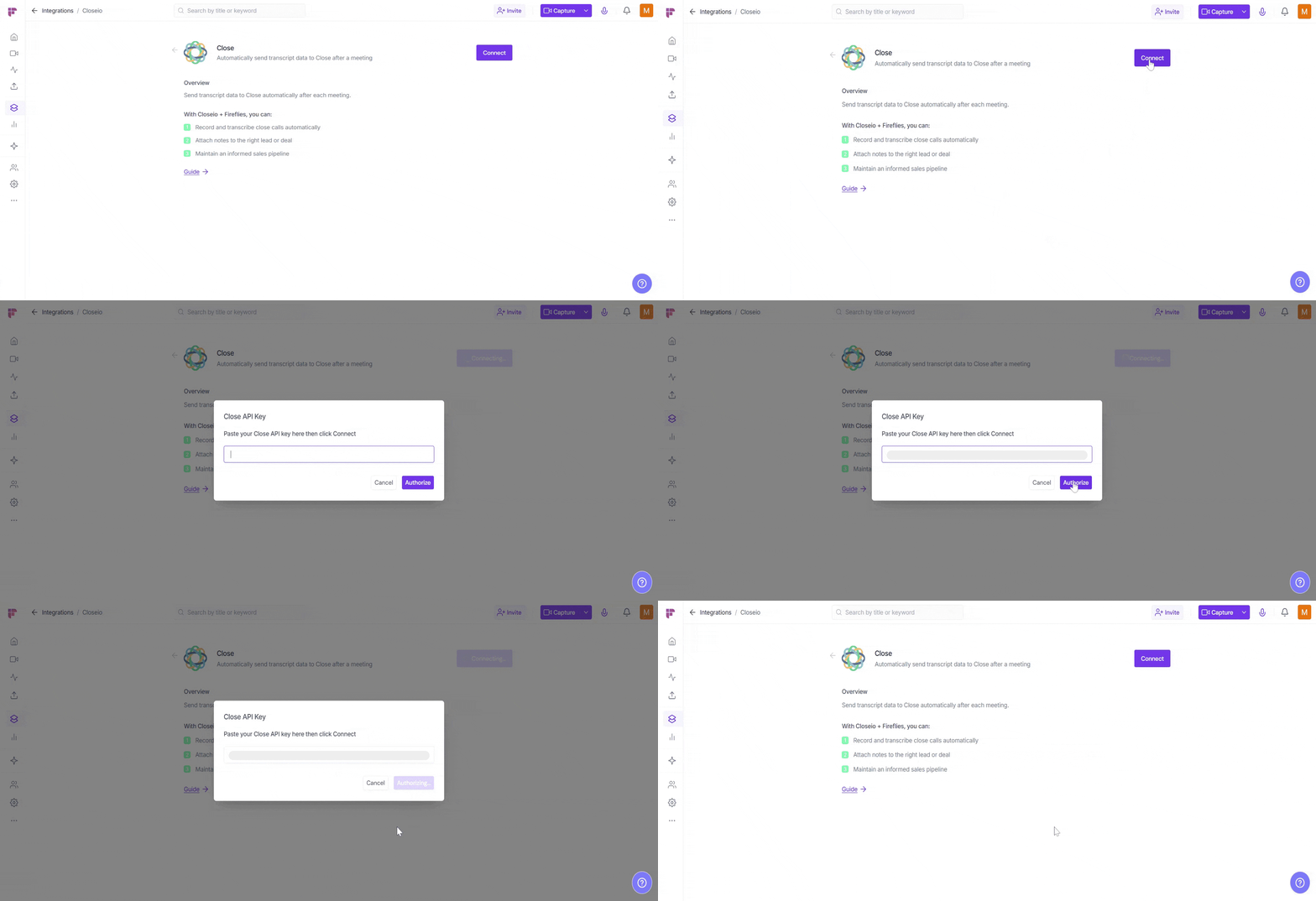
Step 3: Once authorized, you’ll be redirected back to Fireflies to configure your integration setup.

⚙ Setting Up Your Configuration
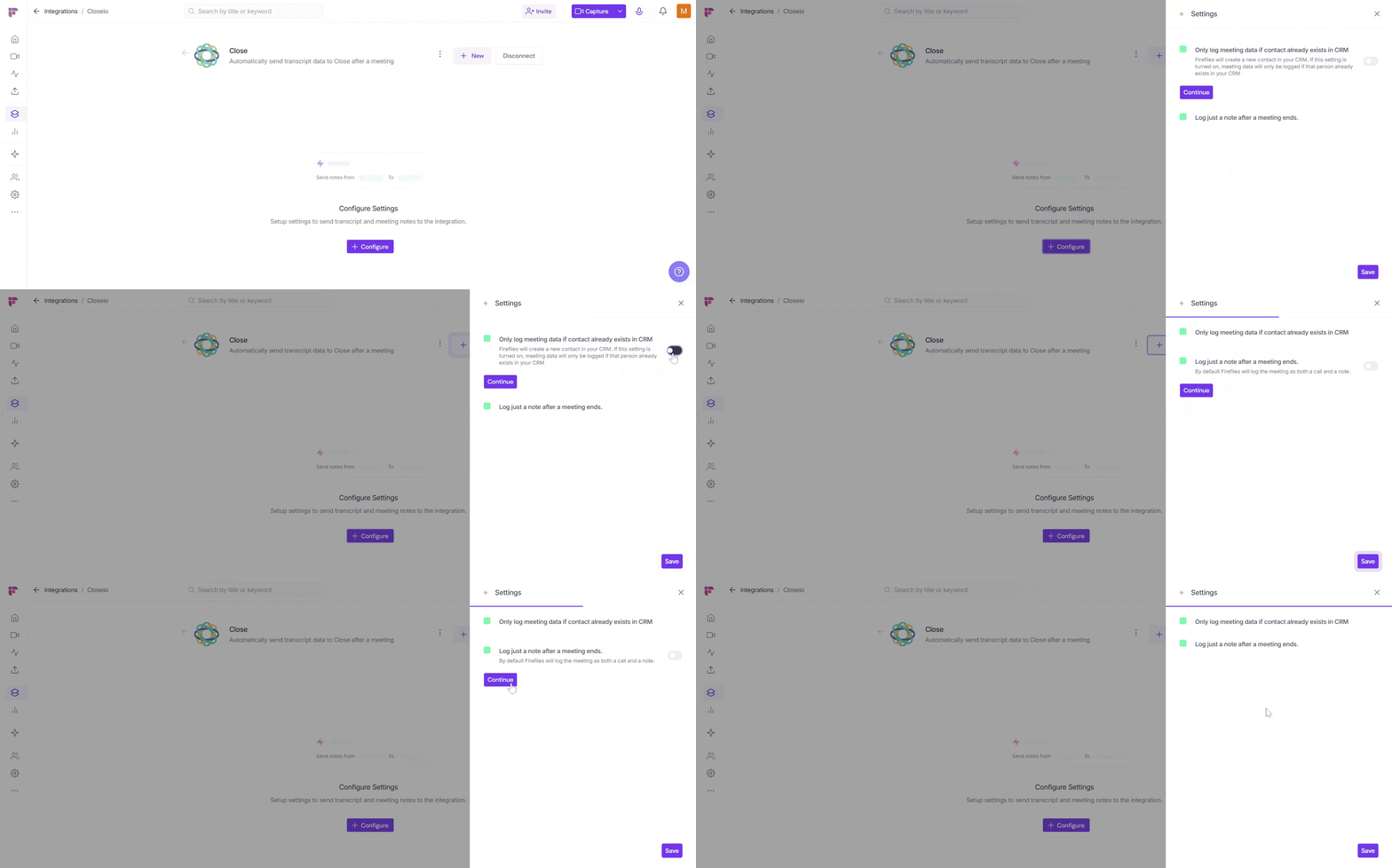
Step 1: Choose How Fireflies Logs Data
Log meeting data only if the contact exists in CRM
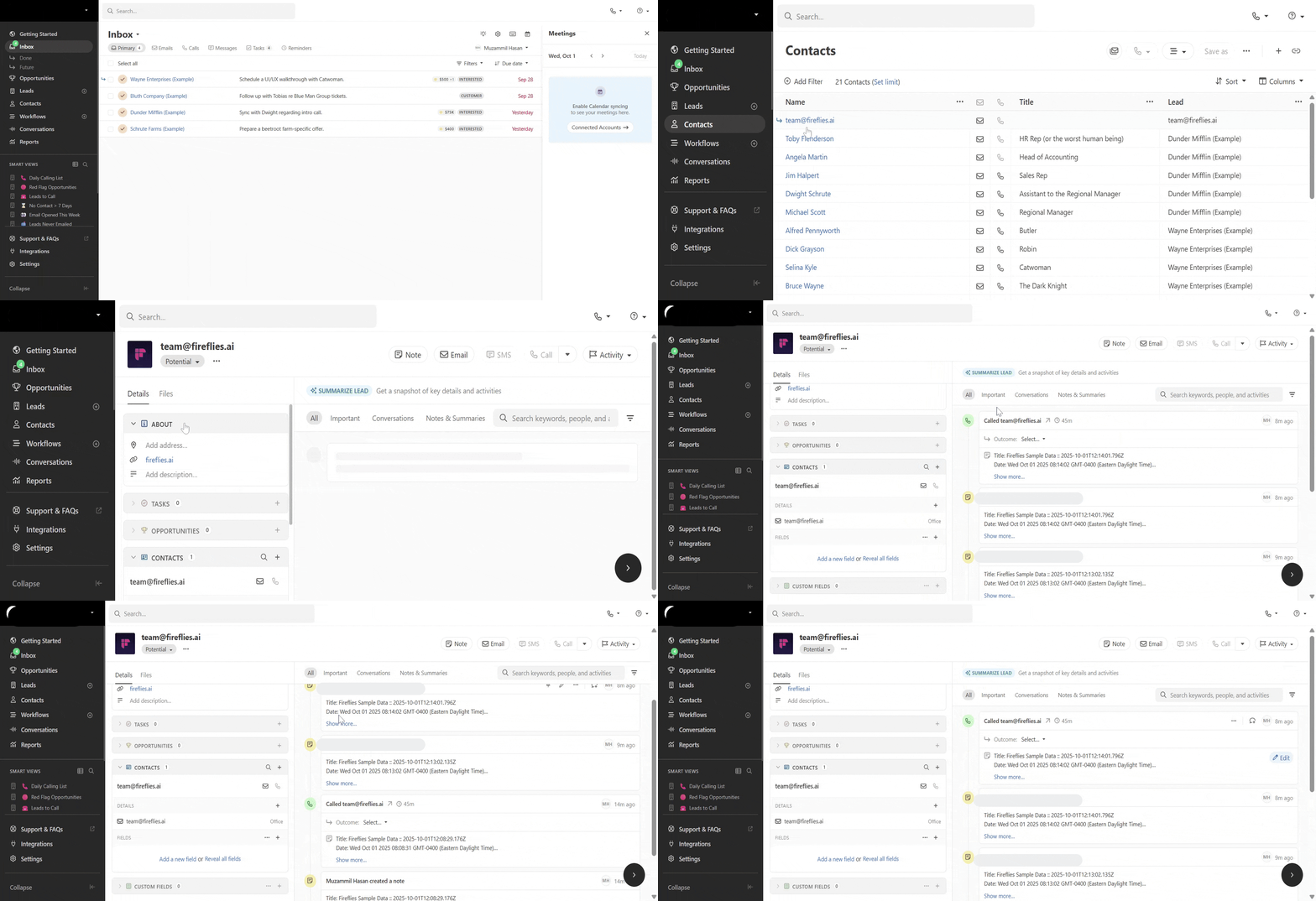
By default, this setting is OFF, so Fireflies will create a new contact (like team@fireflies.ai) for meetings with new people and log the data for those meetings.
If you toggle this setting ON, Fireflies will log meeting data only for existing contacts in Close.io and won't create new ones.
Log meetings as both a call and a note
By default, Fireflies logs both the meeting’s audio/video (the call) and the meeting notes (summary and action items). This gives you a complete record of the meeting for easy reference.
If you only want to log the meeting notes (summary and action items) and exclude the audio/video, you can toggle this setting ON. This is helpful if you'd prefer to focus on just the key takeaways after a meeting ends.
Internal meetings (including when a new contact is created) are logged under team@fireflies.ai. This also applies to meetings recorded with the Chrome extension or Add to Live.
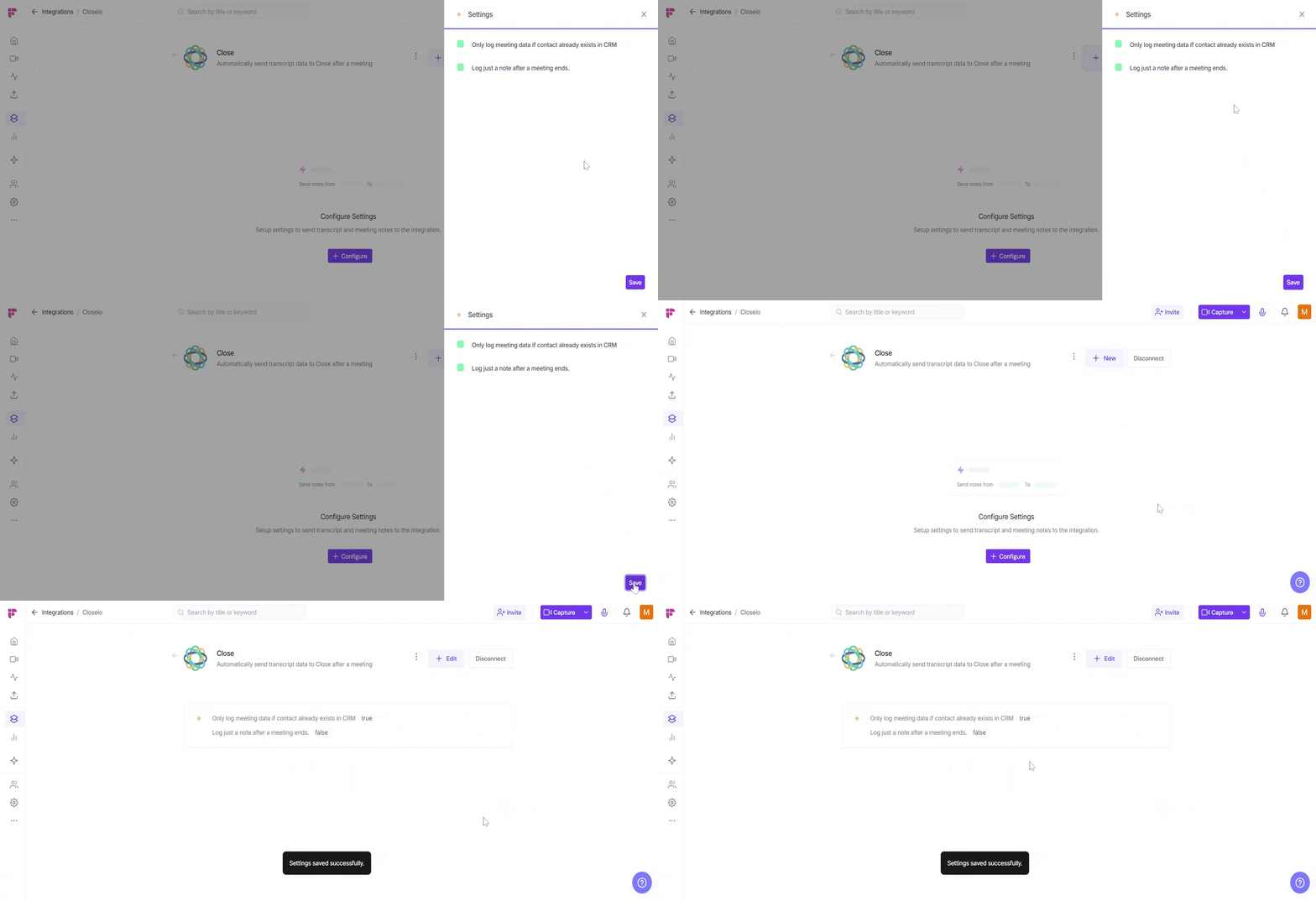
Step 2: Save Your Settings
Click Save to activate the integration — a flash message will confirm that your “Settings saved successfully”.
⚡ Test Integration with Close.io
Before sending real meeting tasks, you can quickly test the integration to be sure everything works smoothly.
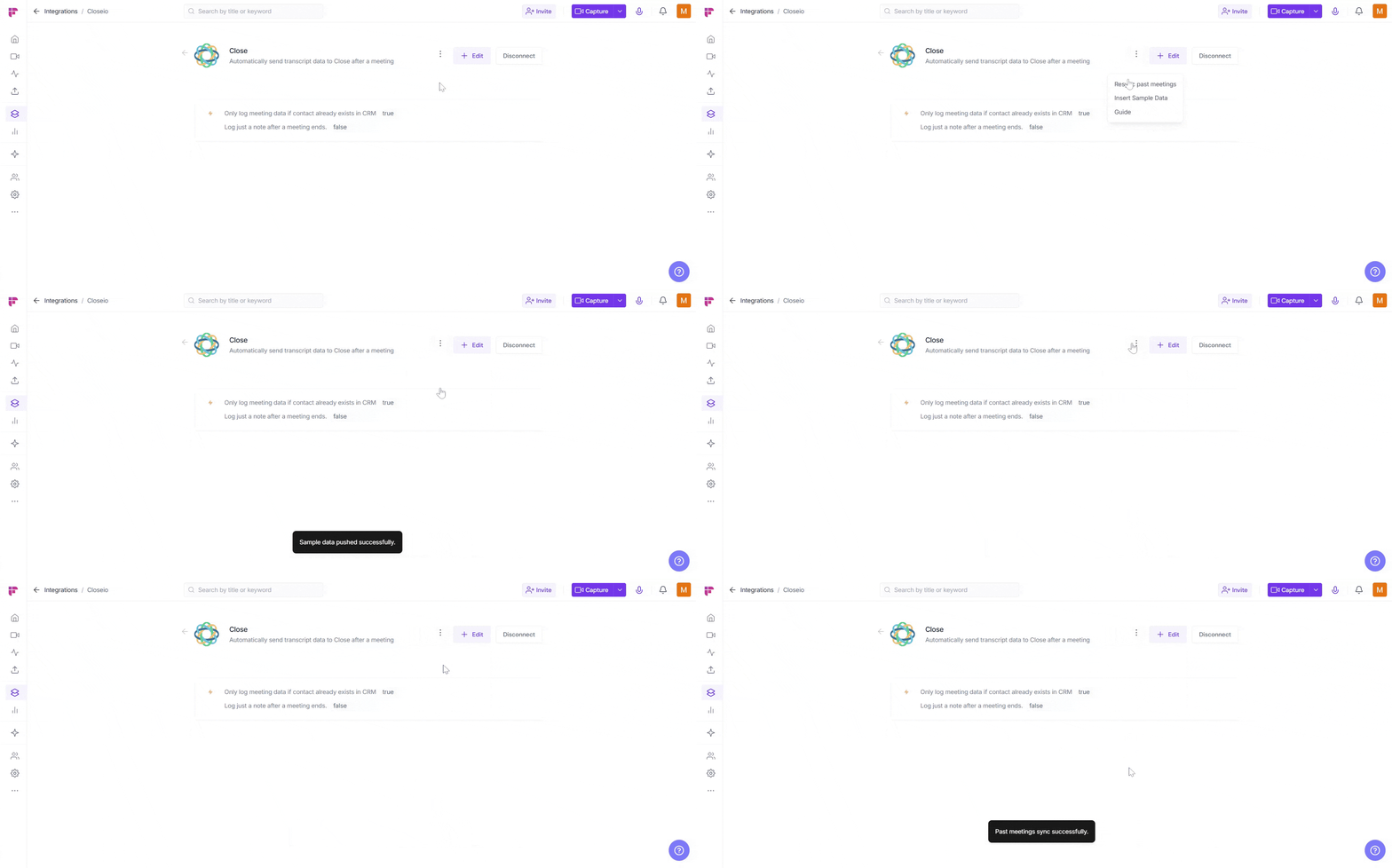
Insert Sample Data → See how a task appears in Close.io without affecting your real meetings.
Click the vertical ellipsis (⋮) next to your Close.io configuration and select Insert Sample Data.
A flash message will confirm —“Sample data pushed successfully”.
Resync Past Meetings → Sync notes from past meetings to ensure they’re up-to-date in Close.io.
Click the vertical ellipsis (⋮) next to your Close.io configuration and select Resync Past Meetings.
A flash message will confirm — “Past meetings sync successfully”.
These tests don’t affect your real meetings or projects — they’re just for confirming the setup.
⚙ Edit Settings
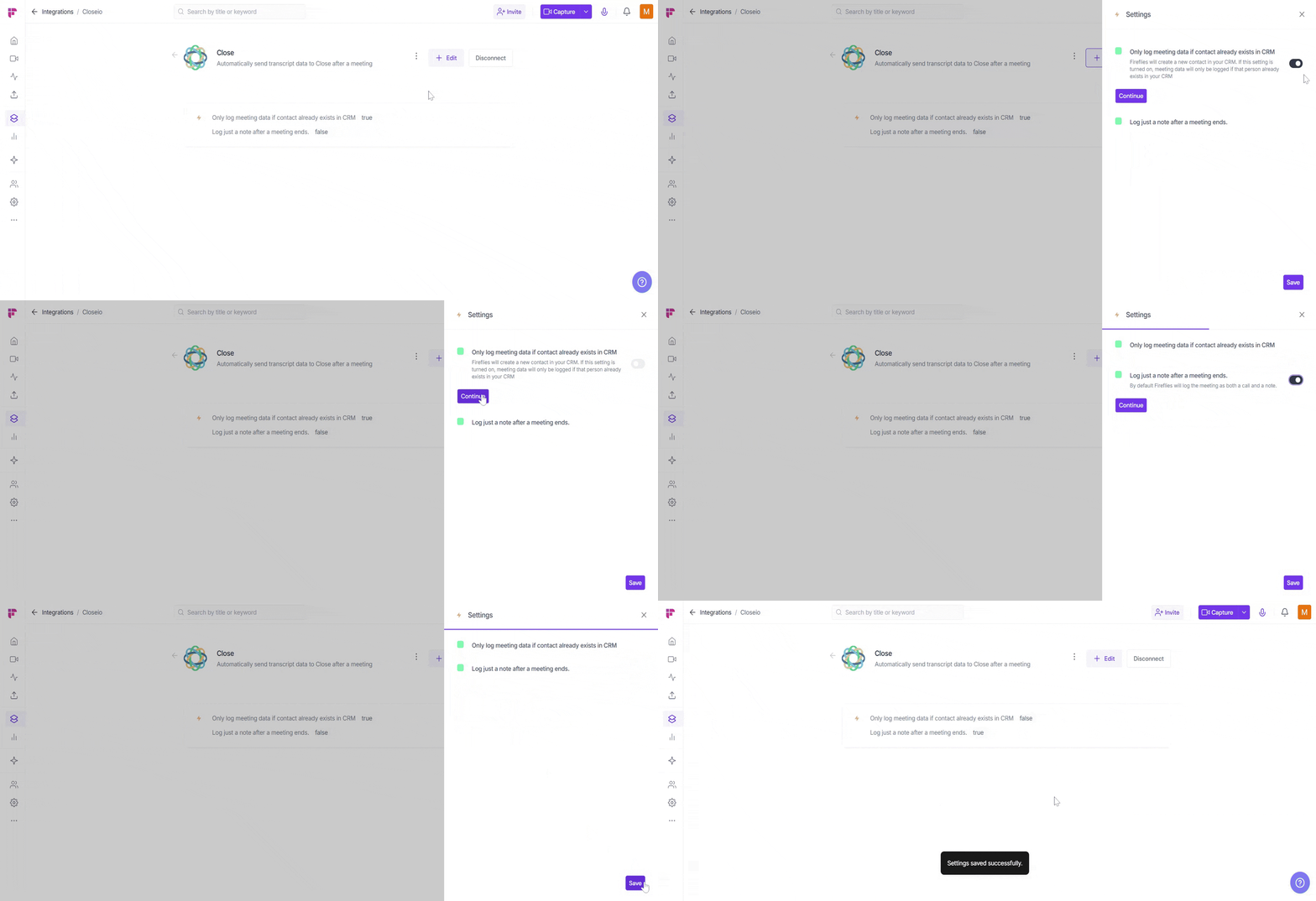
Need to adjust how meeting data flows into Close.io? Click Edit in the top-right of the integration, choose whether to log data only for existing contacts or just notes (without audio/video), and hit Save to confirm.
📤 How Meeting Data Appears in Close.io
Fireflies automatically logs your meeting data into Close.io, keeping everything organized. You can find this data under the Contacts tab in Close.io.
❌ Disconnect Integration
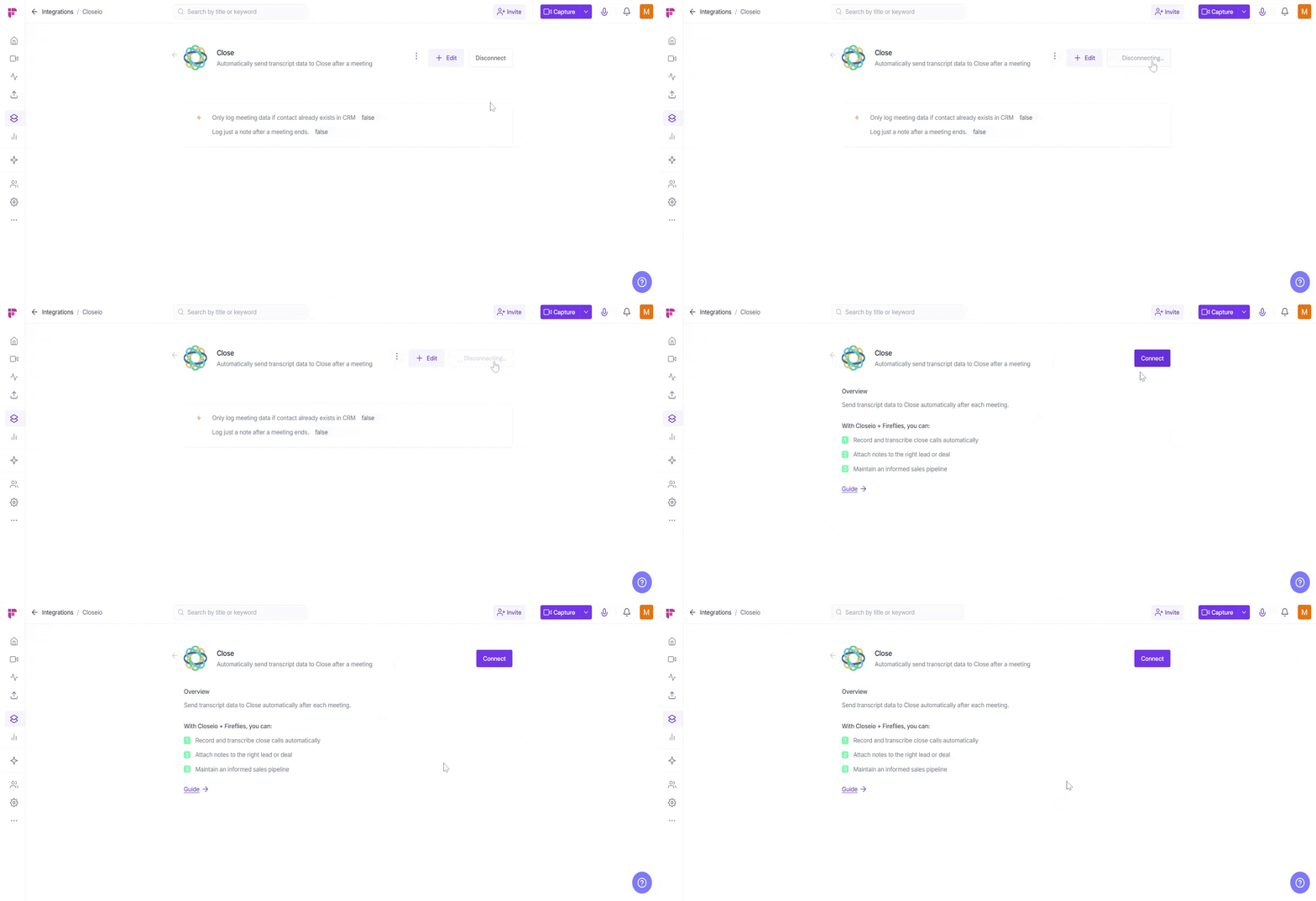
If you no longer need Fireflies connected to Close.io — for example, when your team switches CRMs or stops using the integration — you can disconnect it with a single click.
Click the Disconnect button to remove the Close.io integration. This immediately ends the connection, and Fireflies will no longer log meeting data in Close.io.
Once disconnected, Fireflies will stop sending meeting data to Close.io. You can always reconnect later if needed.
🛠 Troubleshooting
Issue | What to Check / Do |
Meeting data not logging in Close.io | • Check if the Close.io integration is active in the Integrations page. |
Meeting data logged under the wrong contact | • Verify Fireflies is set to log data only for existing contacts in Close.io. |
Integration disconnected unexpectedly | • Reconnect the Close.io integration from the Integrations page. |
Meeting data not showing for new contacts | • If Only log meeting data if contact exists is on, turn it off to allow new contacts to be created automatically. |
Permissions errors | • Ensure Close.io has proper permissions for the leads, deals, or contacts. • Confirm Fireflies has the necessary permissions to log data in Close.io. |
Still stuck? Contact support via this link for more help.
❓ Frequently Asked Questions
Q1. How do I reconnect the Close.io integration?
Reconnect the integration from the Integrations page in Fireflies by clicking Connect.
Q2. Can Fireflies create new contacts in Close.io?
Yes, Fireflies can create new contacts when the setting to log data only for existing contacts is turned off.
Q3. Why isn’t meeting data appearing in Close.io?
Check the Close.io integration status and ensure the correct API Key is entered.
Q4. How do I fix permissions issues?
Make sure both Fireflies and Close.io have the necessary permissions to access leads, deals, and contacts.
🔄 Recap
Integrating Close.io with Fireflies simplifies your sales process by automatically logging meeting data into your CRM. No more manual note-taking — Fireflies handles that for you, attaching key insights directly to the relevant lead or contact in Close.io.
Here’s how it helps:
Automatic logging → Fireflies records meetings and links the data to the right lead or contact in Close.io.
Time-saving → Focus on sales, not data entry. Your CRM stays up-to-date without extra effort.
Seamless workflow → Meeting insights are directly connected to Close.io, helping your sales pipeline stay organized.
📚 Related Guides
Want to explore more CRM integrations?
Learn About Fireflies + CRM Integrations – Connect Fireflies with CRMs like HubSpot, Zoho, Pipedrive, Copper, etc.