How to Connect Fireflies to Amazon S3
Last updated: August 26, 2026
Transform your meeting data into enterprise-grade storage
Amazon S3 is the gold standard for enterprise storage: used by teams everywhere to store, secure, and scale massive amounts of data. From backups and compliance archives to analytics pipelines and app workflows, it's the backbone of modern infrastructure.
Now with Fireflies' S3 integration, your meeting intelligence flows seamlessly into your enterprise storage ecosystem, giving you complete control over your conversation data.
What you can do with S3 integration
Meeting recordings (audio & video) stored instantly
📝 Transcripts exported in whatever format works for you
💡 AI summaries pushed automatically to keep you informed
📁 Smart organization that actually makes sense
🔒 Bank-vault security that you completely control
No manual uploads. No missed files. No security compromises. Just seamless integration that works exactly how you'd want it to.
Setting up your S3 integration
Before you begin, make sure you have:
An active Amazon S3 account
Administrator access to create S3 buckets
AWS credentials with appropriate permissions
Fireflies Business or Enterprise plan
Always create and use a severely restricted key, for high security
Step 1: Configure your S3 bucket
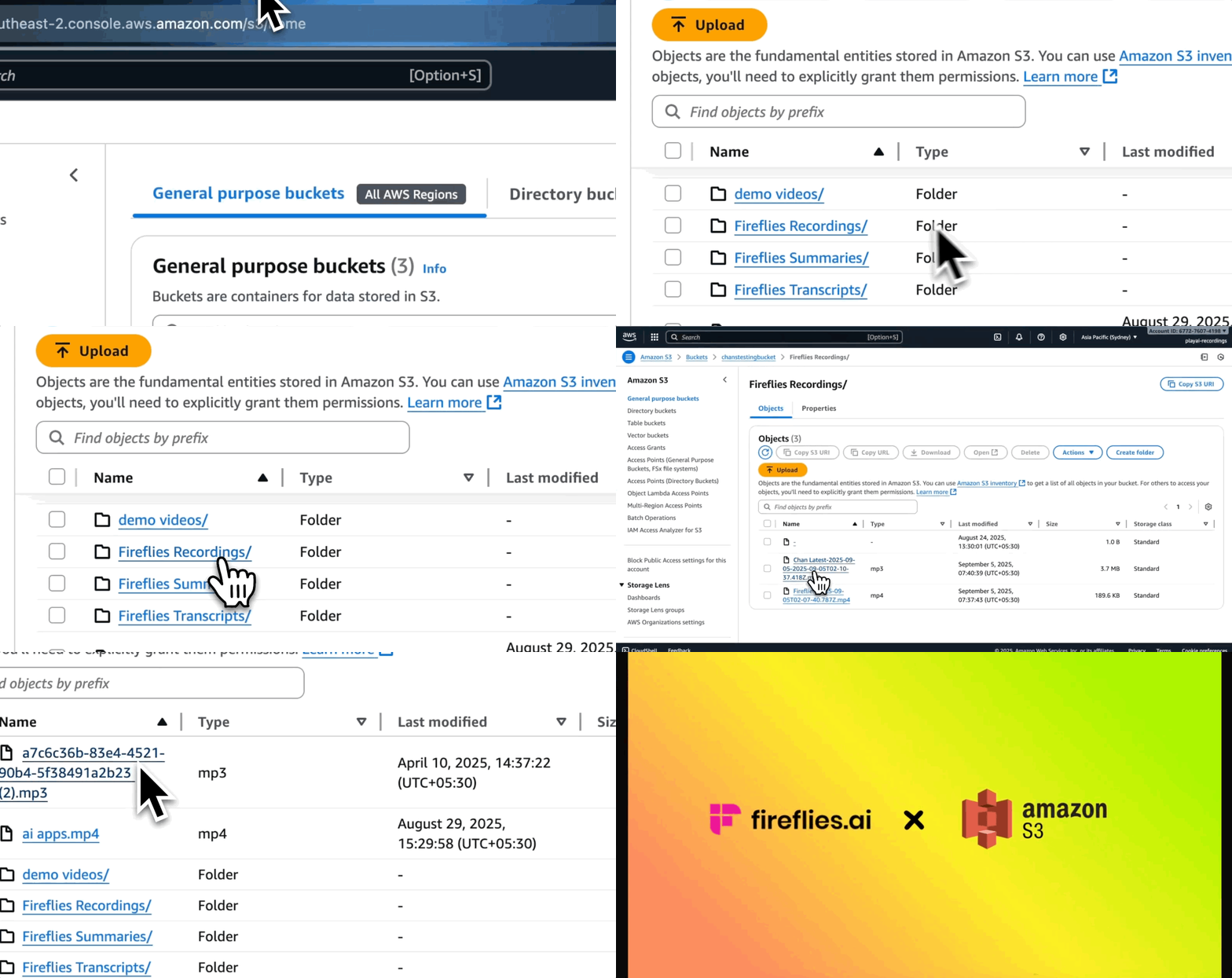
Create your S3 bucket
Log into your AWS console
Navigate to S3 and create or choose a new bucket
Choose a unique bucket name (e.g.,
company-fireflies-meetings)Select your preferred region for compliance and performance
Set up bucket permissions
Enable server-side encryption
Configure bucket policy for Fireflies access
Set up lifecycle rules if needed for data retention
Step 2: Connect Fireflies to S3
Access the integration
Go to your Fireflies dashboard
Click Integrations in the sidebar
Find Amazon S3 and click Connect

Enter your AWS credentials
A modal will appear asking for your Amazon S3 API Key
AWS Access Key ID: Enter your access key (use a severely restricted key with only S3 permissions)
AWS Secret Access Key: Enter your secret access key
Click Authorize to proceed
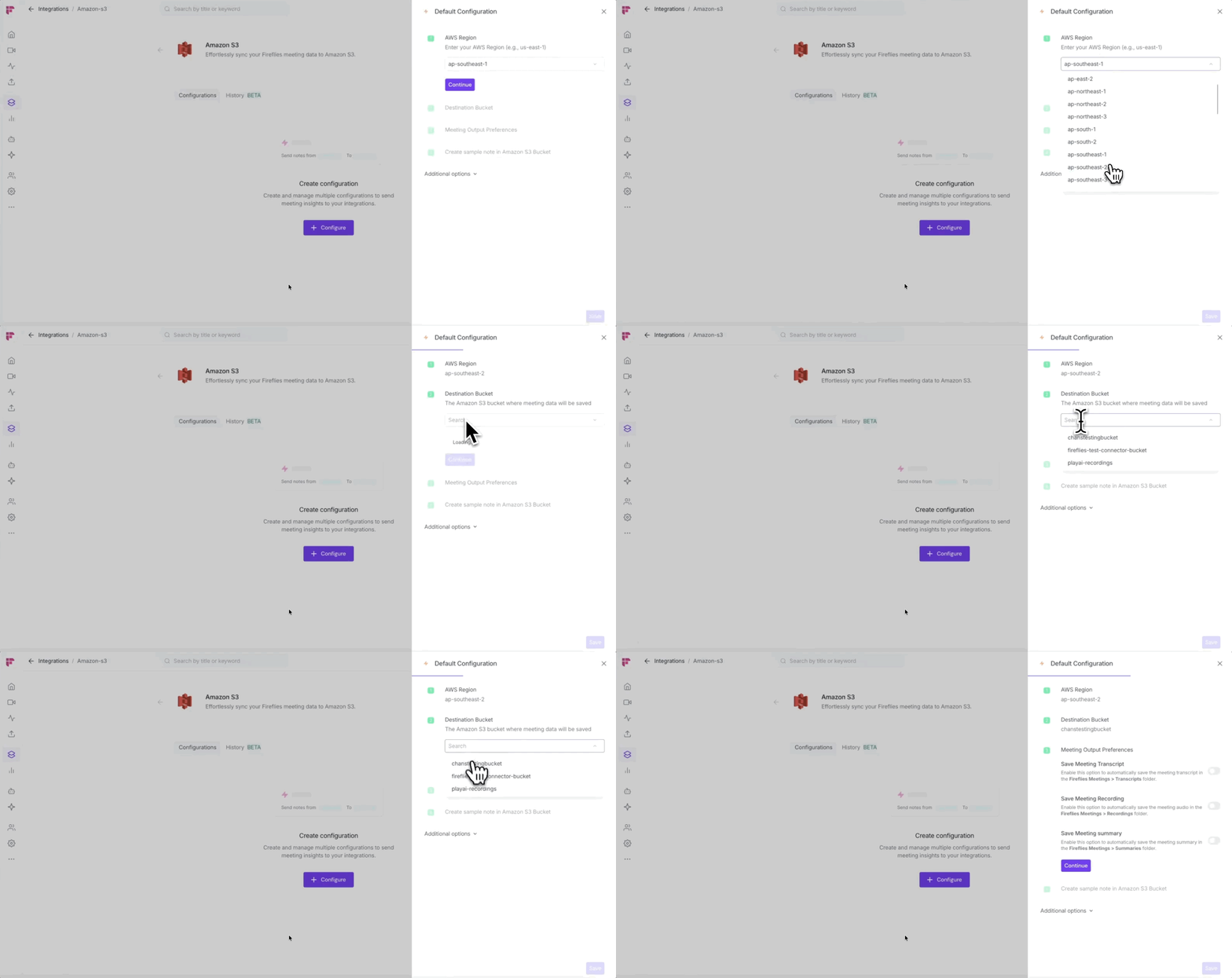
Configure your connection
AWS Region: Enter your region (e.g., us-east-1, ap-southeast-2)
Destination Bucket: Select from your existing S3 buckets or enter a bucket name
Click Continue to proceed to output preferences
Step 3: Configure export settings
Choose what to export
Save Meeting Transcript: Toggle on to automatically save transcripts to
Fireflies Meetings > TranscriptsfolderSave Meeting Recording: Toggle on to automatically save audio to
Fireflies Meetings > RecordingsfolderSave Meeting summary: Toggle on to automatically save summaries to
Fireflies Meetings > Summariesfolder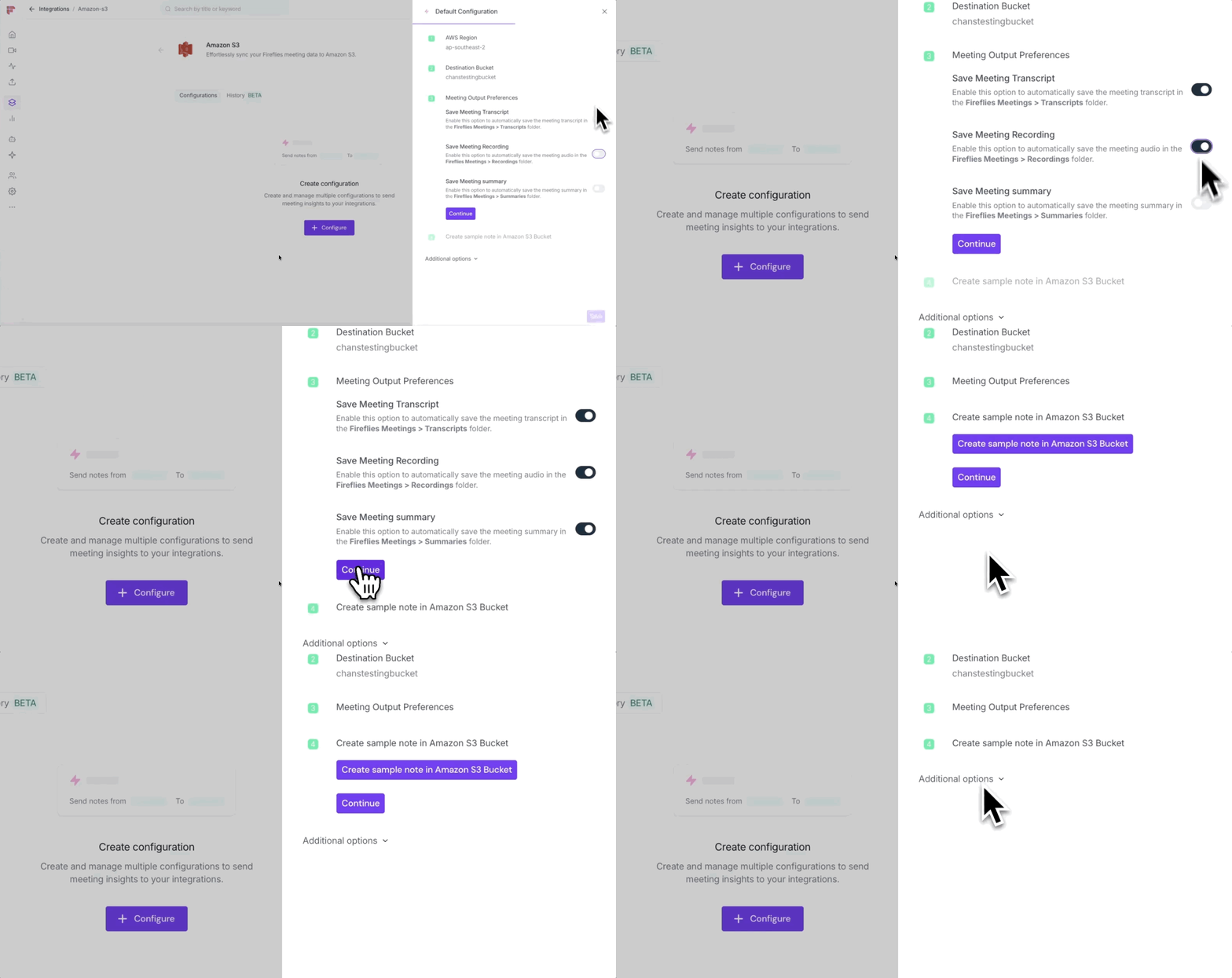
Business and Enterprise users with video recording enabled will also save video files
Test your setup (optional)
Enable Create sample note in Amazon S3 Bucket to test the connection
Click Continue to proceed to advanced options
Configure advanced options
Apply to: Choose which meetings to export (All Meetings, or filter by Meeting Title, Host, Participants, or Type)
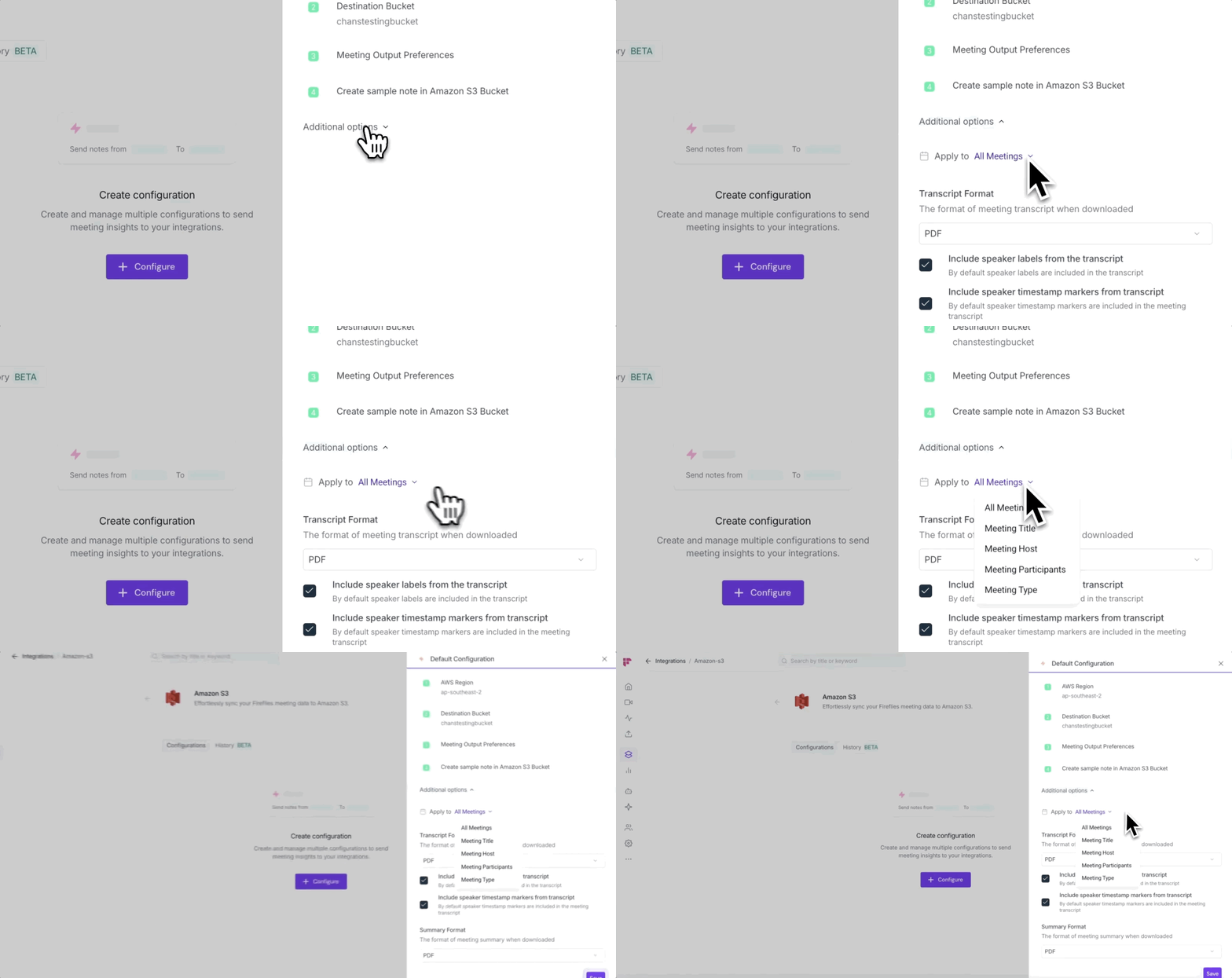
Transcript Format: Select from PDF, DOCX, JSON, SRT, or CSV
Include speaker labels: Keep speaker names in transcripts (enabled by default)
Include speaker timestamp markers: Add timestamps for each speaker (enabled by default)
Summary Format: Choose PDF or DOCX format for meeting summaries
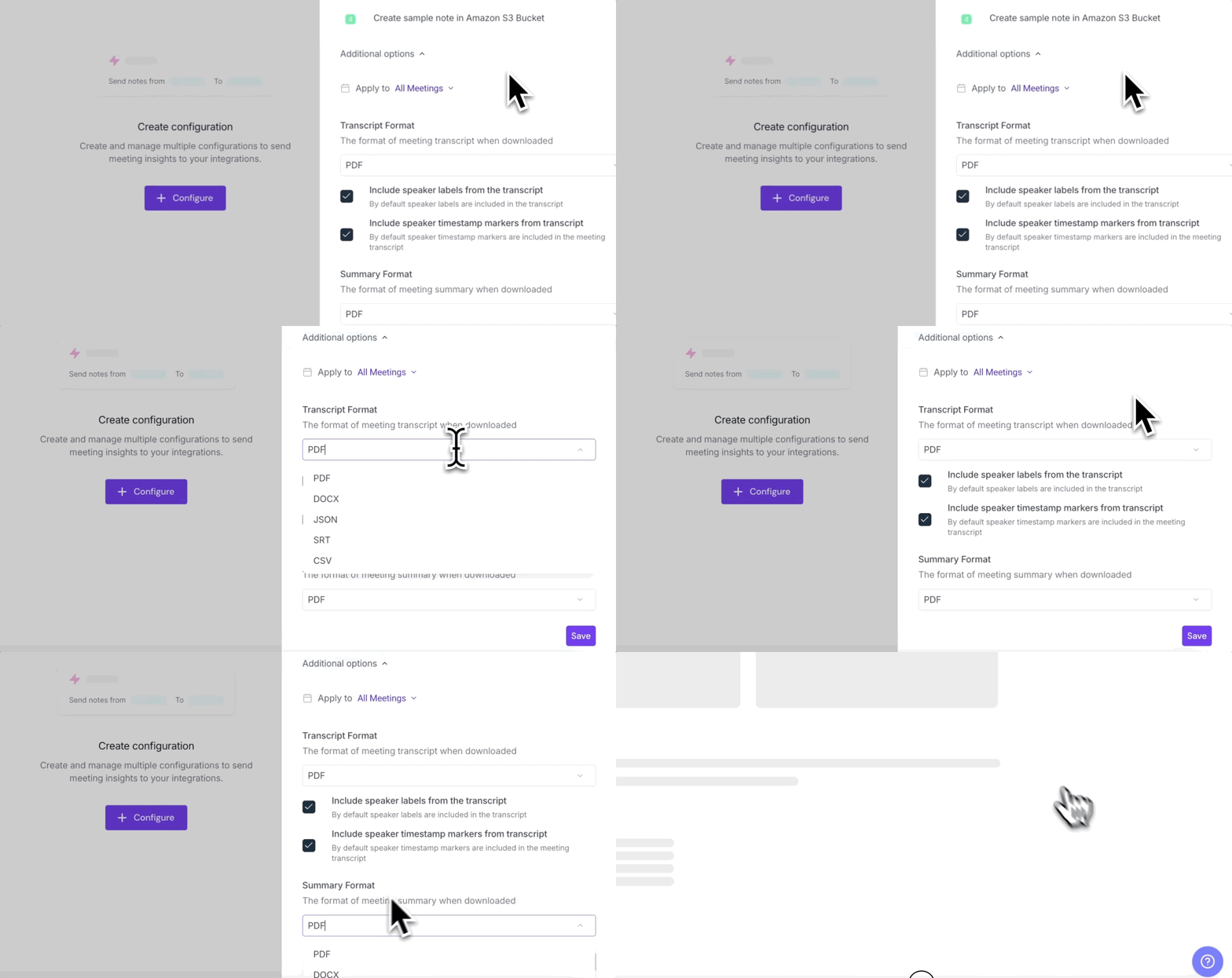
Save your configuration
Click Save to complete the setup
You'll see "Configuration successfully added" confirmation
Managing your S3 exports
Format | Best For | What You Get |
PDF 📄 | Sharing & archiving | Professional transcripts with speaker labels and timestamps—ready to print or share |
DOCX 📝 | Editing & customizing | Word-compatible documents you can edit and format however you need |
JSON 💻 | Developers & integrations | Structured data with rich metadata for custom apps and workflows |
SRT 🎬 | Video production | Time-synced captions that work with any video editor or media platform |
CSV 📊 | Data analysis | Spreadsheet-ready format for Excel, Google Sheets, or analytics tools |
Folder structure
Your S3 bucket will organize files automatically in a clean structure:
your-bucket/
├── Fireflies Meetings/
│   ├── Transcripts/
│   │   ├── meeting-transcript-2025-01-15.pdf
│   │   ├── meeting-transcript-2025-01-16.docx
│   ├── Recordings/
│   │   ├── meeting-audio-2025-01-15.mp3
│   │   ├── meeting-video-2025-01-16.mp4
│   └── Summaries/
│       ├── meeting-summary-2025-01-15.pdf
│       └── meeting-summary-2025-01-16.docx
Setting up meeting filters
All Meetings: Export every meeting automatically (default)
Meeting Title: Filter by specific meeting names or keywords
Meeting Host: Export only meetings hosted by specific people
Meeting Participants: Target meetings with particular attendees
Meeting Type: Filter by meeting categories or types
This filtering system lets you route different meeting types to your S3 bucket based on your organization's needs
Fine-tune which meetings sync to S3
Click Additional Options to set up smart filters that control exactly which meetings get exported to your S3 bucket. This keeps your storage organized and prevents unnecessary file clutter.
Filter by what matters:
Meeting title — Only export meetings with specific names or keywords
Host — Save recordings from particular team leads or departments
Participants — Focus on meetings with key stakeholders or external clients
Meeting type — Separate internal team meetings from client calls
Build smart combinations with AND/OR logic
Stack multiple filters to create precisely targeted storage workflows. For example:
→ Export all "Client Demo" meetings hosted by Alex AND including external participants
→ OR export any internal meetings tagged "All-Hands"
This means you can route different types of meetings to different S3 folders, exclude routine internal check-ins from your archive, or ensure only client-facing meetings get the full recording treatment.
Use these filters to create separate workflows, like sending sensitive executive meetings to a high-security S3 bucket while routing team standups to standard storage
⏪ Push Past Meetings to Amazon S3
Sometimes, the meetings you want in Amazon S3 happened before you connected the integration. Whether you enabled the integration later or want to add older meeting notes to Amazon S3, Push Past Meetings lets you choose a date range and meeting type, then send those meetings in just a few clicks.
Note: Make sure you've connected Amazon S3 and created at least one push configuration before using Push Past Meetings. If you haven't, complete the Setting Up Your Configuration section above first.
Follow the steps below to push past meetings to Amazon S3.
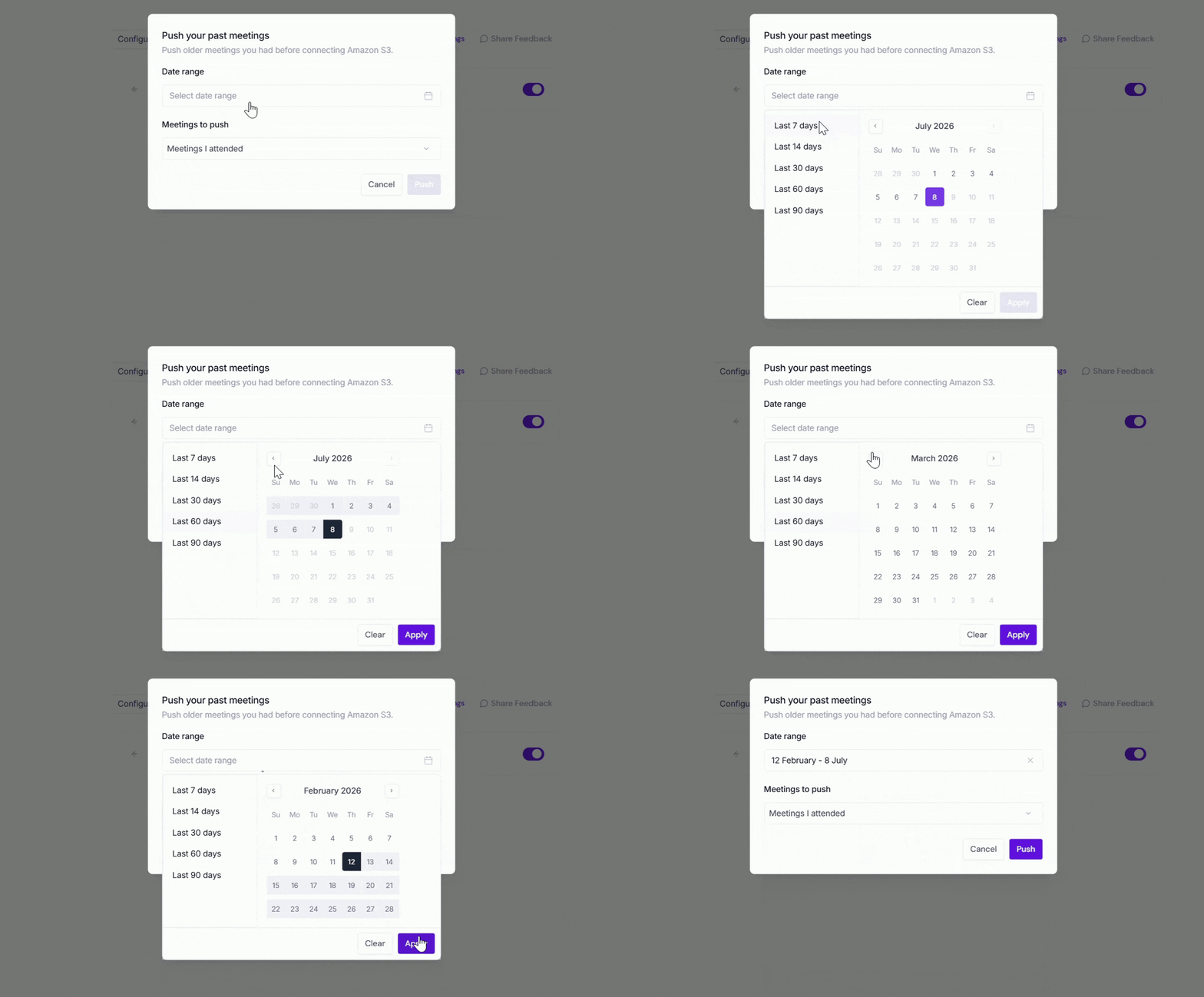
From the Amazon S3 integration page, click Push past meetings.

A dialog box will appear. Choose the following:
Date range → Select the meetings you want to send by choosing Last 7, 14, 30, 60, or 90 days, or specify a custom date range.
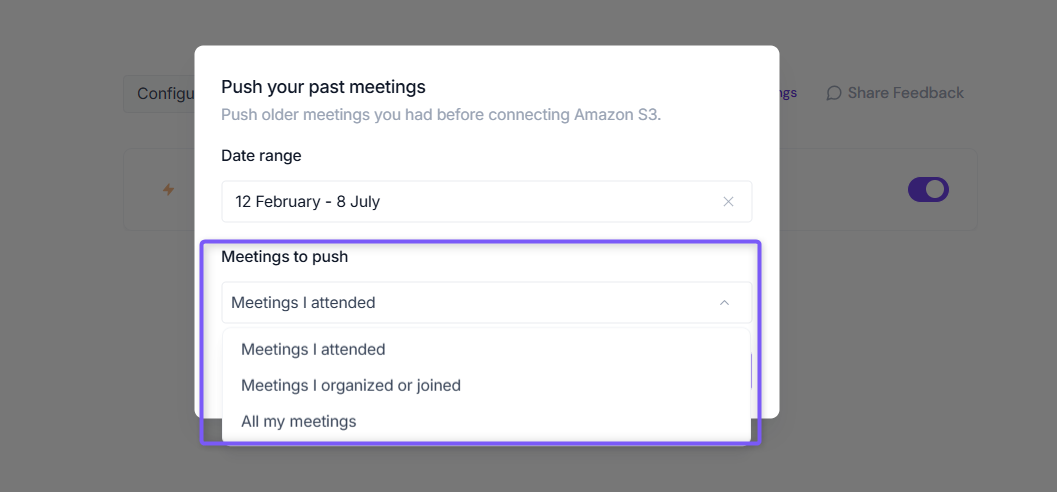
Meetings to push → Choose whether to push Meetings I attended, Meetings I organized or joined, or All my meetings.
Click Push. Fireflies will send the matching meeting notes to Amazon S3 using your existing configuration settings.
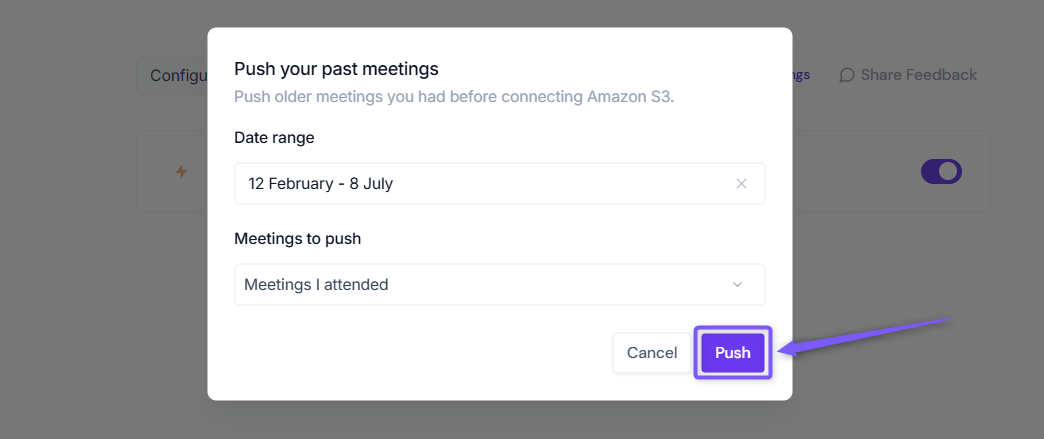
Meetings recorded after you connect Amazon S3 are sent automatically. Push Past Meetings is only needed for meetings that happened before the integration was connected.
👥 Team Integration Settings
Workspace admins can control how the Amazon S3 integration is used across their team. The available options depend on your plan and workspace role.
Click the vertical ellipsis (⋮) next to your Amazon S3 and select Team Permissions from the dropdown list.

Business and Enterprise
If you are a Workspace Admin on a Business or Enterprise plan, you can manage granular Integration Permissions for the integration, including who can access and connect it.
📖 See Integration Permissions: Control Who Can Access and Connect Integrations for detailed instructions on managing integration permissions.

Free and Pro
Free and Pro users do not have access to the full Integration Permissions dashboard. Instead, Team Permissions opens a modal with the available workspace-level settings.
Apply to entire workspace → Toggle this ON to apply the Amazon S3 integration across your Fireflies workspace. All team meetings accessible by the team admin will have notes sent to Amazon S3, keeping everything centralized.
📌Meetings that are set to private in a teammate’s Privacy Settings won’t be pushed to Amazon S3 unless you’re a Super Admin who can access meetings regardless of privacy settings.
Restrict non-admin usage → Toggle this ON to prevent non-admin members from creating their own Amazon S3 configurations. This helps maintain consistent settings and avoid unintended changes.
After adjusting the toggles to fit your team’s workflow, click Save to apply the changes.

Note: Business and Enterprise Workspace Admins have access to granular integration permissions, while Free and Pro workspaces have more limited workspace-level controls.
Why use admin controls?
Consistent data governance — All meetings follow the same export rules and security standards
Centralized storage — Everything goes to your organization's designated S3 bucket
Simplified management — No scattered individual configurations to track or troubleshoot
Compliance peace of mind — Ensure all meeting data meets your company's retention and security policies
Most organizations should enable both options to maintain clean data practices and prevent compliance headaches down the road
How to disconnect S3
Go to Integrations
Find Amazon S3
Click Connected status
Click Disconnect or Remove
Confirm disconnection
Existing files in S3 remain - disconnecting only stops new uploads
Troubleshooting common issues
Issue | Symptoms | Solution |
Invalid credentials | "Invalid credentials" error during setup | • Verify AWS access key and secret key • Check IAM user has S3 permissions • Confirm bucket name is correct |
Bucket not found | "Bucket not found" error message | • Confirm bucket name spelling • Verify bucket exists in specified region • Check bucket isn't deleted or suspended |
Missing exports | Files not appearing in S3 bucket | • Check routing rules configuration • Verify export formats are selected • Look for error notifications in dashboard |
Incomplete exports | Only some files transfer successfully | • Ensure sufficient S3 storage space • Check AWS service limits • Verify network connectivity during export |
Slow exports | Long delays in file transfers | • Choose optimal AWS region location • Consider S3 Transfer Acceleration • Review file formats (smaller = faster) |
Making sense of it all
Prerequisites: Active S3 account, AWS credentials (severely restricted key), and Fireflies Business or Enterprise plan
7 export formats: 5 transcript formats (PDF, DOCX, JSON, SRT, CSV) plus 2 summary formats (PDF, DOCX)
Organized structure: Files automatically sorted into
Fireflies Meetings > Transcripts/Recordings/SummariesfoldersMeeting filters: Apply to specific meetings using filters for title, host, participants, or meeting type
Toggle-based setup: Simple on/off switches for transcripts, recordings, and summaries with advanced options available
Enterprise security: Full encryption in transit and at rest with complete access control
Zero-day retention: Your data never trains our AI - you maintain complete ownership