Log in to Fireflies using Google, Microsoft, or Apple
Last updated: November 27, 2026
You can quickly log in to Fireflies using your Google or Microsoft account. You can also sign up for or log in to the Fireflies Desktop App using your Apple ID. Single Sign-On (SSO) makes it easier to access Fireflies without creating or remembering another password.
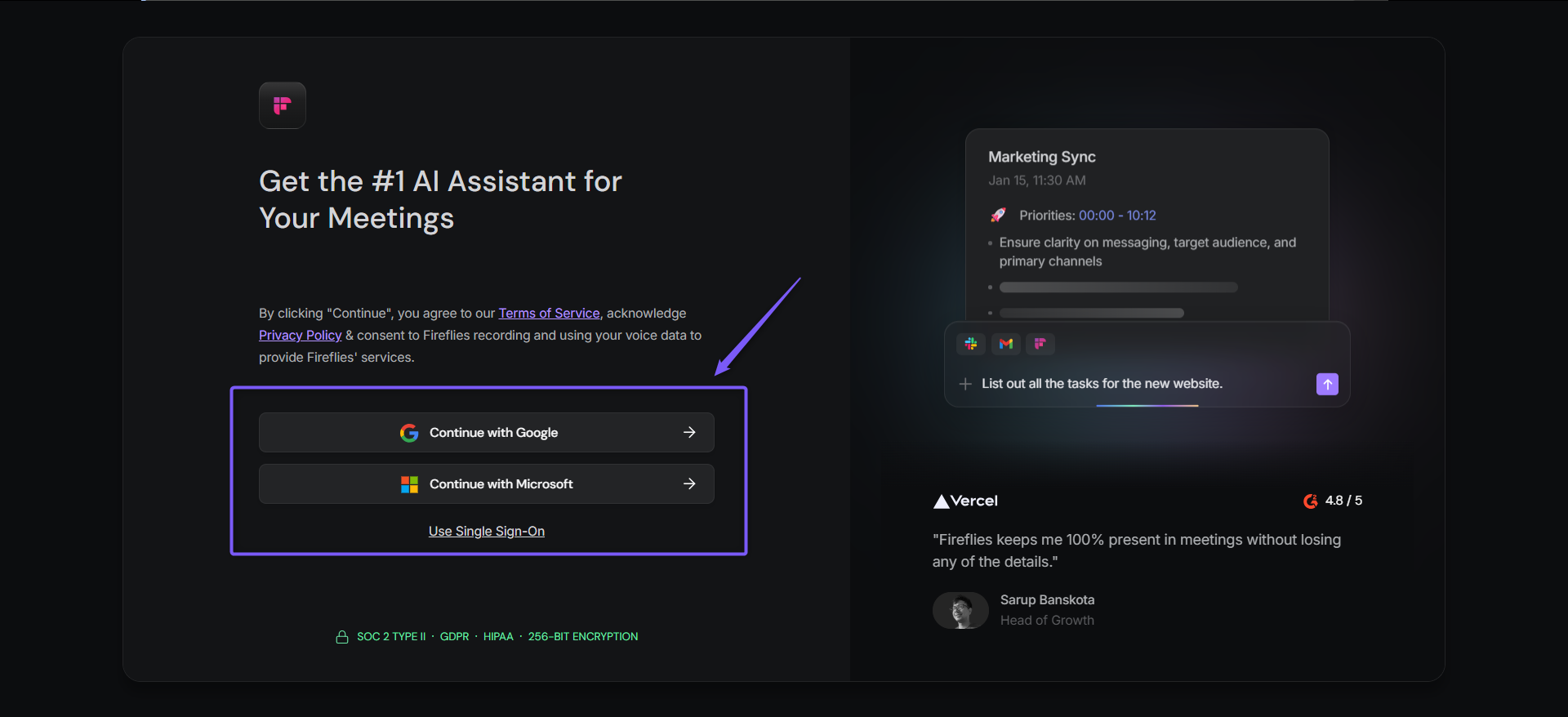
1⃣ Sign in with Google
Go to app.fireflies.ai
Click Continue with Google
Enter your Google email and password
Click Allow to give Fireflies access to your Google account
Fireflies will sync with your Google Calendar
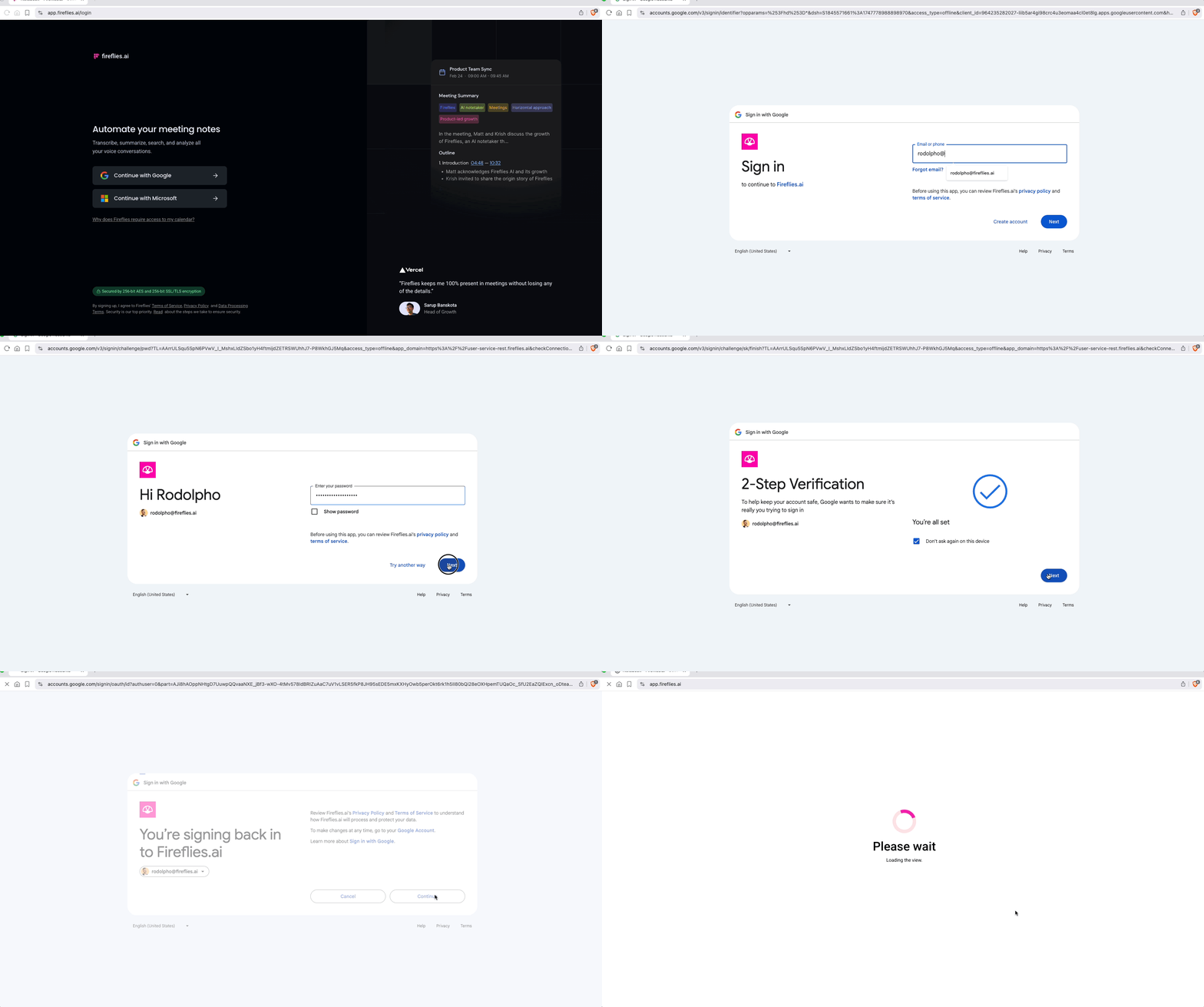
Once synced, Fireflies can auto-join your calendar meetings based on your settings
2⃣ Sign in with Microsoft
Go to app.fireflies.ai
Click Continue with Microsoft
Enter your Microsoft email and password
Click Accept to grant access to your Microsoft account
Fireflies will sync with your Outlook Calendar
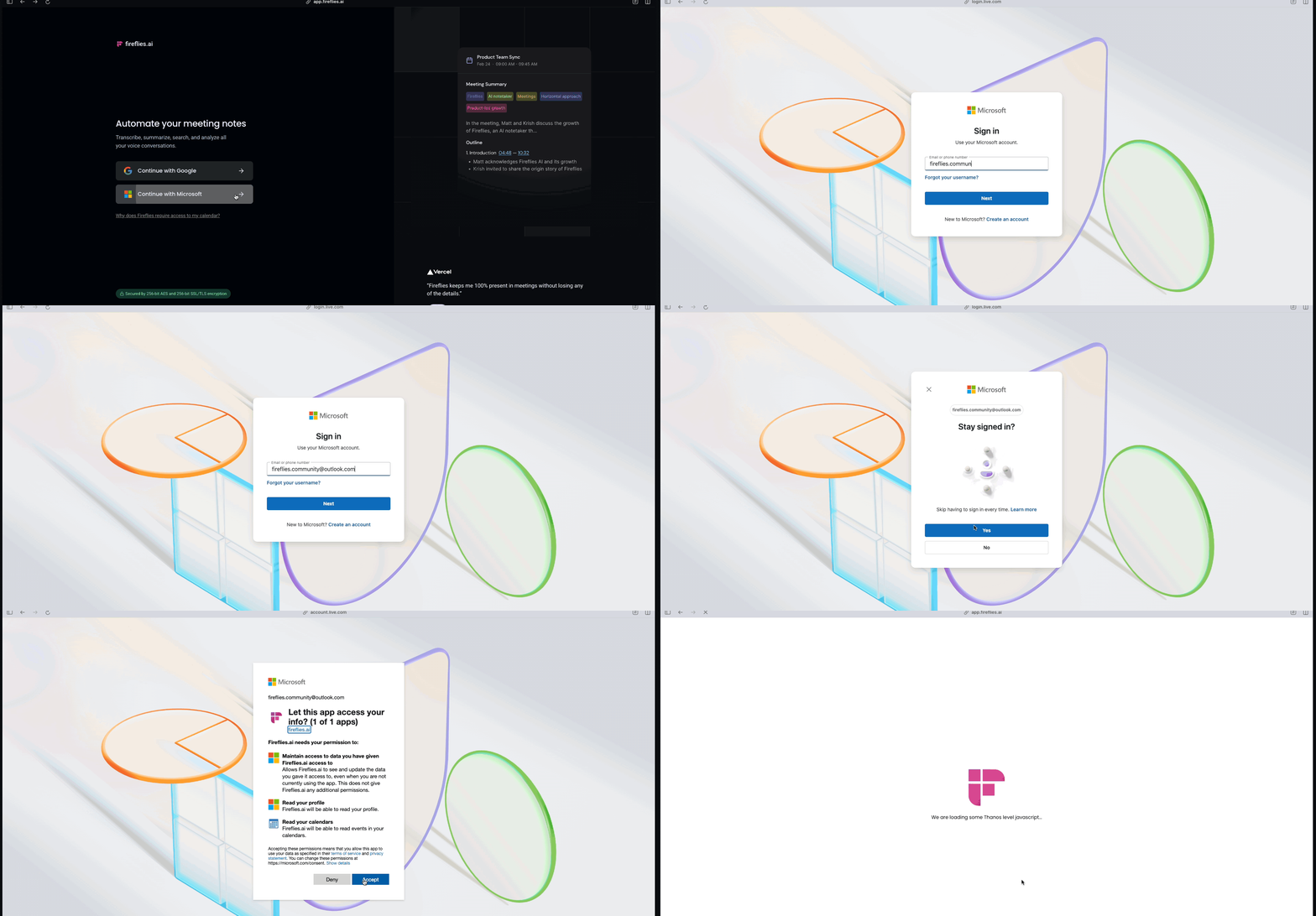
Once synced, Fireflies will auto-join your scheduled meetings per your preferences
3⃣ Sign in with Apple (Desktop App)
You can sign up for or log in to Fireflies using your Apple ID through the Fireflies Desktop App.
Note: Apple sign-in is currently available on the Fireflies Desktop App. Support for the web app is coming soon, so stay tuned!
To sign in with Apple:
Open the Fireflies Desktop App.
On the login screen, click Continue with Apple.
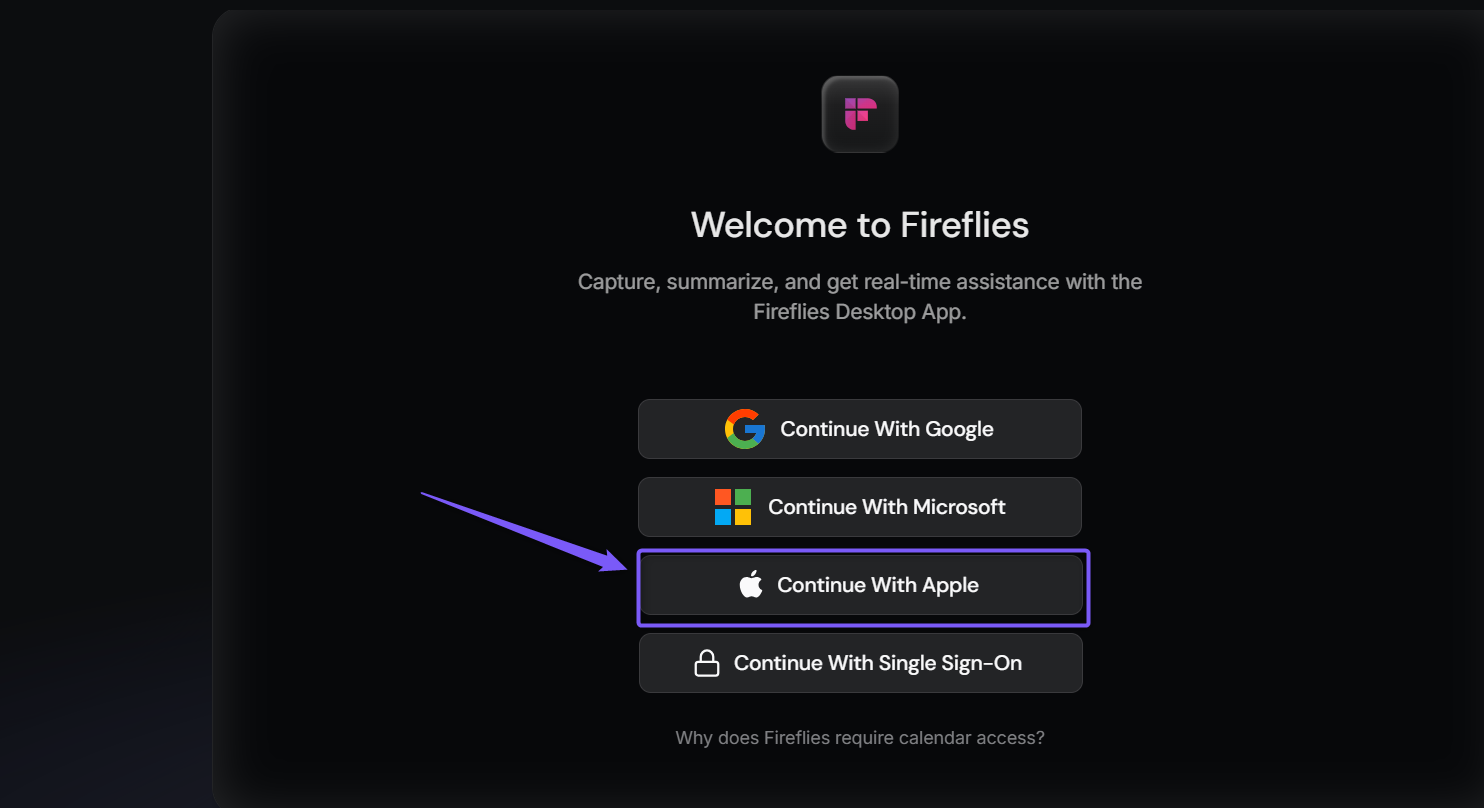
On Apple's authentication page, enter your Apple Account email address and click Continue.
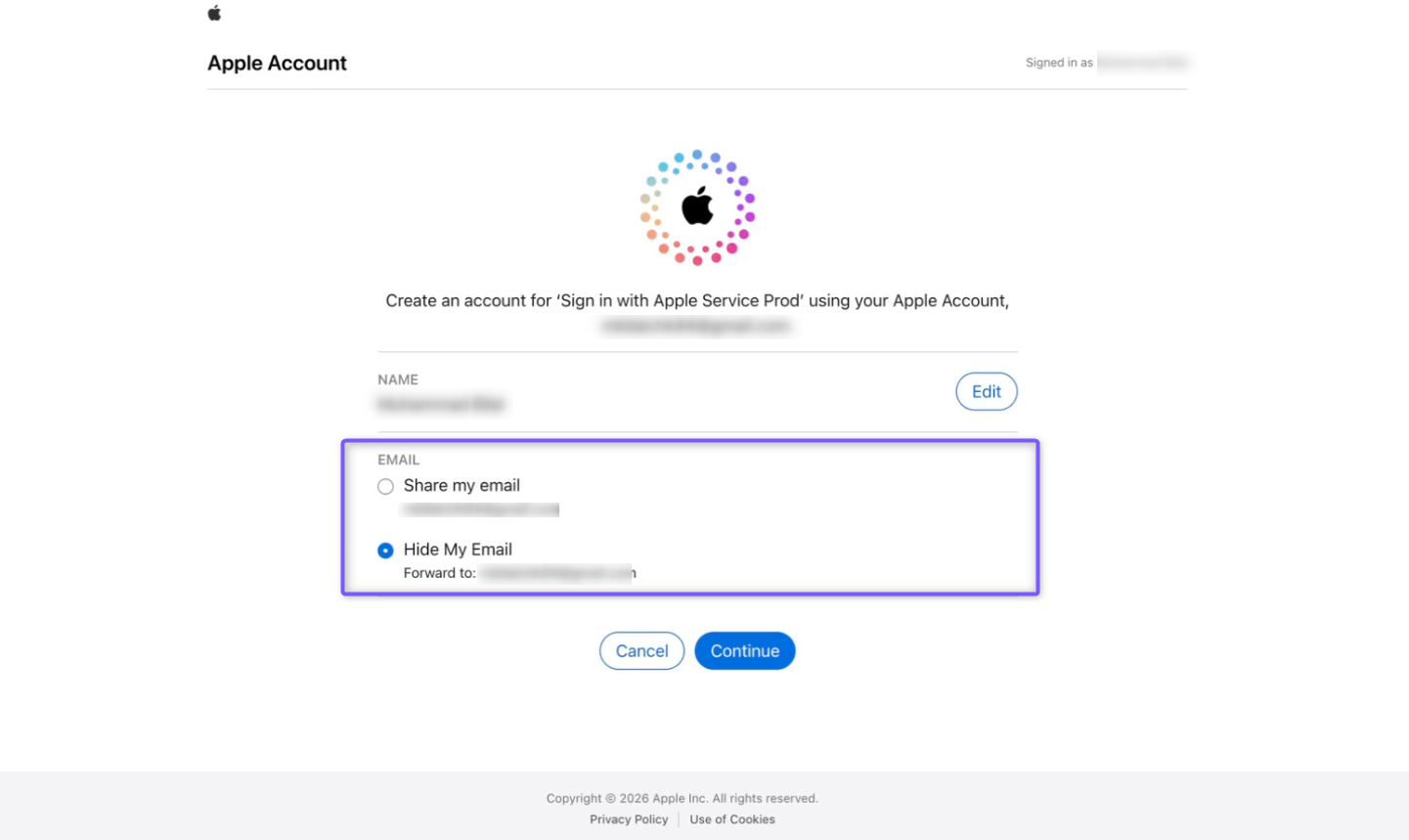
Review your account details on the next screen.
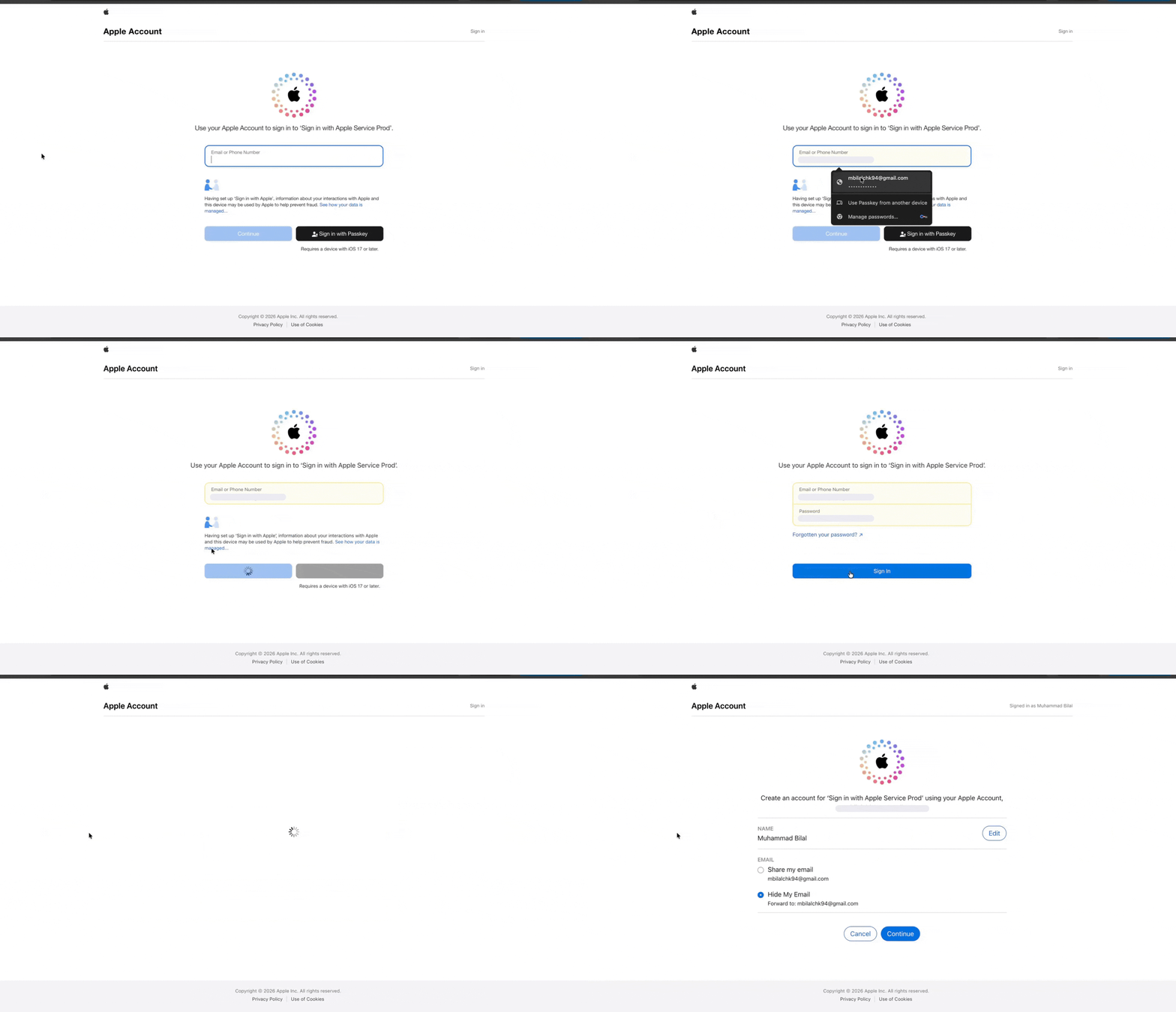
Under Email, choose one of the following:
Share My Email: Share your Apple Account email address with Fireflies.
Hide My Email: Use Apple's private relay email address instead.
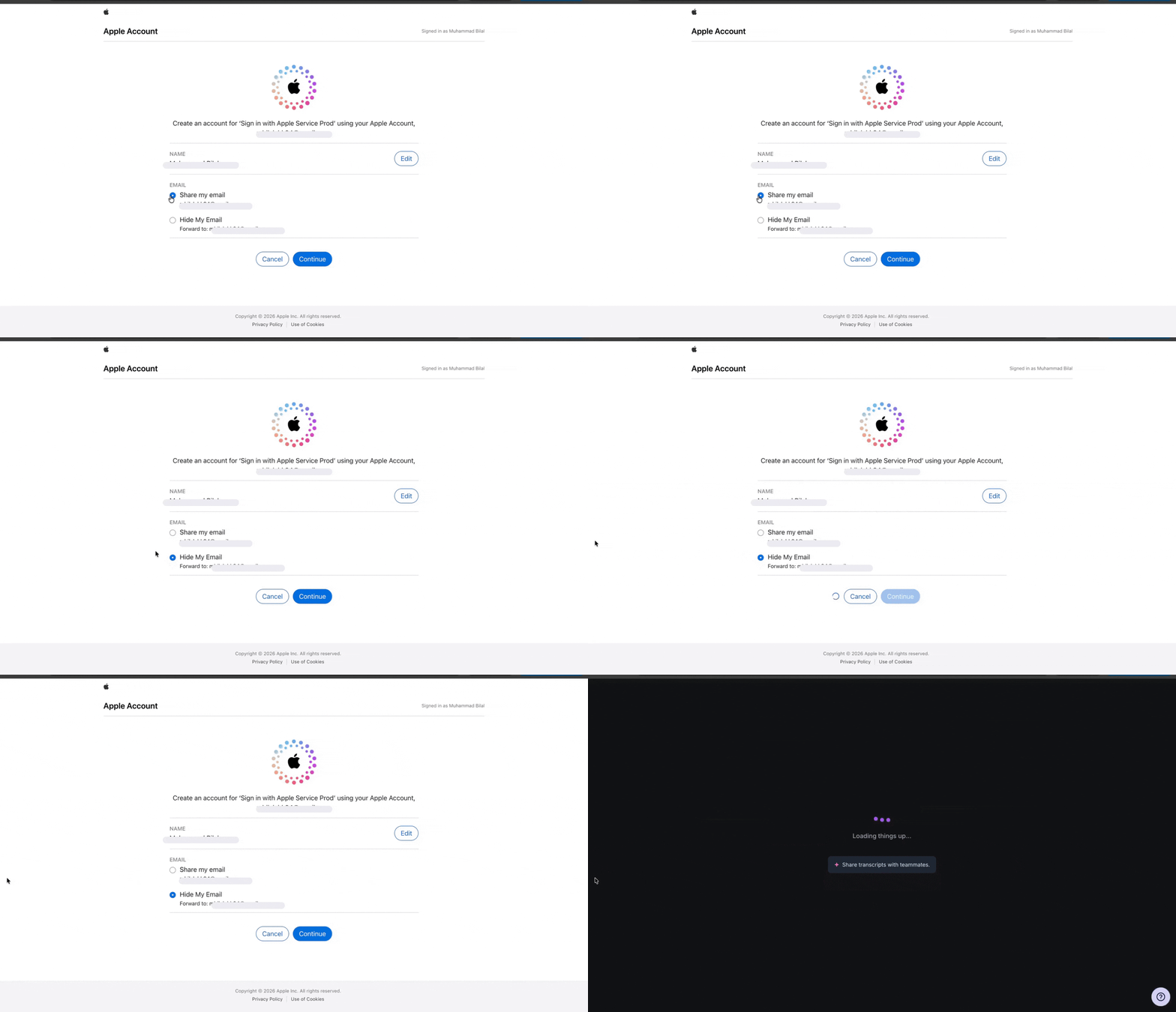
Click Continue to complete the Apple sign-in process.
Once authentication is complete, you'll be redirected to your Fireflies.
Important things to know
Using Hide My Email: You can use Apple's Hide My Email option when signing in. If your Apple email address is already linked to a Google or Microsoft account, Fireflies will send you an email to confirm merging the accounts.
Connecting your calendar: Signing in with Apple does not connect your iCloud Calendar to Fireflies. To let Fred automatically join your scheduled meetings, connect your Google or Outlook calendar using the Connect to calendar button on your Fireflies dashboard. Make sure the email address is also registered with Google or Microsoft.
Recording meetings without a calendar: You can still use Fireflies without a connected calendar. You can manually add Fred to a live meeting, upload recordings, or record meetings using the desktop app.
Using the Email Assistant: To use the Fireflies Email Assistant, you need to connect a Gmail or Outlook mailbox. However, if you selected Hide My Email when signing in with Apple, you won't be able to connect the Email Assistant.
Removing Fireflies from your Apple account: If you remove Fireflies from your Apple ID settings, you'll be signed out of your Apple sessions. Your Google or Microsoft sign-in options will continue to work if you have them connected.
Where Apple sign-in is available: You can sign in with Apple through the Fireflies Desktop App. Web app support is being rolled out and is not yet generally available. Apple sign-in is not yet available on iOS, Android, or mobile web.
📌Enforced SSO Redirect Behavior
When SSO is enforced on your domain:
Users will be automatically redirected to your organization's SSO login link when they attempt to log in via Google or Microsoft OAuth.
This happens after the OAuth authentication succeeds—at which point Fireflies checks if your domain has an enforced SSO configuration and triggers the redirect.
Avoid this behavior
If your users don't want automatic redirects, have them use your unique SSO login link instead of the generic Google or Microsoft login options.