Connect Fireflies to Lever
Last updated: September 23, 2025
Automatically sync interview insights directly to candidate profiles
Lever is the modern talent acquisition platform that helps companies build world-class teams. From candidate sourcing and pipeline management to interview coordination and hiring decisions, it's where recruiting teams orchestrate their entire talent strategy.
Now with Fireflies' Lever integration, your interview intelligence flows seamlessly into your recruiting ecosystem, giving you complete context on every candidate conversation without the manual overhead of note-taking during interviews.
What you can do with Lever integration
Transform every interview into structured candidate intelligence
🎯 Automatic candidate matching — Meeting notes sync directly to the right candidate profiles using email recognition
📝 Rich interview documentation — Comprehensive summaries, key discussion points, and action items added to candidate timelines
✨ Zero manual data entry — Interview insights appear in Lever within minutes of your call ending
👥 Optional candidate creation — Choose whether to automatically create profiles for new candidates during informal chats
No more typing up interview notes. No forgotten candidate details. No missing context during hiring decisions. Just seamless documentation that lets you focus on finding the right talent.
Setting up your Lever integration
Before you begin, make sure you have:
An active Lever account
Admin permissions to install integrations
Fireflies account with meeting access
Candidate profiles where you want to sync interview data
Step 1: Access Lever integration
Navigate to your Fireflies integrations dashboard to begin the setup.
Go to your Fireflies dashboard
Click Integrations in the sidebar
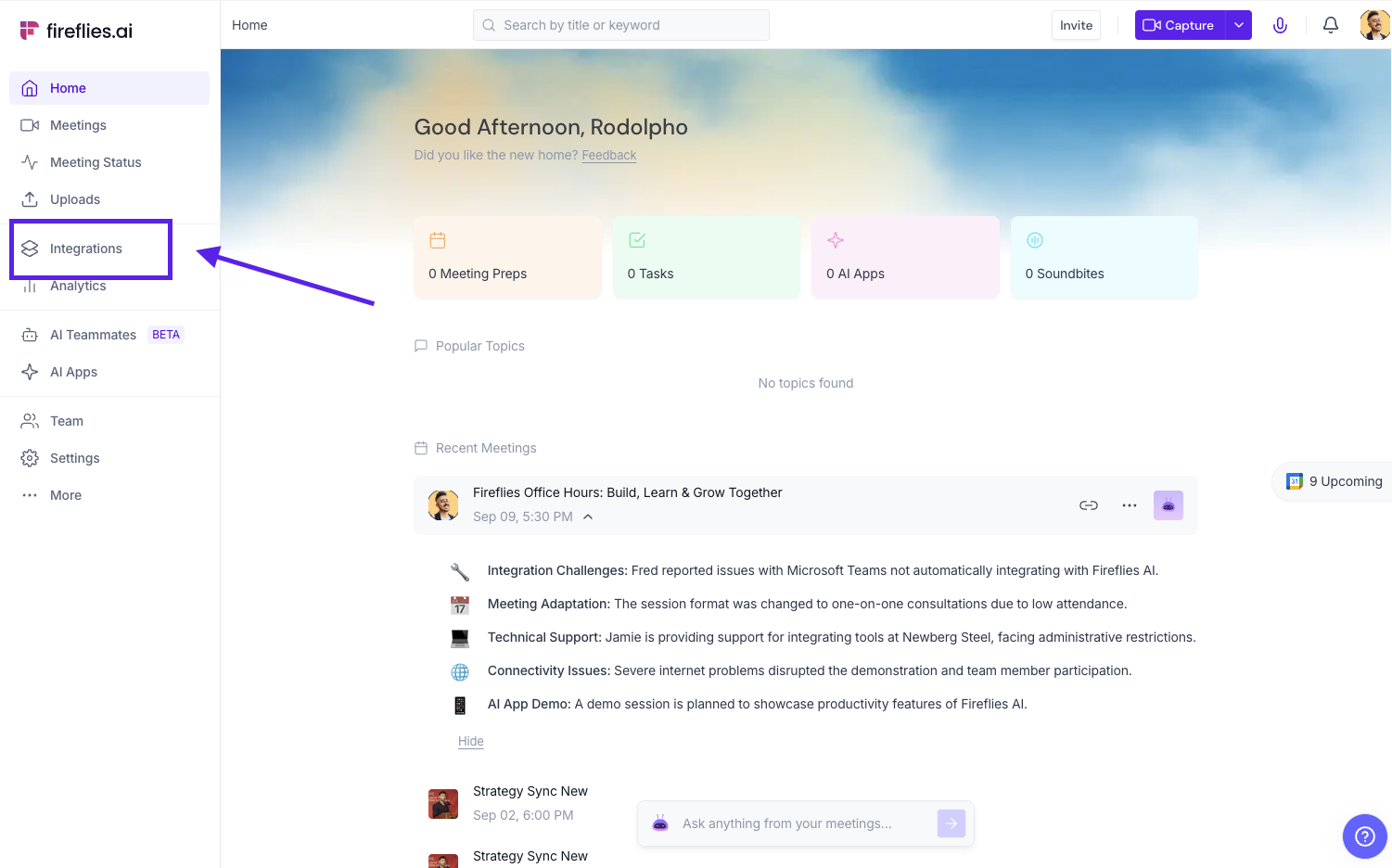
Search for Lever, select it and click Connect
Step 2: Authorize the connection
Connect your Lever account with Fireflies using secure authentication.
You'll be redirected to Lever for authorization
Click Accept if you're already logged in (this happens automatically)
Click Authorize this connector to proceed
Step 3: Configure candidate settings
Choose how you want the integration to handle new candidates.
Auto-create candidates: Toggle ON to automatically create candidate profiles when email isn't found in Lever (perfect for screenings or informal chats)
Prefer more control: Toggle OFF to only sync notes for existing candidates
Click Continue when ready
Step 4: Test your connection
Verify everything is working correctly before going live.
Click Create Sample Note For a Sample Candidate in Lever to run a test
Fireflies will send a sample meeting note to verify the connection
Click Click here to view to see exactly how notes will appear in Lever
Review the formatting and click Continue to activate
Managing your Lever sync
Setting | What It Does | Best For |
Automatic matching 🎯 | Maps meeting notes to candidate profiles using email recognition | Ensuring interview notes reach the right candidate timelines |
Auto-create candidates ✨ | Creates new profiles when email isn't found in Lever | Capturing unexpected referrals or informal coffee chats |
Rich documentation 📝 | Adds summaries, discussion points, and action items to timelines | Comprehensive candidate evaluation and decision-making |
Real-time sync ⚡ | Delivers interview insights within minutes of call ending | Fast-moving recruitment cycles and immediate follow-ups |
Timeline organization 📅 | Chronologically organizes all candidate interactions | Tracking candidate journey through hiring pipeline |
Fine-tune which meetings sync to Lever
Click Additional Options to set up smart filters that control exactly which meetings sync to your candidate profiles. This keeps your Lever data focused on actual recruiting conversations.
Filter by what matters:
Meeting title — Only sync meetings containing "interview," "screening," or "candidate"
Host — Include meetings led by specific recruiters or hiring managers
Participants — Target meetings with candidates or department heads
Meeting type — Choose external candidate interviews vs internal team debriefs
Build smart combinations with AND/OR logic
Stack multiple filters to create precisely targeted recruiting workflows. For example:
→ Sync all meetings with external participants AND containing "interview" in the title
→ OR sync meetings hosted by recruiting team AND containing "candidate" in the title
This means you can ensure only qualified recruiting conversations reach your ATS while keeping internal team meetings and non-recruiting calls from cluttering candidate timelines.
Use these filters to create separate workflows: like syncing technical interviews to engineering candidates while routing executive screenings to leadership profiles
Team management for Lever integration (Workspace Admins Only)
Workspace admins can control how the Lever integration works across their recruiting organization with centralized settings under Integration Scope.
Set up team-wide controls:
Click the 3 dots on your Lever integration page
You'll see a popup with 2 key options
Option A: Apply to entire workspace
Toggle this ON to automatically sync meetings from admin-accessible meetings to your team's Lever account. This ensures consistent candidate documentation across your recruiting team.
Option B: Restrict non-admin member usage
Keep this ON to prevent team members from creating their own individual Lever configurations. This maintains ATS data integrity and ensures all interview sync follows your recruiting process.
Why use admin controls?
Consistent candidate data — All interviews follow the same sync rules and timeline organization
Unified recruiting view — Everything flows to your organization's designated Lever account
Simplified management — No scattered individual configurations to track or troubleshoot
Hiring team alignment — Ensure all interview data supports your recruiting methodology
Most recruiting organizations should enable both options to maintain clean ATS hygiene and prevent candidate data fragmentation across the team
How teams are using Fireflies + Lever
Recruiting teams
Interview consistency: Auto-capture technical screening details and cultural fit assessments for standardized evaluation
Candidate journey tracking: Maintain complete timeline of every interaction from first contact to offer
Hiring manager collaboration: Share interview insights instantly with department heads for faster decisions
Technical recruiting
Skills assessment: Document coding challenges and technical discussions with detailed context
Reference checks: Capture reference call insights and add them to candidate evaluation timelines
Panel interview coordination: Sync multi-interviewer feedback to single candidate profiles automatically
Executive search
Executive assessment: Comprehensive documentation of leadership interviews and strategic discussions
Stakeholder input: Capture board-level feedback and senior team interviews in candidate profiles
Cultural alignment: Track executive fit conversations across multiple touchpoints and decision-makers
Troubleshooting common issues
Issue | Symptoms | Solution |
Notes not syncing | Interview notes missing from candidate profiles | • Check email matching between meeting and Lever profile • Verify candidate exists in Lever • Review sync filters configuration |
Wrong candidate matching | Notes appearing on incorrect candidate profiles | • Ensure meeting participants use same email as Lever • Check for duplicate candidate profiles • Verify email accuracy in meeting invites |
Missing candidate creation | New candidates not created automatically | • Confirm auto-create toggle is enabled • Check participant email format • Verify Lever permissions for profile creation |
Authorization failures | "Not authorized" errors during setup | • Re-authenticate Lever connection • Check Lever admin permissions • Clear browser cache and retry |
Delayed sync | Long delays between interview and Lever update | • Check Lever API status • Verify network connectivity • Review meeting processing queue |
Making sense of it all
You'll need an active Lever account with integration permissions and Fireflies meeting access to get started
Automatic email matching ensures interview notes reach the right candidate profiles without manual intervention
Smart filtering controls which meetings sync to Lever using title, host, participant, or meeting type criteria
Flexible candidate handling lets you choose whether to auto-create profiles or sync only to existing candidates
Complete interview documentation captures every detail without distracting you during actual conversations
Admin-level governance ensures consistent recruiting practices across your entire talent acquisition team
Chronological timeline organization makes it easy to track each candidate's journey through your hiring pipeline
Estimated reading time: 5 minutes