How to Integrate Smartsheet with Fireflies
Last updated: July 23, 2026
If your team uses Smartsheet to manage projects, connect it with Fireflies to automatically keep your meeting insights there too - no more manually updating spreadsheets or copying notes after every call.
Let's get started 🚀
🔍 What Does the Smartsheet Integration Do?
With the Smartsheet + Fireflies integration:
Fireflies automatically creates a Fireflies Meetings folder and a meeting tracker sheet in your selected Smartsheet workspace.
Add every new meeting as a new row in the tracker
Meeting details, including the title, date, attendees, AI summary, transcript, recording, and meeting link
Keep your meeting history organized and accessible without manually updating spreadsheets
🔑 Prerequisites
Before connecting Smartsheet with Fireflies, make sure you have:
An active Fireflies account.
A Smartsheet account with permission to create folders and sheets in the workspace where you want to store meeting data.
Admin access in Fireflies (required for team-wide integrations).
Once you have ensured this, proceed with the setup.
🔗 Connect Smartsheet to Fireflies
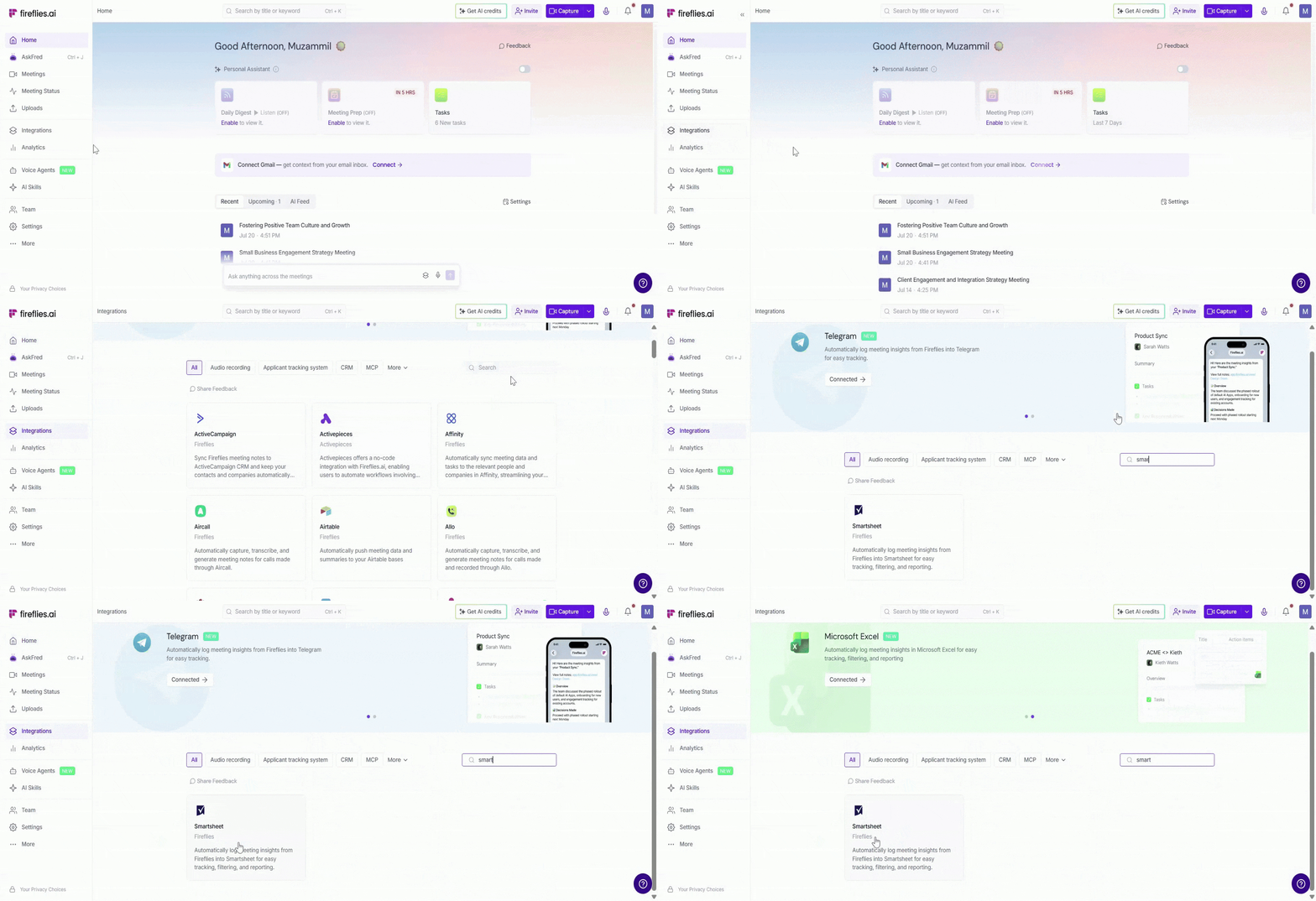
Step 1: Log in to your Fireflies account, Navigate to the Integrations page, and search for Smartsheet. Click on it to get started.
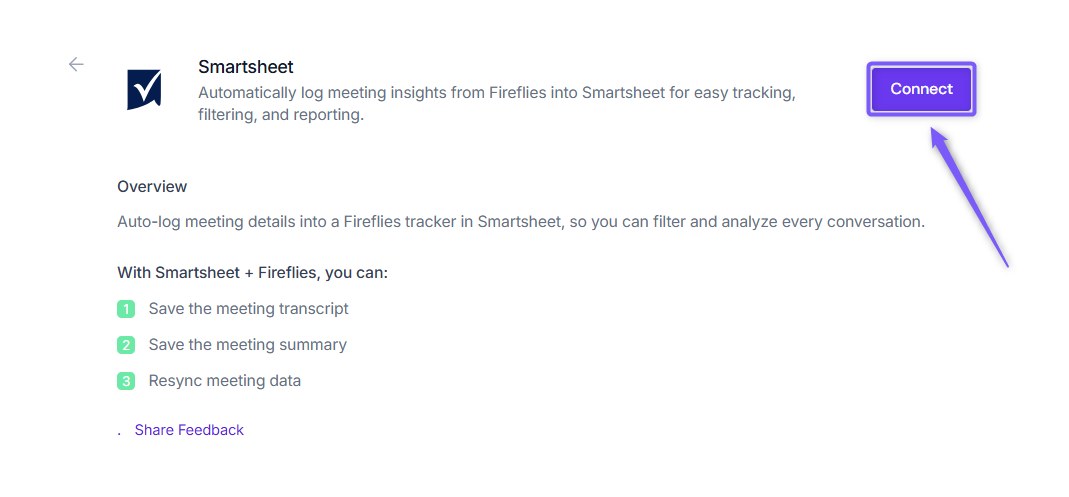
Step 2: Click Connect. You'll be redirected to the Smartsheet sign-in page. Sign in with your Smartsheet account to connect the integration.
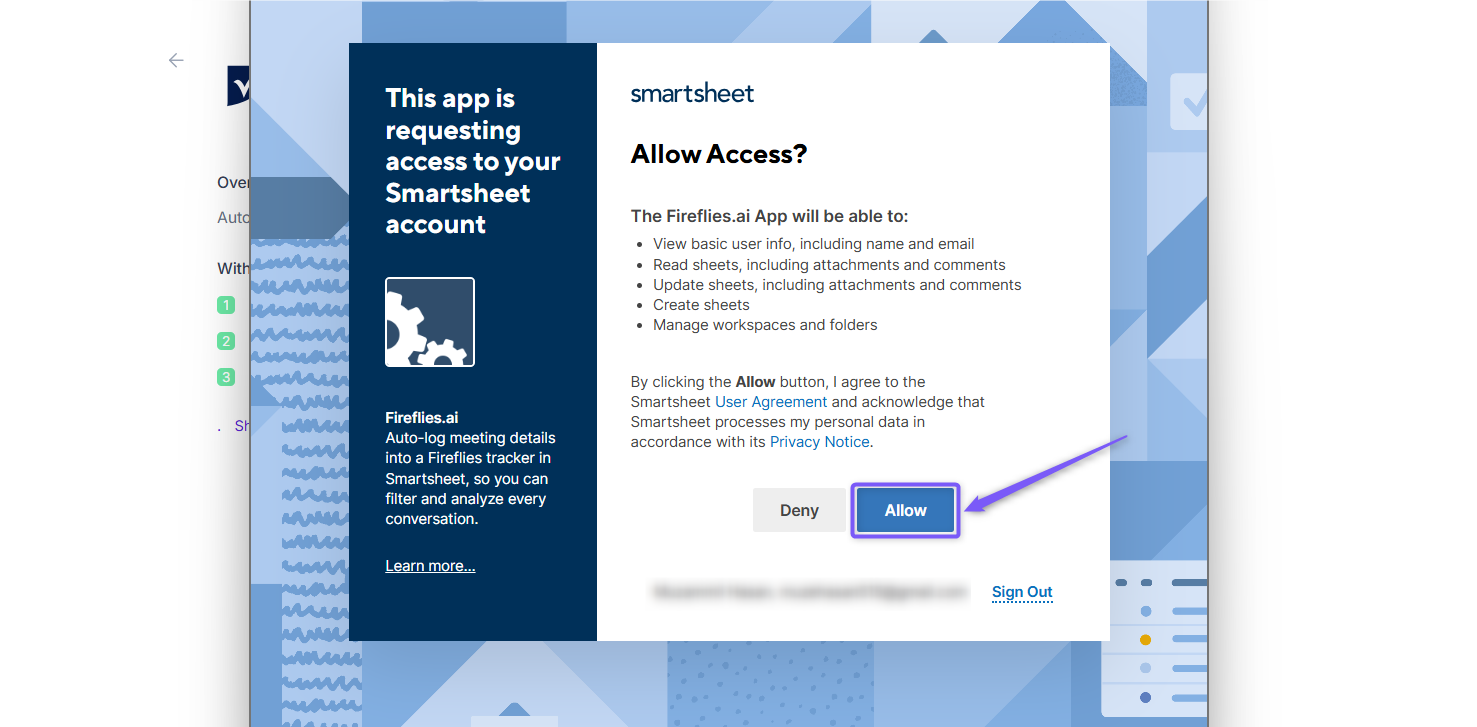
Step 3: Click Allow to grant Fireflies permission to access your Smartsheet account. Fireflies will securely connect to your Smartsheet workspace.
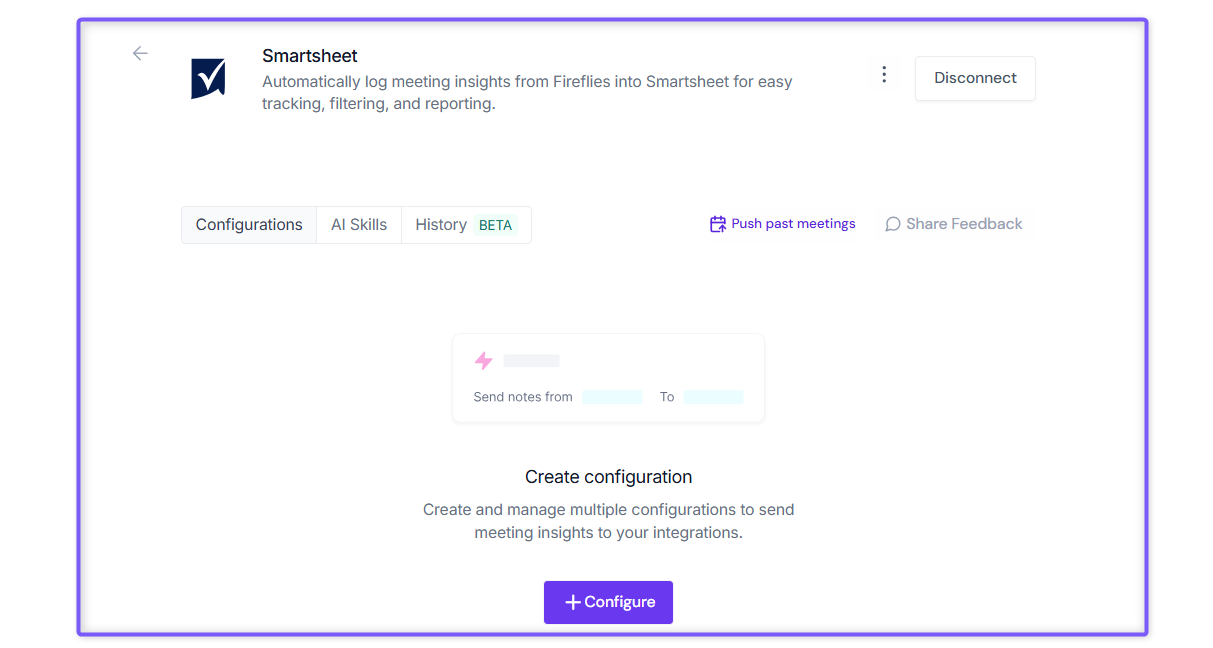
Step 4: Once approved, you’ll be redirected back to Fireflies to configure your integration setup.
⚙ Setting Up Your Configuration
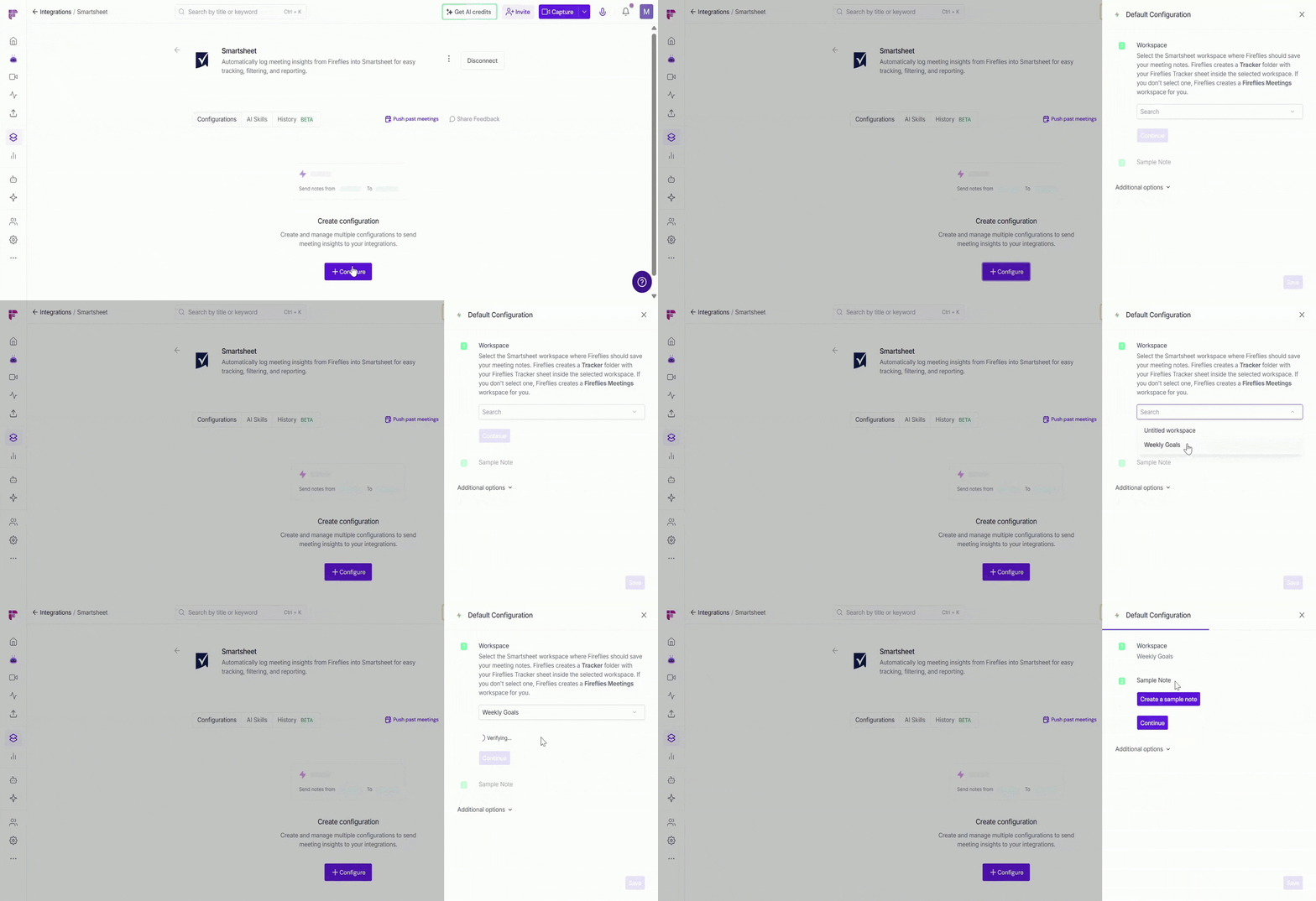
Step 1: Select a Workspace
Choose the Smartsheet workspace where Fireflies should create your meeting tracker and save future meeting data.
Select the Workspace from the dropdown where you want Fireflies to create your meeting tracker.
Click Continue.
New to Smartsheet? Don't have a workspace yet or aren't sure which one to choose? Learn how to create and manage Smartsheet workspaces in the official guide.
Step 2: Create a Sample Note
Before you go live, make sure everything is working correctly.
Click Create a sample note. Fireflies generates a sample meeting note and adds it to the Fireflies Tracker sheet in the selected Smartsheet workspace.
Open the sample note to verify that the meeting data appears correctly.
Once verified, click Continue to finish the setup.
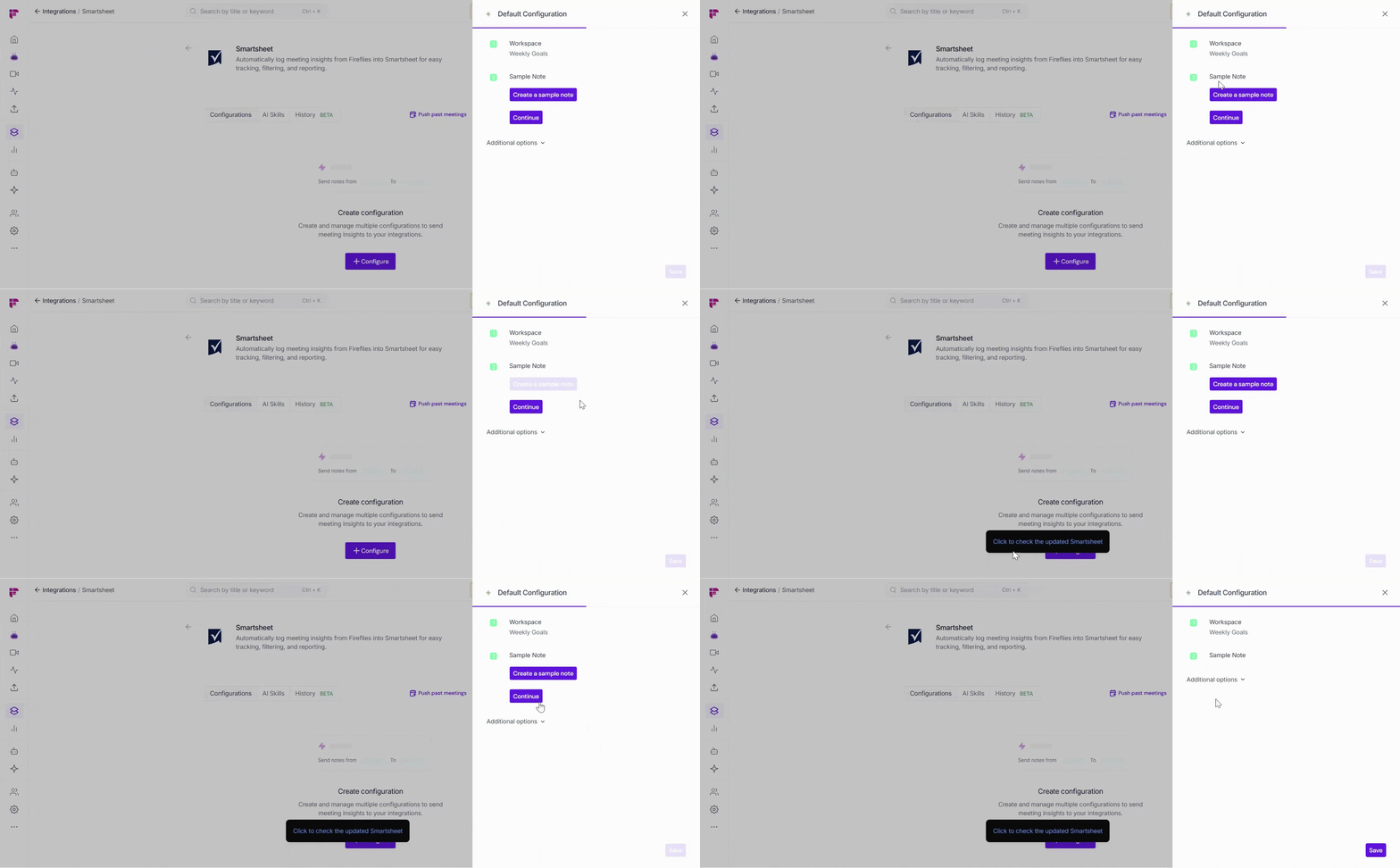
This test won’t affect your real meetings - it just confirms that Fireflies can successfully send notes to your Smartsheet.
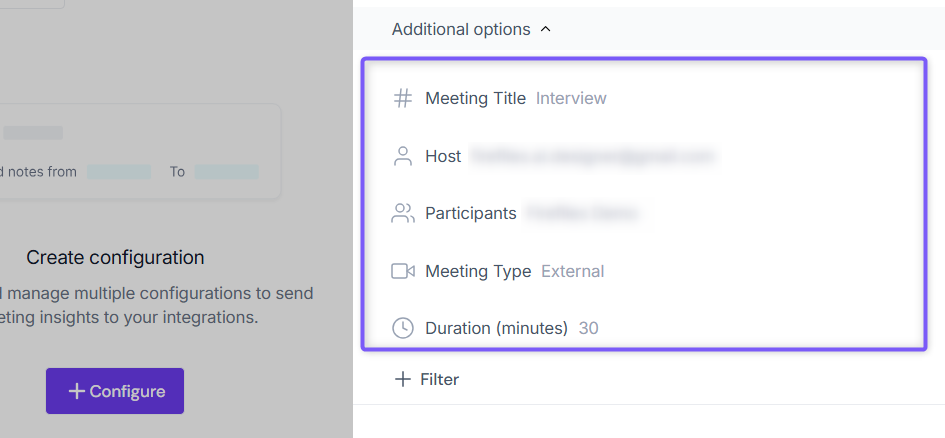
🧩 Additional Options – Integration Rules
By default, Fireflies sends meeting notes to Smartsheet for every meeting. If you only want certain meetings added to your meeting tracker, Integration Rules let you control exactly which meetings are push.
Integration Rules are available on Business or higher plans.
💡 Learn more about our different pricing plans and how to get started.
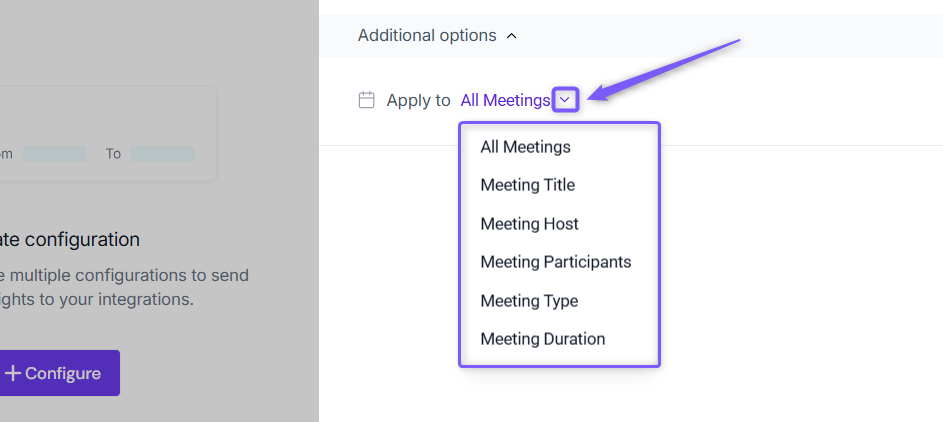
🗂 All Meetings
Automatically send meeting notes from every meeting to Smartsheet without applying any filters.
📝 Meeting Title
Only send meeting notes when the meeting title matches the rules you define (Contains, Starts with, Equals, Doesn't Contain).
Separate multiple keywords with commas (for example: Weekly Sync, Project Review, Client Meeting).
👤 Meeting Host
Choose which meetings are shared based on who hosted the meeting.
Equals → Only send meeting notes for meetings hosted by john@example.com.
Not Equal → Send meeting notes for all meetings except those hosted by john@example.com.
👥 Meeting Participants
Choose which meetings are shared based on who attended.
Contains → Only send meeting notes when sara@example.com attended.
Doesn't Contain → Exclude meetings that included alex@example.com.
🎥 Meeting Type
Filter meetings by type.
Example: Equals → External → Only external meetings are added to your Smartsheet meeting tracker.
⏱ Meeting Duration
Filter notes based on how long the meeting lasted.
Longer than → Only send meeting notes for meetings longer than the duration you specify.
Shorter than → Only send meeting notes for meetings shorter than the duration you specify.
Example: Set Longer than → 30 minutes to send only meeting notes from meetings that lasted more than 30 minutes.
🔀 Apply Multiple Filters
Combine filters for more precise note saving.
Example: Title contains "Project Review" AND host is john@example.com
Rules can use AND (all conditions must match) or OR (any condition matches).
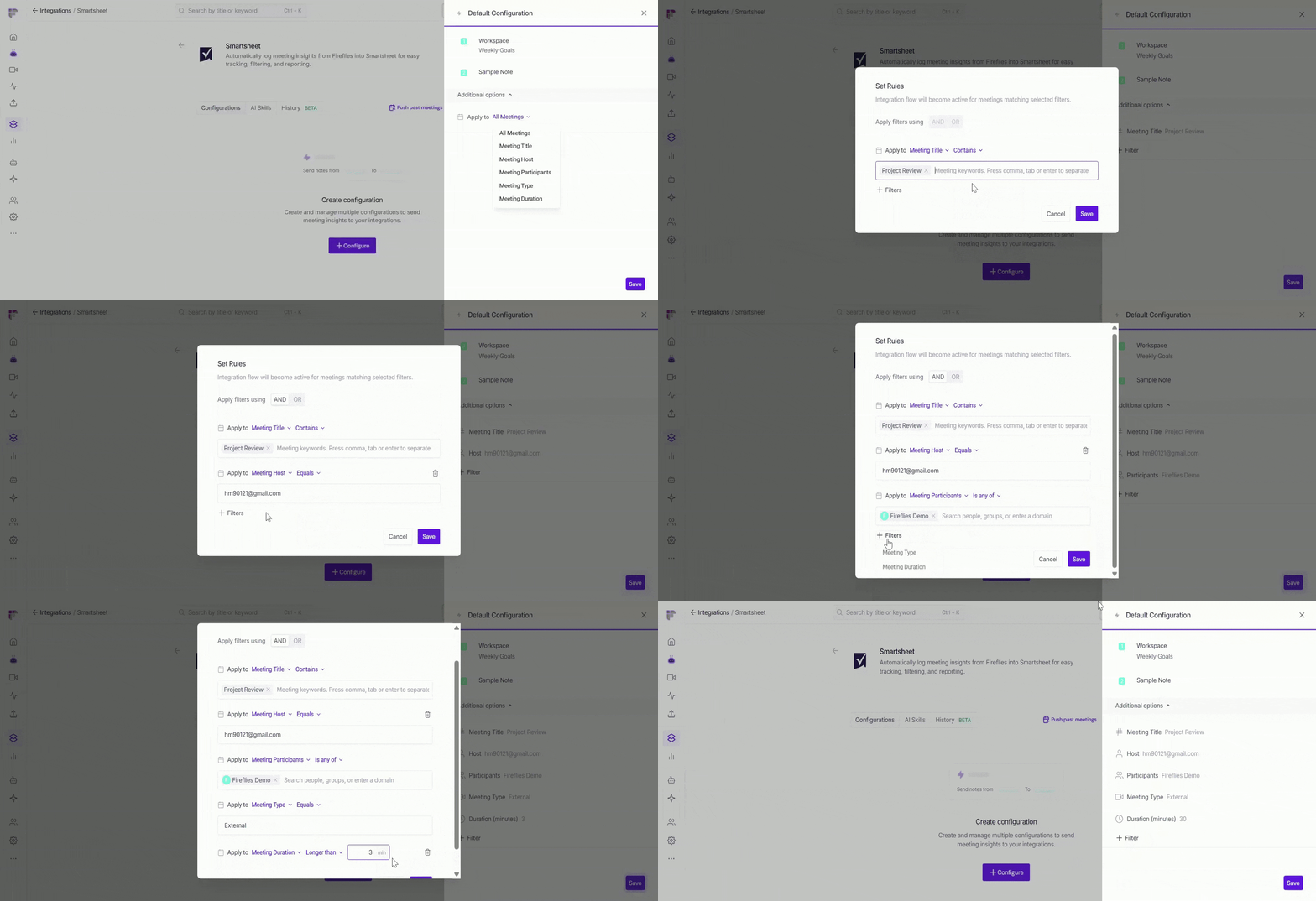
You can view all the filters currently applied to your configuration. In this example, meeting notes will only be sent to Smartsheet that match all of the selected conditions.
✅ Example applied: Title contains "Client Review", host = "John", participant = "Mary", type = "External", and meeting duration is longer than 30 minutes.
💾 Save Your Configuration
Click Save to activate the integration - a flash message will confirm that your configuration has been successfully added.
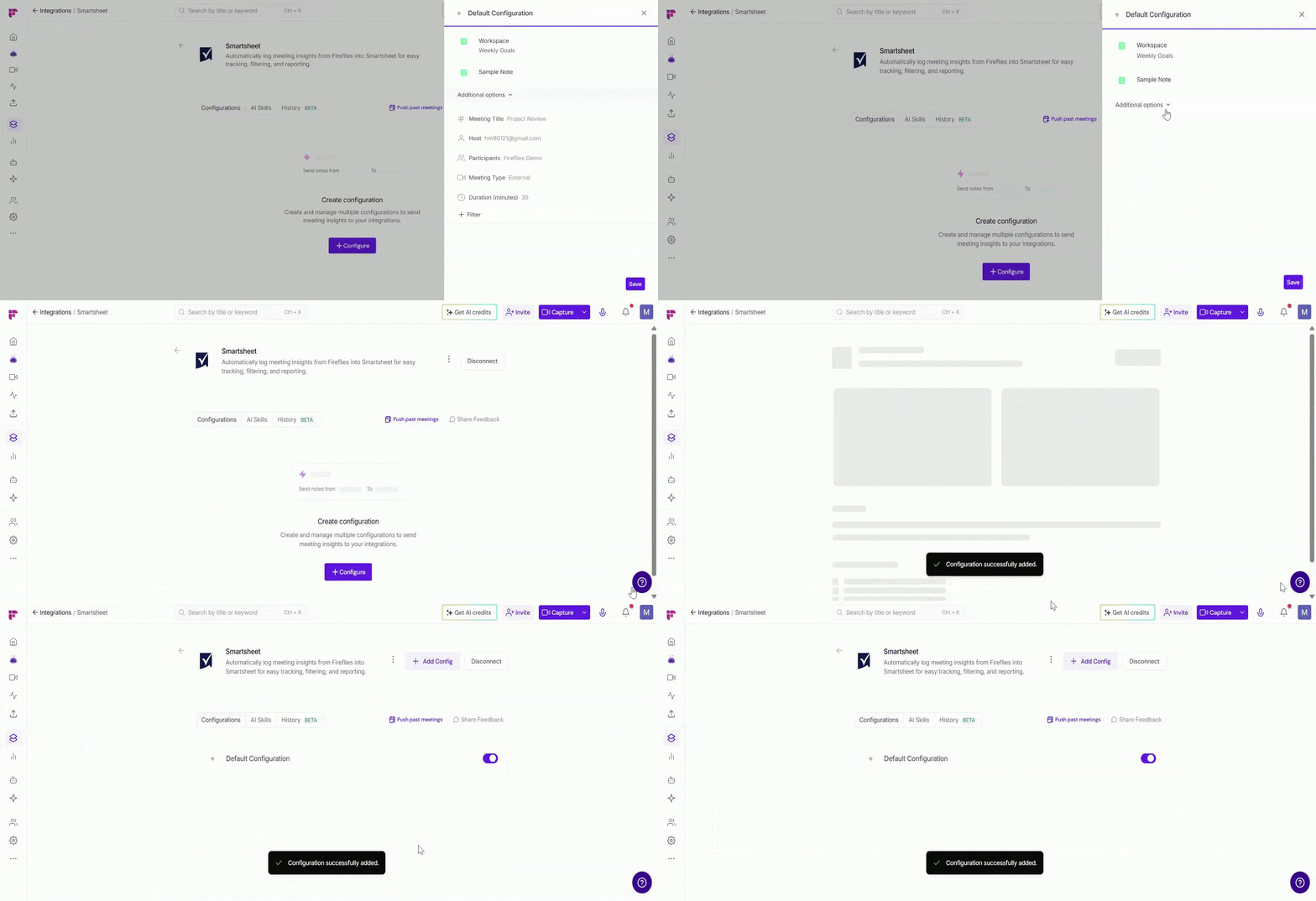
You can create multiple configurations by clicking + Add Config - for example, one for internal meetings and another for client calls.
👥 Team Options
If you want to manage meeting data consistently across your organization, Team Options lets workspace admins control how the Smartsheet integration is used.
1. Click the vertical ellipsis (⋮) next to your Smartsheet integration and select Team Options.
2. A modal window will appear with these options:
Apply to entire workspace → Toggle this ON to apply the integration across your Fireflies workspace. Meeting notes from team meetings accessible by the admin will be added to your Smartsheet workspace.
📌Meetings marked as Private in a teammate's Privacy Settings won't be included unless you're a Super Admin with access to all meetings.
Restrict non-admin usage → Toggle this ON to prevent non-admin members from creating their own Smartsheet integration configurations. This helps maintain a consistent meeting workflow across your organization.
3. After adjusting the settings, click Save to apply the changes.
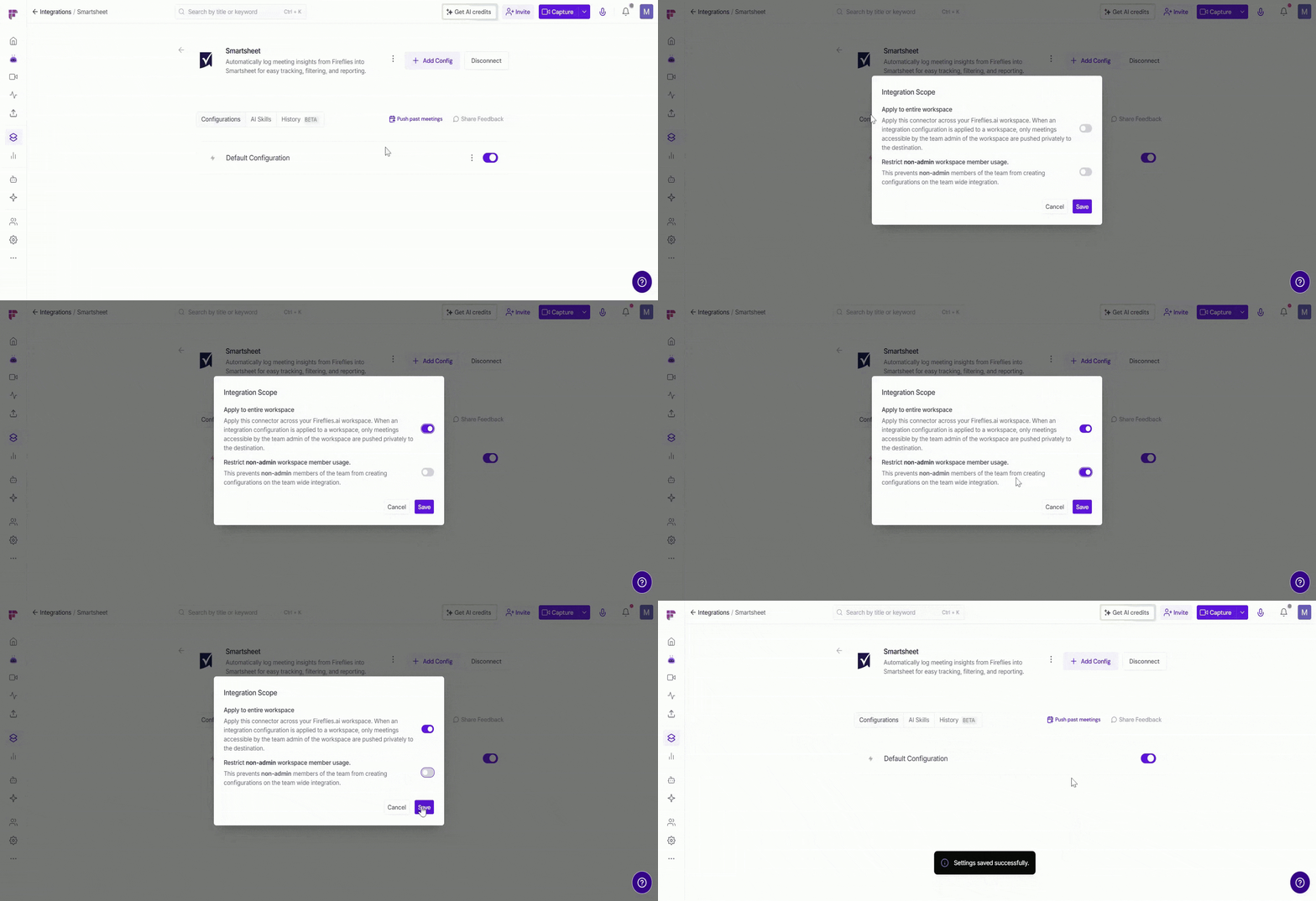
Use workspace-level settings for shared or company-wide meeting trackers, and personal configurations when users prefer to manage their own Smartsheet meeting trackers.
🛠 Manage Configuration
As your workflow evolves, you may need to update your Smartsheet integration - for example, to rename a configuration, update integration rules, or remove configurations you no longer use.
📝 Edit Configuration Name → Give each Smartsheet configuration a clear, descriptive name so it's easy to identify. Click the configuration name (for example, Default Configuration), enter a new name (such as Project Meeting Tracker), and click outside the field to save.
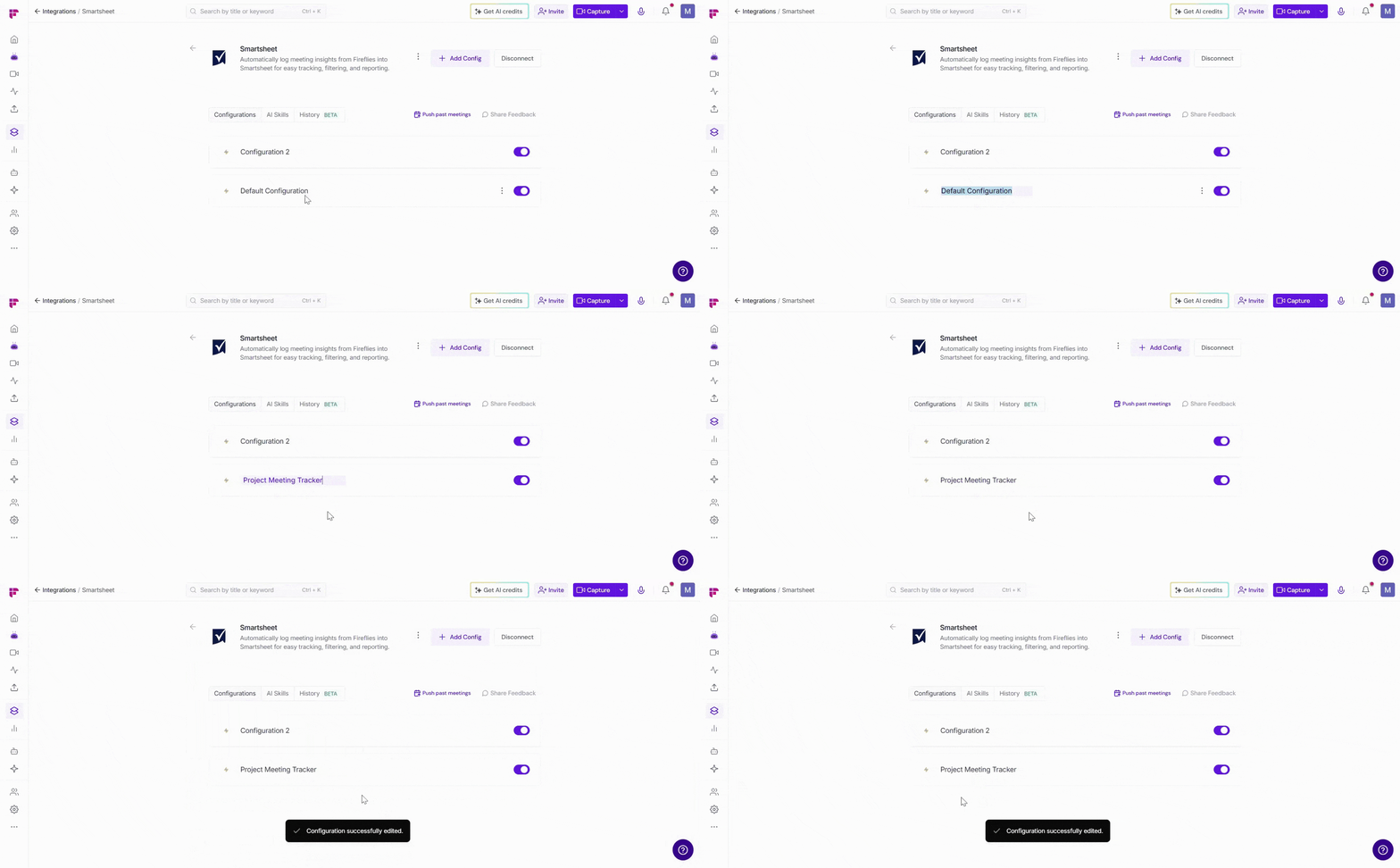
⚙ Edit Configuration Settings → Need to update your integration rules or Workspace? Click the vertical ellipsis (⋮) next to a configuration, select Edit, make your changes, and click Update to save them.
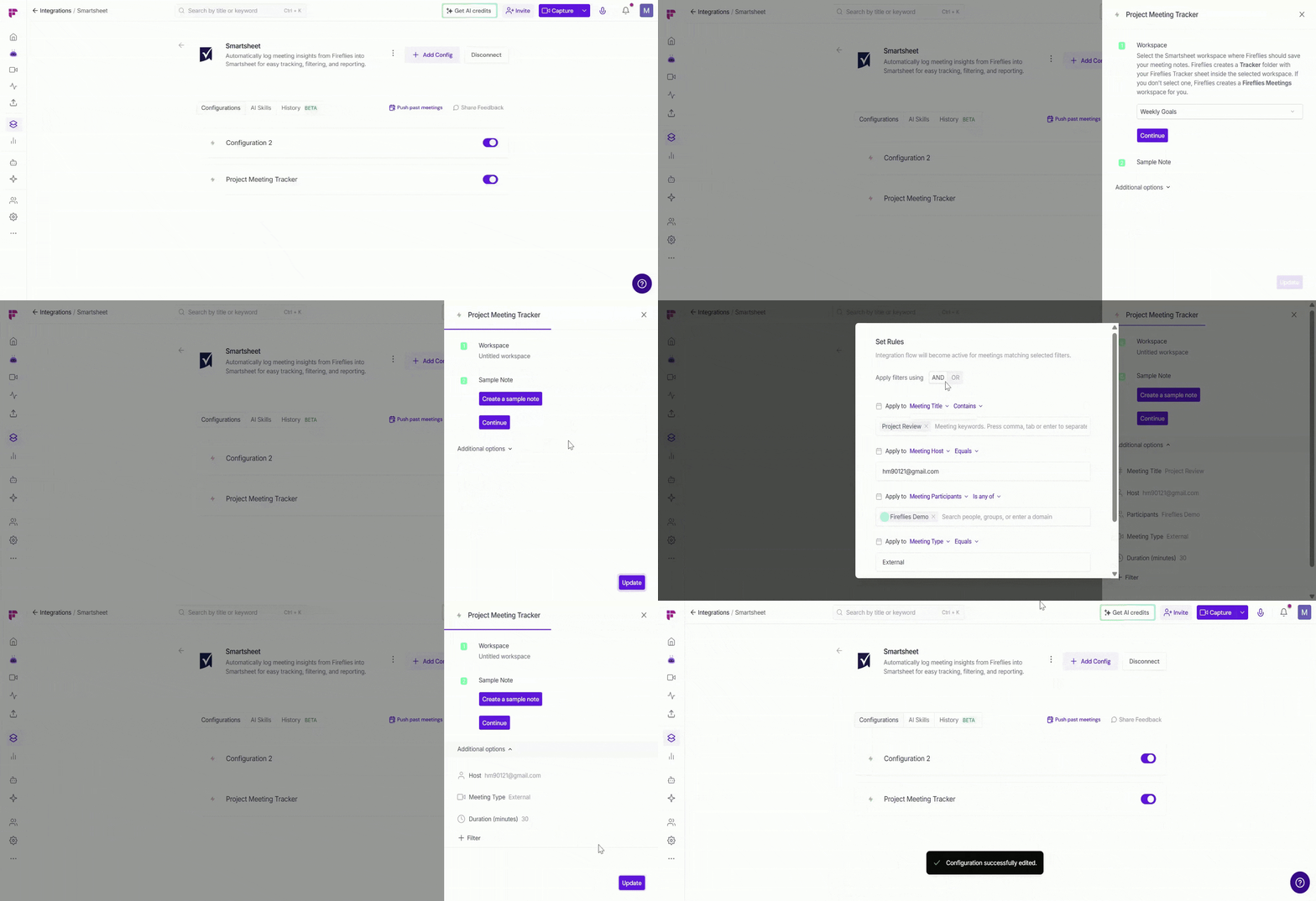
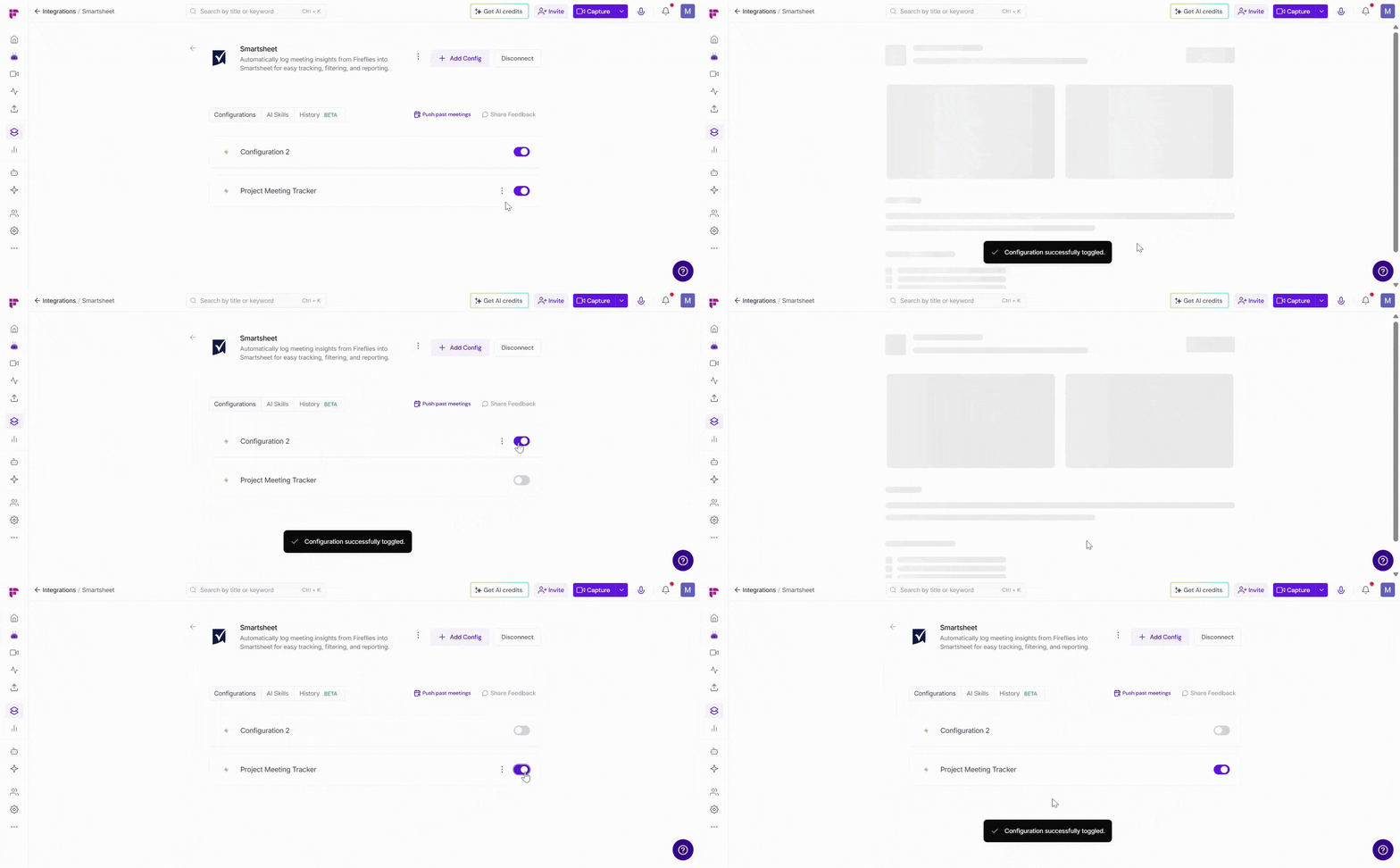
🔘 Enable or Disable a Configuration → Use the toggle next to a configuration to quickly control it. Toggle ON to allow Fireflies to send meeting notes to Smartsheet; toggle OFF to pause the integration without deleting it.
💡 This is helpful if you have multiple configurations and only want one active at a time.
🗑 Delete Configuration → If a configuration is no longer needed (for example, you no longer want meeting notes added to Smartsheet), click the vertical ellipsis (⋮) next to the configuration, select Delete, and confirm.
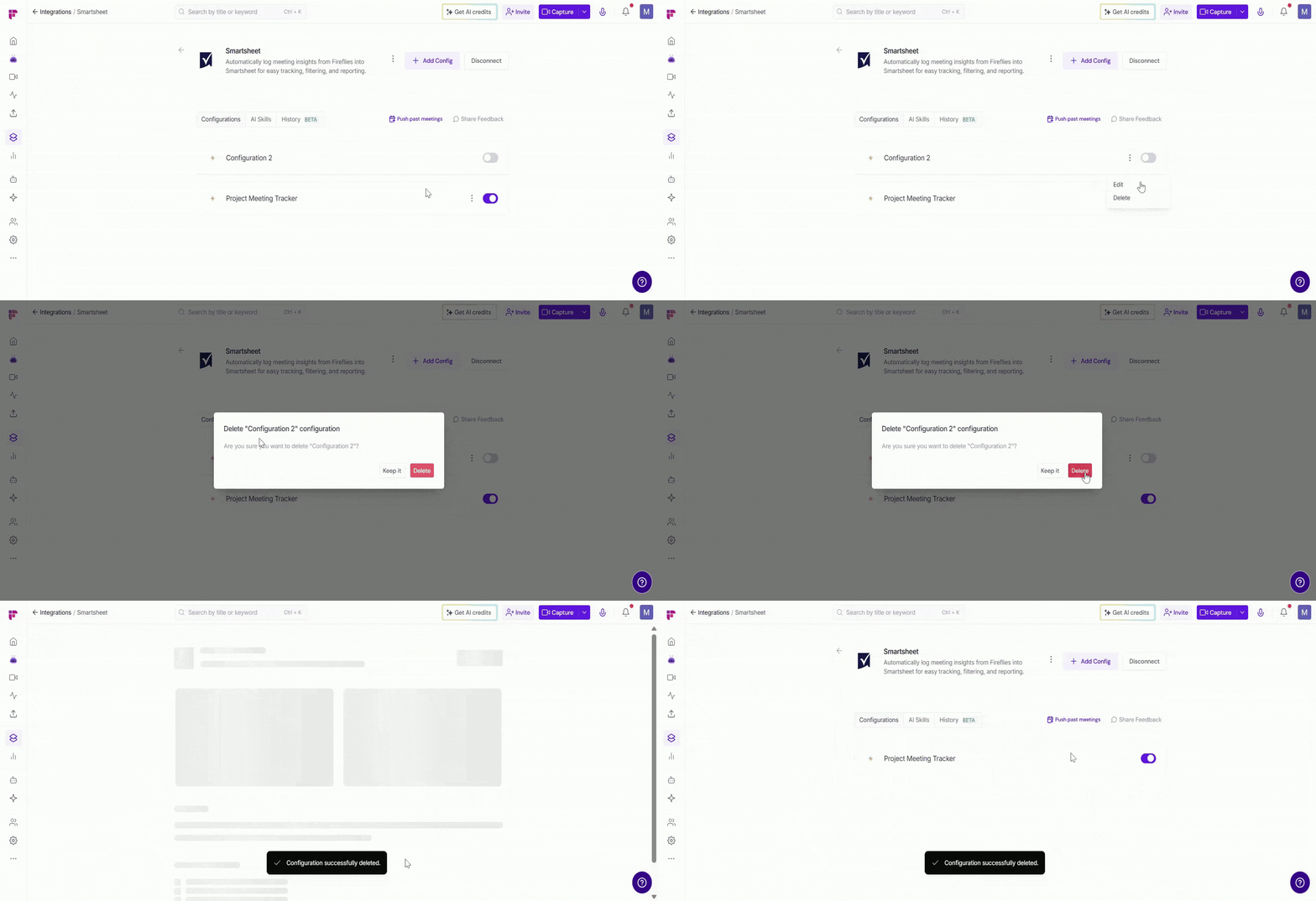
Deleting a configuration stops Fireflies from saving meeting notes to Smartsheet, so make sure it’s no longer needed before removing it.
📤 How Meeting Notes Appear in Smartsheet
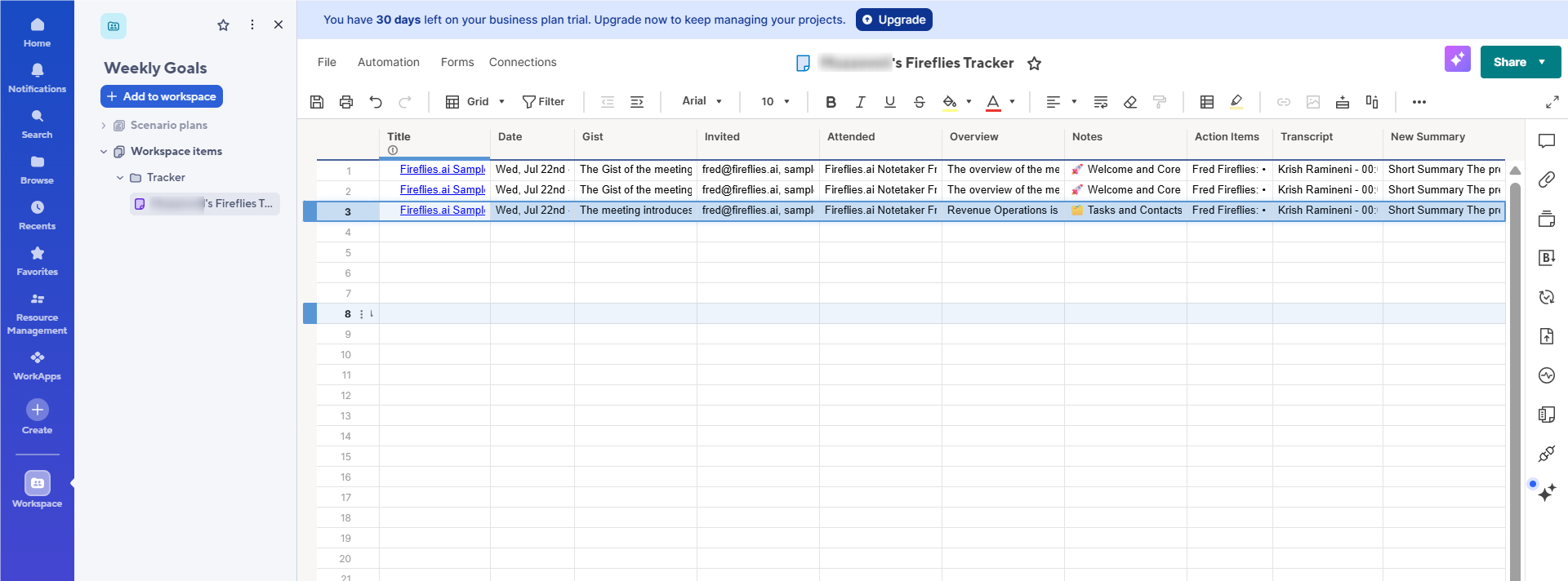
Once connected, Fireflies adds each meeting as a new row in the Fireflies Tracker sheet, including the meeting Title, Date, Gist, Invited, Attended, Overview, Notes, Action Items, Transcript, and Summary.
This keeps your meeting history organized in one place, so you can review discussions, track action items, and collaborate with your team directly from Smartsheet.
⏪ Push Past Meetings to Smartsheet
Sometimes, the meetings you want in Smartsheet happened before you connected the integration. Whether you enabled the integration later or want to add older meeting notes to Smartsheet, Push Past Meetings lets you choose a date range and meeting type, then send those meetings in just a few clicks.
Note: Make sure you've connected Smartsheet and created at least one push configuration before using Push Past Meetings. If you haven't, complete the Setting Up Your Configuration section above first.
Follow the steps below to push past meetings to Smartsheet.
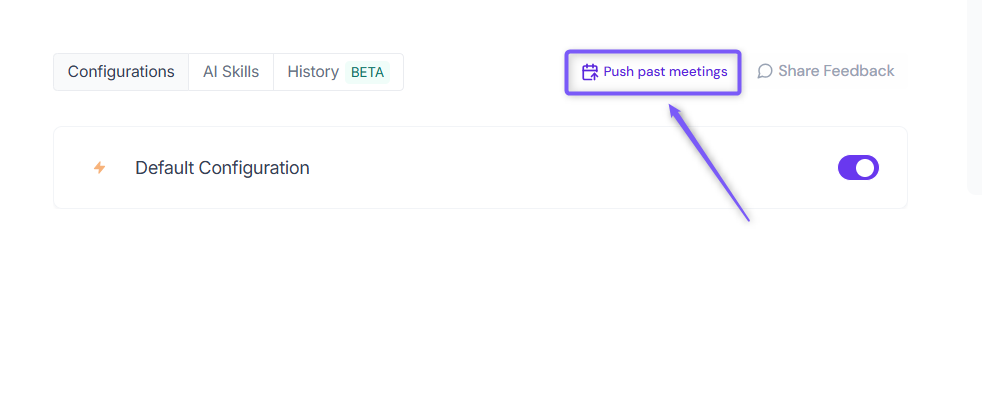
From the Smartsheet integration page, click Push past meetings.
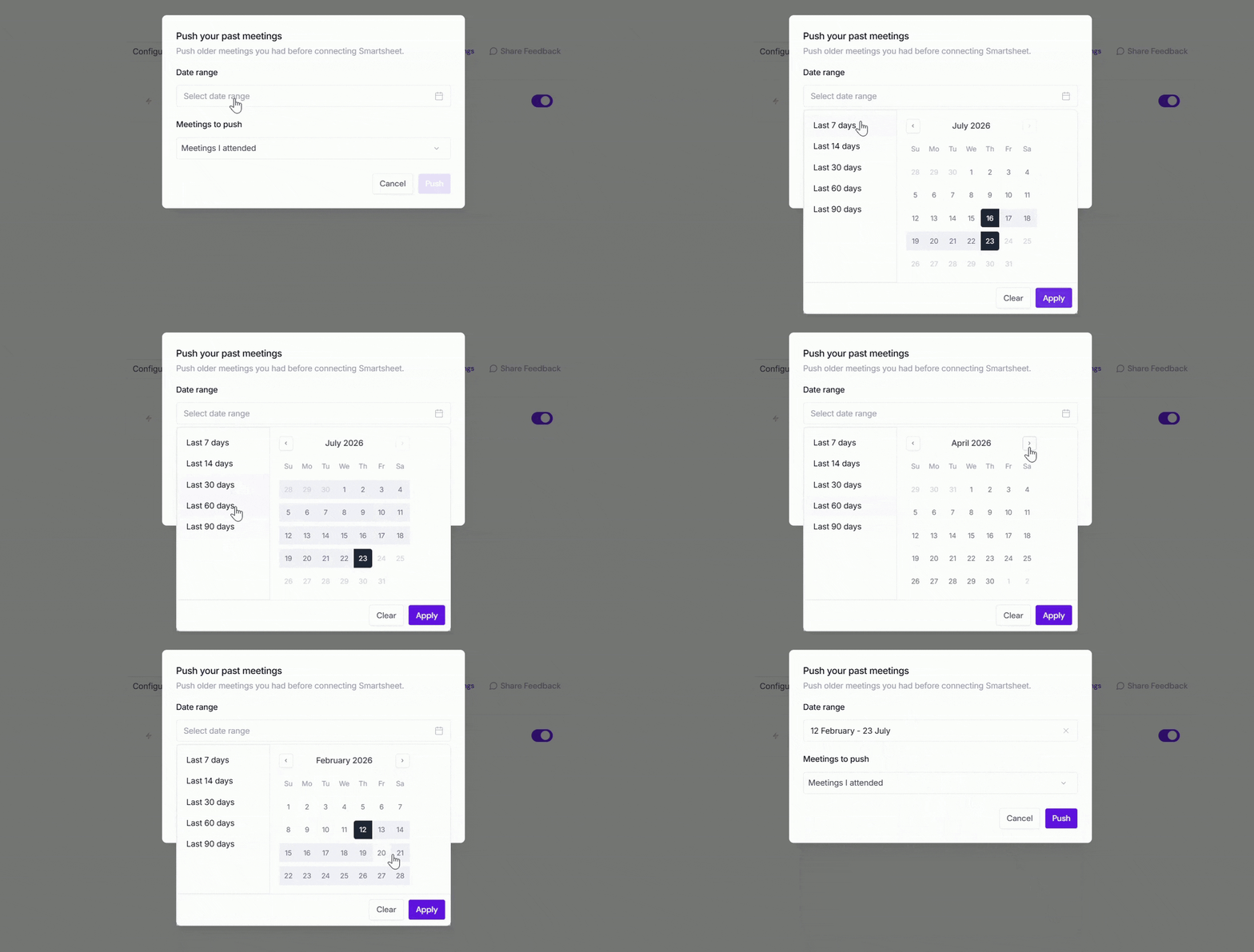
A dialog box will appear. Choose the following:
Date range → Select the meetings you want to send by choosing Last 7, 14, 30, 60, or 90 days, or specify a custom date range.
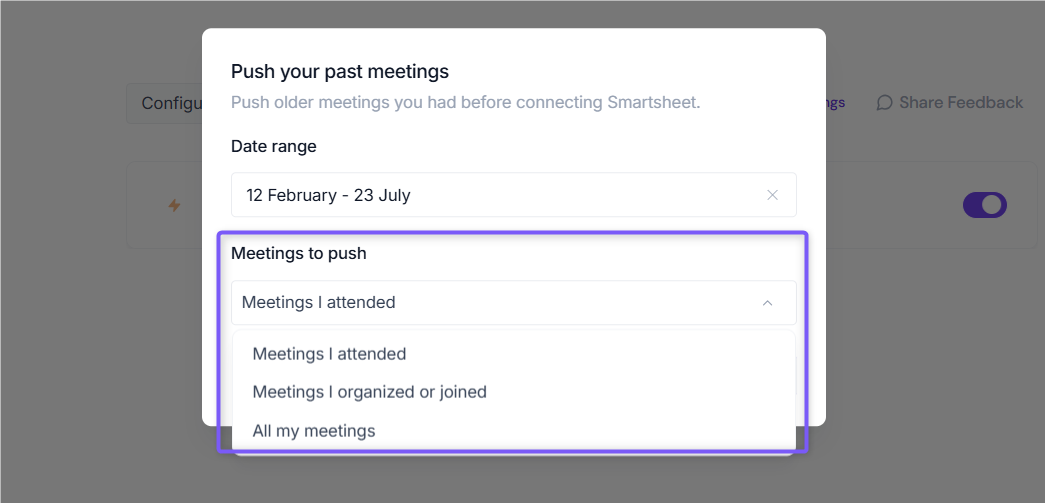
Meetings to push → Choose whether to push Meetings I attended, Meetings I organized or joined, or All my meetings.
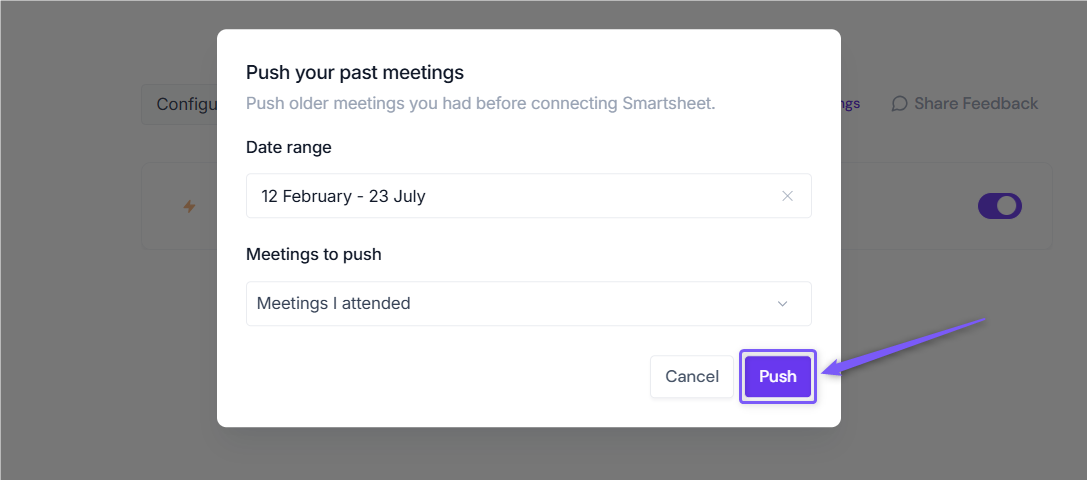
Click Push. Fireflies will send the matching meeting notes to Smartsheet using your existing configuration settings.
Meetings recorded after you connect Smartsheet are sent automatically. Push Past Meetings is only needed for meetings that happened before the integration was connected.
✅ Send AI Skill Outputs to Smartsheet
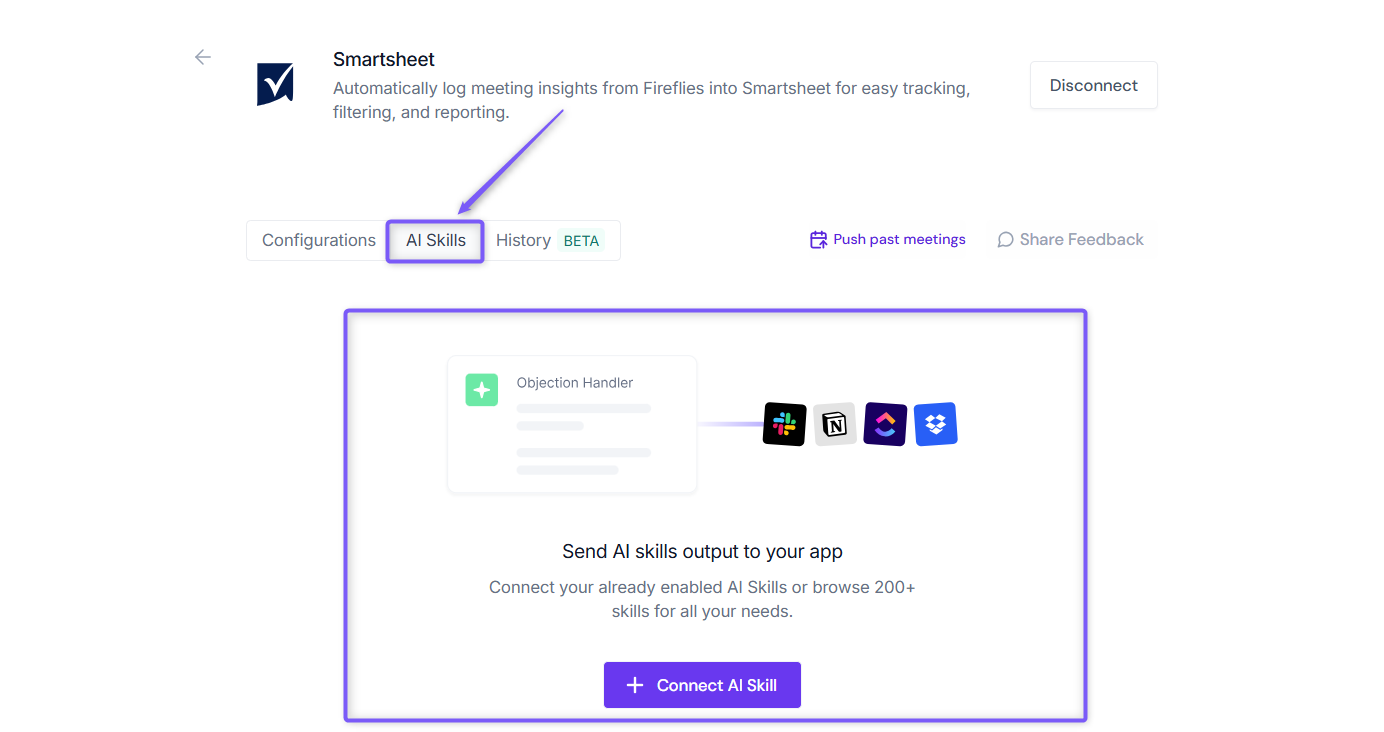
Want to send more than meeting notes to Smartsheet? Fireflies can also add AI Skill outputs - like project updates, customer insights, follow-up emails, or call analyses—straight to your Smartsheet tracker, so your team can review and act on them right away.
👉 Learn how: Send AI Skill Outputs to Any Integrated Tool.
❌ Disconnect Integration
If you no longer need Fireflies connected to Smartsheet - for example, you're switching to a different integration or don't want meeting notes added anymore, you can disconnect at any time.
Click Disconnect to remove the integration. This immediately ends the connection, and Fireflies stops adding future meeting notes to your Smartsheet meeting tracker.
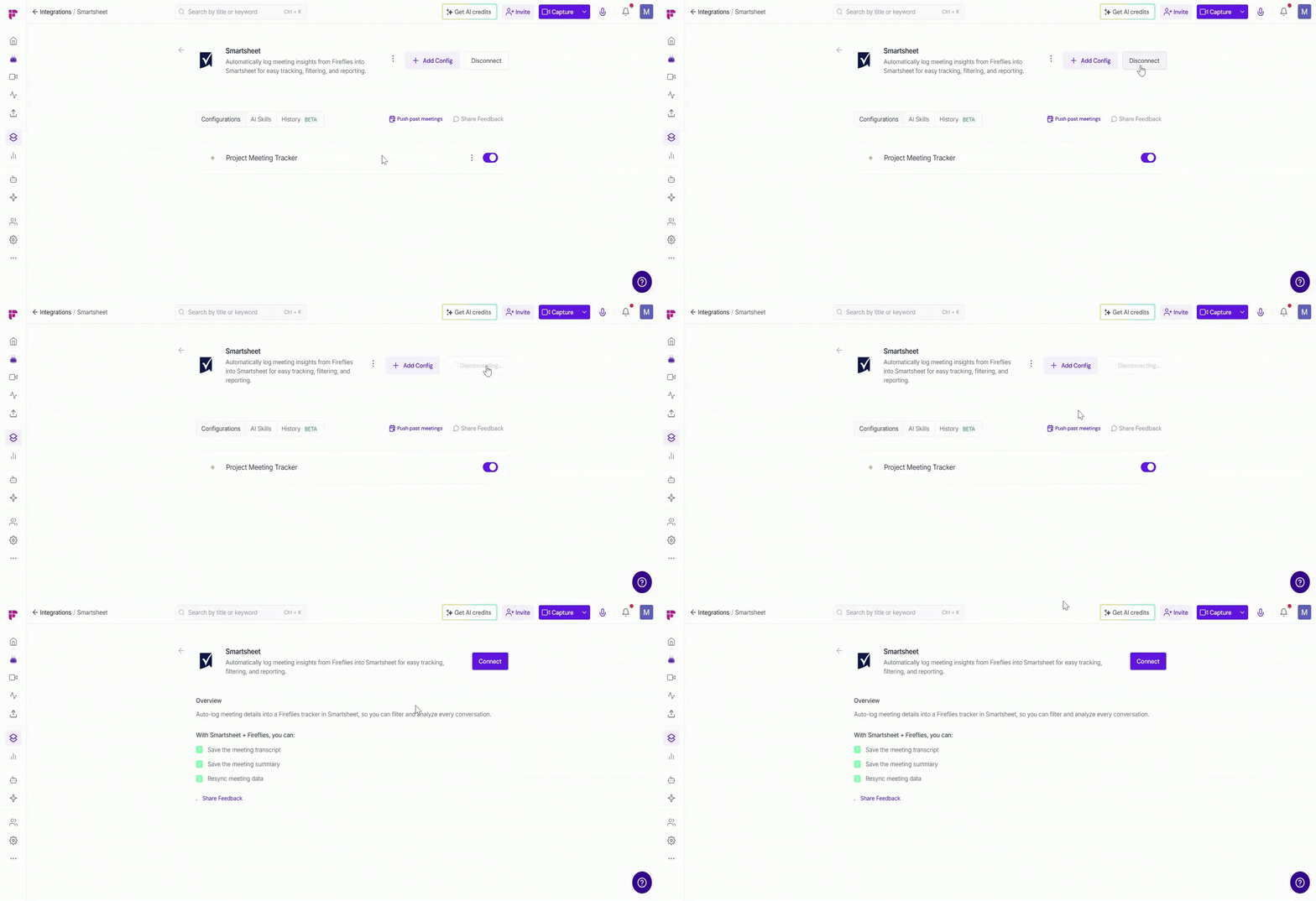
Once disconnected, Fireflies will no longer send meeting notes to Smartsheet. You can reconnect the integration anytime if you want to resume adding meeting notes.
🛠 Troubleshooting
Issue | What to Check / Do |
Meeting notes aren't appearing in Smartsheet. | • Verify the Smartsheet integration is connected and your configuration is enabled. |
I can't click Continue during setup. | Select a Workspace from the dropdown before clicking Continue. |
The sample note wasn't created. | • Verify that Fireflies has permission to access your Smartsheet account. |
I can't find my meeting tracker in Smartsheet. | • Open the selected Smartsheet workspace. |
Past meetings aren't added. | By default, Fireflies only added meetings recorded after the integration is connected. Use Push Past Meetings to push meetings that occurred before you connected the integration. |
Still stuck? Contact support via this link for more help.
❓ Frequently Asked Questions
Q1. Can I change the Smartsheet workspace after setting up the integration?
Yes. Edit your configuration and select a different workspace. Future meeting notes will be added to the newly selected workspace.
Q2. What happens if I delete the Fireflies Tracker sheet?
Fireflies will stop adding future meetings to that sheet. To continue, create a new configuration or update the existing one to generate a new meeting tracker.
Q3. Can I manually edit or delete meeting rows in Smartsheet?
Yes. Once meeting data is added, you can edit or delete rows directly in Smartsheet without affecting your Fireflies account.
Q4. Does Fireflies update existing rows or create a new row for every meeting?
Fireflies creates a new row for each meeting that matches your integration rules.
🔄 Recap
The Fireflies + Smartsheet integration helps you automatically organize meeting data in Smartsheet.
Automatically add meeting notes to Smartsheet.
Create a dedicated meeting tracker for your meetings.
Use Integration Rules to control which meetings are added.
Manage multiple configurations for different workflows.
📌Related Guides
Fireflies Note-Taking Integrations → Explore other note-taking tools like Notion, Google Docs, and Google Sheets that work seamlessly with Fireflies.
Integration Rules → Learn how to control which meetings are saved