Integrate RingCentral phone system with Fireflies
Last updated: June 27, 2025
Automatically transcribe every RingCentral call without manual setup. The native RingCentral integration seamlessly captures phone conversations and creates searchable transcripts in your Fireflies Notebook.
Why use the RingCentral integration?
Transform your phone calls into actionable insights automatically. Every call made through RingCentral gets transcribed and summarized, with automatic CRM syncing if you have Salesforce, HubSpot, or Zoho connected.
📞 Automatic call transcription
Every RingCentral call gets processed automatically – no need to manually add Fireflies or remember to record important conversations.
🔗 Smart CRM matching
If your CRM is already integrated with Fireflies, call participants are automatically matched to contacts using phone numbers, and meeting notes attach to the right records.
📧 Optional voicemail processing
Choose whether to transcribe voicemails alongside live calls for complete communication coverage.
Integration options
Fireflies offers two ways to connect with RingCentral:
Integration type | Best for | Setup |
Native integration | Most users wanting seamless call transcription | Direct connection (this guide) |
Zapier API integration | Advanced workflows and custom automations | API setup required |
Set up RingCentral integration
Connect your accounts
Log into Fireflies and open Integrations
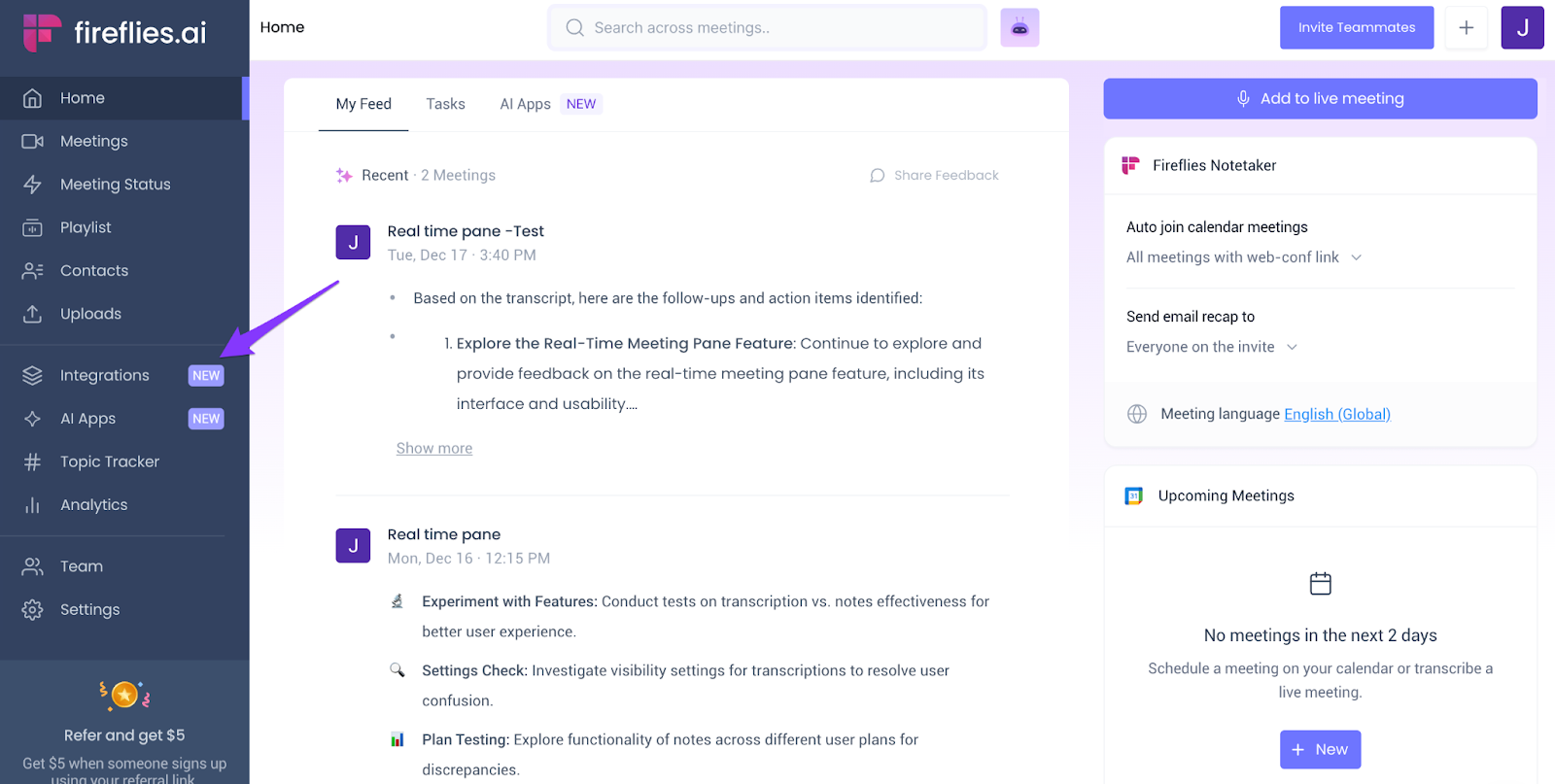
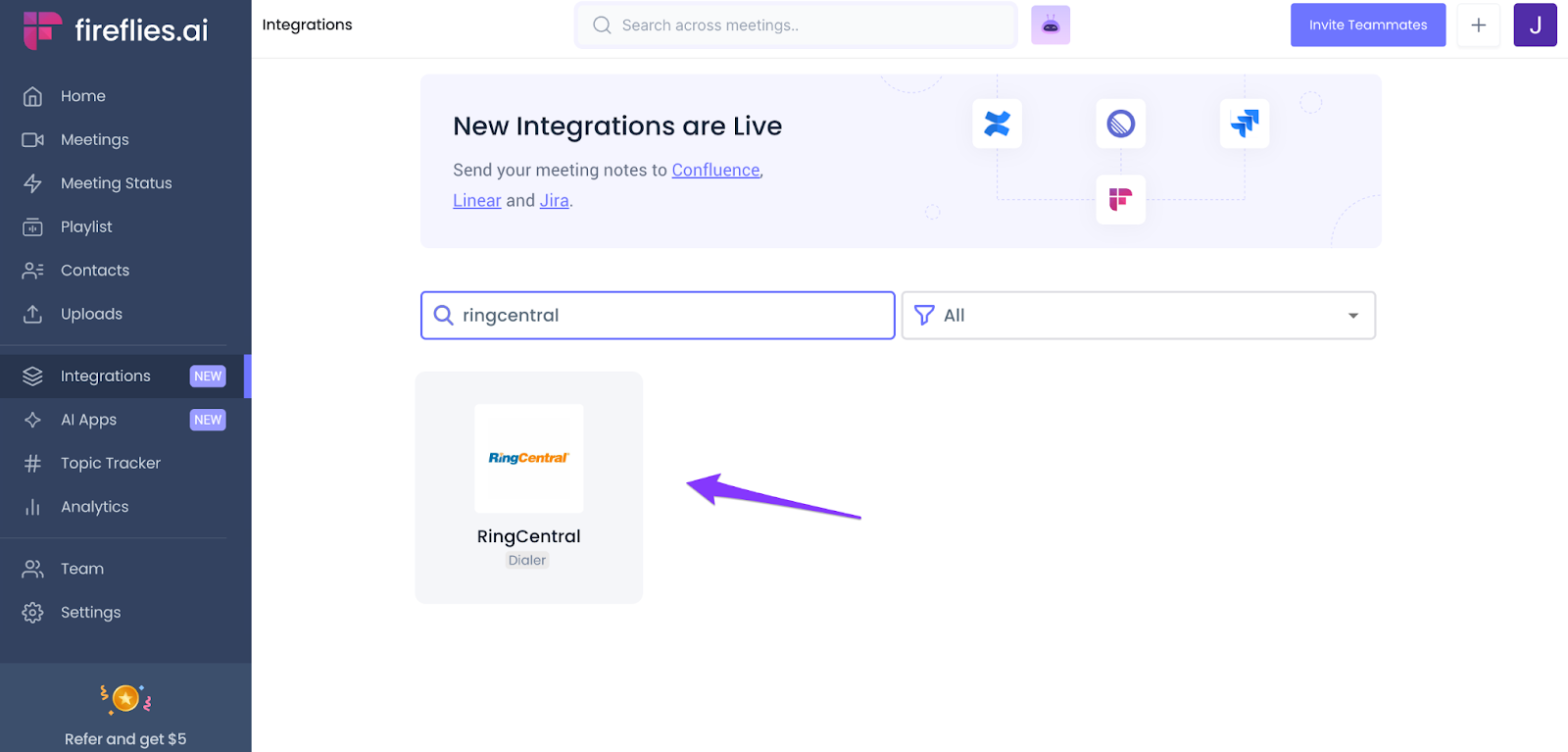
Search for and open RingCentral
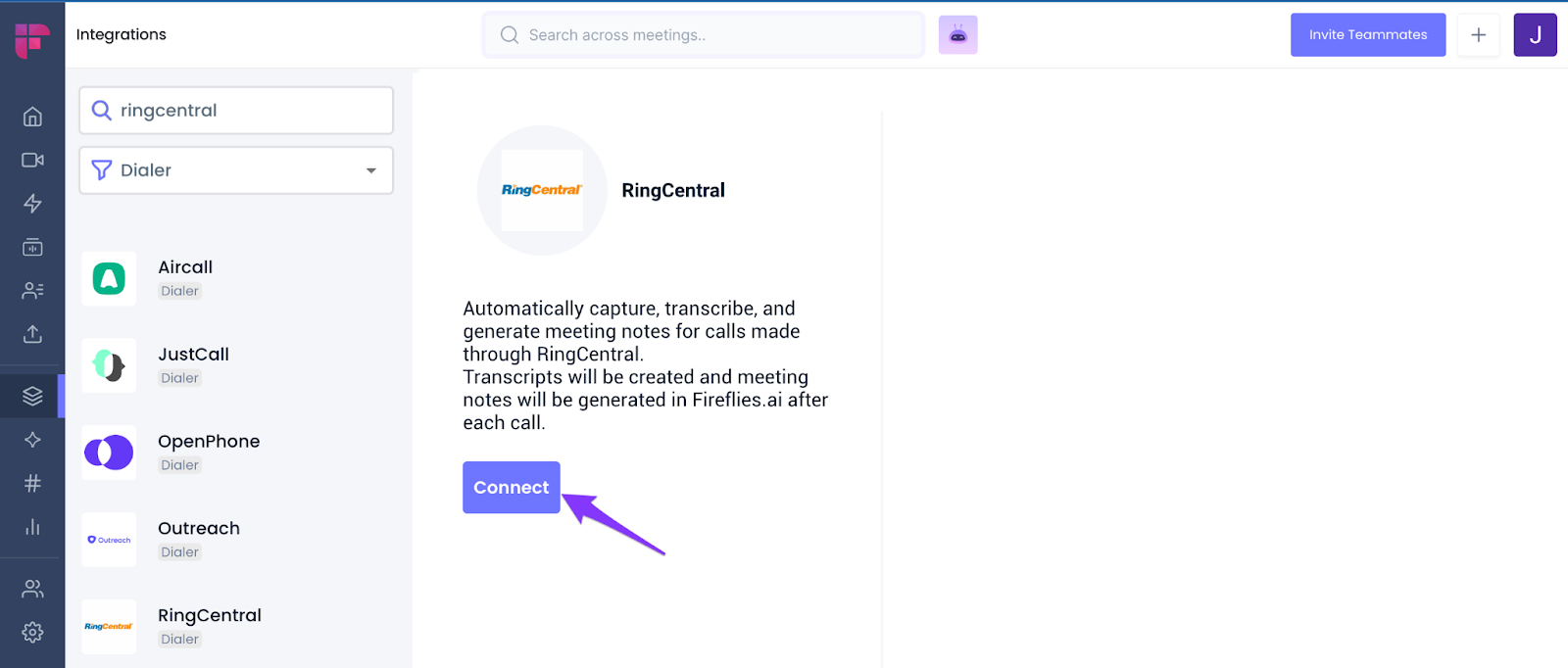
Click Connect - this will navigate you to the RingCentral website
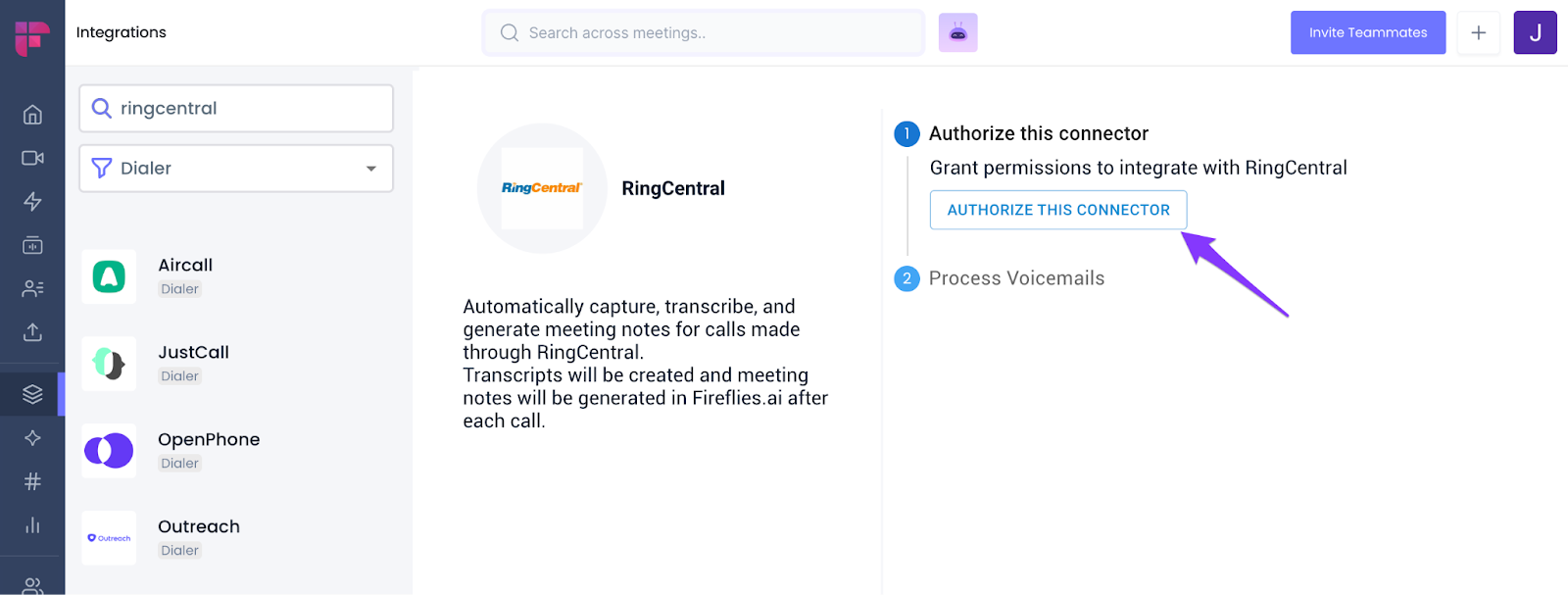
Authorize the connection
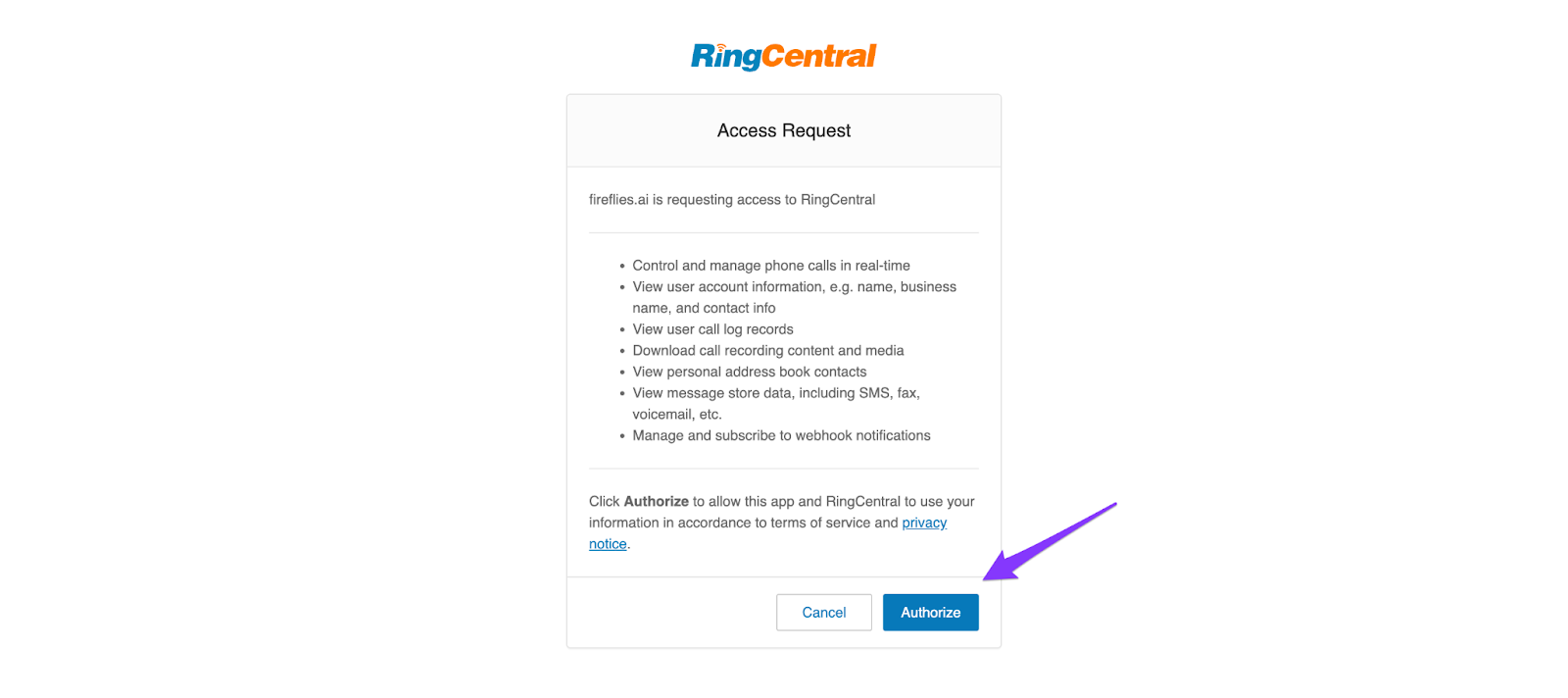
Click Authorize this Connector on the RingCentral page
Sign in to your RingCentral account and click Authorize
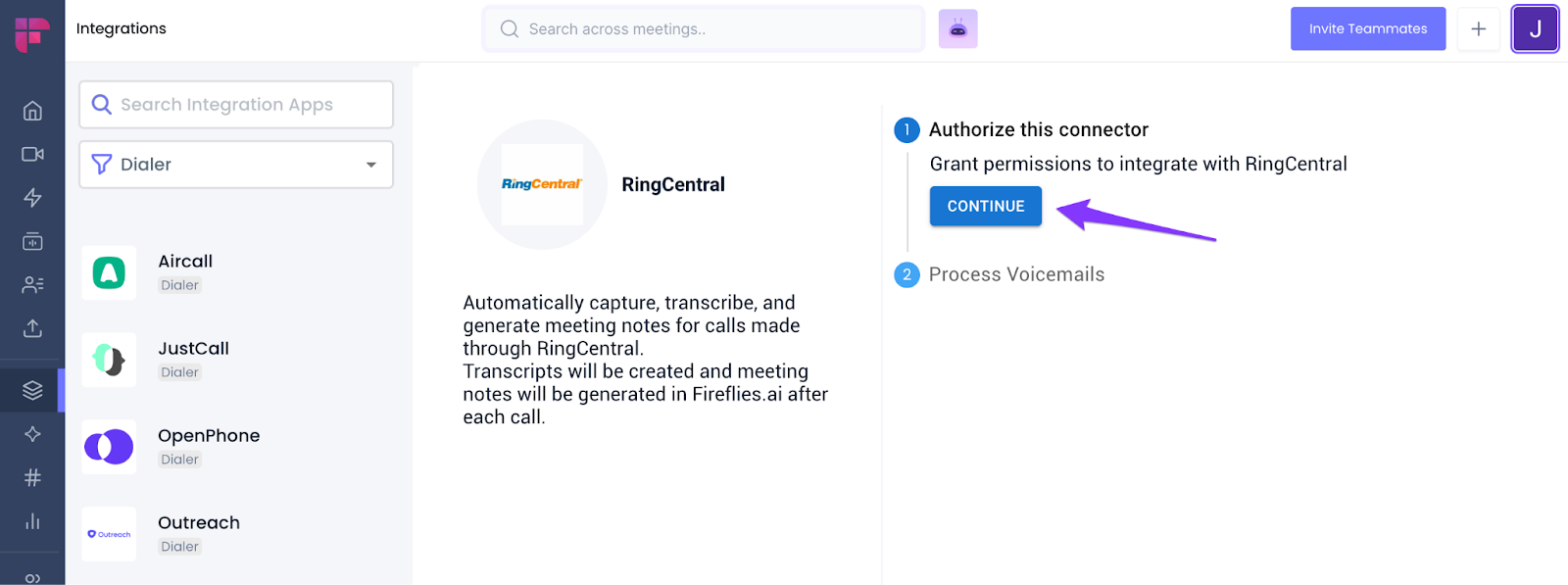
Click Continue to proceed with setup
Configure integration settings
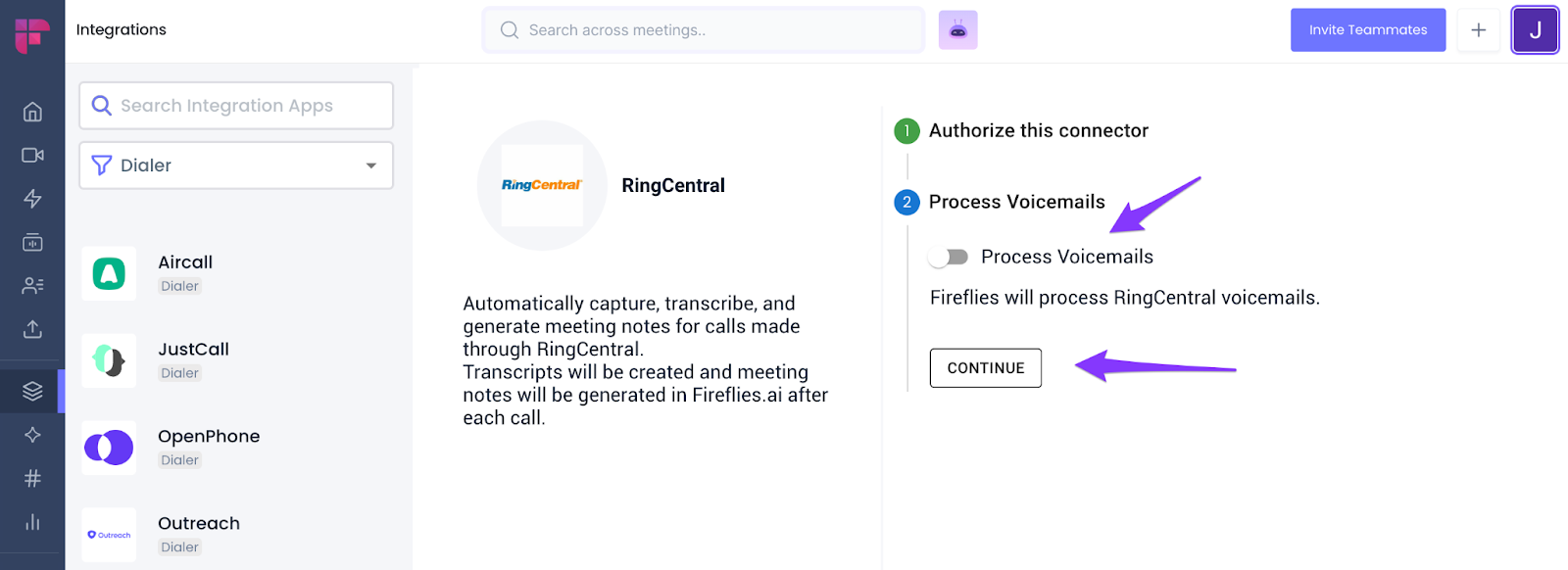
Choose voicemail processing (optional)
Enable Process Voicemails toggle if you want voicemails transcribed
Click Continue
Click Save to complete the basic setup
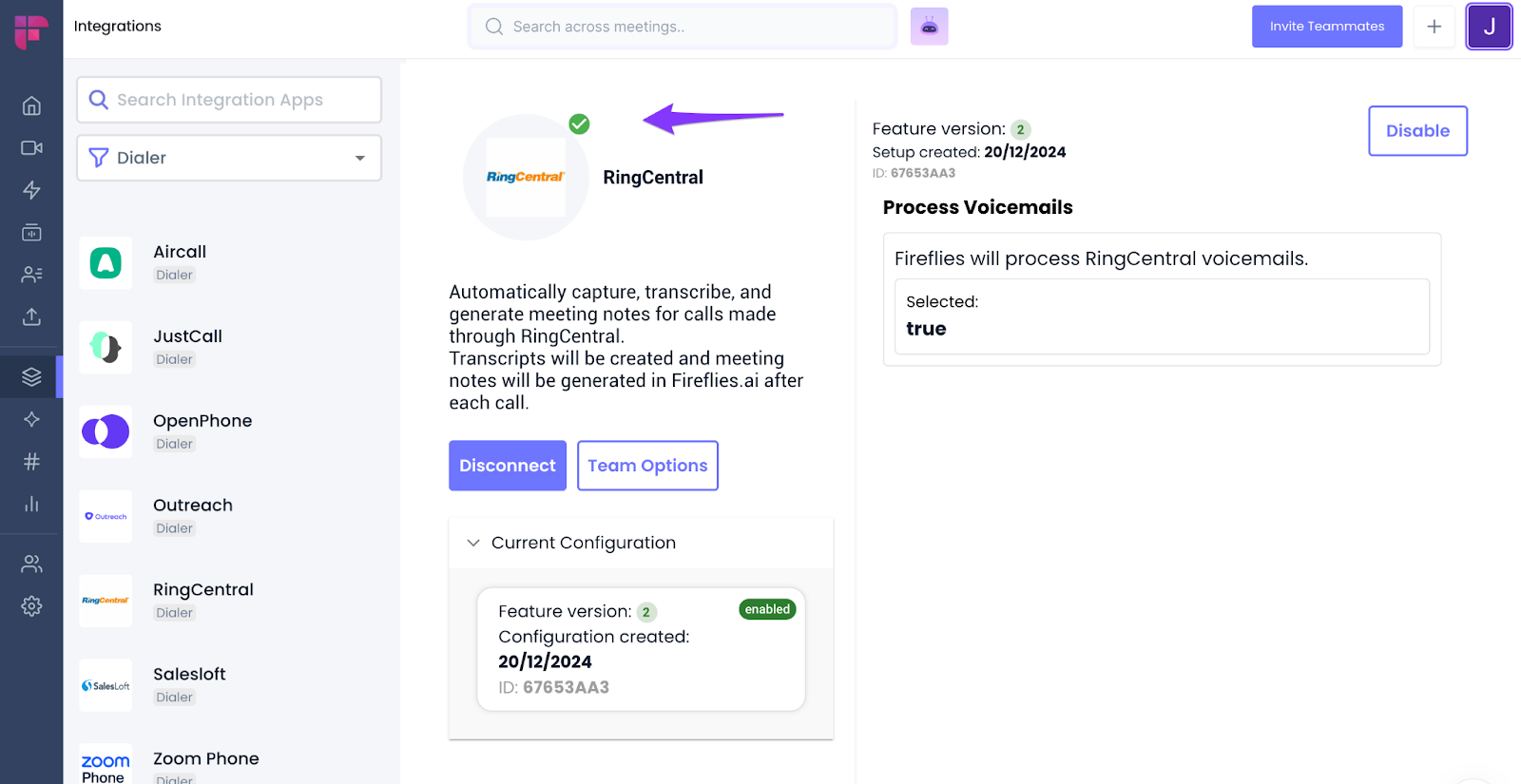
Verify connection success – look for the green checkmark on the integration card
Configure team settings (for admins)
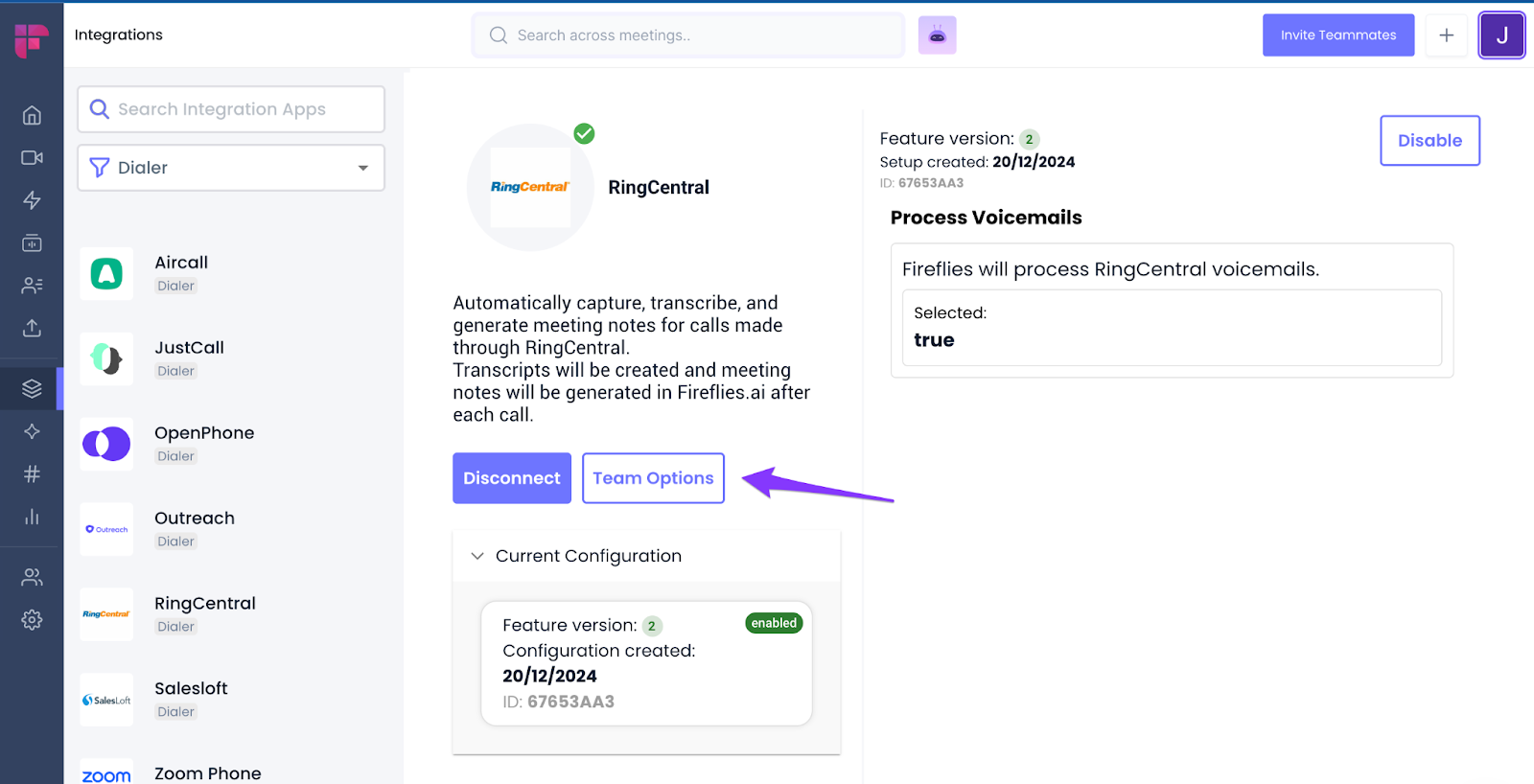
Click Team options if you're an admin
Configure team-wide settings and click Save
Control integration access for team members
Set default processing preferences
How it works after setup
Automatic processing
New calls recorded on RingCentral are automatically fetched by Fireflies
Transcripts and summaries appear in your Fireflies Notebook within minutes
CRM contacts are automatically matched using phone numbers (if CRM integration is active)
Disable the integration
If you need to stop RingCentral call processing:
Go back to the RingCentral integration page
Click Disable
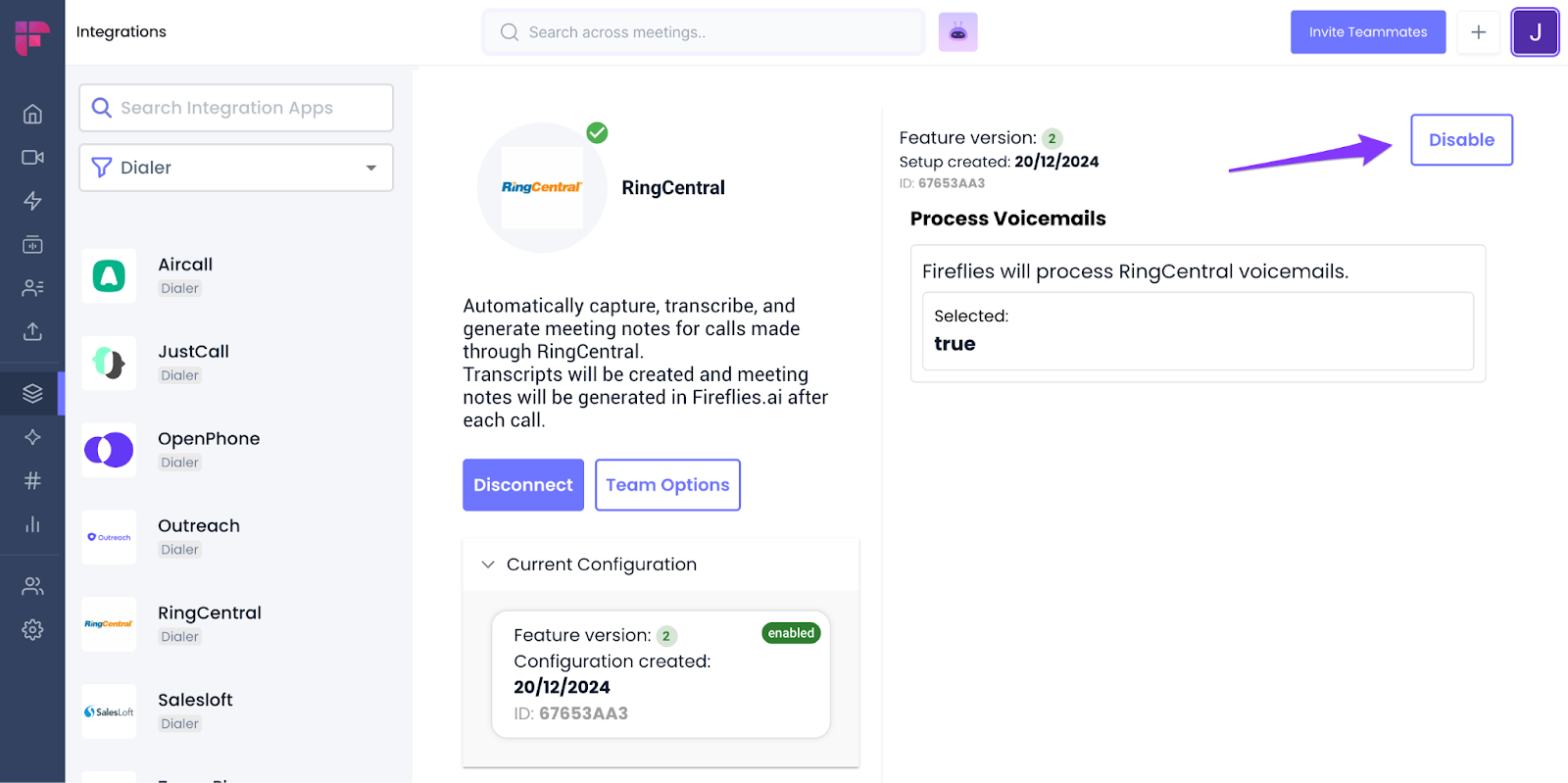
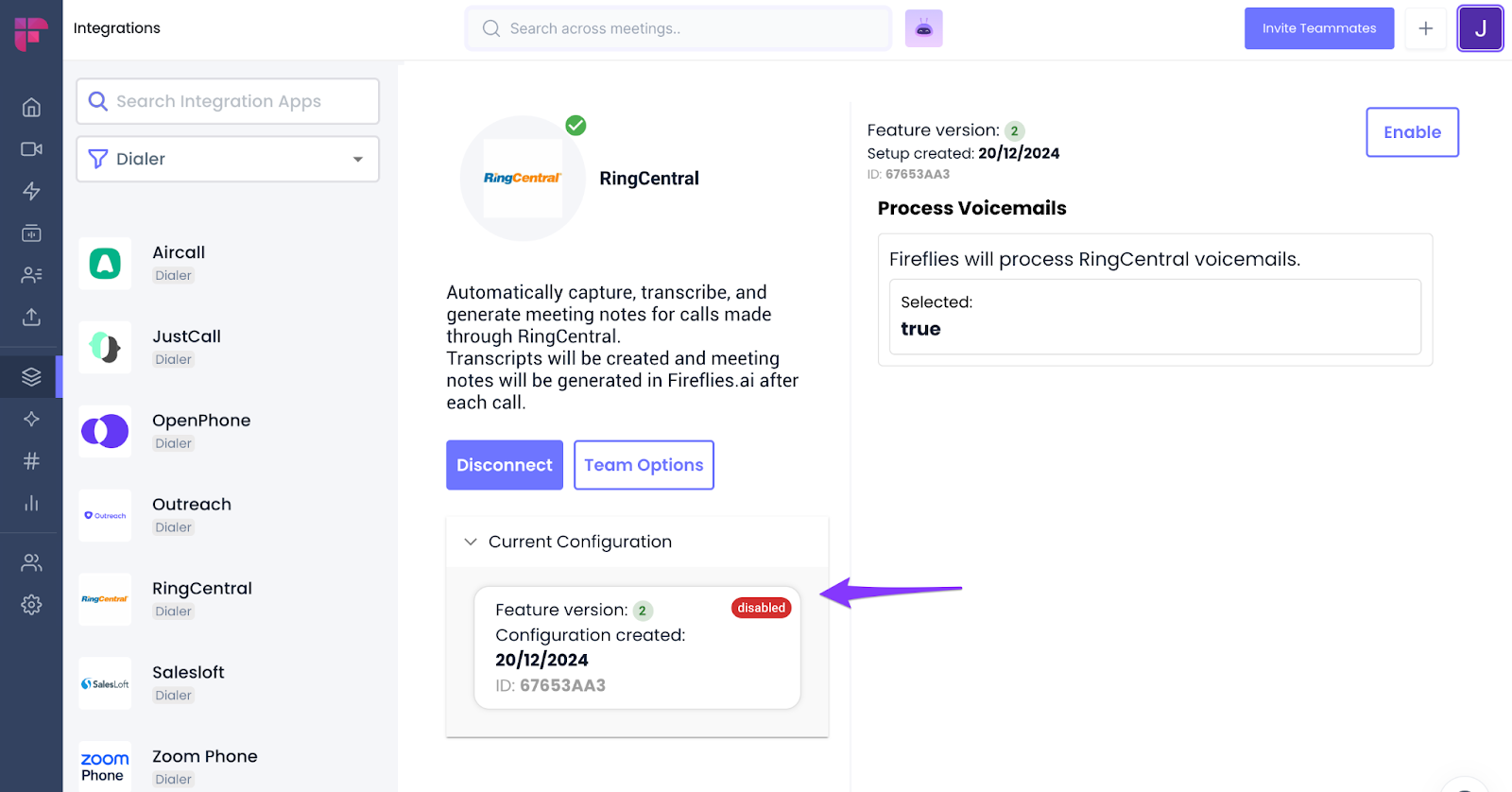
Verify the status shows as "Disabled" under Current Configuration
Making sense of it all
Automatic call capture means no manual work – every RingCentral call gets transcribed
CRM integration works automatically if you already have Salesforce, HubSpot, or Zoho connected
Voicemail transcription is optional – you can choose whether to include voicemails
Team admins get additional controls for managing integration across the workspace
Native integration is simpler than API setup for most standard use cases
Green checkmark confirms successful connection – watch for this visual confirmation