How to integrate Fireflies with Google Drive?
Last updated: August 26, 2026
Automatically send your Fireflies meeting transcripts, summaries, and recordings to Google Drive — neatly organized and filterable, so you never have to dig for files again.
Whether you want personal backups, automated workflows, or shared folders for team visibility — this integration helps you set it up exactly the way you want.
🔍 What does the Google Drive integration do?
With this integration, you can automatically:
📄 Push transcripts, summaries, and recordings to a specific Google Drive folder
✅ Choose what gets synced and how it’s formatted
🧠 Apply smart rules so only certain meetings are included (Business + Enterprise users only)
💡 If you’re on a Business Plan or above and a video recording is available, Fireflies will now save the video instead of audio in the Drive.
🚀 Step-by-Step: How to Set Up the Google Drive Integration
🔗 Step 1: Connect Google Drive
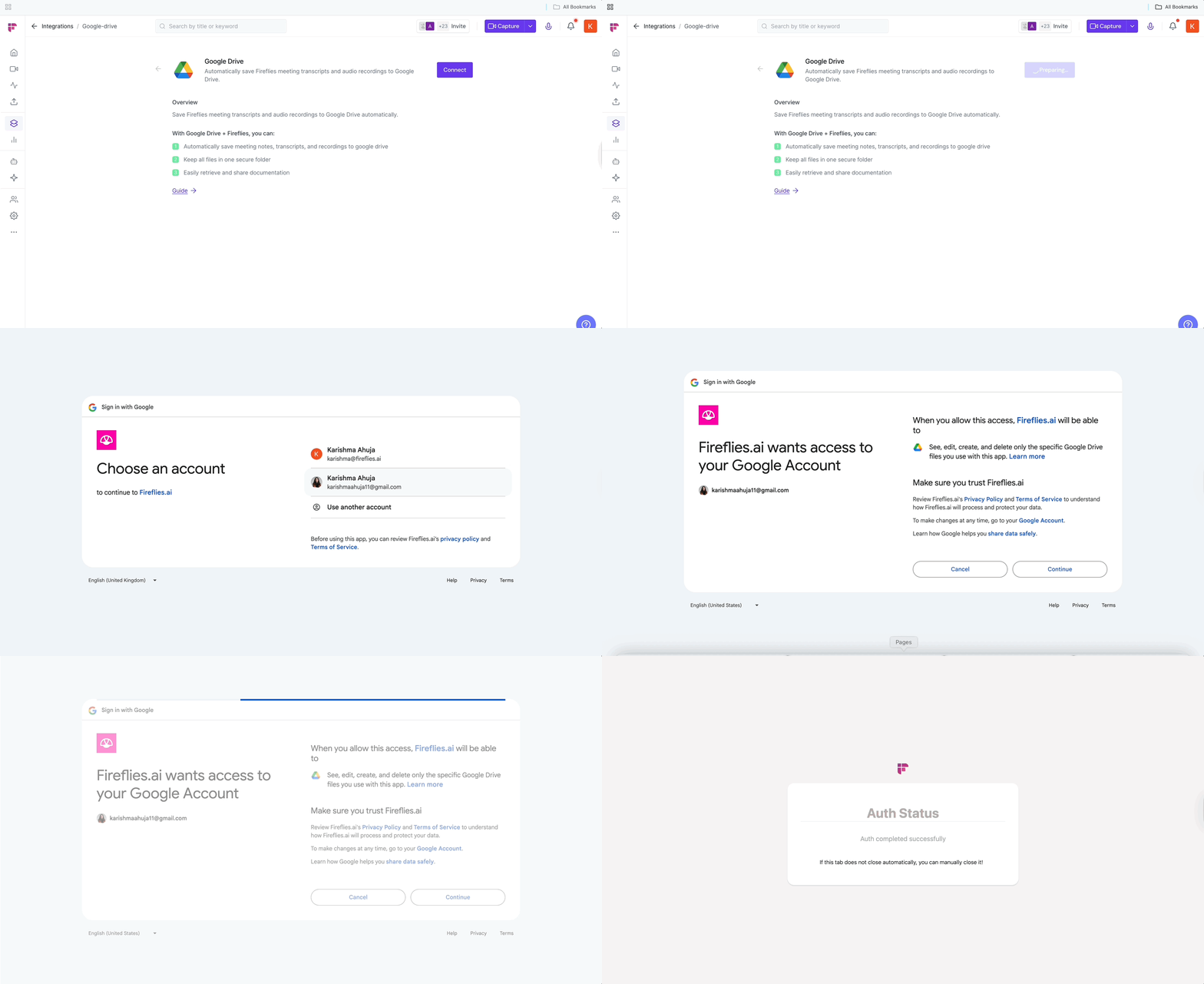
1. Log in to your Fireflies account, go to the Integrations page, and search for Google Drive. Click on it to get started.

2. Click Connect and Sign in with your Google account and grant the required permissions
⚙ Configure the Integration
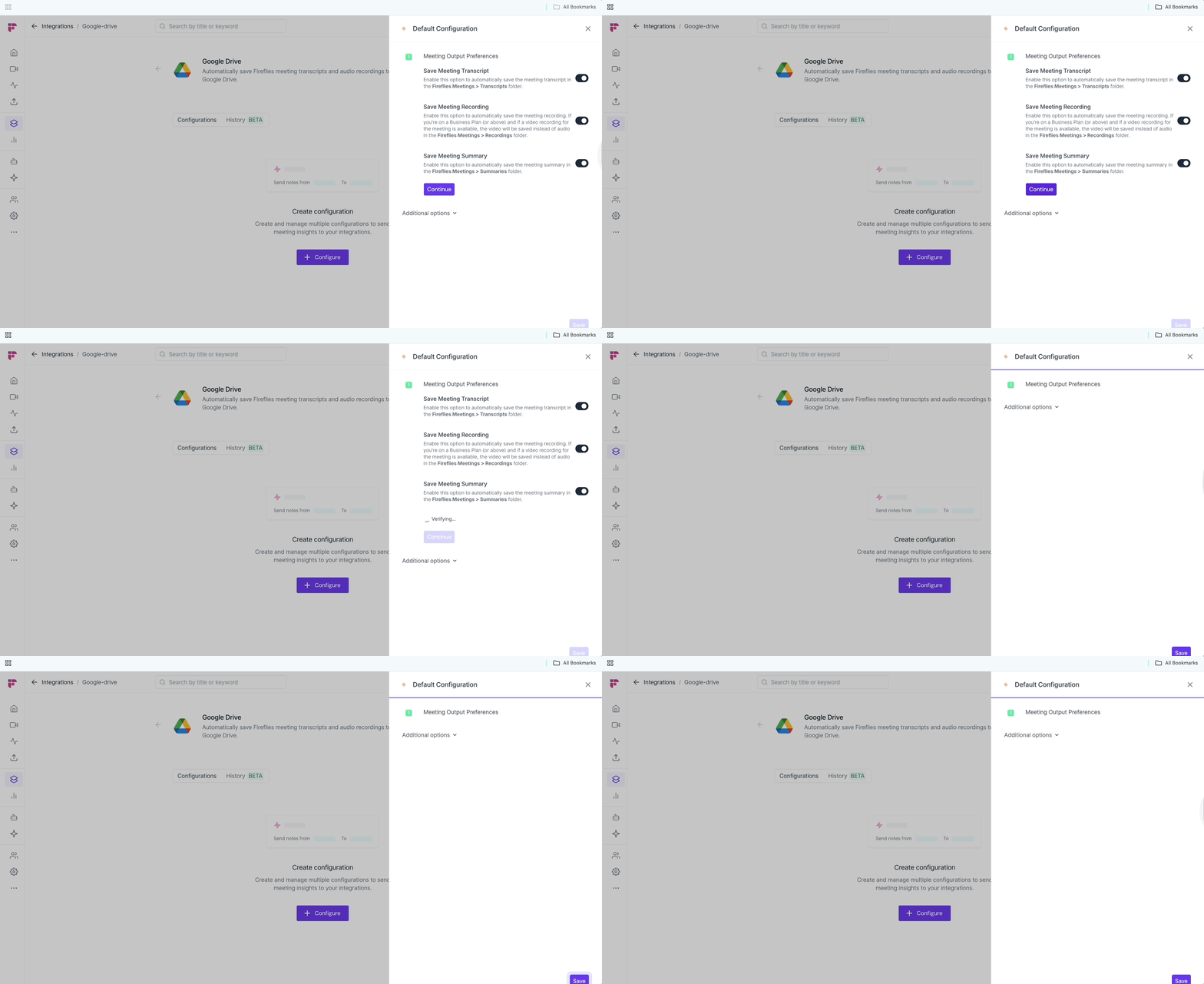
Step 2: Select your meeting output preferences
This means after each meeting, Fireflies will push your meeting outputs to your Drive.
Save meeting transcript: Toggle this on to send the transcript (available for all plans)
Save meeting recording: Toggle this on to send audio or video. (Video is used if available and you're on a Business plan or higher.)
Save meeting summary: Toggle on if you also want the summary file saved to OneDrive.
These settings ensure only the outputs you care about are stored.
Step 3: Customize formatting & apply filters (optional)
Click Additional Options to go further.
🎯 Apply filters to decide which meetings get synced
Note: ⚠ Integration rules are available only for Business & Enterprise plans.
You can choose:
All Meetings (default)
Or apply filters by Meeting Title, Host, Participants, or Meeting Type (internal vs external)
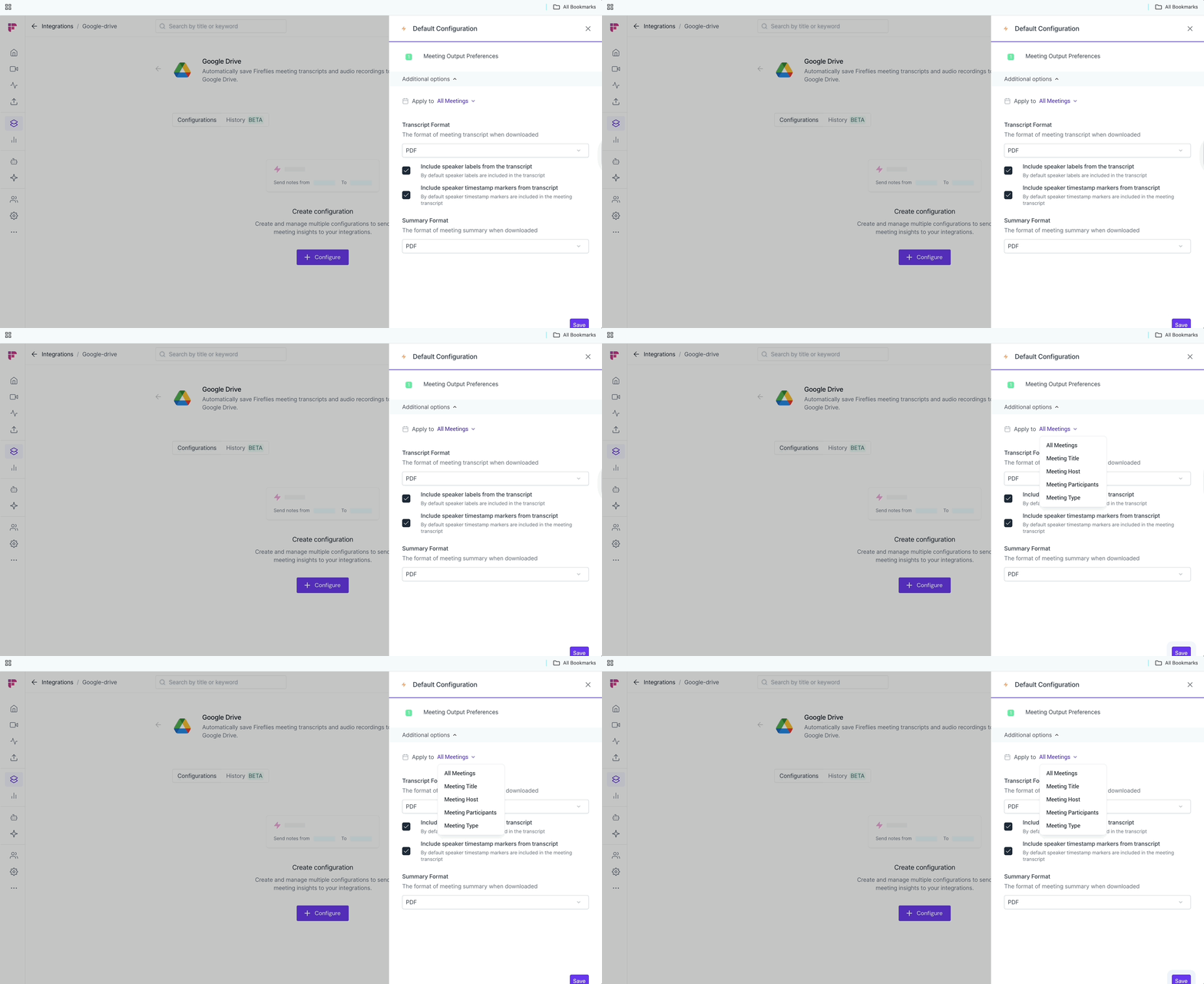
You can stack multiple filters with AND/OR logic.
Example: Only sync meetings hosted by Alex that include “Client Sync” in the title.
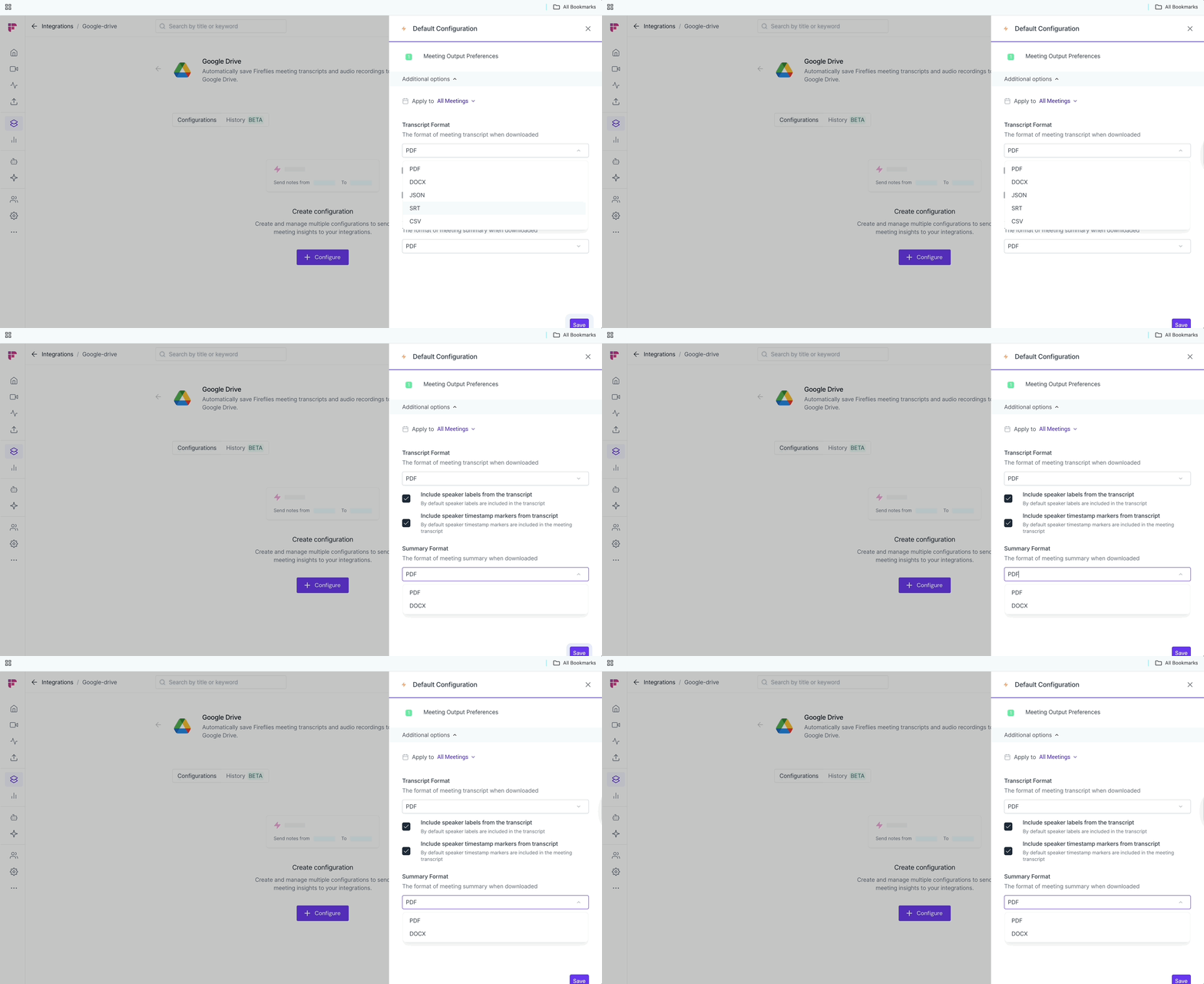
📄 Choose output formats
Select file formats for both transcript and summary:
Options: PDF, DOCX, JSON, CSV, SRT
Example: Use CSV if you want to post-process data in Sheets; use PDF for a polished snapshot.
You can also:
✅ Include timestamps in transcript
✅ Include speaker markers for better readability
✅ Step 5: Save & Name Your Configuration
Click Save to activate the integration.
You can also rename the config — for example:
“Sales Summaries Only”
“Weekly Client Calls”
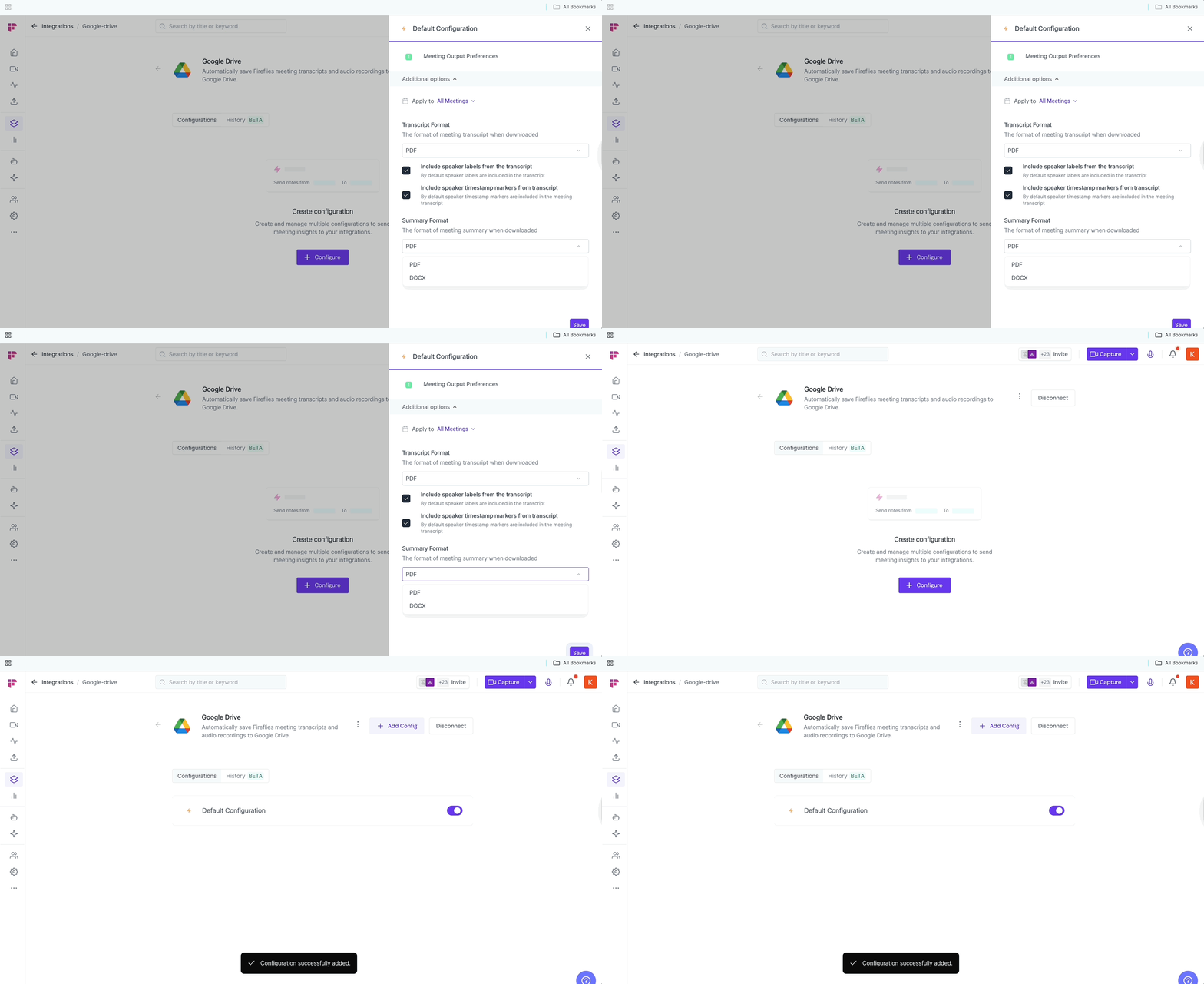
You can create multiple configurations if needed — one config for syncing internal meetings, another for client calls, and so on.
👥 Team Integration Settings
Workspace admins can control how the Google Drive integration is used across their team. The available options depend on your plan and workspace role.
Click the vertical ellipsis (⋮) next to your Google Drive and select Team Permissions from the dropdown list.

Business and Enterprise
If you are a Workspace Admin on a Business or Enterprise plan, you can manage granular Integration Permissions for the integration, including who can access and connect it.
📖 See Integration Permissions: Control Who Can Access and Connect Integrations for detailed instructions on managing integration permissions.

Free and Pro
Free and Pro users do not have access to the full Integration Permissions dashboard. Instead, Team Permissions opens a modal with the available workspace-level settings.
Apply to entire workspace → Toggle this ON to apply the Google Drive integration across your Fireflies workspace. All team meetings accessible by the team admin will have notes sent to Google Drive, keeping everything centralized.
📌Meetings that are set to private in a teammate’s Privacy Settings won’t be pushed to Google Drive unless you’re a Super Admin who can access meetings regardless of privacy settings.
Restrict non-admin usage → Toggle this ON to prevent non-admin members from creating their own Google Drive configurations. This helps maintain consistent data practices and avoids accidental CRM clutter.
After adjusting the toggles to fit your team’s workflow, click Save to apply the changes.

Note: Business and Enterprise Workspace Admins have access to granular integration permissions, while Free and Pro workspaces have more limited workspace-level controls.
🛑 How to Disable or Disconnect
To completely remove the integration, click Disconnect
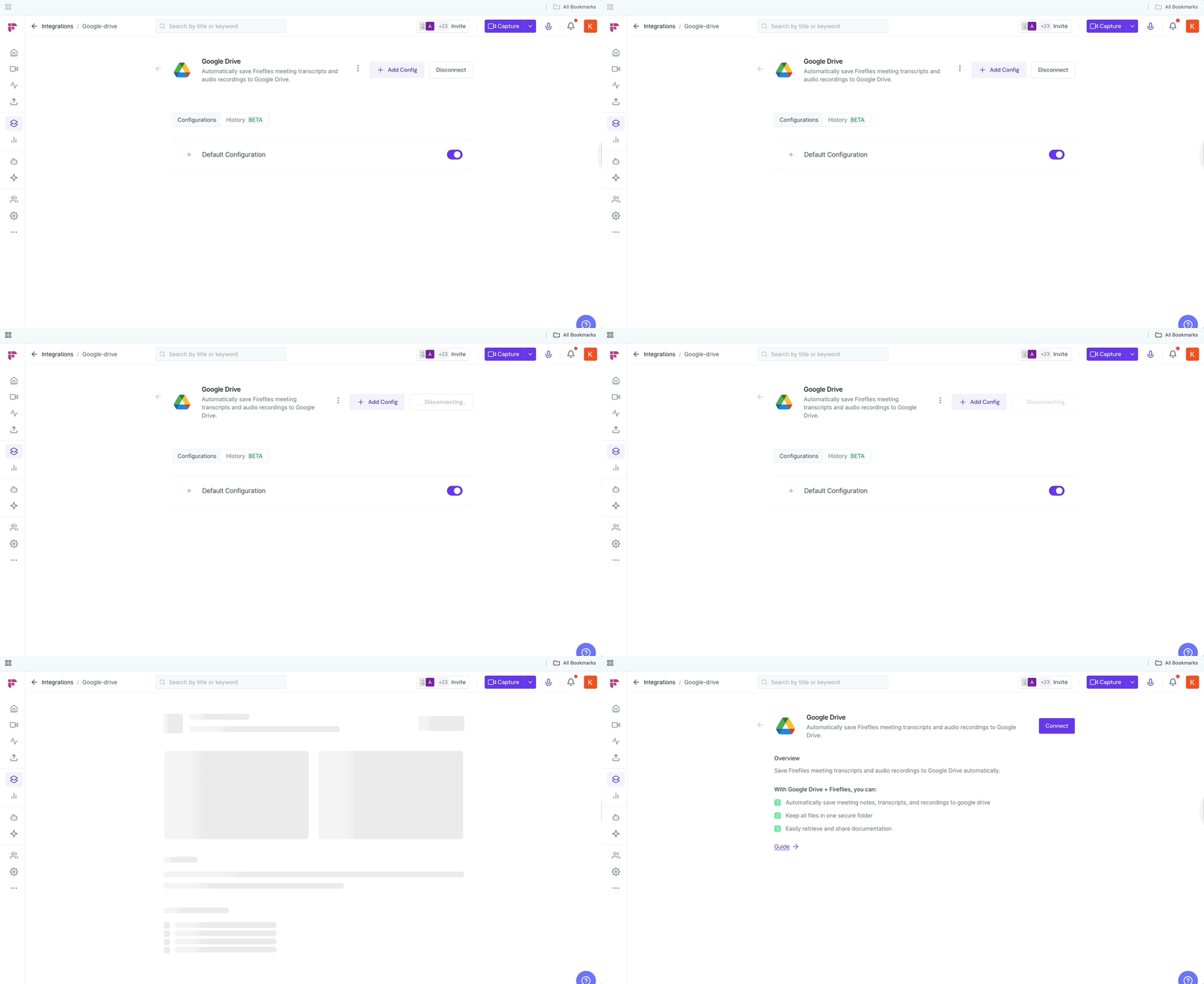
🔚 What Happens After Setup?
Once enabled, Fireflies will automatically sync your chosen meeting outputs after each meeting ends.
You’ll find everything in your Google Drive:
Transcripts →
Fireflies TranscriptsSummaries →
Fireflies SummariesAudio/Video →
Fireflies Recordings
Zero manual work. Always organized.
⏪ Push Past Meetings to Google Drive
Sometimes, the meetings you want in Google Drive happened before you connected the integration. Whether you enabled the integration later or simply want to add older meeting notes to your Google Drive, Push Past Meetings lets you choose a date range and meeting type, then send those meetings to Google Drive in just a few clicks.
Note: Make sure you've connected Google Drive and created at least one push configuration before using Push Past Meetings. If you haven't, complete the Setting Up Your Configuration section above first.
Follow the steps below to push past meetings to Google Drive.
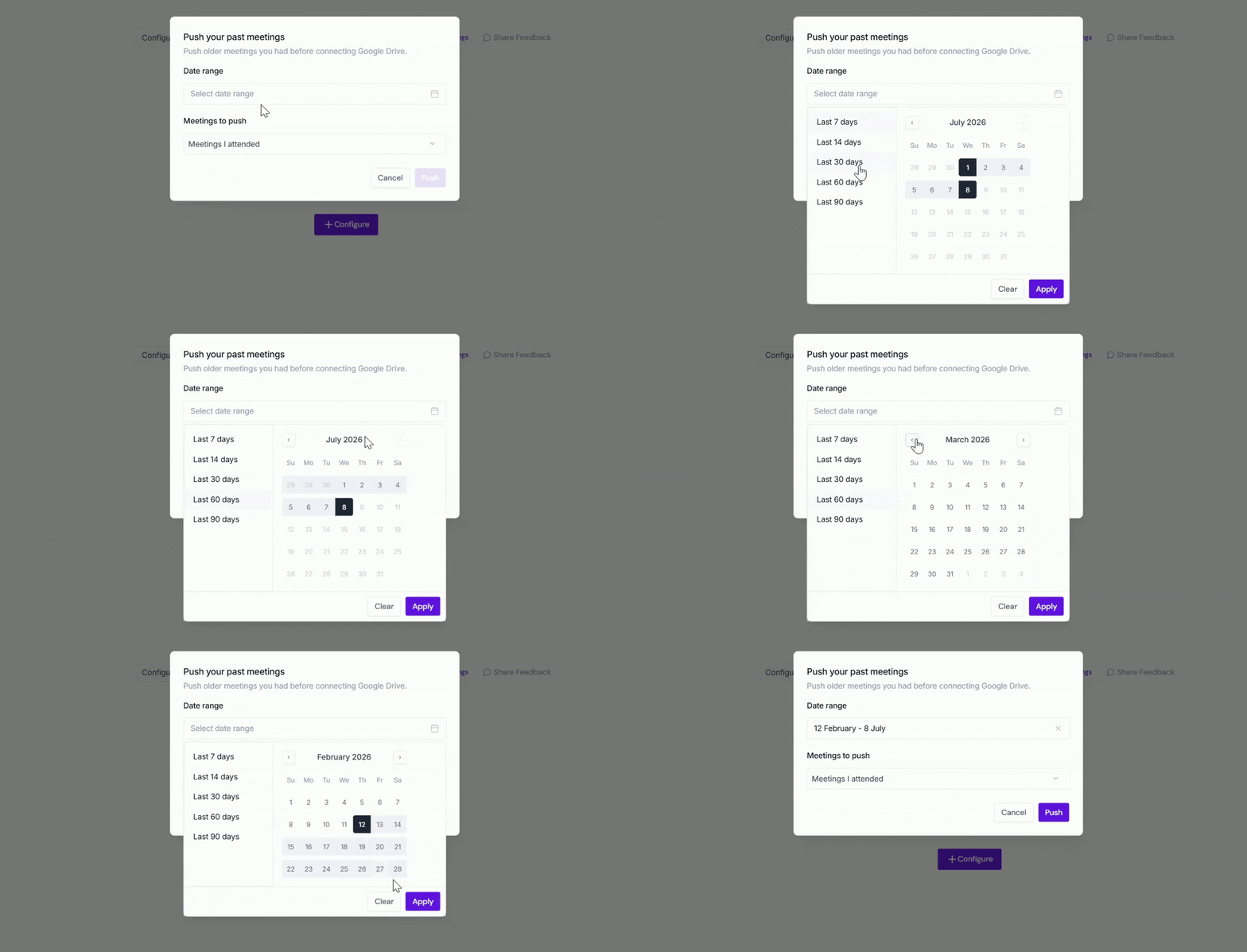
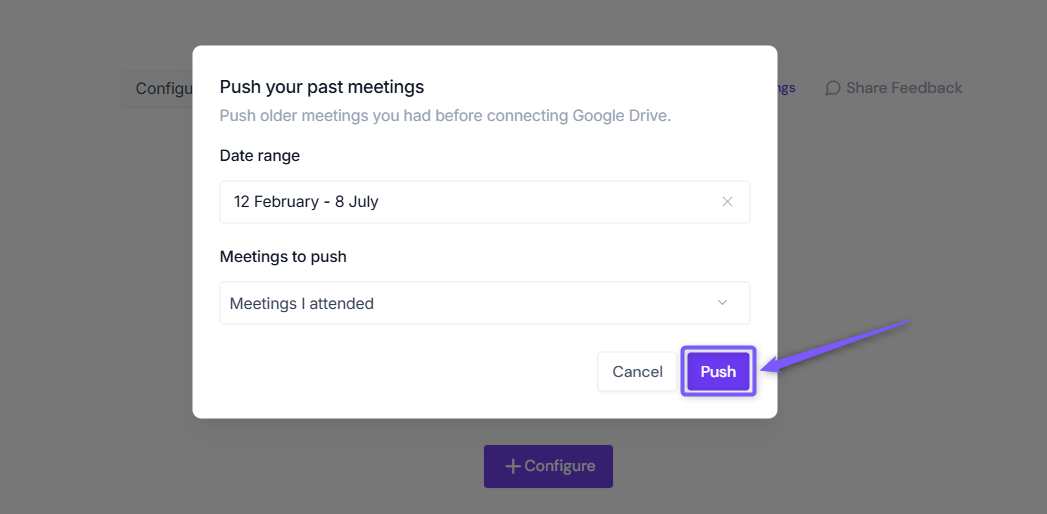
From the Google Drive integration page, click Push past meetings.

A dialog box will appear. Choose the following:
Date range → Select the meetings you want to send by choosing Last 7, 14, 30, 60, or 90 days, or specify a custom date range.
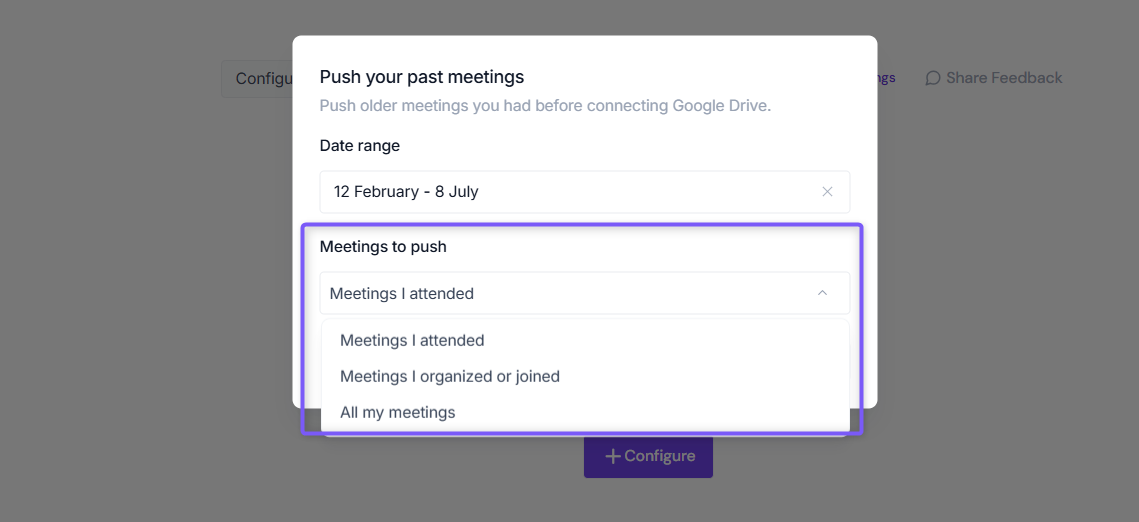
Meetings to push → Choose whether to push Meetings I attended, Meetings I organized or joined, or All my meetings.
Click Push. Fireflies will send the matching meeting notes to Google Drive using your existing configuration settings.
Meetings recorded after you connect Google Drive are sent automatically. Push Past Meetings is only needed for meetings that happened before the integration was connected.