Global AskFred: Get Answers from Past Meetings, Connected Apps, and Web Search
Last updated: September 21, 2026
Need answers without switching between multiple meetings and apps? Global AskFred is your AI assistant in Fireflies that helps you search across past meetings, analyze information from connected apps, search the web, and get instant answers - all from a single conversation.
You can ask Fred to:
Search across all your past meetings to find insights, decisions, or updates.
Summarize discussions and extract action items across multiple meetings.
Identify trends, patterns, or recurring topics over time.
Answer general questions using your meetings, connected apps, or web search.
Access and act on connected apps like Gmail, Slack, HubSpot, and more.
Use web search to expand your answers with information beyond your meetings.
Want a quick walkthrough first? Watch this AskFred office hours replay to see everywhere Fred lives in Fireflies, how to frame questions that get the right answer on the first try, and how connectors let Fred pull from and push to tools like Notion and HubSpot. Then follow the steps below to get answers across your meetings.
🚀 How to Access Global AskFred
You can access Global AskFred in multiple ways, depending on how you prefer to work:
From the left navigation menu: Click AskFred to open the full AskFred workspace, where you can ask questions, manage chats, and access all AskFred features.
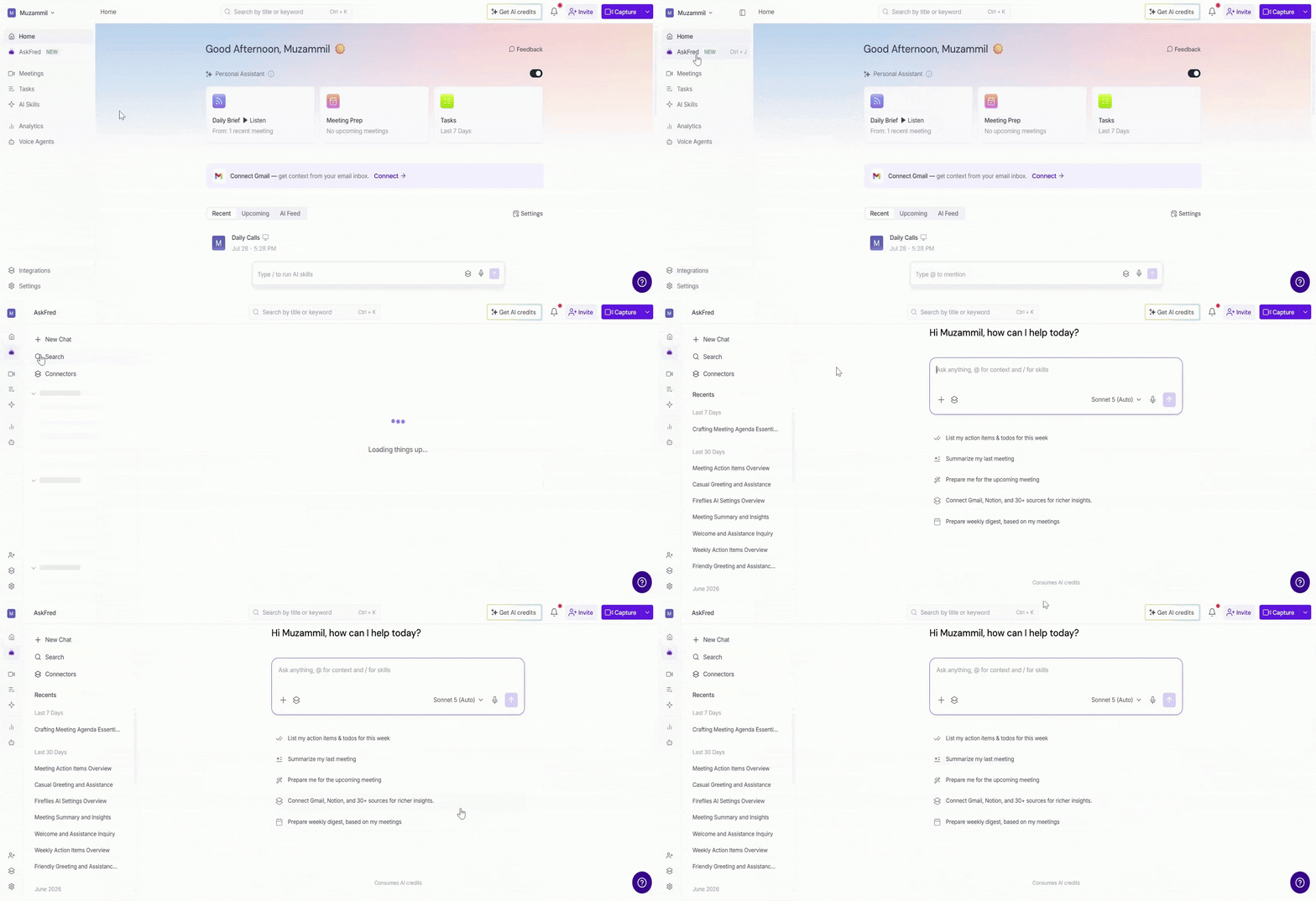
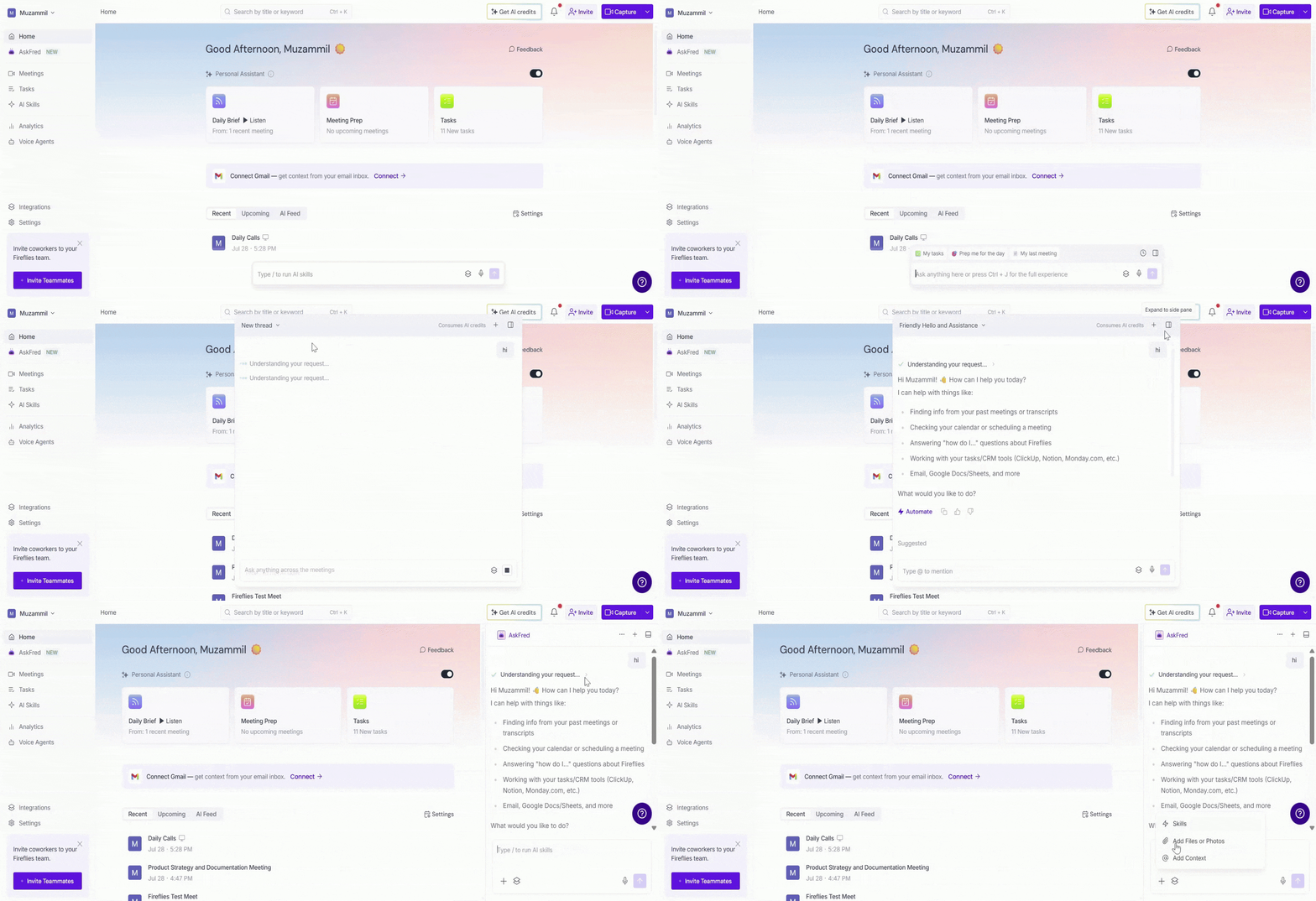
From the Home page (Bottom): Use the AskFred chat bar at the bottom of the Home page to ask a question instantly. Click the Expand to side pane icon to open AskFred in a side panel.
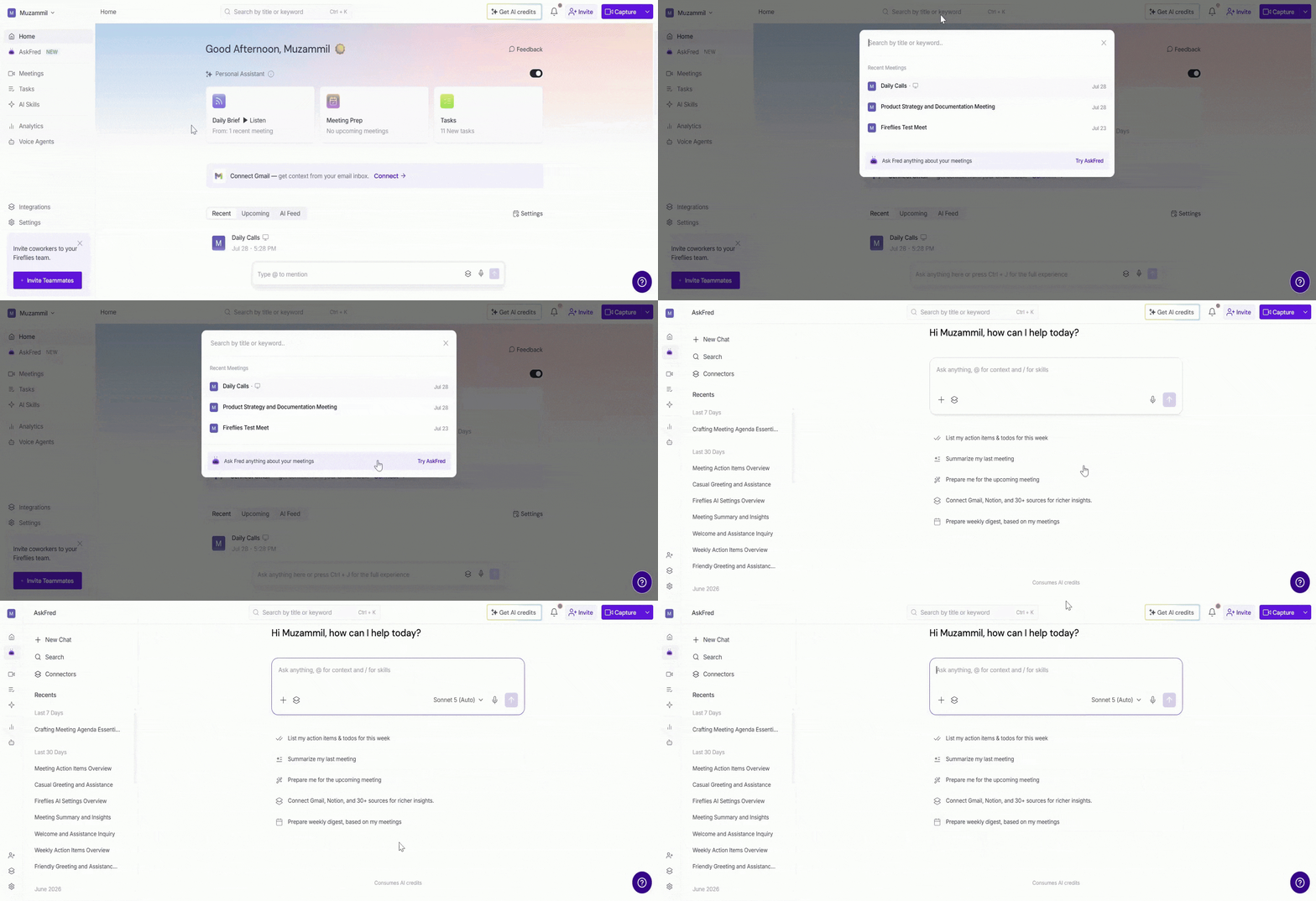
From the Search bar (Top): Click the Search bar at the top of any page, then select Try AskFred to open the AskFred workspace and start a new conversation.
Press Ctrl + J (Cmd + J on Mac) from anywhere in Fireflies to quickly open AskFred.
💬 How to Use Global AskFred
Once you open Global AskFred, you can start asking questions across all your past meetings.
1. Start with Quick Prompts
Below the AskFred input box, you'll see suggested prompts to help you quickly get started. These may include:
List my action items & todos for this week.
Summarize my last meeting.
Prepare me for the upcoming meeting.
Prepare a weekly digest based on my meetings.
Click any suggested prompt to run it instantly, or type your own question to get answers across your meetings..
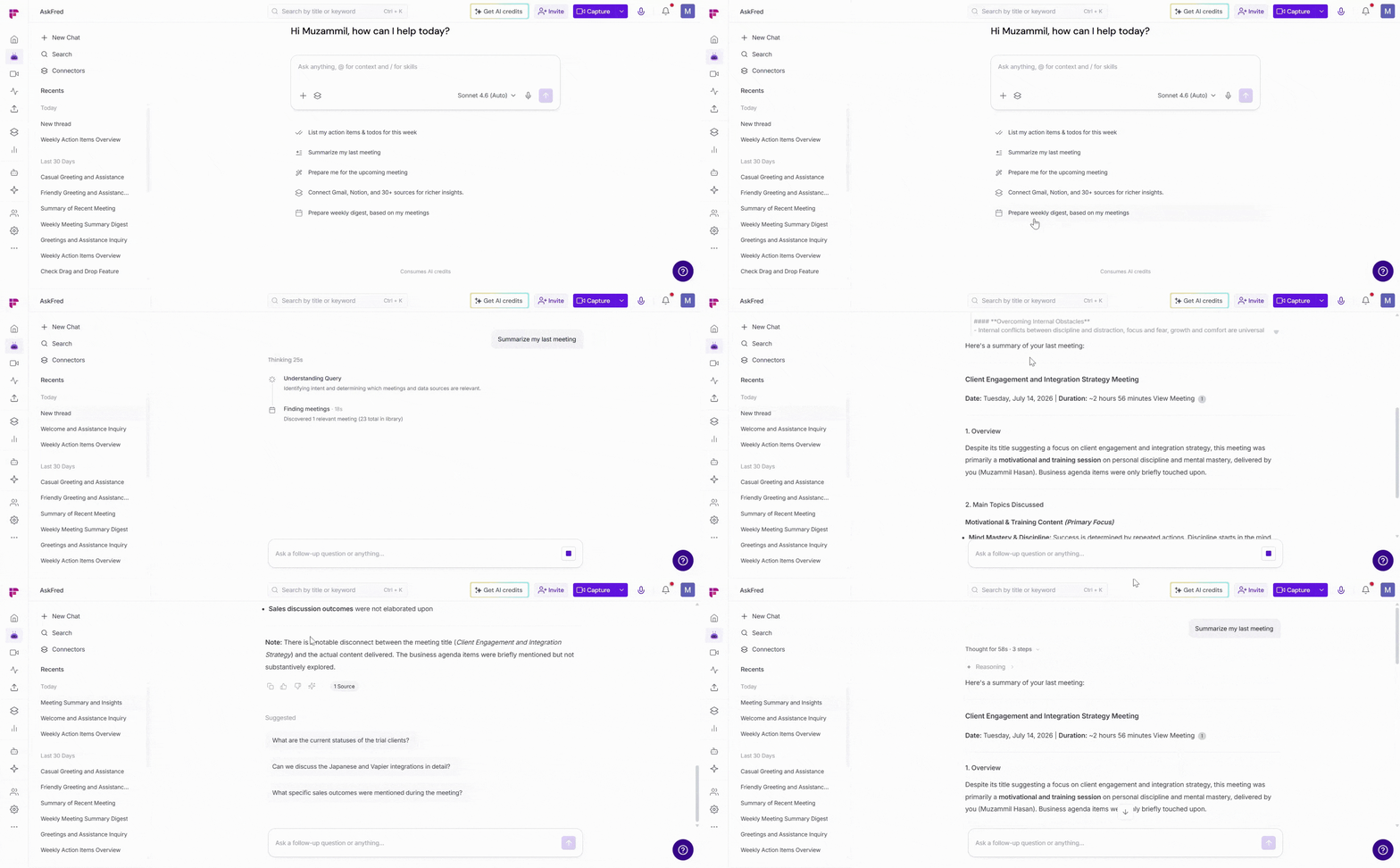
2. Ask Your Own Question
Use the input box “Ask anything across your meetings” to type your own question.
You can ask things like:
What were the key highlights from last week?
List action items from recent meetings
What topics were discussed this month?
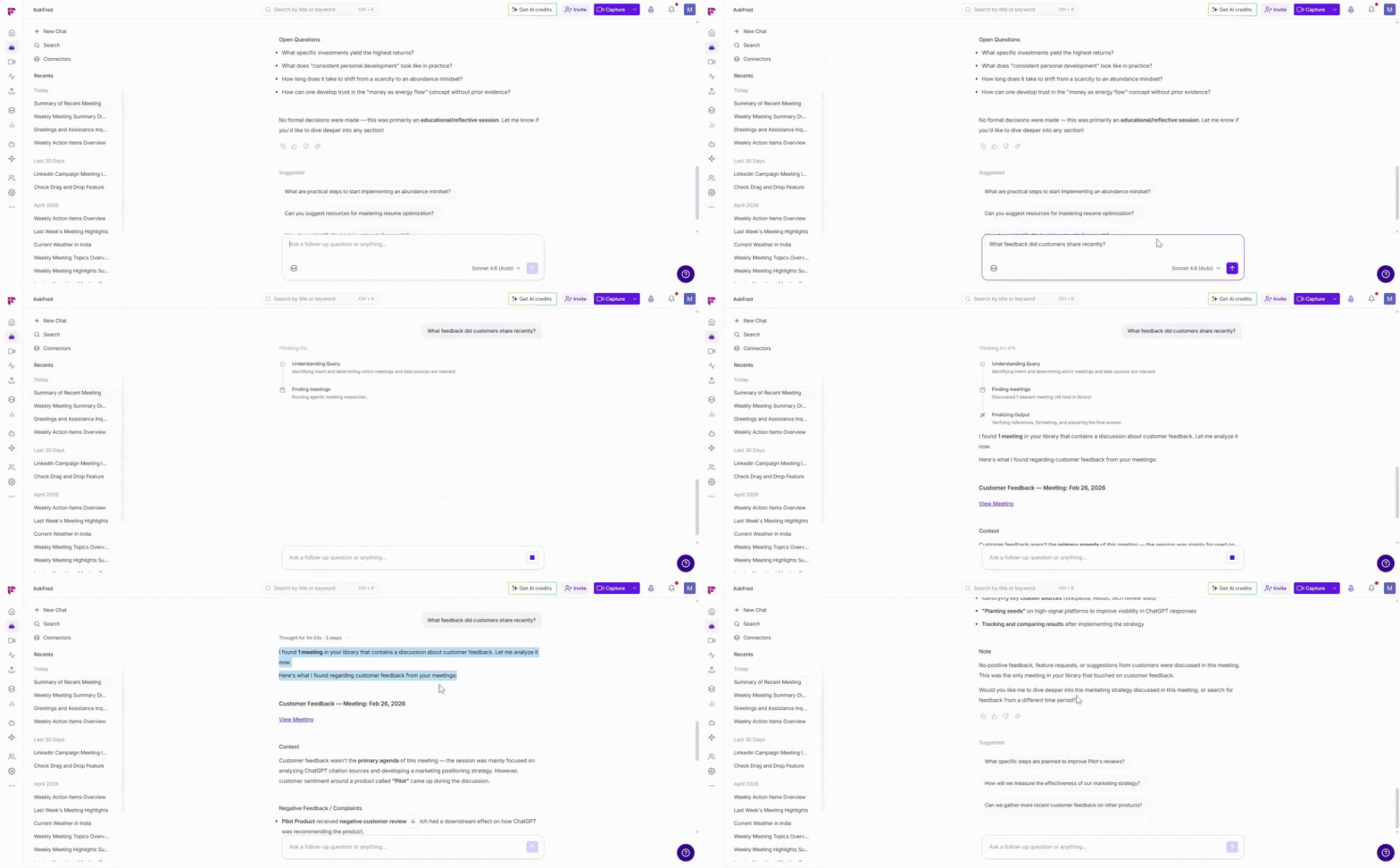
What feedback did customers share recently?
3. Dictate Questions with Voice Input
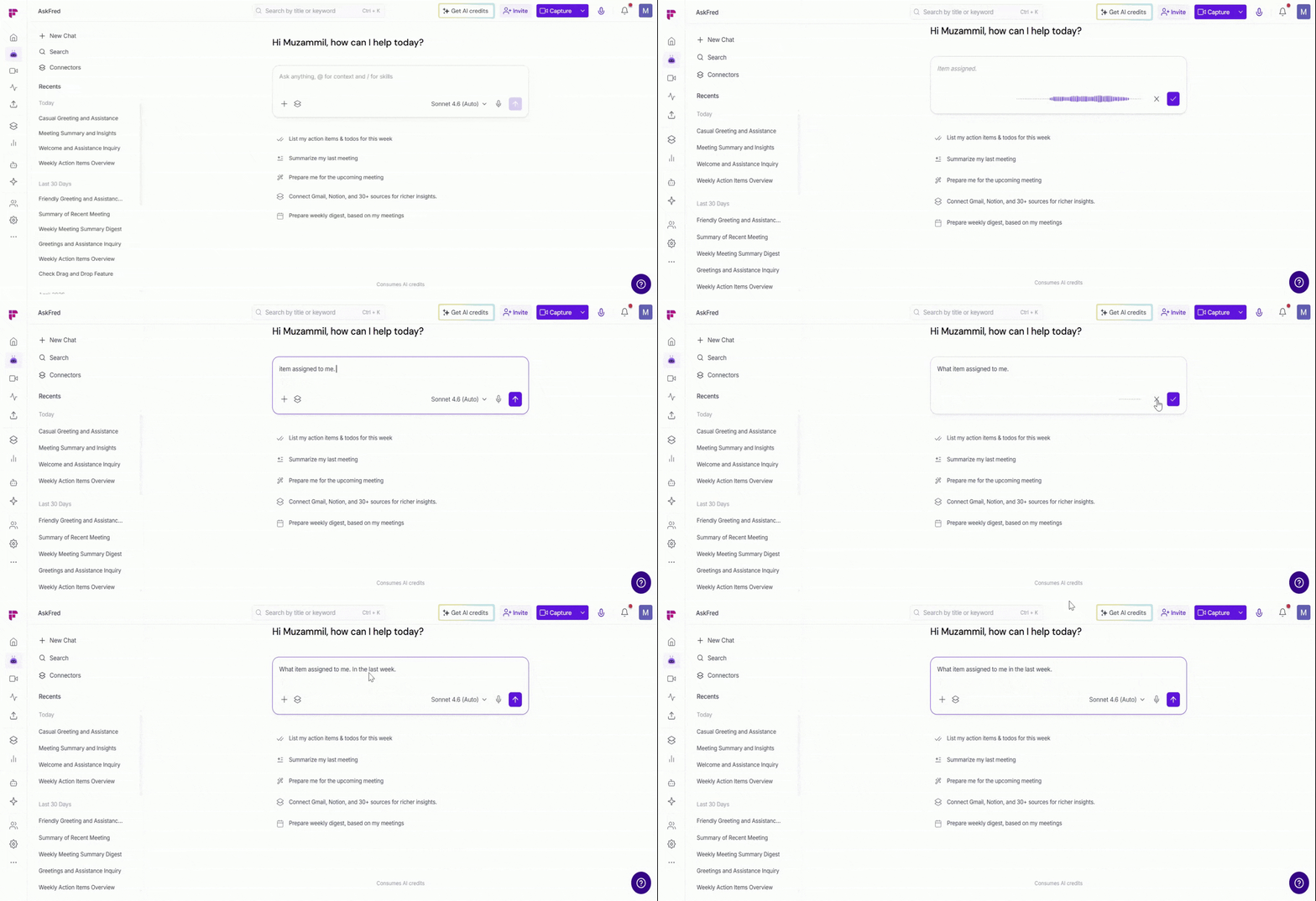
Don't want to type? Use Voice Input to dictate your questions to AskFred. It's a quick and hands-free way to ask longer questions or capture ideas as they come to mind.
For example, you can ask:
What were the key takeaways from my last meeting?
Summarize this week's customer feedback.
What action items are assigned to me?
To dictate your question:
In the AskFred input box, click the Microphone icon or press Ctrl + O.
Speak your question clearly.
Review or edit the transcribed text if needed.
Click Send to submit your question.
4. Select Your Preferred AI Model (Optional)
Global AskFred allows you to select your preferred AI model and vendor for more control over your responses.
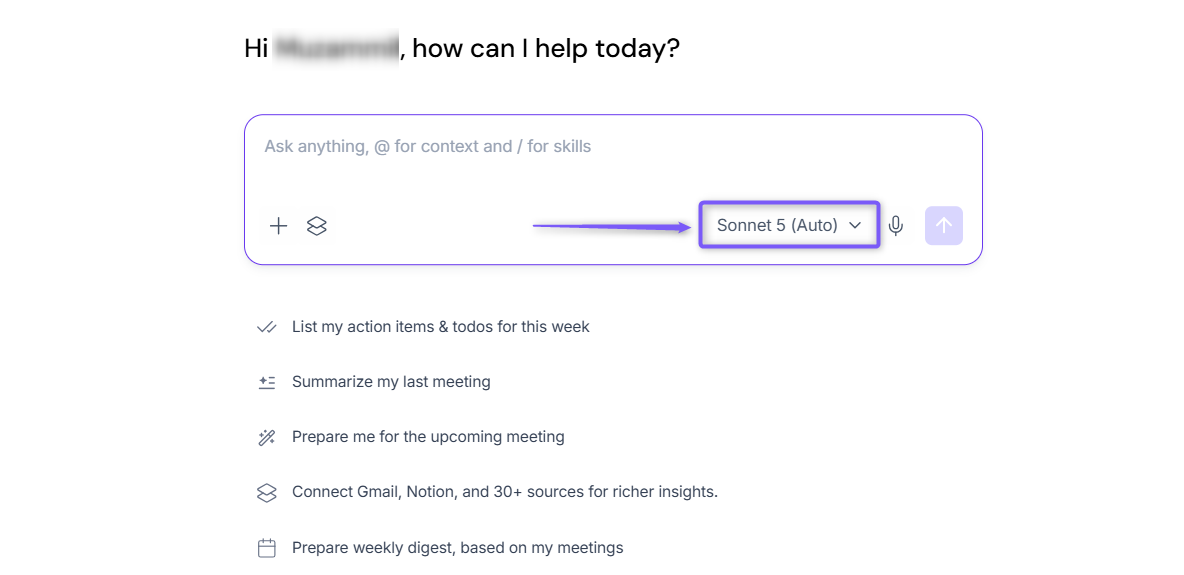
1. In the AskFred input box, click the model selector at the bottom left. By default, it is set to Sonnet 5 (Auto).
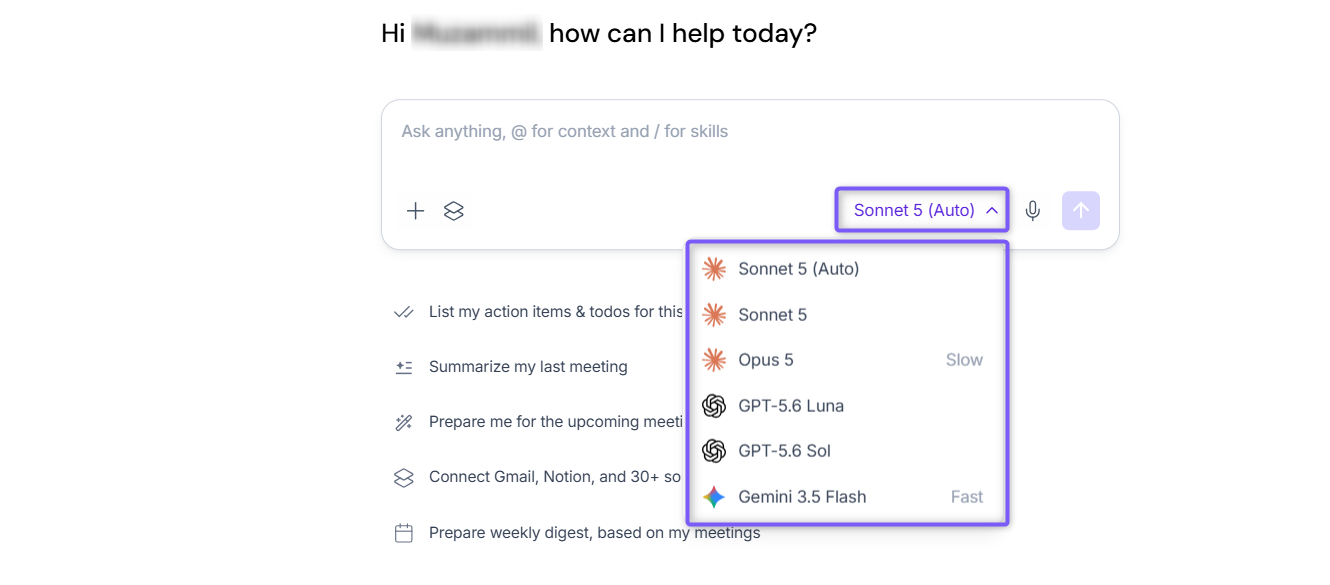
2. Select your preferred model from the dropdown, including:
Anthropic (Claude) models: Sonnet 5 (Auto), Sonnet 5, and Opus 5.
OpenAI models: GPT-5.6 Luna and GPT-5.6 Sol.
Google models: Gemini 3.5 Flash.
Once selected, AskFred will use that model for your queries.
Not sure which model to use? Leave it on Sonnet 4.6 (Auto) for the best results by default.
5. Ask Your Own Question
Use the input box “Ask anything across your meetings” to type your own question.
You can ask things like:
What were the key highlights from last week?
List action items from recent meetings
What topics were discussed this month?
What feedback did customers share recently?
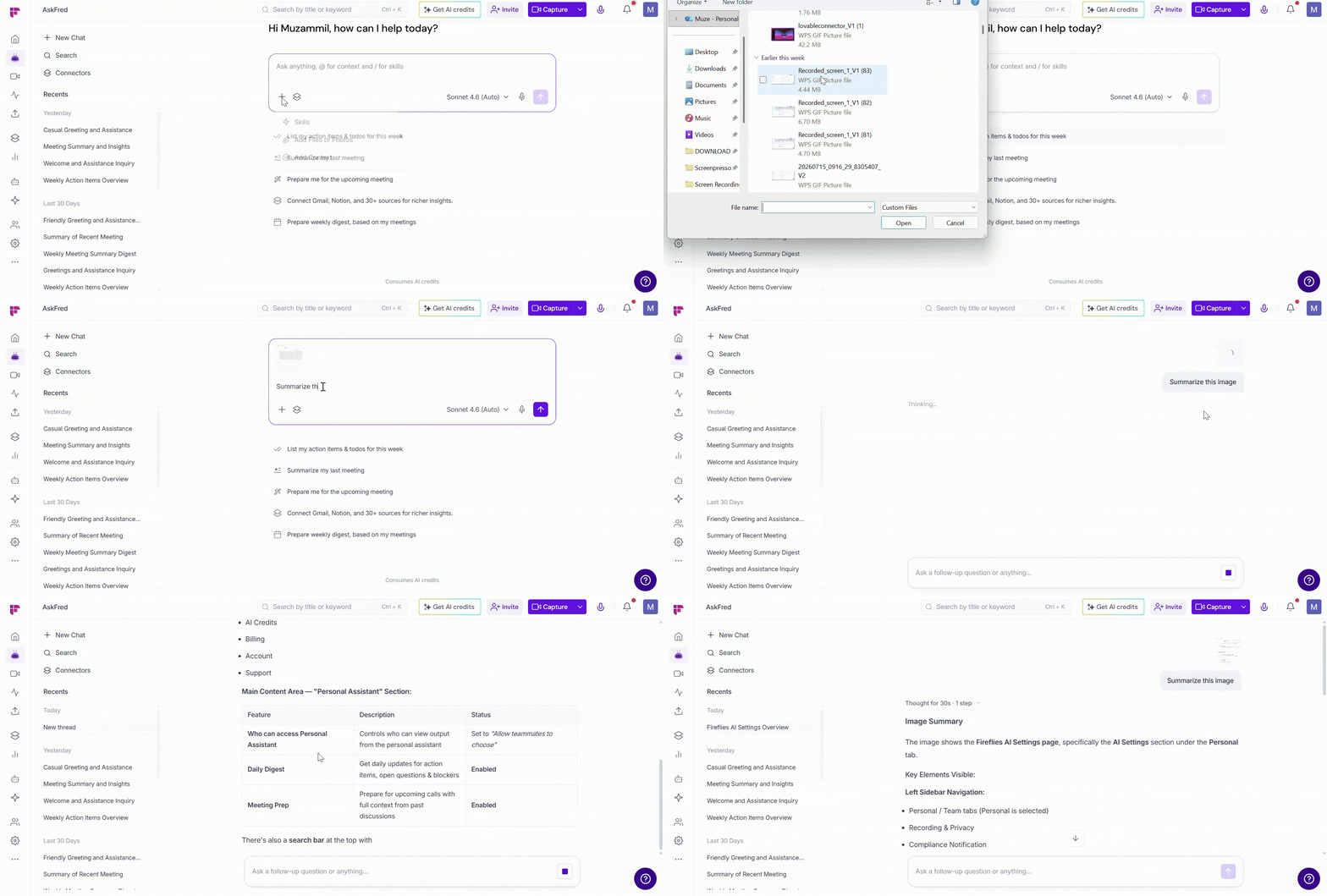
6. Add Files or Photos
Need AskFred to answer questions about a document, presentation, image, or other file? Attach it to your prompt so AskFred can analyze the content and provide more accurate, context-aware responses.
To attach a file or photo:
Click the
+icon in the AskFred input box.Select Add Files or Photos.
Choose the file or image you want to upload.
Enter your prompt and click Send.
For example, you can ask:
Summarize this document/image.
What are the key action items in this meeting notes PDF?
Explain the information shown in this chart.
7. Use AI Skills
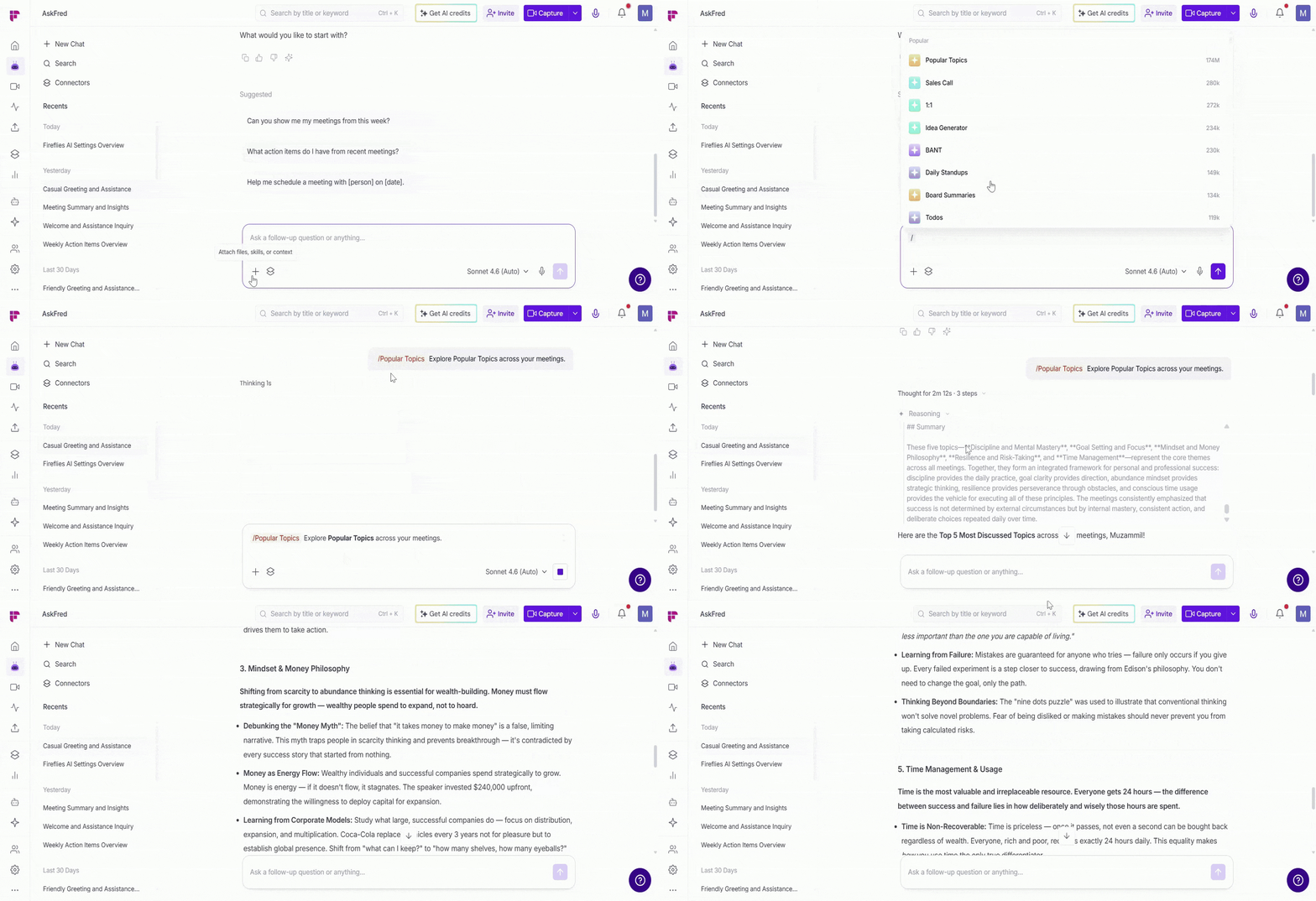
Need a structured output without writing a detailed prompt? AI Skills are pre-built prompts that help you quickly generate summaries, meeting notes, sales analyses, action items, and more.
For example, you can use AI Skills to:
Generate a BANT sales summary.
Summarize a 1:1 meeting.
Create Board Meeting summaries.
Explore Popular Topics across your meetings.
📌 Want to create your own AI Skills or automate them after every meeting? Learn more in How to Create and Manage AI Skills.
To use an AI Skill:
Click the
+icon in the AskFred input box and select Skills.Search for or select the AI Skill you want to use. Alternatively, type
/in the AskFred input box to quickly browse and insert an AI Skill.Add any additional instructions if needed.
Click Send to run the AI Skill.
8. Add Context
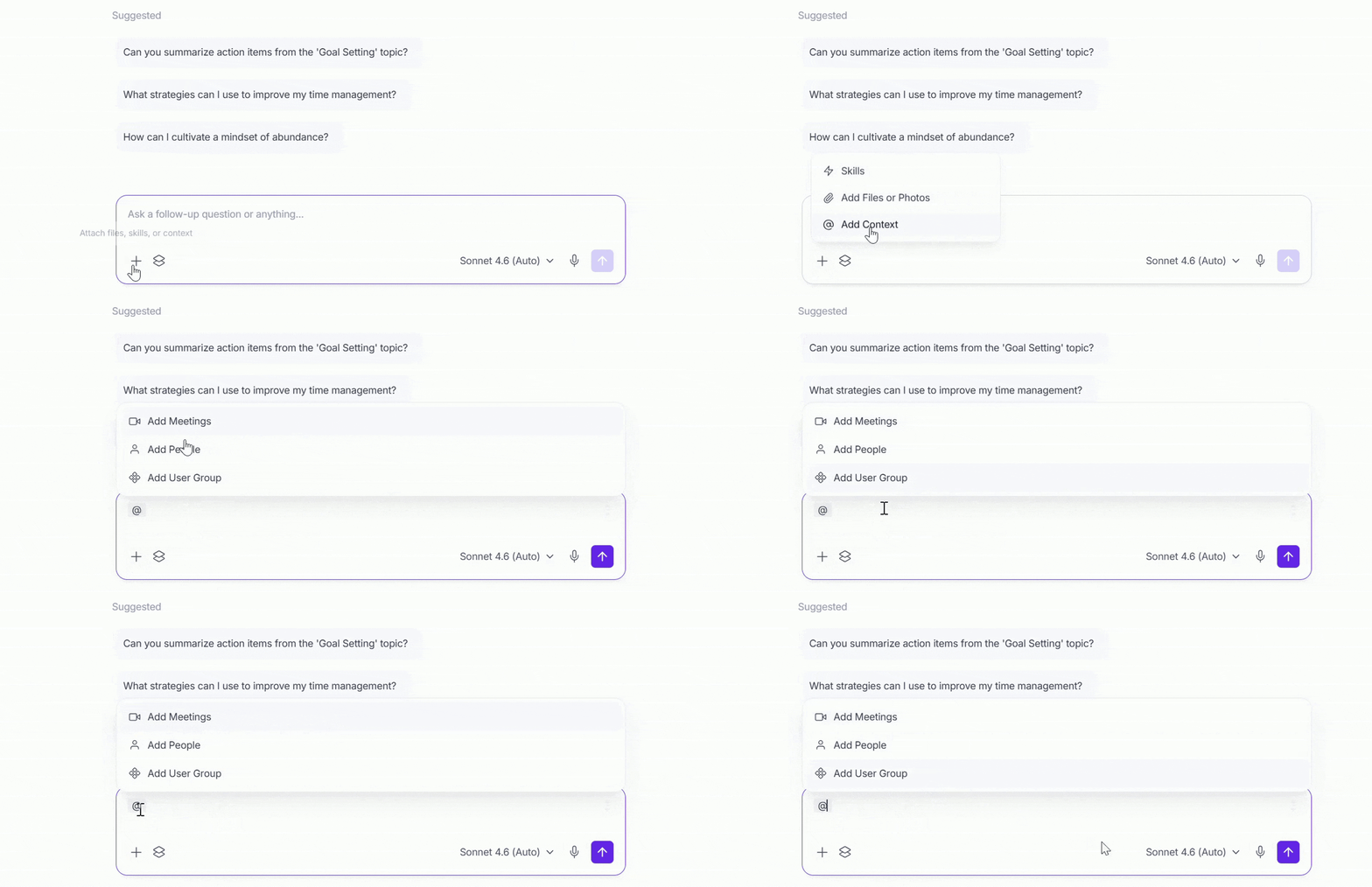
Want AskFred to answer questions about a specific meeting, teammate, or team? Add context to your prompt so AskFred knows exactly what information to use instead of searching across all your meetings.
You can add context in two ways:
Click the
+icon in the AskFred input box and select Add Context.Or, type
@in the AskFred input box to quickly add context.
You can add:
Meetings: Ask questions about a specific meeting, such as what was discussed, decisions made, or action items.
People: Ask about a teammate's meetings, tasks, or contributions.
User Groups: Ask questions across meetings involving everyone in a specific user group.
💡 Example prompts:
@Weekly Sales Sync What customer objections were discussed during this meeting?@Alex What action items were assigned to Alex this week?@Marketing Team @Q4 Planning Meeting Summarize the decisions the Marketing team made during this meeting.
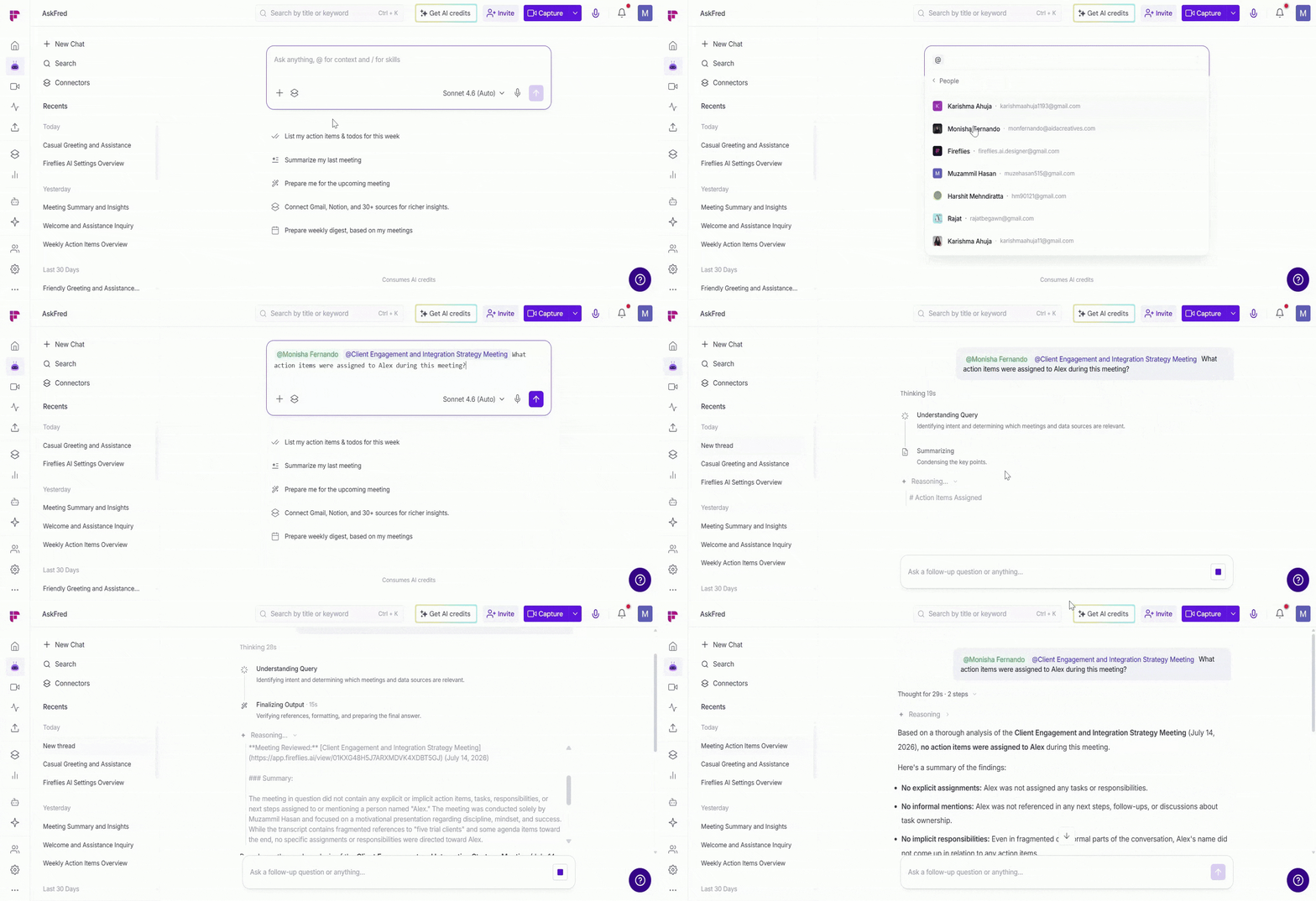
✅ You can also combine multiple context sources in a single prompt. For example, add a meeting and a teammate together to ask questions like:
@Monisha Fernando @Client Engagement and Integration Strategy Meeting What action items were assigned to Alex during this meeting?
After adding the context, enter your prompt and click Send.
9. Ask General Questions Using Web Search
By default, Global AskFred answers questions based on your meetings. If you want to ask broader or general questions, you can enable Web Search. To enable Web Search:
1. In the AskFred input box, click the stack (layers) icon on the left side.
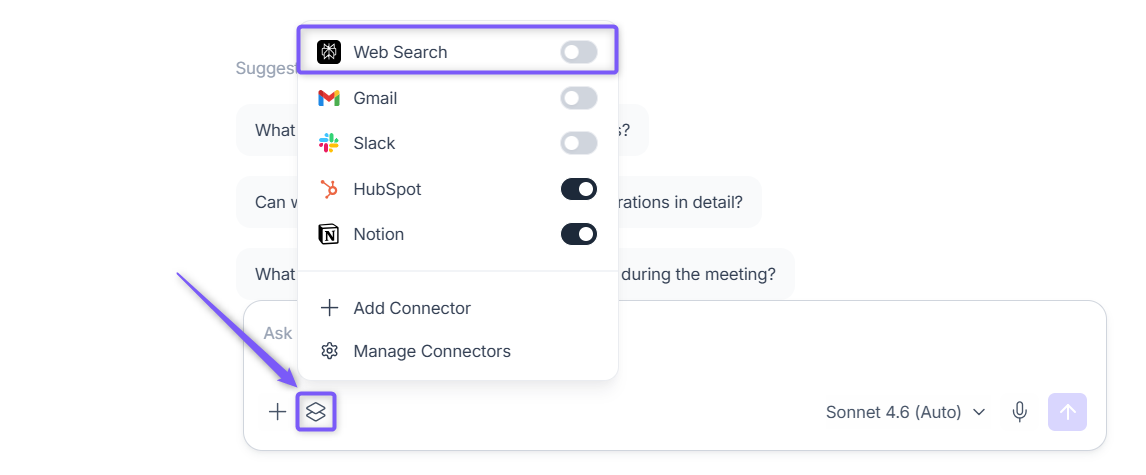
2. Turn on the Web Search toggle under Sources.
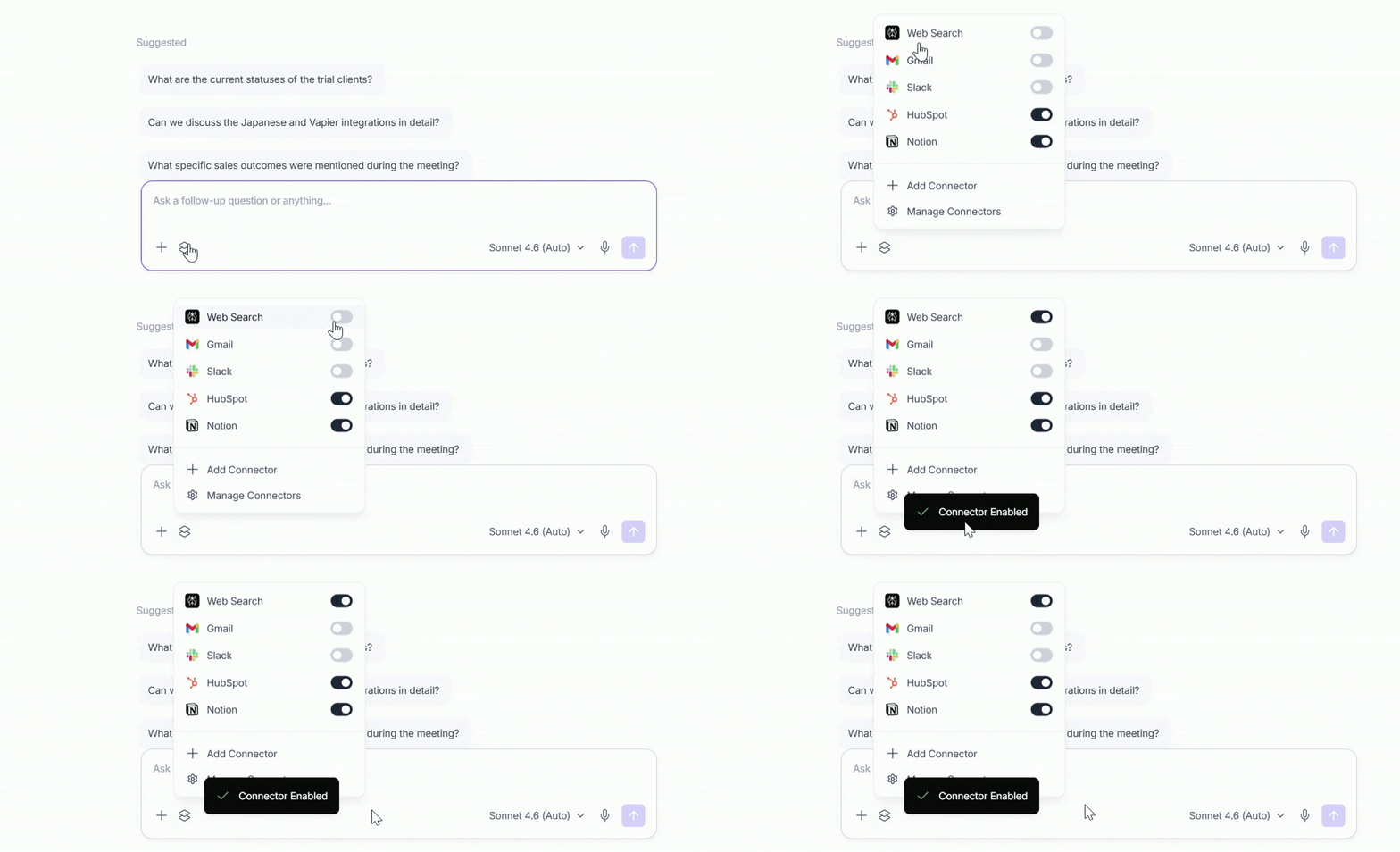
3. Ask your question as usual.
Once enabled, AskFred can include information from the web, making it useful for general queries like:
What’s the latest update on a topic?
What is BANT in sales?
Current weather of Japan?
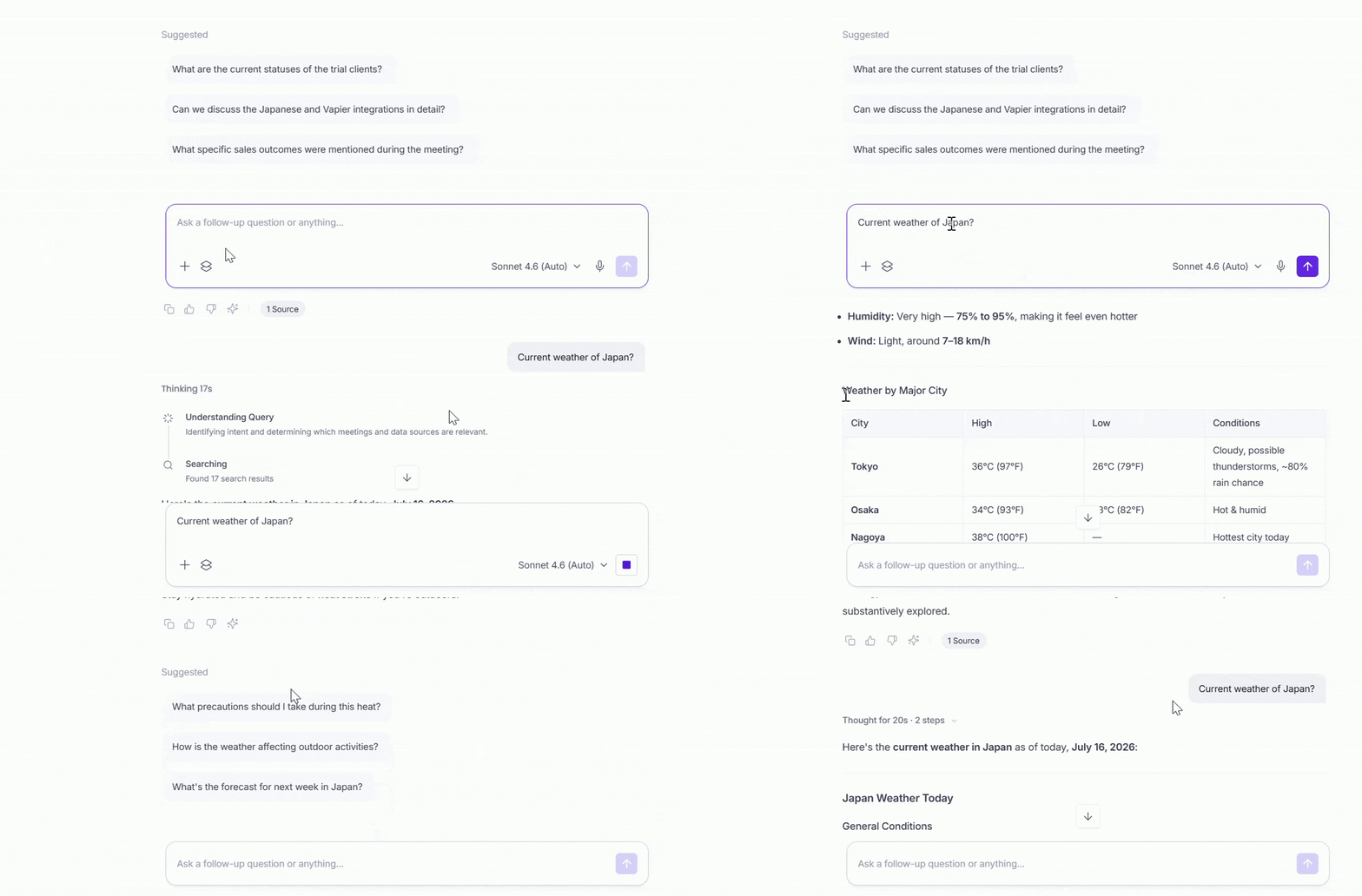
Use Web Search when your question is not directly related to your meetings.
7. Ask Follow-up Questions
After AskFred generates a response, it provides suggested follow-up questions based on the context of your query.
These suggestions help you continue exploring related insights within the same chat—without needing to type a new query.
You can:
Click a suggested follow-up to quickly refine or expand the response.
Ask your own follow-up question in the same chat.
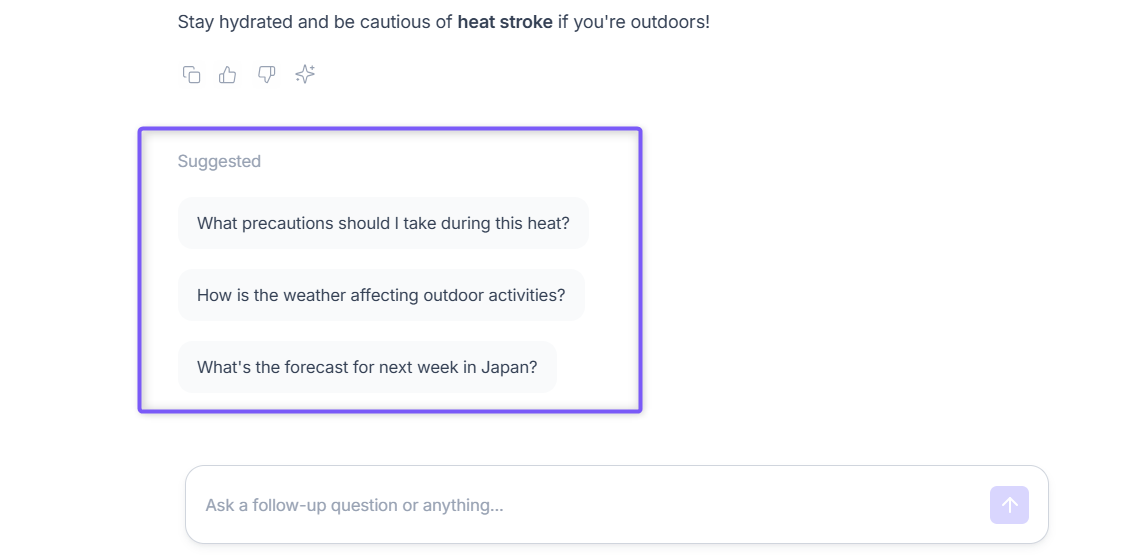
AskFred remembers the previous context, so your follow-up questions stay connected and produce more relevant results.
10. Use Connectors
Need AskFred to search information or take action in your favorite apps? Connectors let AskFred securely access supported apps like Gmail, Slack, HubSpot, Asana, Google Drive, ClickUp, and more—so you can work across your tools without leaving the chat.
Prefer to see it in action first? Watch this live AskFred connectors session, then use the steps below to add, enable, and manage your connectors in Fireflies.
Connect a New App
In the AskFred input box, click the stack (layers) icon on the left side.
Select Add Connector.
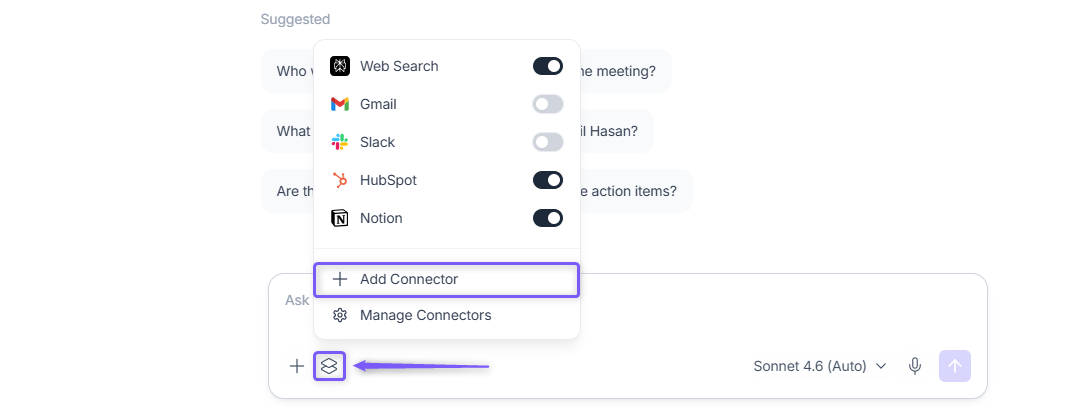
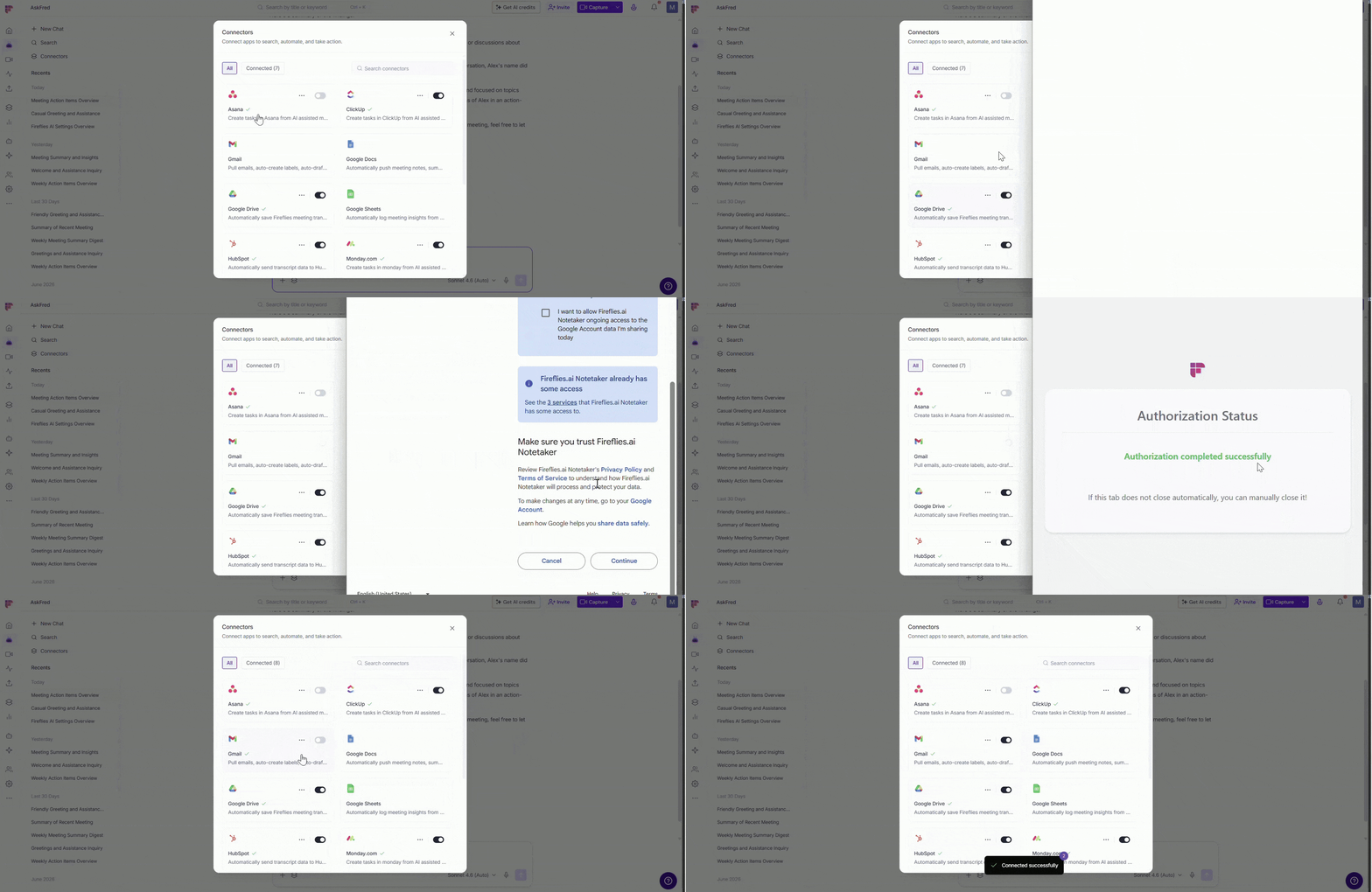
Choose the app you want to connect and click
+.Complete the authentication process.
Once connected, enable the connector to start using it in AskFred.
⚙ Manage Connectors
Once you've connected an app, you can manage how AskFred interacts with it. Manage Connectors lets you control which apps are available in AskFred, customize what AskFred is allowed to do in each app, or disconnect apps you no longer need.
Prefer to see it in action first? Watch this live Email Assistant setup session, then use the steps below to connect your inbox and turn on drafting and labeling in Fireflies.
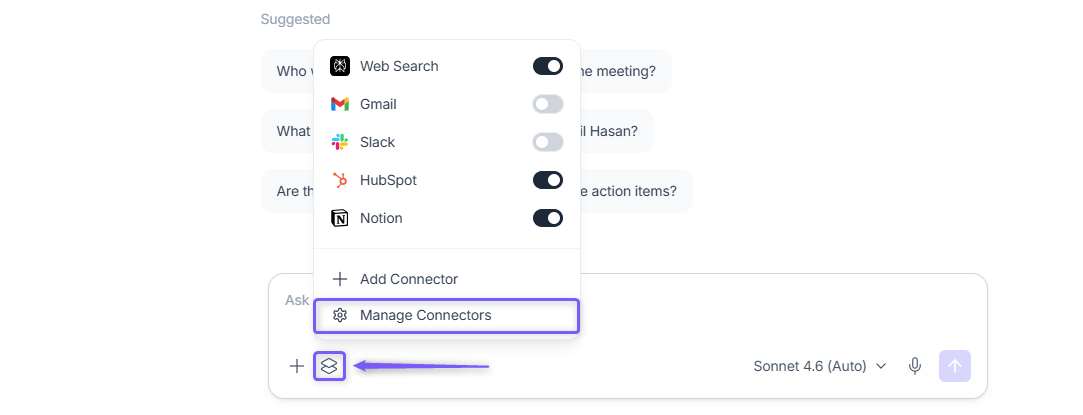
To manage connectors:
In the AskFred input box, click the stack (layers) icon on the left side.
Select Manage Connectors.
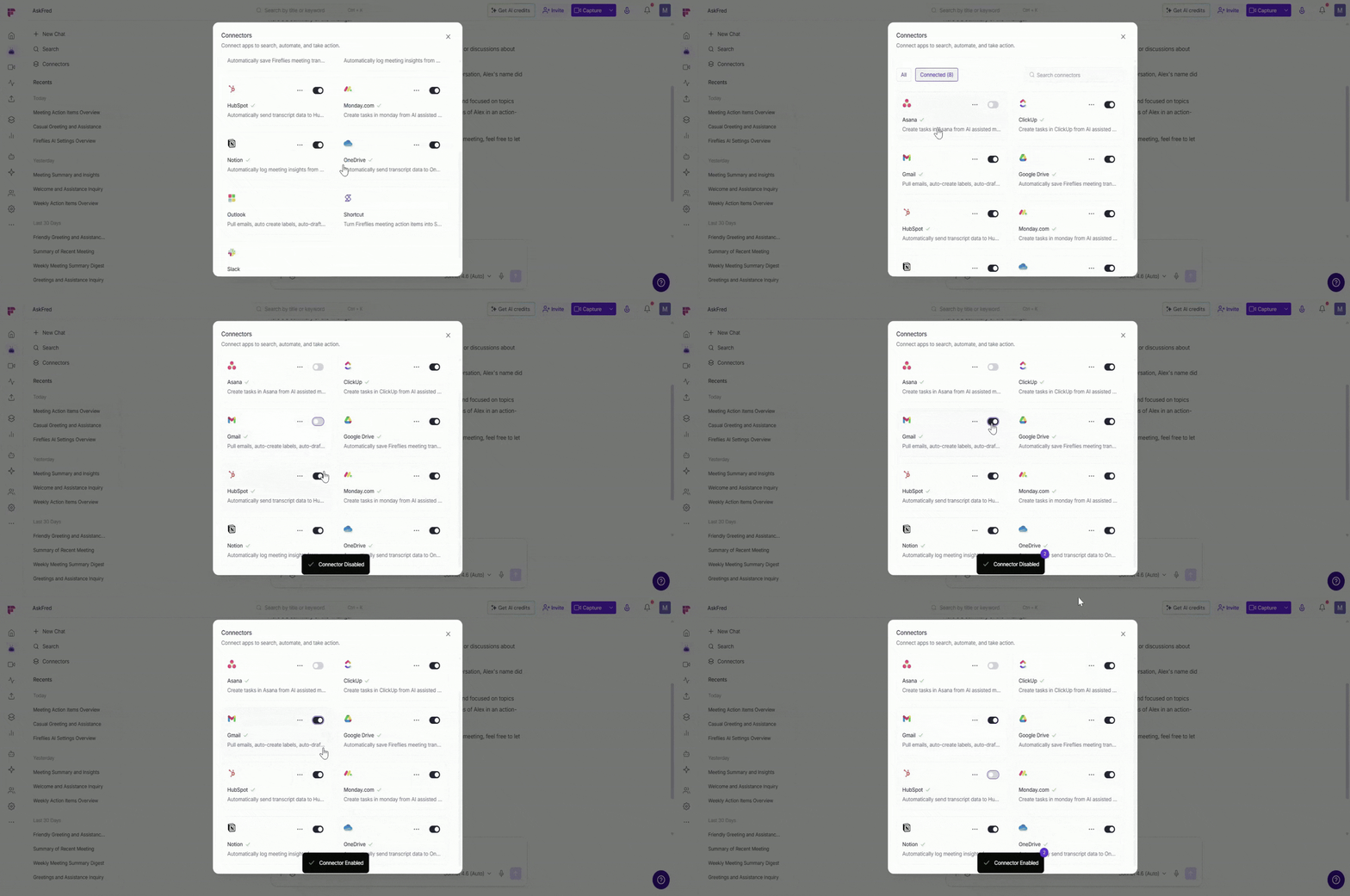
From here, you can:
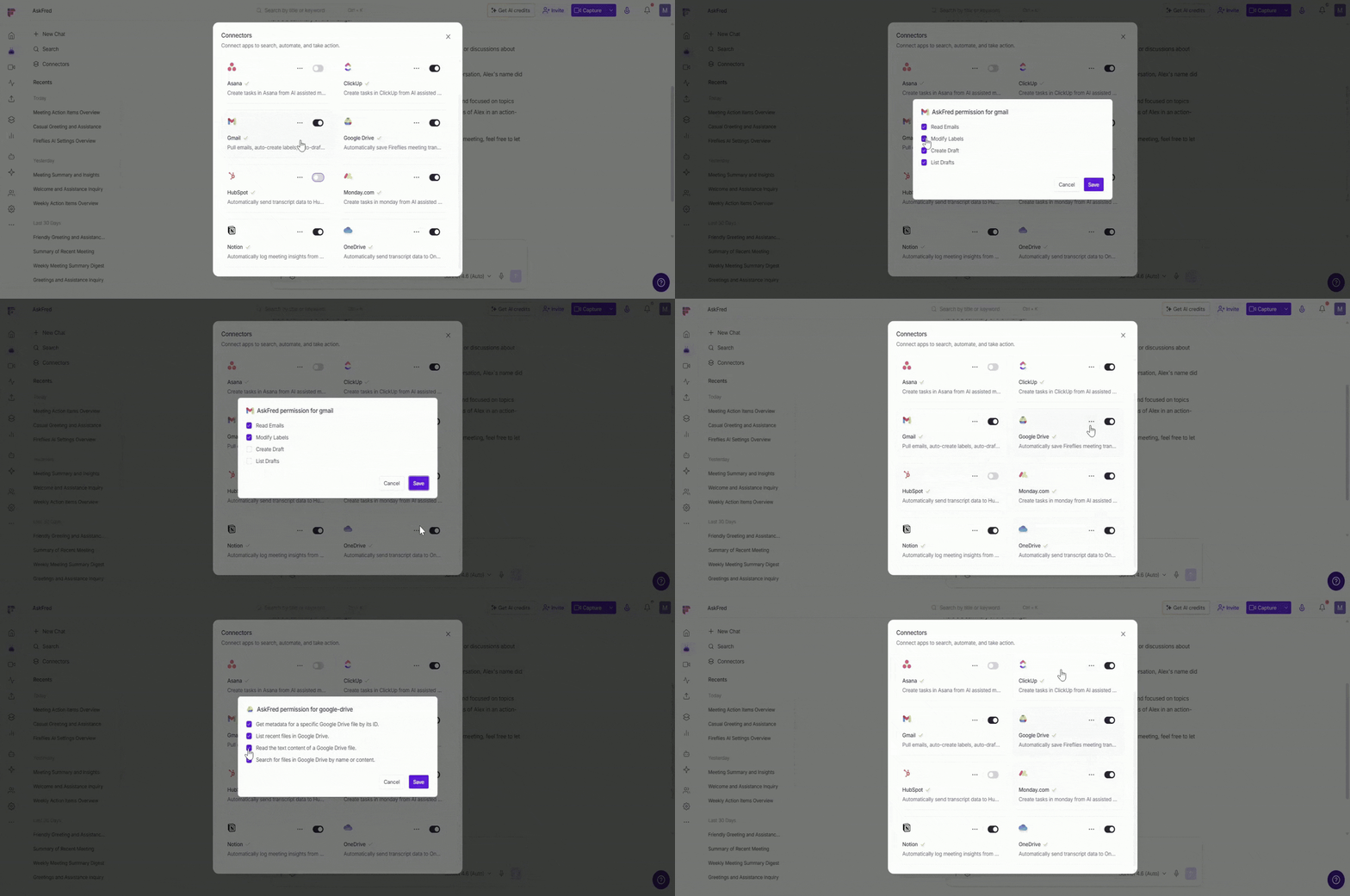
Enable or disable connectors: Control which connected apps AskFred can access during your conversations. Turn the toggle On next to the connector you want to enable, or turn it Off to disable it.
Customize connector permissions: Decide what AskFred is allowed to view or do within each connected app. Click the 3-dot (...) menu next to the connector, select Customize Connector, then select or clear the permissions you want to grant.
Disconnect a connector: Remove an app from AskFred if you no longer want to use it. Click the 3-dot (...) menu next to the connector, then select Disconnect.
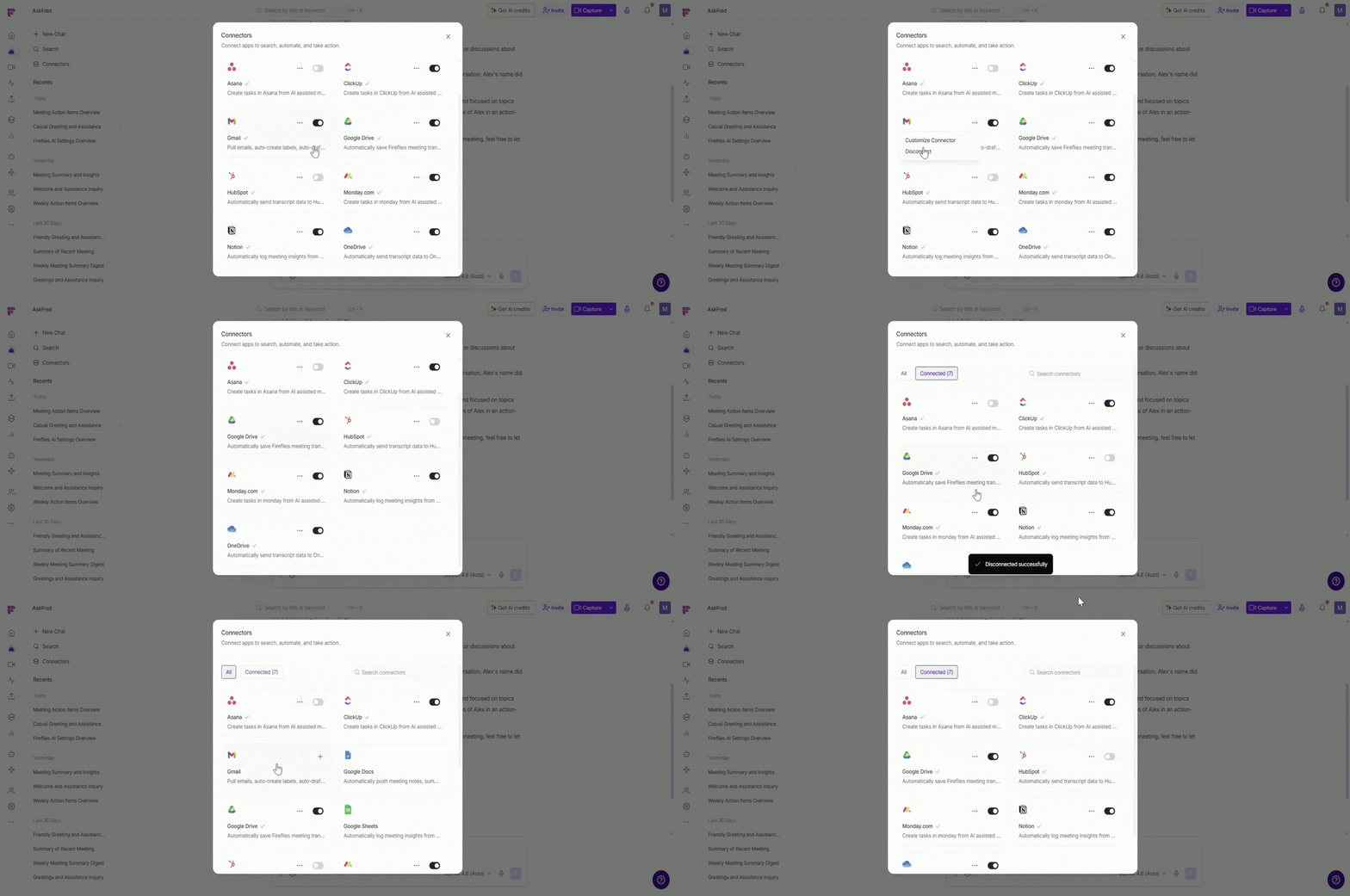
Only enabled connectors are available for AskFred to access during your conversations.
11. Actions on Each Response
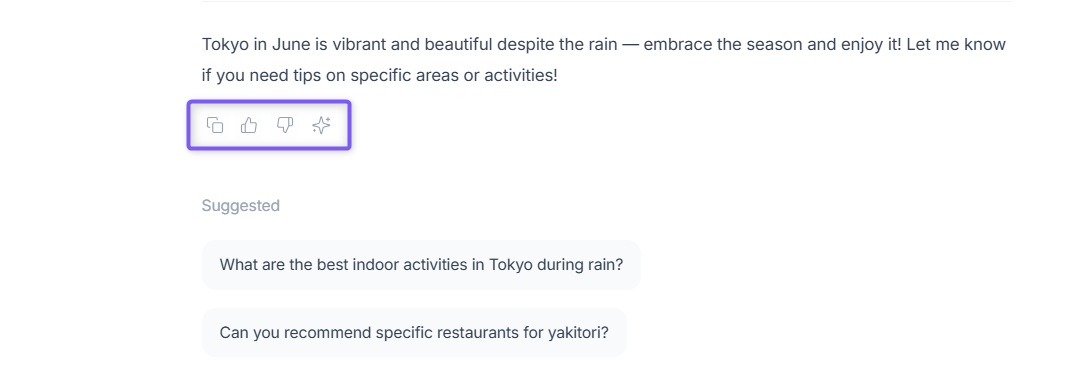
After AskFred generates a response, you can:
📄 Copy – Copy the response to share or use elsewhere.
👍 / 👎 Rate – Provide feedback to improve results.
✨ AI Credits – Click to view the AI credits consumed for that response.
✨ Do You Need AI Credits to Use AskFred?
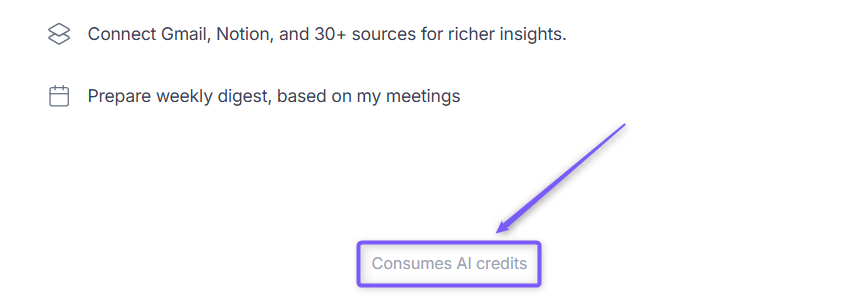
Global AskFred uses dynamic AI credit pricing. AI credits are charged per request, so the number of credits used depends on the complexity and effort required to generate the output. Simpler requests may use fewer credits, while more complex requests may use more.
📌Know more about AI credits here: 🗒How AI credits work in Fireflies.
🗂 Manage Chats and History
Global AskFred allows you to manage multiple conversations and access past chats.
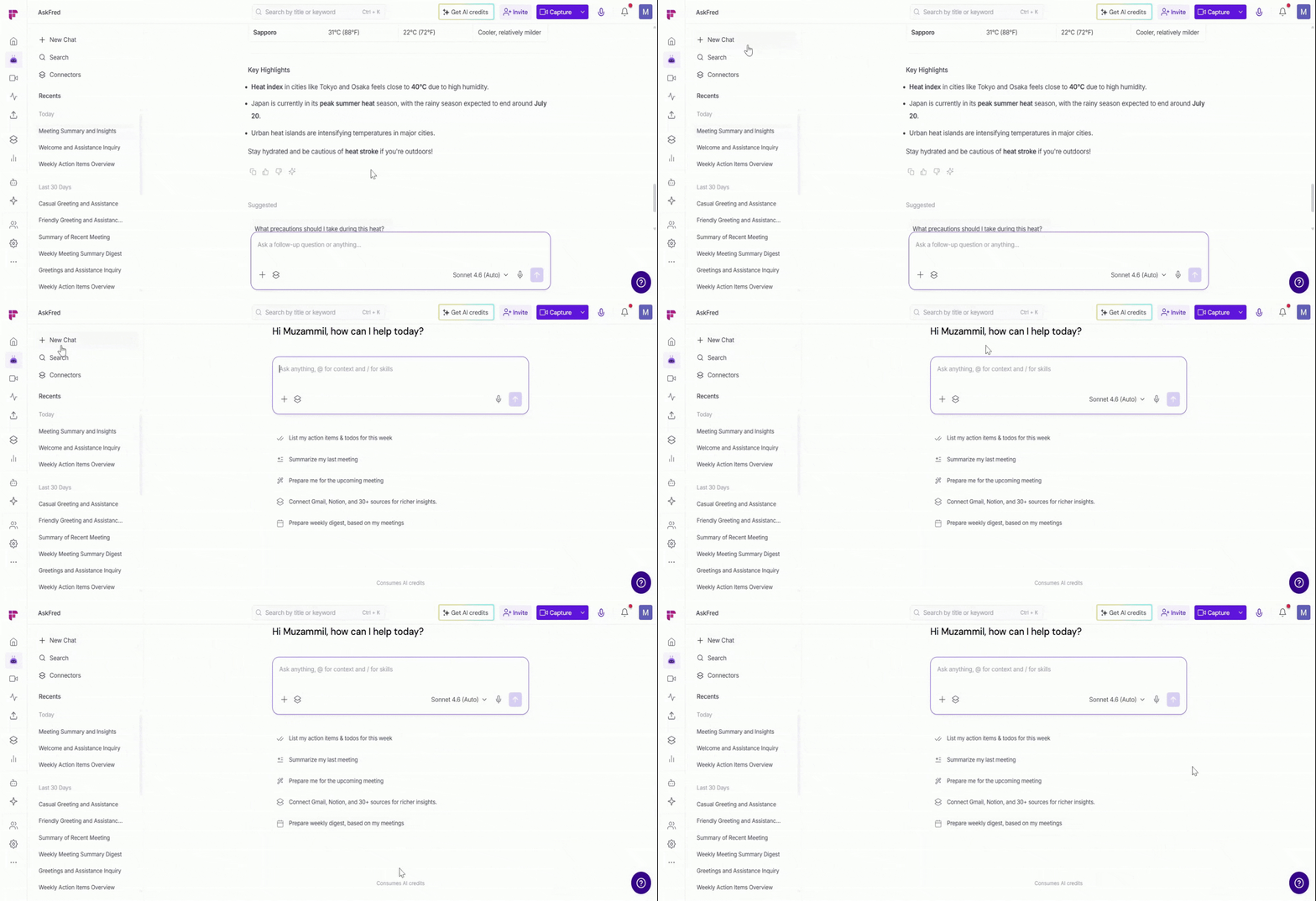
1. Start a New Chat
Click + New Chat in the left sidebar.
A new AskFred conversation opens, ready for your next question.
2. View and Search Chat History
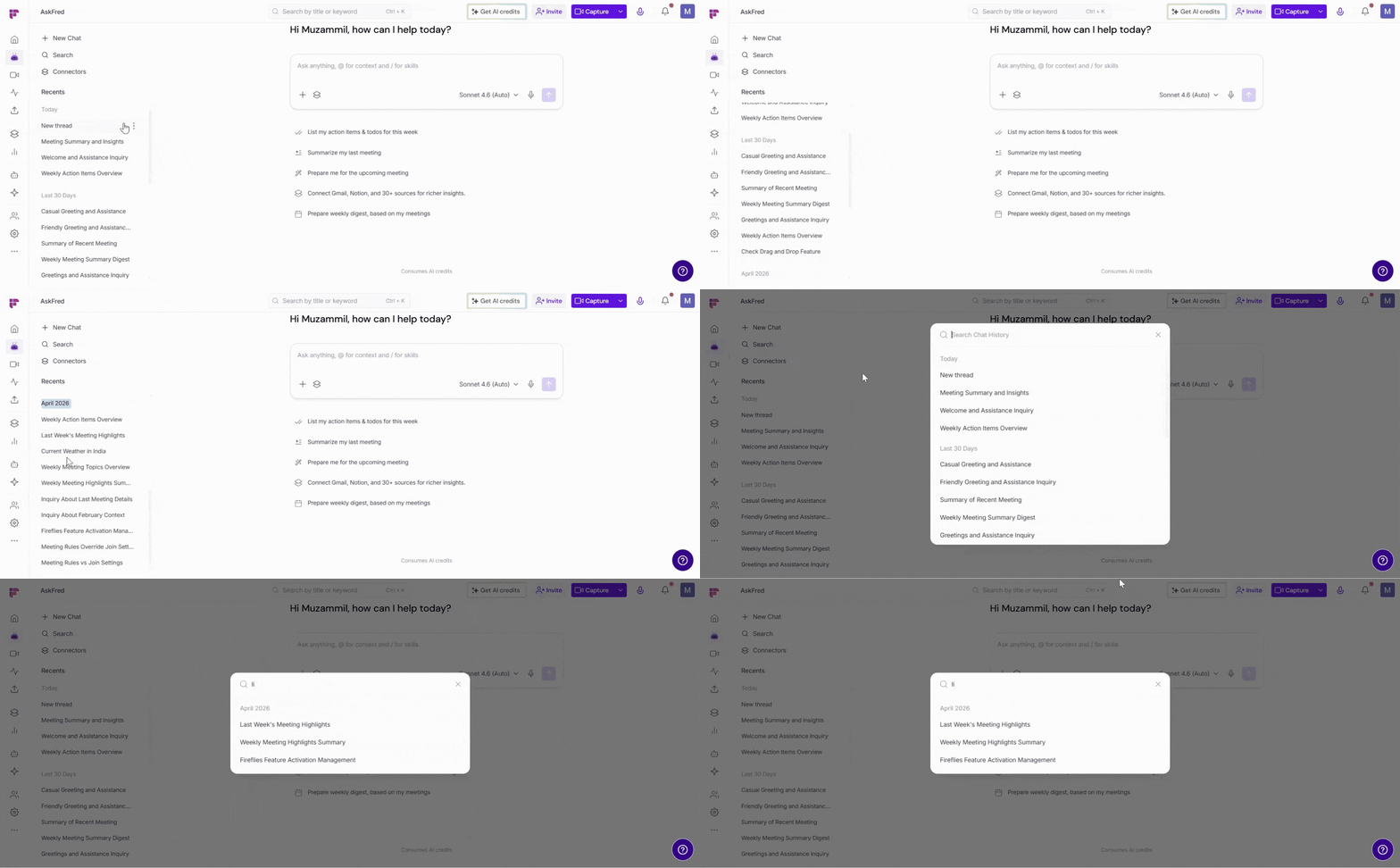
Browse your previous conversations from the left sidebar.
Use the Search to quickly find a specific conversation.
Chats are automatically organized by time periods (for example, Today, Last 30 Days, and previous months).
3. Continue a Previous Chat
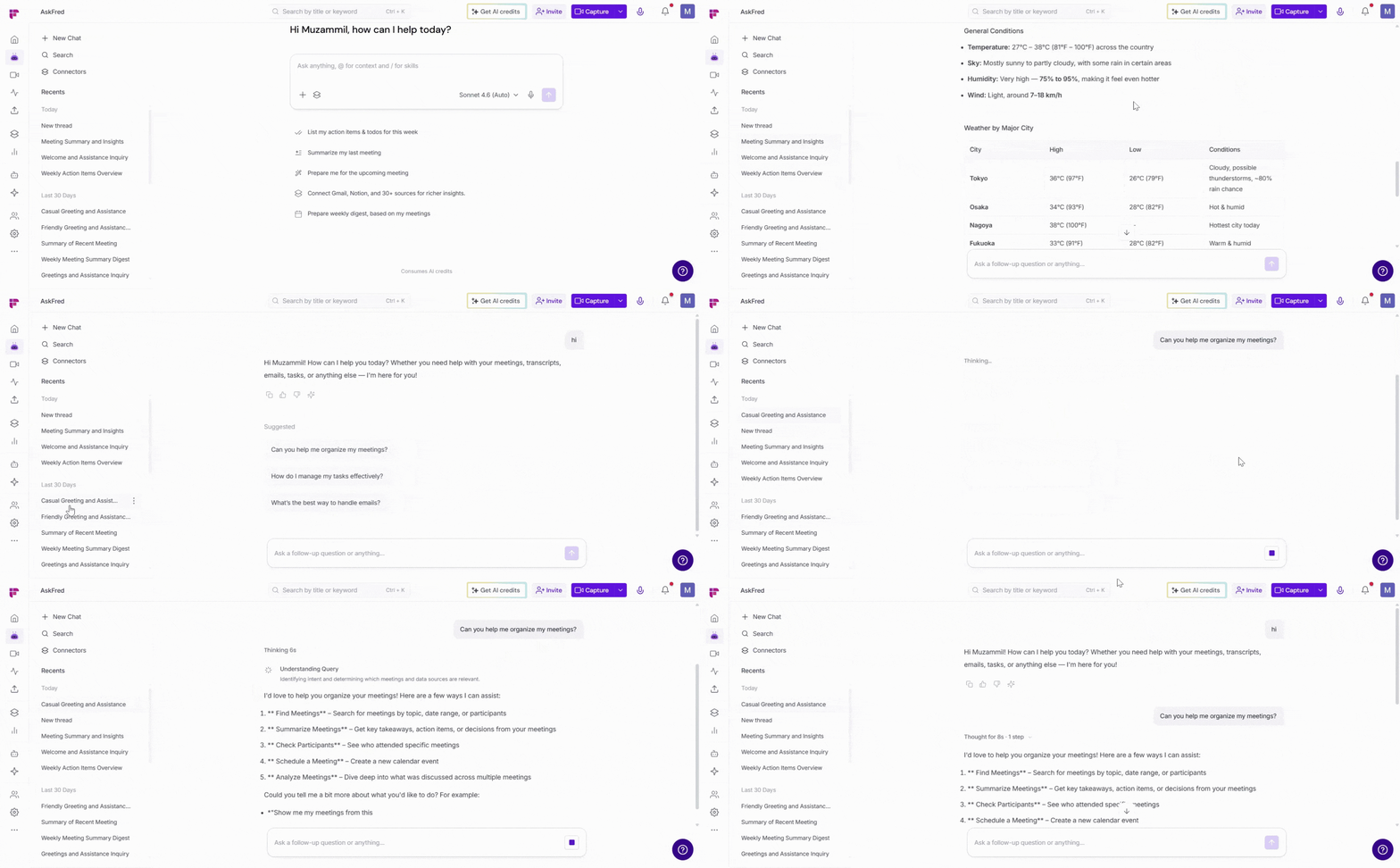
Click any conversation from the chat history.
Continue the conversation from where you left off.
4. Delete a Chat
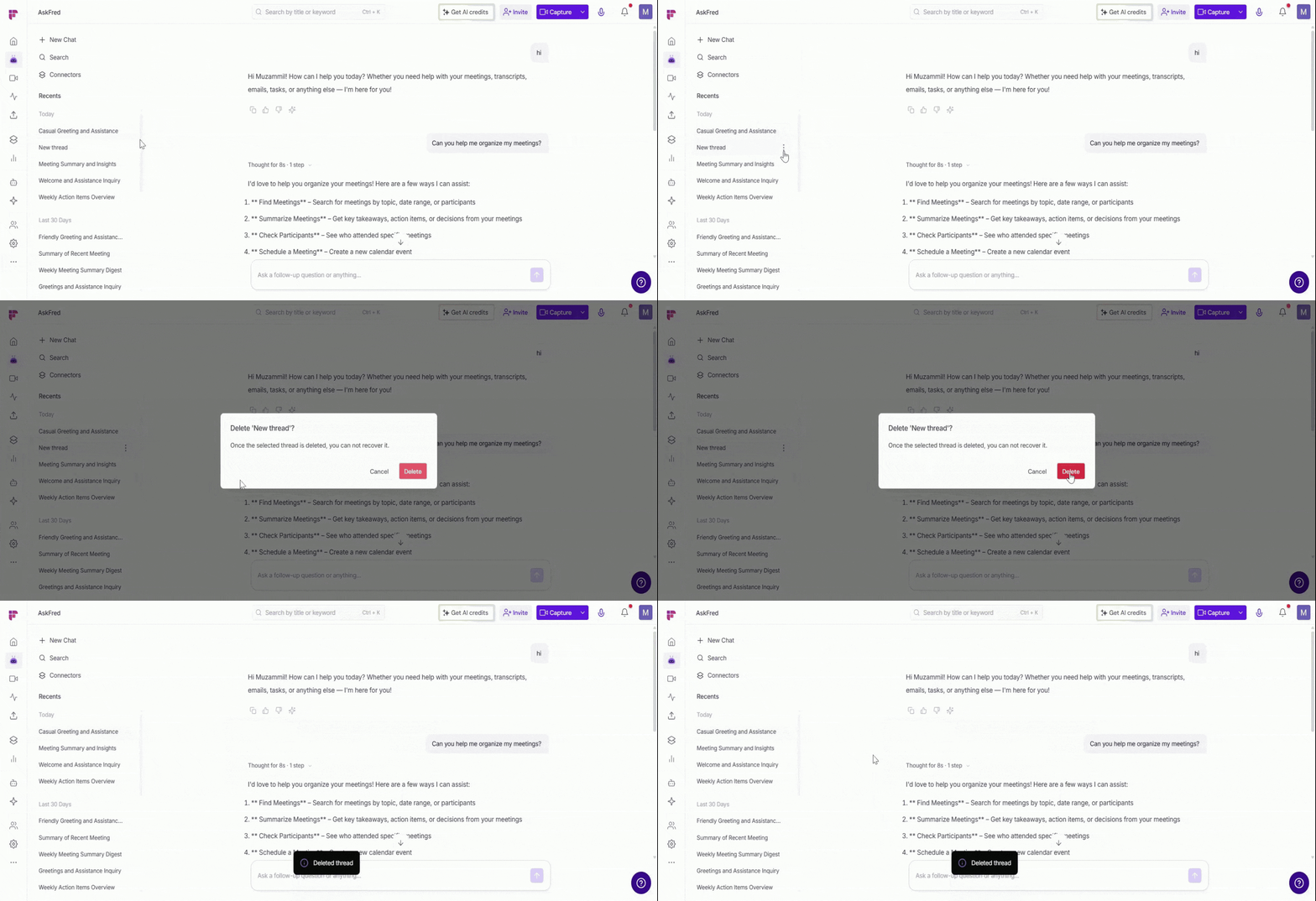
Hover over a chat in the history pane and click the three-dot (⋯) menu.
Select Delete to remove the chat from your history.
⚠ Deleted chats can't be recovered. Make sure you no longer need a conversation before deleting it.
❓Sample Questions
You can ask questions like:
What were recent pain points brought up by customers and list timestamps?
Can you list the top 5 feature requests that came up recently?
What were the key topics discussed during the meeting?
Can you provide a summary of the action items assigned in the meeting?
Were there any challenges or concerns raised during the meeting?
What decisions were made or conclusions reached in the meeting?
Can you highlight any important questions that were asked during the meeting?
Were there any notable feedback or suggestions shared during the meeting?
What were the main objectives or goals of the meeting?
Can you identify any recurring themes or patterns in the meeting discussions?
Were there any specific individuals who played significant roles or contributed extensively to the meeting?
Want better results? Check out Best practices for writing good prompts to improve your AskFred responses.
Looking for prompt ideas? Check out the AskFred prompt playbook for ready-made prompts and best practices.
💬How to Share Feedback
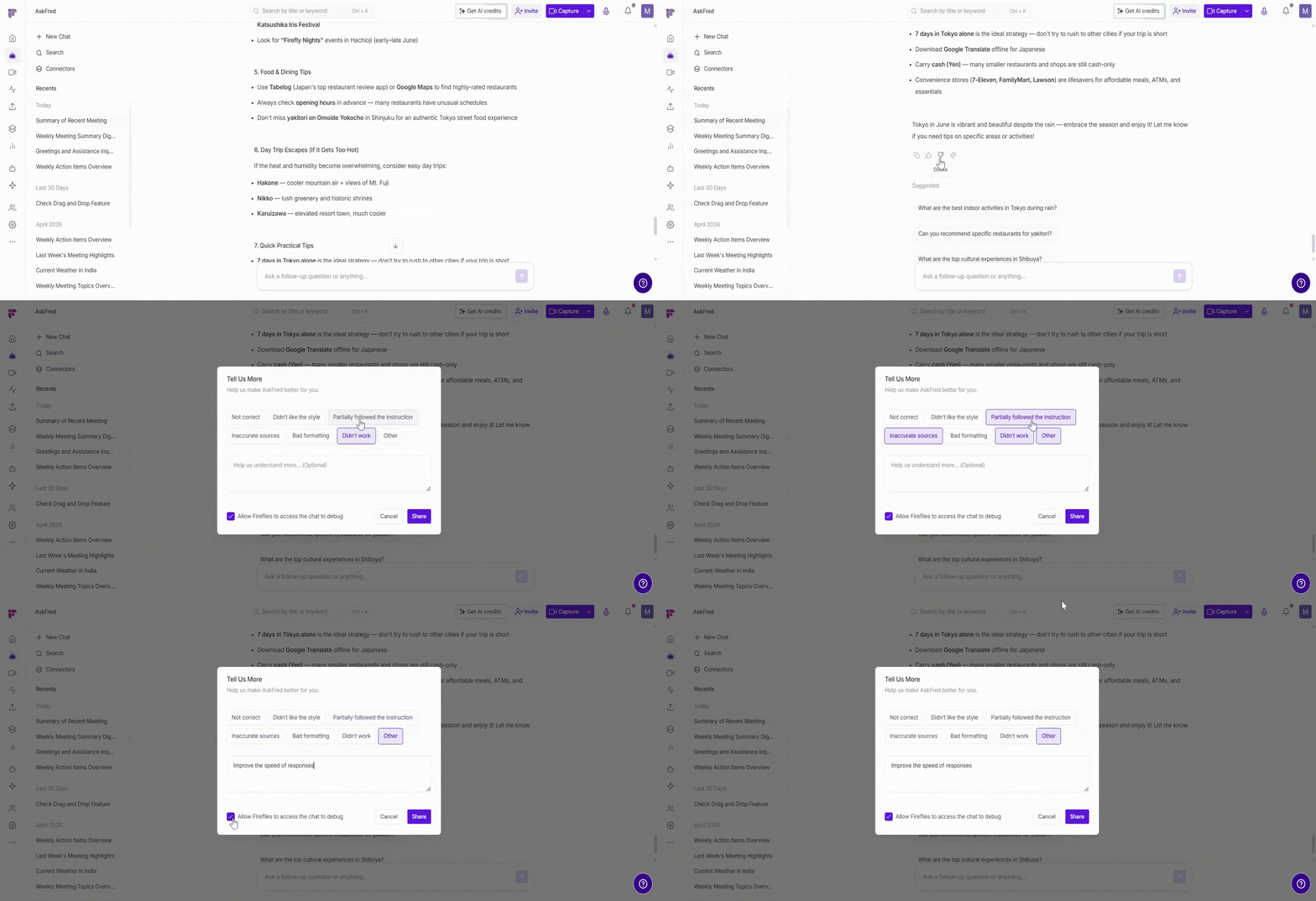
If you receive an unsatisfactory answer from AskFred, you can share feedback to help improve results:
Click the 👎 thumbs-down button below the response.
Explain why the answer was unsatisfactory and select a category.
Click Share to send your question, the response, and feedback to the team.
📌 When sharing feedback, you agree to send the question you asked along with the answer you received.
Start using Global AskFred to quickly find insights across your meetings, explore trends, and get answers—without switching between conversations.
📌 Related guides
Want to ask questions about a specific meeting? Use AskFred in the Meeting Notepad.
Need help during a live meeting? Using AskFred in Live Meetings (via Live and Sales Assist)
Looking for prompt ideas? Check out the AskFred prompt playbook for ready-made prompts and best practices.